- Support Home
- Knowledge Base
- Getting Started
- Light and Dark Mode in Taguchi
Related articles
Need some help?
If you have questions or can't find what you're looking for, we're here to help.
Taguchi Support is available 24 hours a day, Monday to Friday.
Create New TicketTaguchi Certified Training
Join our free and live online training sessions. You'll benefit from a better understanding of the platform's features and functionality. Plus with Taguchi Certified Rewards, every session you attend, you're not just learning - you're earning your way to some fantastic rewards.
About Taguchi Certified RewardsAPI Version 5
Did you know Taguchi has an API that supports all of the functionality provided by the admin interface and more?
Explore API Documentation
Thanks for your feedback!
Light and Dark Mode in Taguchi
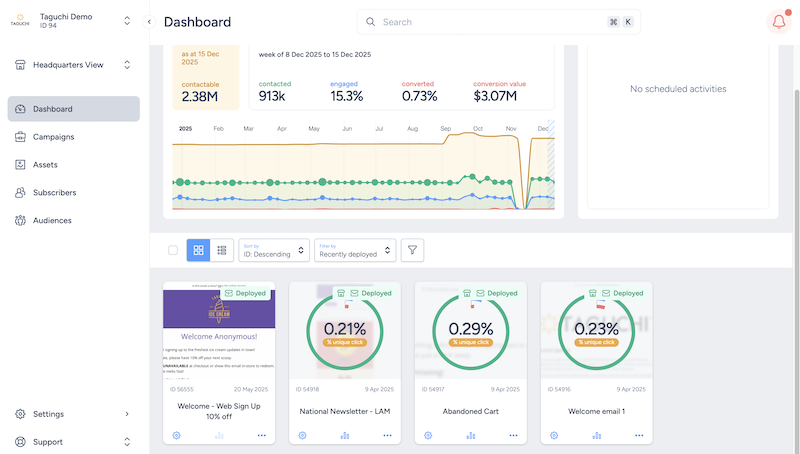
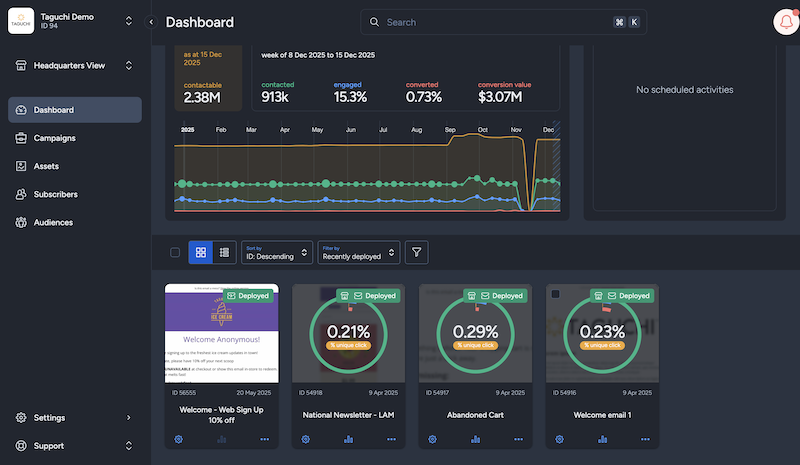
Taguchi allows you to customise your viewing experience by switching between Light Mode and Dark Mode. You can set this manually or allow Taguchi to follow your computer’s system theme automatically.
Why Use Light or Dark Mode?
Benefits of Light Mode
- Better visibility in bright environments
- More natural for reading black text on white
- More accurate color perception for design work
- Leaner and more “traditional” look
Benefits of Dark Mode
- Reduced eye strain in low-light environments
- Lower overall screen brightness
- Better focus and reduced visual clutter
Two Ways to enable Light and Dark Modes:
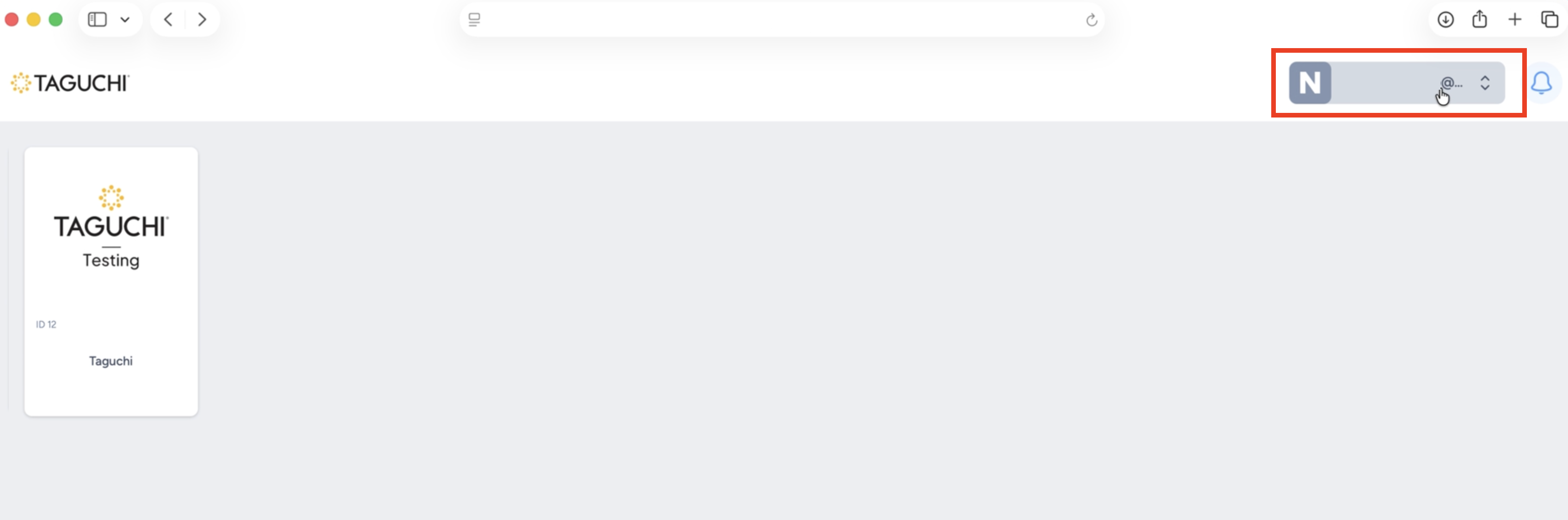
A. Taguchi Settings
- Go to User Profile
- Go to Account Details
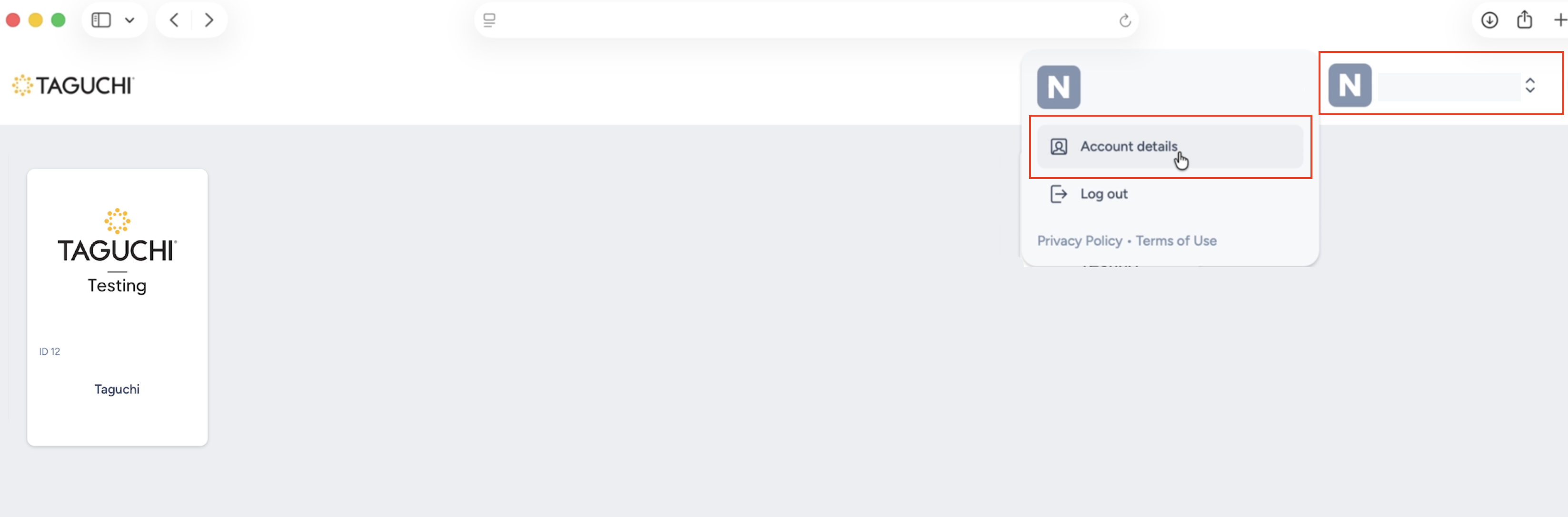
- Select Light Mode or Dark Mode
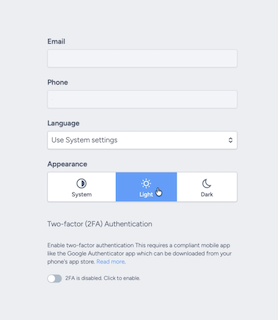
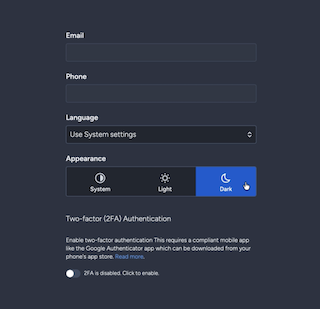
Selecting System in Taguchi settings means it will follow the current mode on your computer setting.
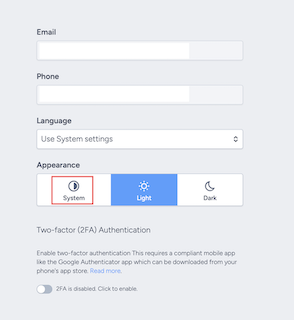
B. Computer Settings
Mac
Go to Controls then select Display
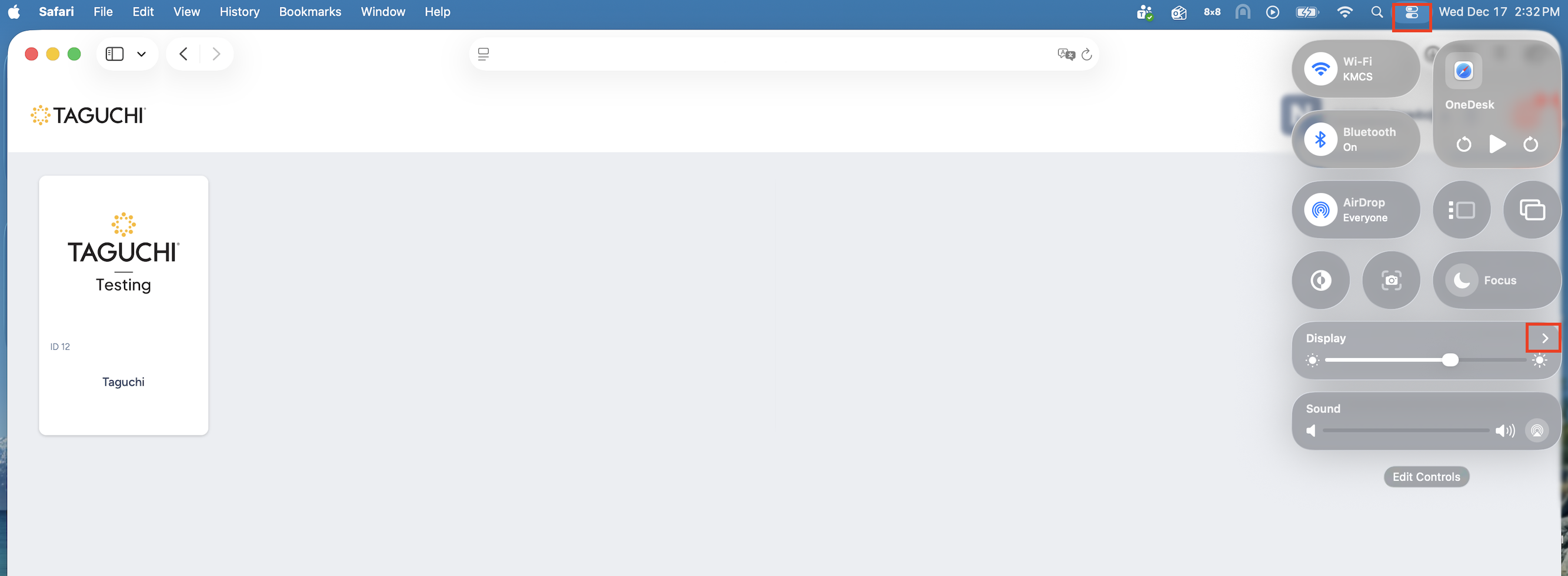
Turn Dark Mode On/Off
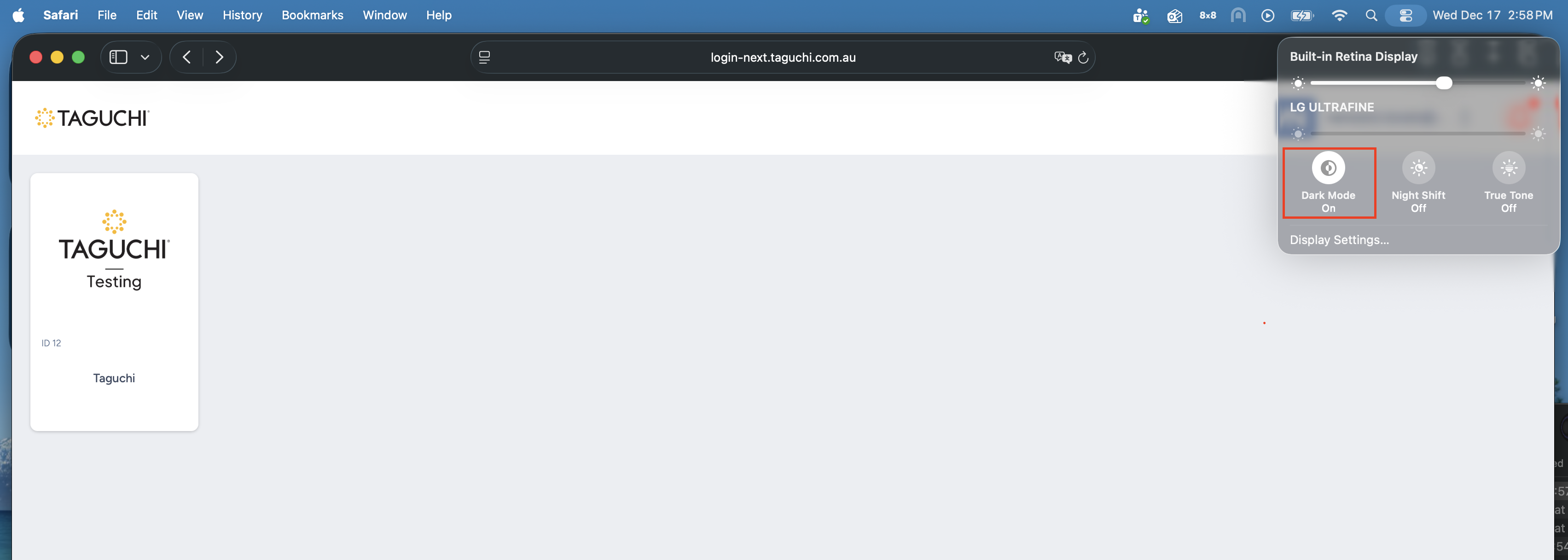
For detailed instructions you may refer this link Using Light and Dark Mode on Mac.
Windows
Right-click Desktop → Personalize → Go to Colors → Set Choose your mode to Light/Dark
For detailed instructions you may refer these links Using Dark Mode in Windows, Personalize Your Colors in Windows.