- Support Home
- Knowledge Base
- Integrations
- Integration updates - error logs
Integration updates - error logs
Integration status and logs provide crucial information for running integrations smoothly.
To view integrations, make sure you have the Integration Manage role or are an Admin.
Integration Statuses
An integration status displays indicates the status of an integration at a certain point in time.
Integrations will only display one current status at a time on the integration time (on the Integration card in the Settings Integrations page).
Below are a list of general integration statuses you can expect to see.
| Integration Status Type | Name | Description |
|---|---|---|
 |
Started | Used for when a scheduled integration has started to run. |
 |
In-Progress | Used for when a scheduled integration is still in progress running. (May be due to a longer running integration, or needs to run again in future to continue) |
 |
Success | The integration has successfully run. |
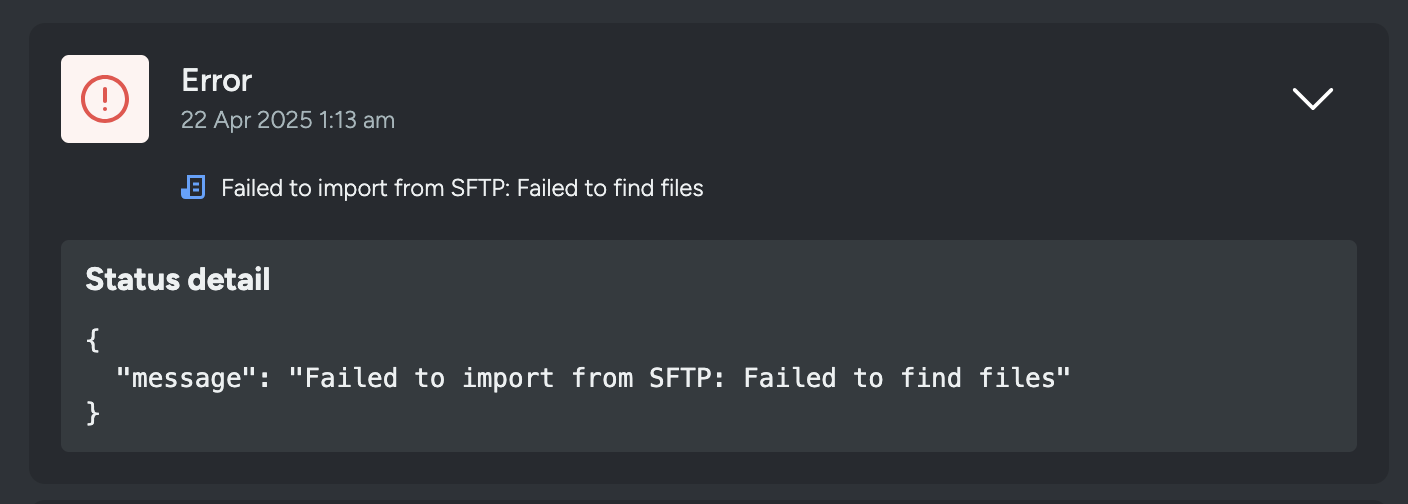 |
Error | The integration has experienced an error. |
Integration statuses may also provide a message to give more detailed information for errors experienced.
Viewing Integration Status
When in the Integrations Page (Settings --> Integrations), and you have multiple integrations set up.
You'll be presented with grid of Integration cards which have indication status in their bottom right hand corner.
These statuses are explained above in Integration Statuses.
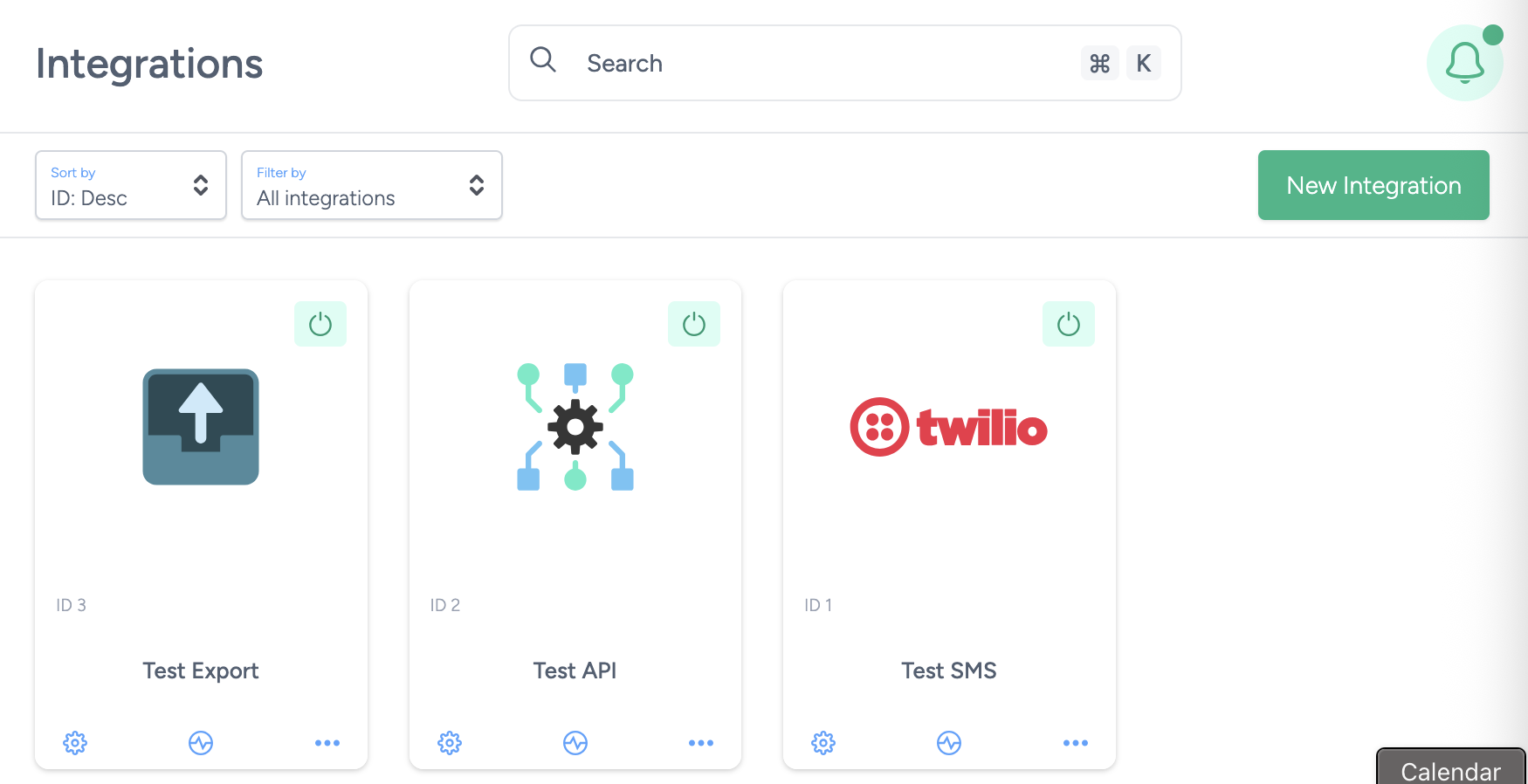
When you require more information for these statuses, you can hover over the status icon for status text. And you can also navigate to the integration logs to get a full breakdown.
Integration Logs
Integration Logs give you the status, log timestamp (UTC) and log information.
Log information can provide more detailed information especially when an error occurs.
If you receive log information that you need help with, please contact Taguchi Support.
Viewing Integration Logs
To view the integration logs, you can access them via:
- Clicking on the Integration Status icon on the card in the Integration settings page

- Clicking on the Integration Status icon, when editing an integration.

Proactive integration-failure alerts
For scheduled integrations that include the Send status notifications to field, you can proactively notify your team about integration run outcomes.
Configure failure alerts
- Go to Settings --> Integrations and open the integration you want to monitor.
- In the integration setup, find Send status notifications to.
- Select a notification list to receive integration status updates.
- Choose whether to notify on every run or only when the integration fails.
- Save the integration changes.
- Trigger a test run (or wait for the next scheduled run), then verify the behavior for the selected mode: every-run mode sends a status notification for any outcome, while failure-only mode sends one only for a failed run.
Depending on your selected notification setting, alerts can be sent for every run or only failures. Partial or incomplete runs are treated as failures for alerting. Keep the recipient list current so alerts reach the right team.
Examples
- SFTP Import fails due to invalid credentials: recipients in the configured list receive a failed status notification so credentials can be fixed quickly.
- Scheduled Export fails due to destination access issues: recipients are alerted when the failed run completes and can investigate destination permissions.
- Scheduled run succeeds after a fix: in every-run mode, recipients receive a success status update confirming recovery; in failure-only mode, no recovery success notification is sent.
Which integration types are status and logs available for?
| Integration Type | Status | Logging |
|---|---|---|
| Channel (Email, SMS, Event: Outgoing Webhook ...) | ✅ | ❌ |
| Scheduled (SFTP Import, Export ...) | ✅ | ✅ |
| API (API: V5) | ✅ | ❌ |
How long is integration logging available for?
Only the last 3 months of integration logging is available to view.