- Support Home
- Knowledge Base
- Integrations
- Utilising Taguchi default SFTP
Utilising Taguchi default SFTP
Taguchi provides access to the Taguchi SFTP for each organization when it is created.
The Taguchi SFTP acts as a good place for import integrations and extract integrations to securely pass files in and out of Taguchi.
Getting Started
Where can I find the information for accessing the SFTP?
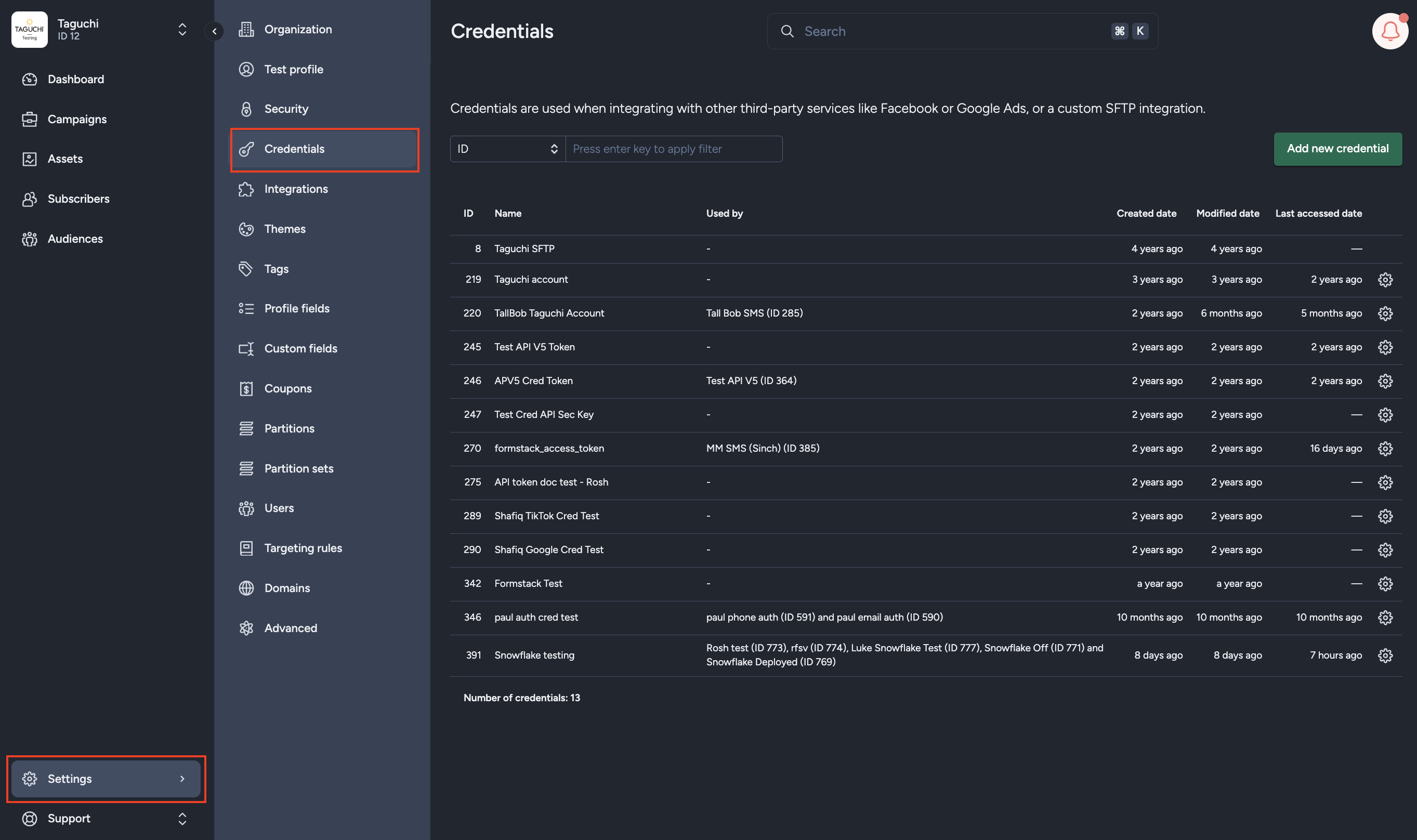
You'll need to be an admin to access the Credentials settings.
When you navigate to the Credential Settings page, you'll find the Taguchi SFTP credential already set up and available to view.
When you view the Taguchi SFTP, you'll be provided with all of the information needed to connect.
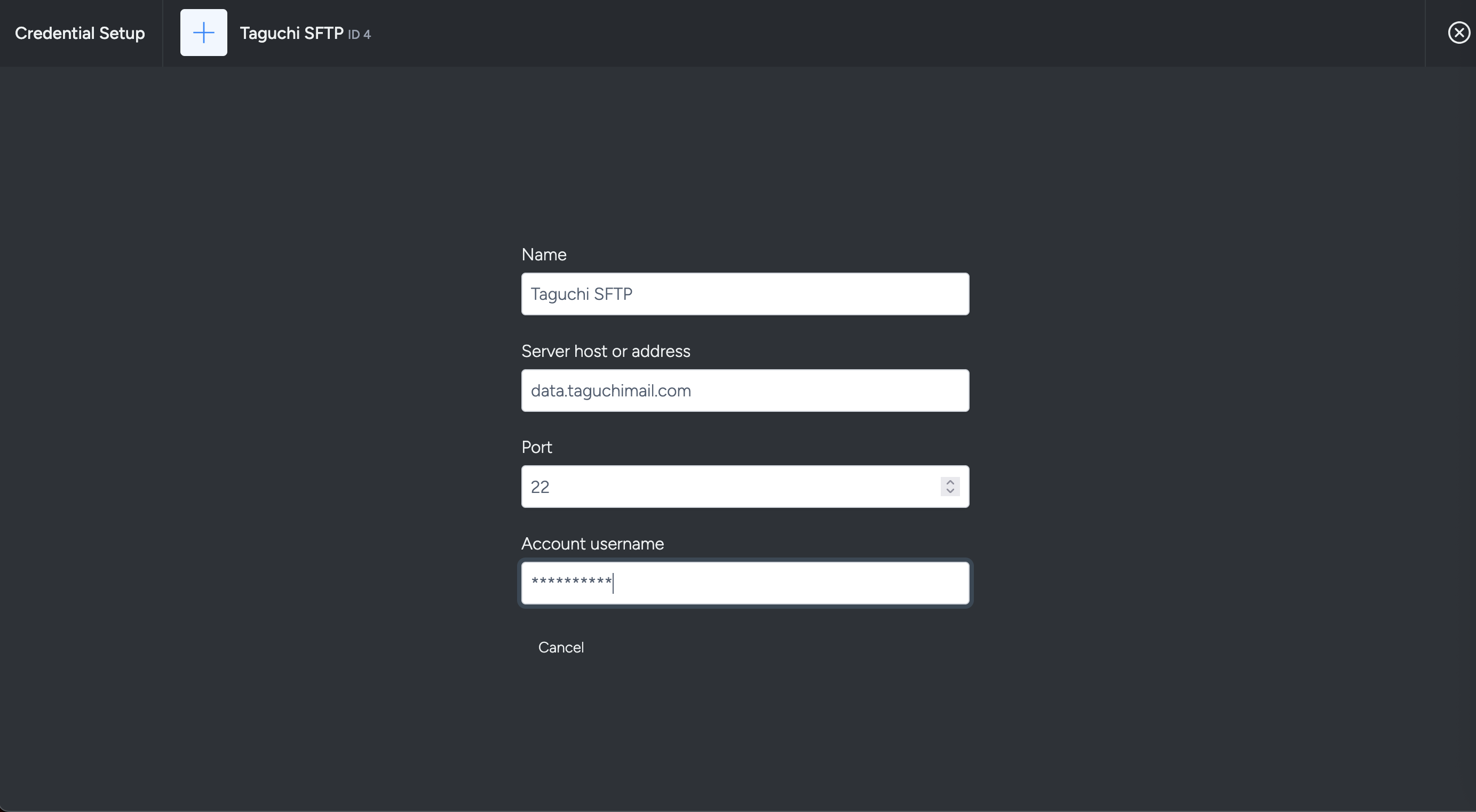
Provided information:
- Host
- Port
- Username
Setting up an authentication method
An authentication method is required for access to the SFTP.
Set up an authentication method by contacting Taguchi support.
The following authentication methods are available:
- Public / Private Key Pair
- You'll need to generate a key pair if you want to use this method. Supply Taguchi with the public key and we'll configure it on our end.
- Password
- Taguchi will configure the SFTP with a random, generated password. This will be provided to you for connection on your end.
Please contact Taguchi Support for help setting up the authentication method.
Connecting to the SFTP
Once the authentication method is set up, you can connect to the SFTP using the provided SFTP details and add or remove files using an SFTP client.
The SFTP provides two folders for ease of use when working with integrations and extracts:
- /from_taguchi
- Mainly for extracts out of Taguchi
- /to_taguchi
- Mainly for integrations / imports into Taguchi
Quick guide to connecting to an SFTP server
You can connect to SFTP using the Host, Port, Username, and authentication method configured for your account.
Common connection methods:
- Username + Password
- Username + Public / Private Key Pair
Common ways to connect:
- SFTP client apps (for example FileZilla, WinSCP, or Cyberduck)
- Command line tools (for example
sftpin Terminal) - Automated integrations that support SFTP connections
Basic connection steps:
- Open your preferred SFTP client or tool.
- Enter the Host, Port, and Username from the Taguchi credential.
- Choose your authentication method (password or key pair) and provide the required details.
- Connect and access
/to_taguchifor imports and/from_taguchifor extracts.