- Support Home
- Knowledge Base
- Subscriber Management
- Data Management
- Partition Sets
Related articles
Need some help?
If you have questions or can't find what you're looking for, we're here to help.
Taguchi Support is available 24 hours a day, Monday to Friday.
Create New TicketAPI Version 5
Did you know Taguchi has an API that supports all of the functionality provided by the admin interface and more?
Explore API Documentation
Thanks for your feedback!
Partition Sets
A partition set is essentially a grouping of one or more partitions.
They're used to enable Local Area Marketing (LAM) functionality.
The expected setup for LAM organisations is:
- Every "user-visible" partition will have its own partition set containing just that partition.
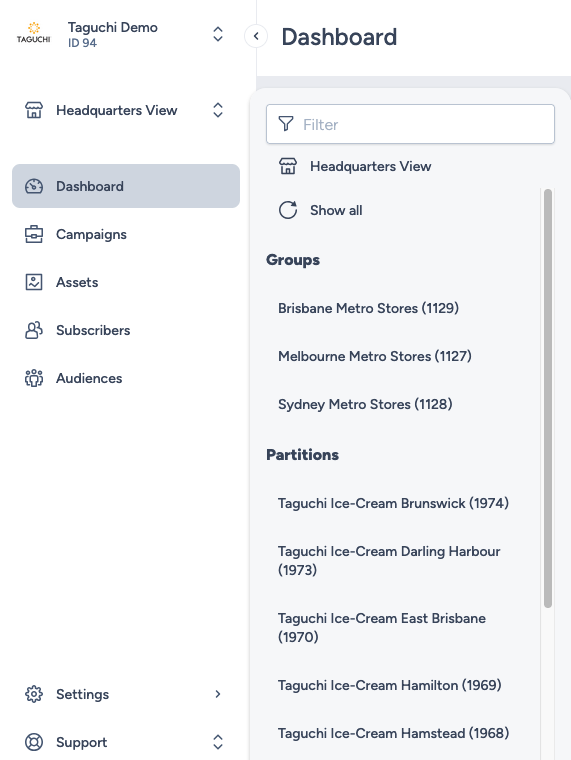
- Additional partition sets may contain multiple partitions — these appear as "partition groups" in the selector.
How to create partition sets
- While logged into your organisation, go to Settings > Partition Sets.
- Within partition sets, if your organisation already has valid partitions set up, then each partition would already be on its own partition set.
- You can create and add new partition sets as per your requirements using the “Add new Partition Set” button.
When you click on the button, it will take you to the Partition set setup screen.
Fill out the fields as follows:
- External ID — a unique identifier, set on creation and cannot be changed
- Name — a friendly label (e.g. "New South Wales Stores")
- Type — optional, helps categorise sets (e.g. "Corporate stores")
- Partitions — the partition IDs included in the set; the same partition can appear in multiple sets. Important note: If two partition sets contain exactly the same partitions, the UI will display them interchangeably.
Click save.
- You'll see your newly created Partition set in the Partition sets table and via the partitions menu.
Note: No custom fields are available for partition sets. If you have additional questions or require further assistance on Partitions, do not hesitate to reach out to Taguchi Support