- Support Home
- Knowledge Base
- Subscriber Management
- Importing Subscribers
- Bulk Upload Errors - Troubleshooting Guide
Related articles
Need some help?
If you have questions or can't find what you're looking for, we're here to help.
Taguchi Support is available 24 hours a day, Monday to Friday.
Create New TicketAPI Version 5
Did you know Taguchi has an API that supports all of the functionality provided by the admin interface and more?
Explore API Documentation
Thanks for your feedback!
Bulk Upload Errors - Troubleshooting Guide
If your subscriber import cannot start, skips rows or stops before it finishes, begin with the message in the import dialog.
- During Review: you can correct problems before subscriber data is changed.
- After Start import: some rows may already have been saved, even if others need attention.
This guide explains how to identify the affected rows, correct your file and continue an interrupted import. Keep a copy of your original file before making corrections.
Problems before import starts
Before starting:
- Confirm or ignore every column on Map columns.
- Choose Review import to check every data row before subscriber data is imported.
- Use the table below to work through any message you see.
| Problem | What to check |
|---|---|
| Review import is unavailable | Confirm or explicitly ignore every column, map an available identifier and include every field required by your organisation. |
| A field is already mapped | Two spreadsheet columns cannot map to the same Taguchi field. Change or ignore one. |
| A required value is missing | Check the reported source record and field. Required mappings and required cell values are separate checks. |
| Columns are combined or characters look wrong | Return to File and check the delimiter, encoding, heading option or worksheet. |
| No data rows | Check that the file contains data below its headings. Blank records are not imported. |
| A row has extra columns | Check its delimiters and quoting. Values beyond the source's mapped column count need correction. |
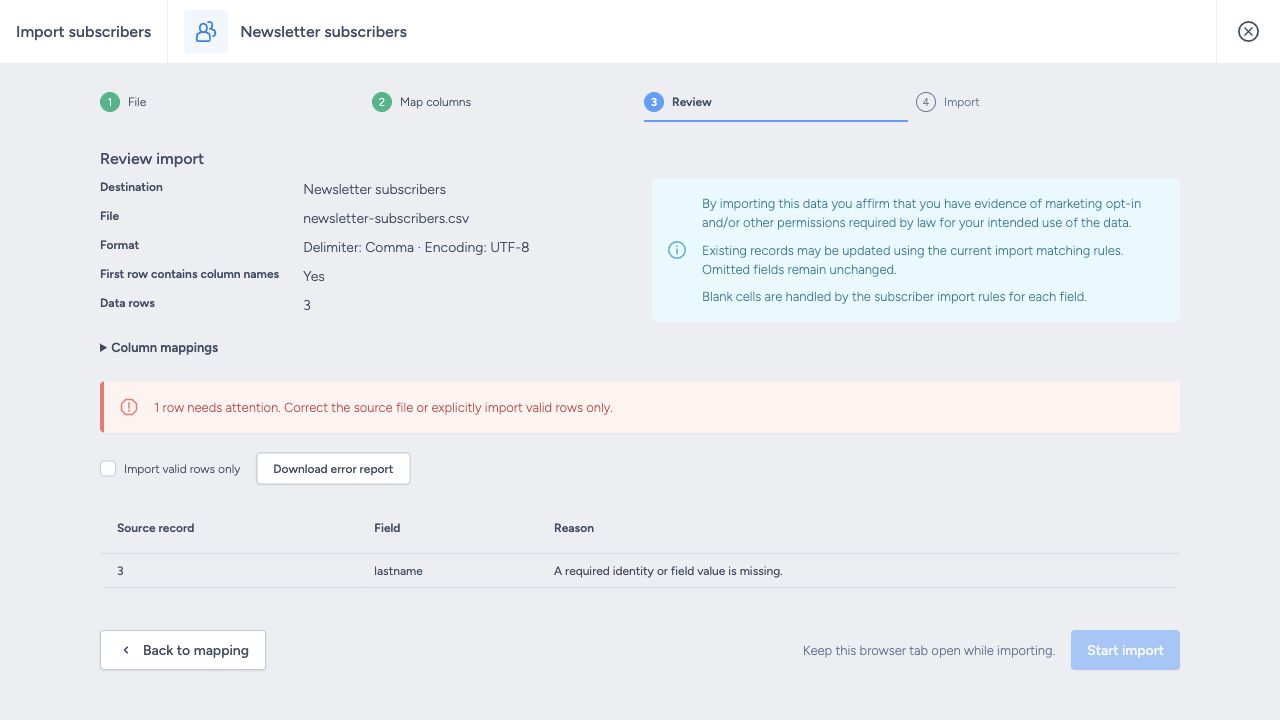
Correct and re-upload the source, or explicitly select Import valid rows only to skip validation issues. Skipping is a deliberate choice; invalid rows are not automatically accepted.
Understand the results
| Outcome | Meaning | Next action |
|---|---|---|
| Created | A subscriber was created. | Check a sample profile and list membership. |
| Updated | Existing subscriber or list data was updated. | Check the intended changes. |
| Unchanged | Taguchi reported no change for this row. | Usually no action is needed. |
| Duplicate | A repeated subscriber identifier was detected while processing the file. | Review the source and decide which row's values should be kept. |
| Skipped | The row was excluded, for example by validation or because it had no usable identity. | Correct the file before re-importing it. |
| Errors | Taguchi could not save this row. | Read the reason; correct the cause or retry if appropriate. |
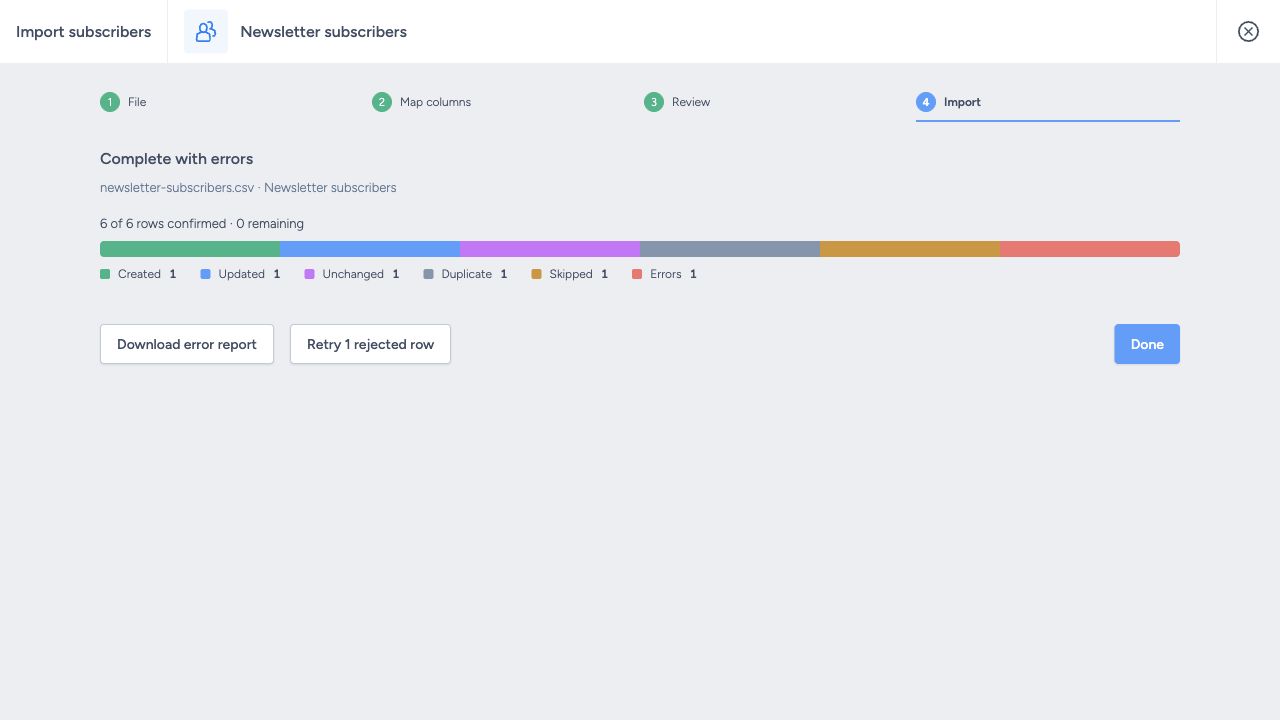
A mapped Email or Phone column can still contain rows without usable identifying details. For example:
alex.example.comhas no @, so Taguchi cannot use it as an email identifier.- If that row also has no usable Phone or External ID, it cannot be imported.
- Correct the identifying details or leave the row out of your file.
These checks do not confirm that a mailbox exists.
If the only issues are duplicates:
- The import can finish as Import complete.
- Duplicate rows still appear in the report.
- Do not assume that the values from every repeated row were applied.
See import logic for matching and duplicate behaviour.
Download and correct the error report
Choose Download error report to get a spreadsheet of the rows that need attention. Your original columns are included so you can see the values that caused the problem. Three additional columns explain what to fix:
- Source record identifies the record in the original file.
- Error field names the field involved, where available.
- Error explains why the row needs attention.
For example, a report identifying lastname with a missing-value reason means that row needs a last name to meet your organisation's rules.
- Open the downloaded report and read the reason for each affected row.
- Correct the subscriber values you want to import and save the file. Keep the identifiers that belong to those subscribers.
- Upload the corrected file to the intended list and confirm its mappings. Ignore the three report-only columns; they are there to help you resolve the problem.
- Run Review import again and check that the issues have been resolved before choosing Start import.
Choose the next action based on the result:
- Errors: after resolving the cause, use Retry rejected rows when offered to try saving those rows again.
- Duplicate, skipped or missing identifying details: check and correct the affected rows in your spreadsheet, then upload the corrected file. These rows are not included in Retry rejected rows.
Continue an interrupted import
Keep the browser tab open during import. If a connection fails, the dialog may show Reconnecting…, followed by Import interrupted if it cannot continue.
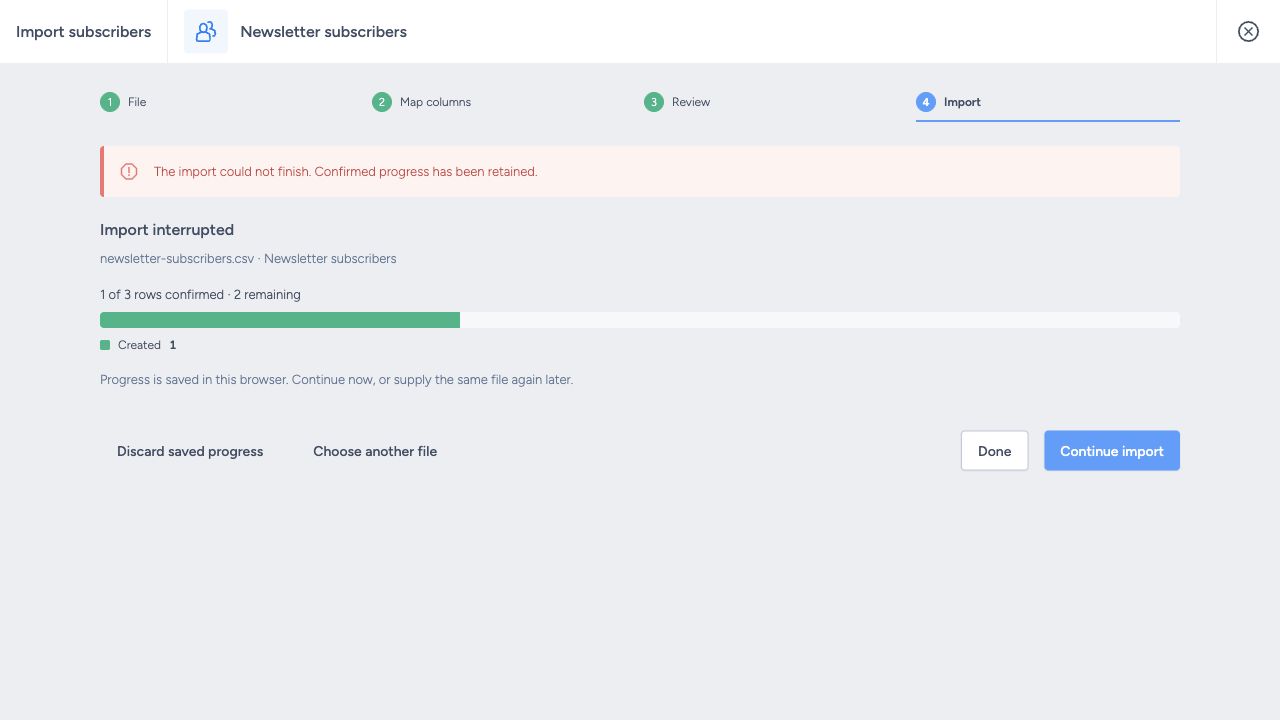
To continue later:
- Use the same browser, signed-in account, organisation and destination list.
- Supply the same unchanged original file. The filename, size and contents must match.
- Choose Continue import when saved progress is found.
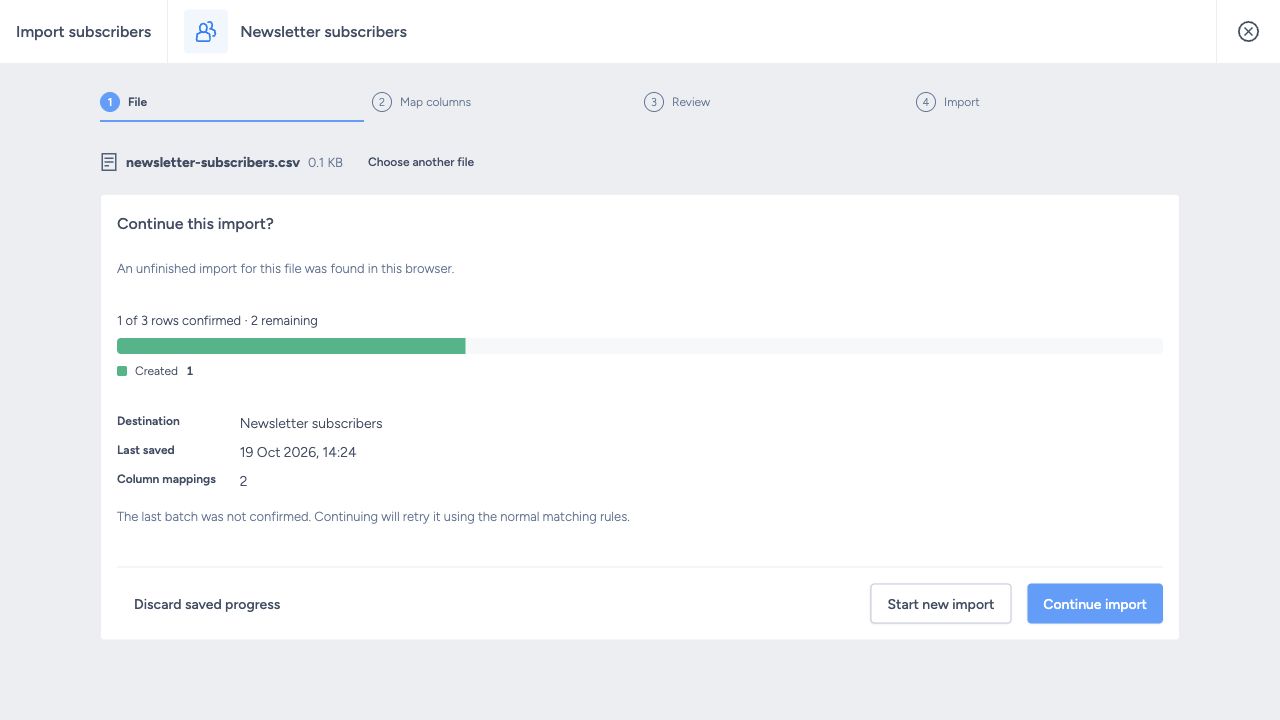
When recovering an import, remember:
- Taguchi keeps progress in that browser, but does not keep a copy of your spreadsheet there. You need the original file again.
- Uploading that file is how you find the recovery option; there is no separate import-history page.
- Clearing browser data or using another browser profile can make saved progress unavailable.
A changed file starts a new import rather than continuing the original one. Starting again processes the file from the beginning using normal subscriber matching rules.
Cancel import and Discard saved progress remove the saved recovery information; they do not roll back subscriber changes already applied. Download the current report before discarding it.
Large files and other interruptions
An interruption does not always mean the file is too large. Before restarting:
- Read the message in the dialog.
- Check the connection and any message about browser storage.
- Check the file layout and the import rules.
- Resolve the reported cause.
If you split a large file, keep the subscriber identifiers and check how repeated subscribers will be matched across the separate imports.
If you still need help, contact Taguchi Support with:
- The message shown in the dialog.
- The destination list name or ID.
- Your browser.
- Whether the import stopped before or after any rows were confirmed.
If a sample file is needed, replace subscriber details with demonstration values while preserving its column layout and the problem you are reporting.