- Support Home
- Knowledge Base
- Target Expressions
- Set Up Targeting & Deployment Rules
Related articles
Need some help?
If you have questions or can't find what you're looking for, we're here to help.
Taguchi Support is available 24 hours a day, Monday to Friday.
Create New TicketTaguchi Certified Training
Join our free and live online training sessions. You'll benefit from a better understanding of the platform's features and functionality. Plus with Taguchi Certified Rewards, every session you attend, you're not just learning - you're earning your way to some fantastic rewards.
About Taguchi Certified RewardsAPI Version 5
Did you know Taguchi has an API that supports all of the functionality provided by the admin interface and more?
Explore API Documentation
Thanks for your feedback!
Set Up Targeting & Deployment Rules
What are Targeting Rules?
Targeting Rules allow administrators to define conditions that must be included in an activity’s target expression before the activity can be approved or deployed. Rules can be configured for supported channels such as Email, SMS and Push.
All recipients targeted by the activity must meet the required criteria. This helps organisations apply audience requirements consistently and reduces the risk of communications being sent to ineligible recipients.
Key Features
- Centralised rule management: Create and manage Targeting Rules from one location under Settings.
- Target Expression Builder: Create rules using the existing Target Expression Builder.
- Channel-specific rules: Configure different requirements for Email, SMS, Push and other supported activity types.
- Global or campaign-specific rules: Apply a rule across the organisation or restrict it to activities within a selected campaign.
- Enable or disable rules: Temporarily disable a rule without deleting its configuration.
How Targeting Rules Work in Activities
- Rule Violation Pop-Up Notification If your activity's targeting does not meet the required rules, a pop-up will notify you of the missing or invalid conditions.
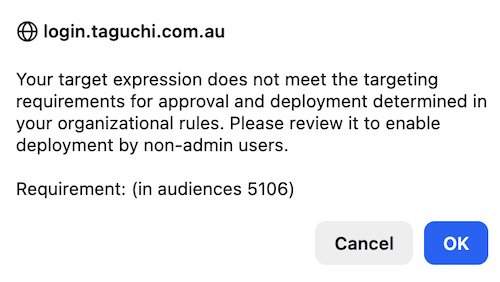
→ The activity cannot be approved until the rule is satisfied.
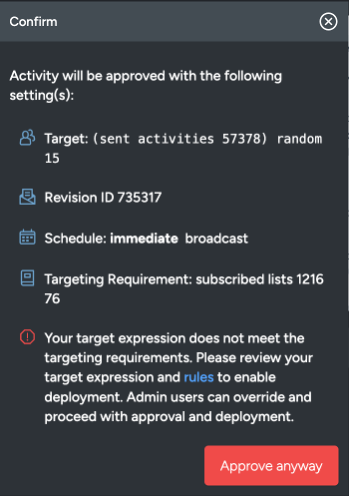
- Approval Button Disabled The "Approve" button will be disabled for non-compliant activities.
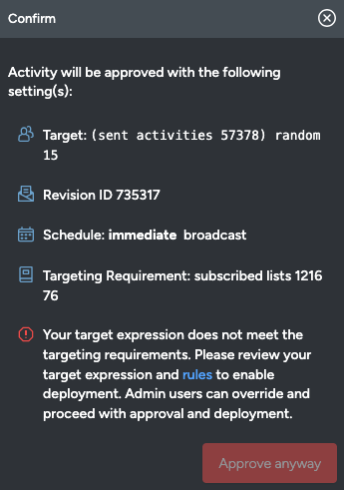
→ Administrator users will see an “Approve Anyway” option to override the rules when necessary.
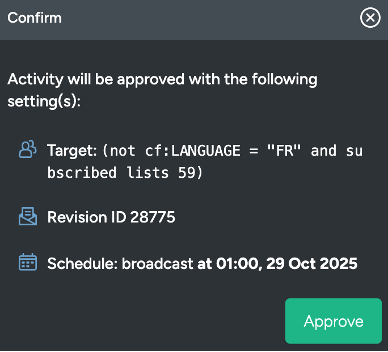
- Compliant Target Expressions If the targeting meets all active rules: → The activity can be saved and approved as normal.
Why Set Up Targeting Rules?
Targeting rules act as a safeguard to:
✅ Ensure your messages are only sent to eligible customers
✅ Minimize the risk of non-compliance with data privacy or marketing laws
✅ Enforce internal policies consistently across teams
✅ Maintain high-quality audience targeting
Example Use Cases
Targeting Rules can be used to:
- Require email activities to target subscribers who have opted in to marketing.
- Require SMS activities to include appropriate consent or eligibility conditions.
- Apply campaign-specific audience requirements.
- Require Push activities to include conditions that prevent over-targeting.
- Enforce internal targeting policies consistently across teams.
Administrator Overrides
Administrators can override targeting rules when required. Admins will need to have 2FA enabled or single sign-on.
Use this feature with caution and only when you’re confident the message remains compliant with all legal and ethical standards.
Getting Started
- Navigate to the Targeting Rules Settings area Settings > Targeting Rules
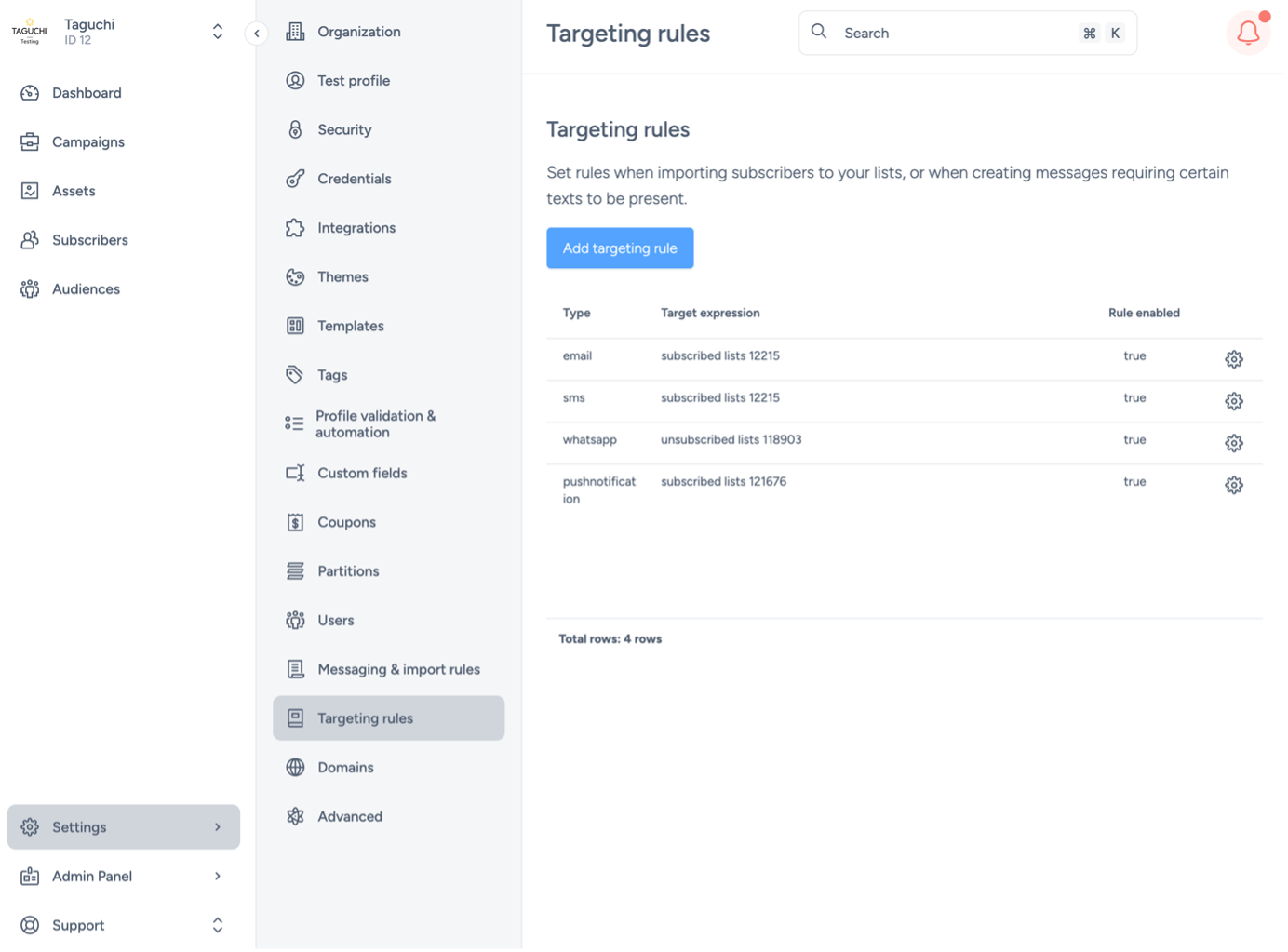
Select "Add targeting rule"
Configure your rule by selecting an activity type and defining the conditions with the Target Expression Tool
- Rule Type: Select between Global or Campaign-Specific.
- Rule Channel: Select your preferred channel from the dropdown.
- Target Expression: Create your target expression in the Expression Builder tab.
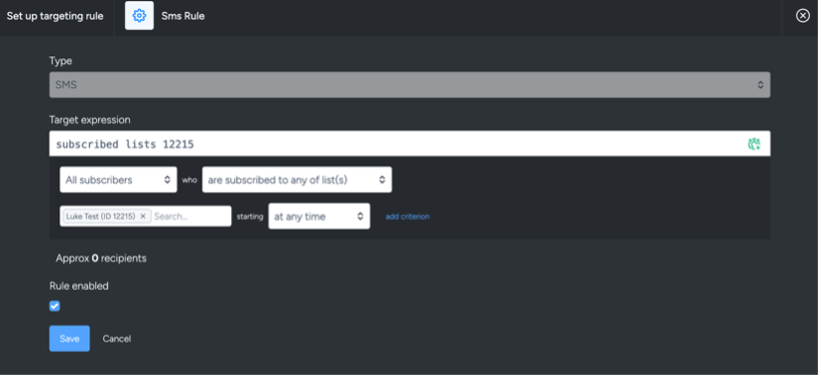
Enable the rule and save your changes Repeat as needed for each activity type. Each activity type can only have one rule created.
For more information on Target expression, please refer to KB article: What are target expressions?