- Support Home
- Knowledge Base
- Integrations
- Scheduled - Partition Assignment
Related articles
Need some help?
If you have questions or can't find what you're looking for, we're here to help.
Taguchi Support is available 24 hours a day, Monday to Friday.
Create New TicketAPI Version 5
Did you know Taguchi has an API that supports all of the functionality provided by the admin interface and more?
Explore API Documentation
Thanks for your feedback!
Scheduled - Partition Assignment
Scheduled: Partition Assignment Integration
What is a partition? Partitions are sub-divisions within an organisation that help improve data management, personalisation and targeting. Click here to learn more about partitions.
Partition assignment integration
Taguchi has a partition assignment integration that allows each subscriber profile to be allocated a partition ID in your organisation.
Credentials
There are no credentials needed for this integration.
Create your partition assignment integration
New integration
To create a new integration, ensure that you have the required user type integration role privileges assigned to you. The 'Integration' page is under Settings > Integrations.
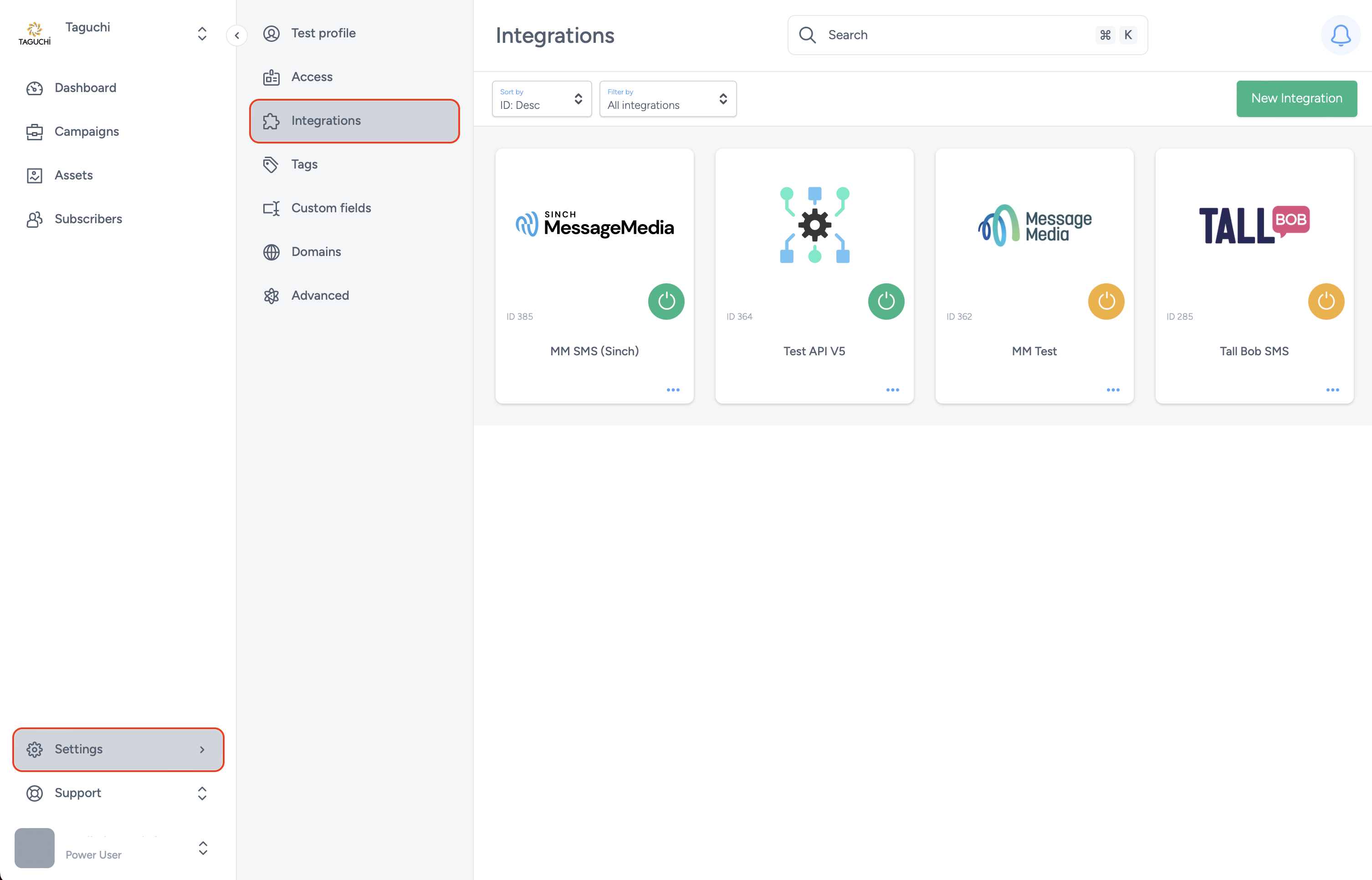
Select ‘New Integration’ and a new screen will popup.

Details
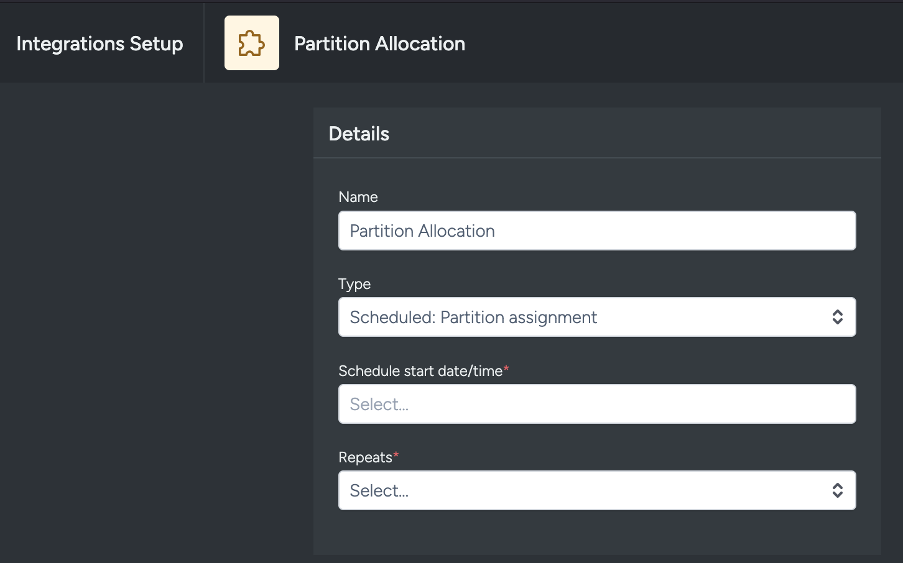
- Set the name of the integration. For example, Partition Allocation.
- Under 'Type', select ‘Scheduled: Partition assignment’.
- Under ‘Schedule start date/time’, select the date and time you want the integration to start running from.
- Under ‘Repeats’, select how often you want the integration to repeat. Your options are daily or hourly. It is recommended to keep this integration set to daily.
- Under Send status notifications to, select a notification list to receive integration status alerts, then choose whether to notify on every run or only when the integration fails.
Note
- If you set the integration to run daily, it will run every day at the same time as set by you in the ‘Schedule start date/time’ section.
- If you set the integration to run hourly, it will run every hour from the time you set up in the ‘Schedule start/date time’ section.
Configuration
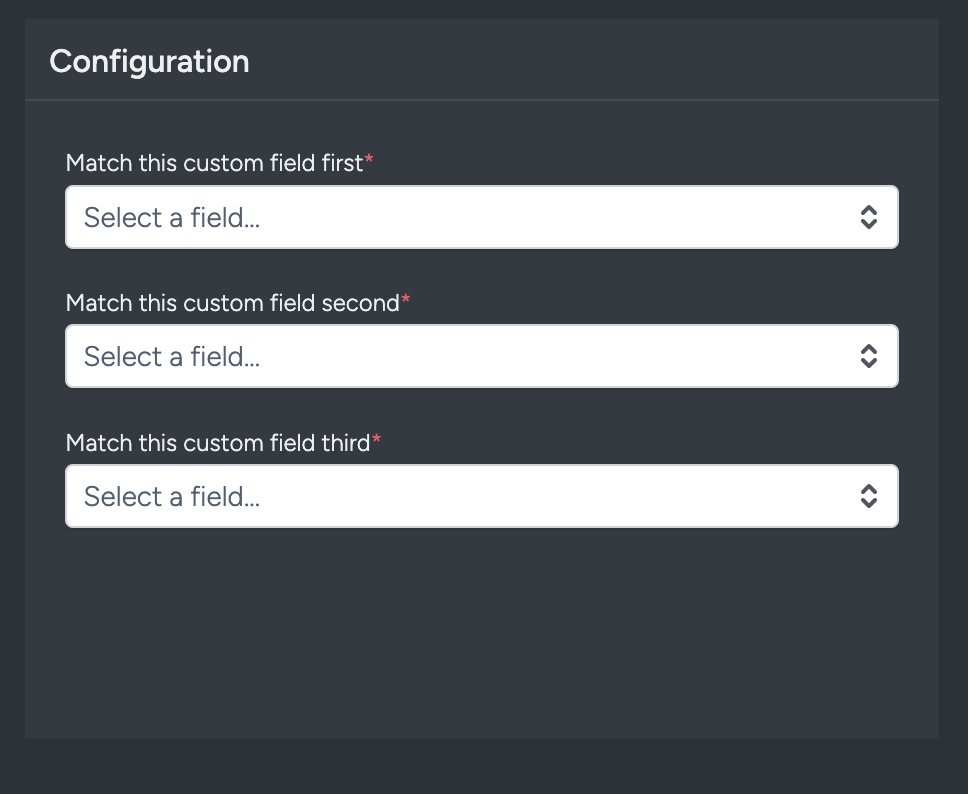
The integration checks the value stored in the selected subscriber custom field and matches that value to a partition Ref. The custom field name itself does not need to match any partition field.
For example, if a subscriber has a custom field named HCODE with the value H1234, and there is a partition with the Ref H1234, the subscriber will be assigned to that partition.
- Match this custom field first: When you select this dropdown, a list of all available subscriber custom fields will appear for you. These are the custom fields that are present in a subscriber’s profile. For example, if your organisation has multiple stores, you may have a custom field that captures a subscriber’s preferred store. You can use that custom field here. Once chosen and set, the integration will look at the value stored in that custom field for each subscriber and match it to the Ref of a partition. If a match is found, the subscriber is assigned to that partition.
- Match this custom field second: This option is useful when multiple custom fields could indicate a subscriber’s partition, and a subscriber may have one or the other. You can set up the integration to check a second custom field if no match is found using the first. The same matching logic applies — the value of this custom field is compared to partition Refs.
- Match this custom field third: This works the same way as the second custom field. The integration gives you up to three custom fields to define for partition assignment per subscriber, each checked in order until a match is found.
The second and third custom fields are not mandatory to activate the integration.
Setting up this integration allows each subscriber profile to be assigned to a dedicated partition that may be relevant to them for a variety of reasons. The integration set up allows you to define the criteria on the basis of which a subscriber profile should be assigned to a particular partition.
The selected custom field can also be updated immediately through a webform Partition Selector. If both features are used, review their settings together so the webform and scheduled integration use the same intended source of truth. See How to add a Partition Selector to a webform for details.
Viewing Integration Schedules and Next Run Details
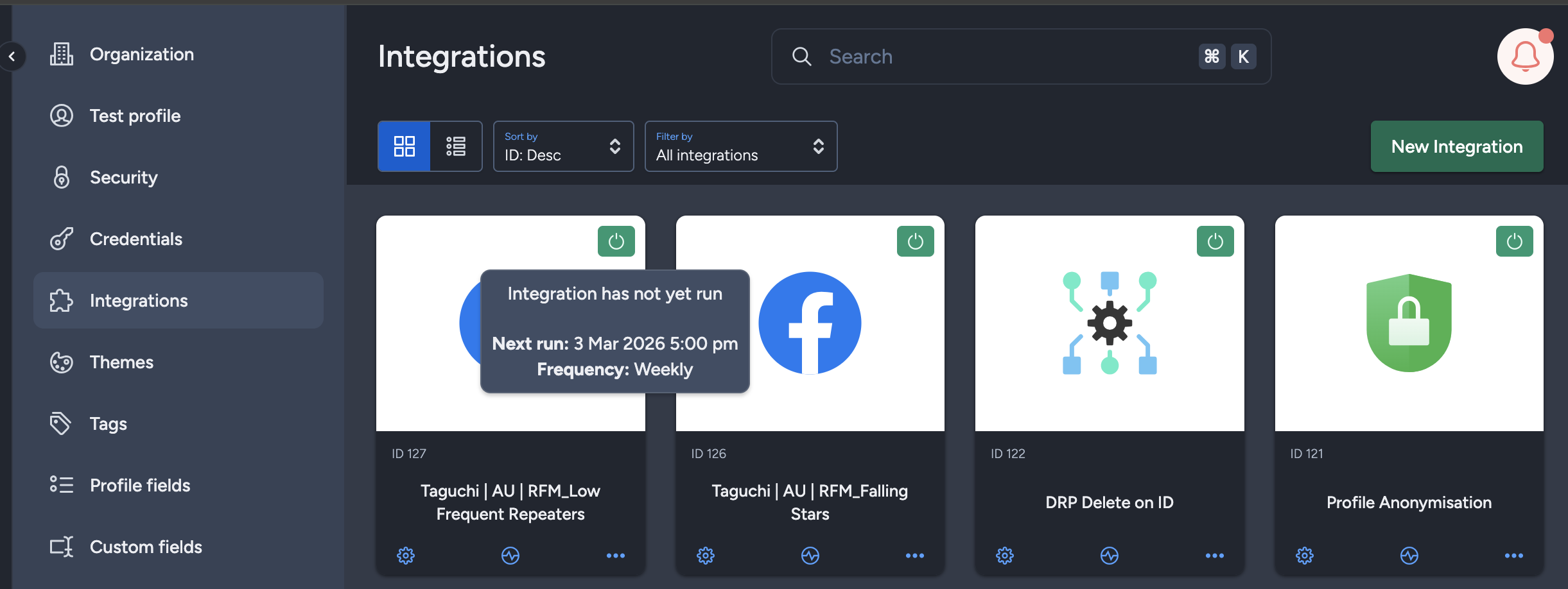
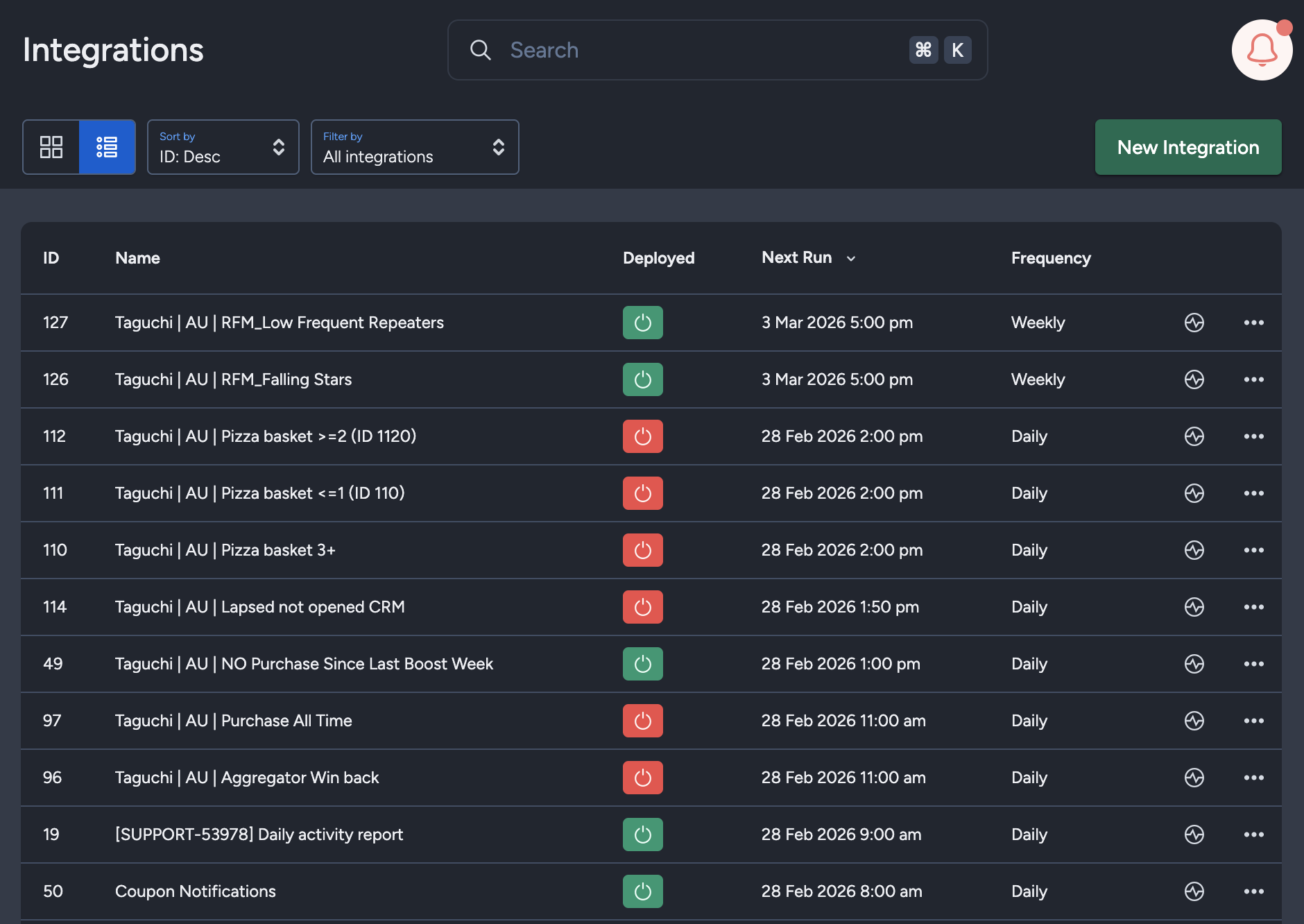
The Integration UI provides visibility into integration schedules by displaying the scheduled frequency and the time of the next run when hovering over the status icon. Adding to that, the integration UI supports list view with sortable columns so you can see the next run timestamp and frequency there too.. This helps users quickly check when integrations are scheduled to execute and manage them more efficiently.
Save changes & Activate
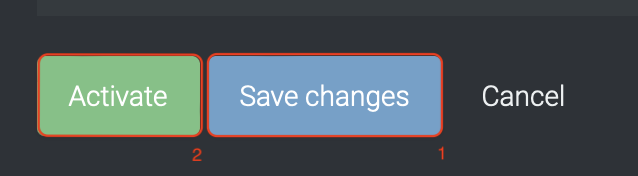
Once you have set up your integration, you will be able to save changes (1) and activate (2) the integration. You can only activate, once you have saved changes.
Deactivate
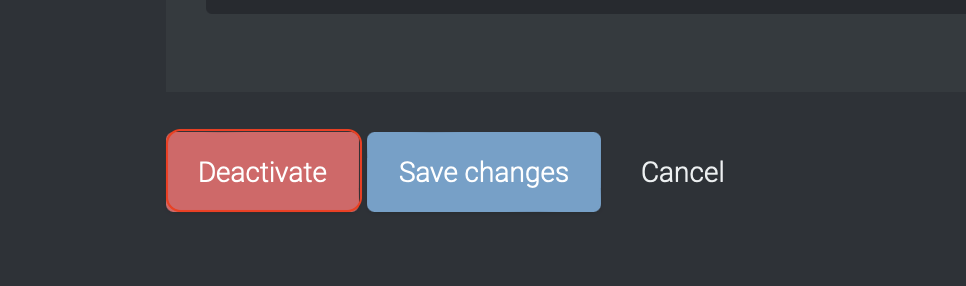
To stop the integration, click on Deactivate. This will stop partition assignment for new subscribers. Subscribers with partitions already assigned to them will stay as it is.
Active Intgration

Once the integration has been saved and activated, the on/off icon of the integration card will change from yellow (Off) to green (On) which indicates that it is now activated.
Update Integration
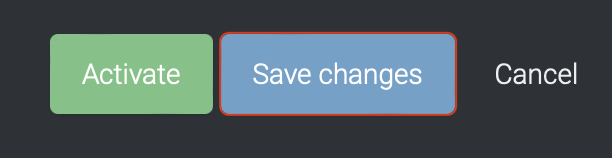
If you want to update your integration, you will be able to make the changes while it is activated or deactivated. Once the changes have been made, you will be able to update the integration by clicking on 'Save changes'. The integration will be updated immediately.
If active, it will continue to stay active with saved changes. If deactivated, it will continue to stay deactivated with saved changes.
If you are having trouble with this integration, please contact Taguchi Support for assistance.