- Support Home
- Knowledge Base
- Integrations
- Shopify Integration
Shopify Integration
Taguchi’s Shopify integrations let you automatically import ecommerce data into Taguchi so you can build richer audiences, reporting, and automations without manual file handling.
This article covers all available Shopify import types:
- Orders
- Products
- Customers
- Abandoned carts
Credentials setup
Before creating any Shopify integration, you must create a Shopify credential:
- Go to Settings > Credentials.
- Select Add new Credential.
- Enter a clear credential name.
- Choose the Shopify credential type.
- Enter the required Shopify authentication details for your store.
- Save the credential.
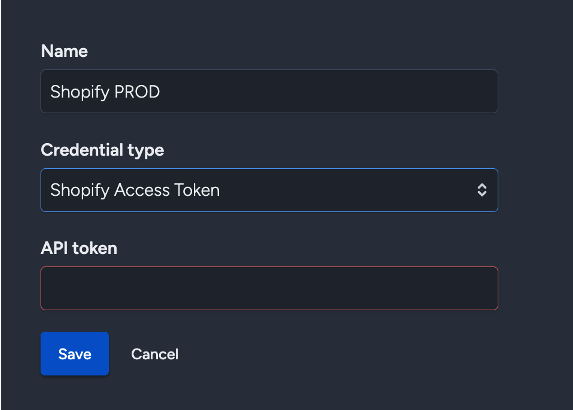
You must have administrator access to set up credentials.
Integration setup
To create a new integration, ensure you have the required User Type integration role privileges.
- Go to Settings > Integrations.
- Select New Integration.
- Configure the integration in the following sections:
- Details
- Configuration
- Map Data
- Notes
Details
For each Shopify integration type:
- Enter an integration name.
- Under Type, select the Shopify import integration you want to run.
- Set the schedule start date/time.
- Select a repeat interval (Yearly, Monthly, Weekly, Daily, or Hourly).
- Under Send status notifications to, optionally select a notification list to receive integration status alerts, then choose whether to notify on every run or only when the integration fails.
Configuration
- Select the Shopify credential you created.
- Confirm the source store settings for the selected import type.
- Configure any available date filters or import windows where required.
- If available, you can use Custom GraphQL Query (optional) to override the collection selection.
Important Shopify Integration Considerations
Shopify mapping and custom queries (Products, Abandoned Carts, Customers, Orders, and custom collections) assume those collections already exist and are available in Shopify. Creating the integration in Taguchi alone does not guarantee data can be retrieved. The API token in your Shopify credential must have access to every collection you query, including nested collections. For custom queries, both %s (pagination placeholder) and pageInfo { hasNextPage endCursor } are mandatory. Taguchi inserts pagination by replacing %s at runtime; if %s is missing, the integration fails. Nested collections must also include pagination (for example, lineItems(first:100)), otherwise the query fails.
Map Data
Use the Map Data section to map Shopify fields to the relevant Taguchi objects and fields.
Typical mappings include:
- Subscriber and subscriber custom fields
- Conversion/order fields
- Product fields
- Partition custom fields (if used)
We recommend validating mappings in a test integration run before activating production schedules.
Shopify import types
1. Import: Shopify Orders
Use this integration to import order and transaction activity from Shopify.
Common use cases:
- Conversion and revenue reporting
- Purchase-triggered journeys
- Product or category-based segmentation
Recommended setup notes:
- Use a schedule that matches your campaign cadence.
- Ensure order identifiers and subscriber references are mapped correctly.
- Confirm order totals, timestamps, and product line-item fields are mapped for reporting and targeting.
- Once an order is imported into Taguchi, it cannot be updated by later Shopify changes.
2. Import: Shopify Products
Use this integration to import product catalogue information.
Common use cases:
- Product-level personalisation
- Dynamic content and recommendations
- Product metadata for segmentation
Recommended setup notes:
- Map unique product identifiers consistently.
- Include key descriptive fields (for example: title, vendor, type, tags, status).
- Keep product updates scheduled frequently enough to reflect catalogue changes.
3. Import: Shopify Customers
Use this integration to import and refresh customer profile data.
Common use cases:
- Subscriber enrichment
- Lifecycle segmentation
- Audience syncing and suppression logic
Recommended setup notes:
- Map customer email/reference fields carefully to avoid duplicate profiles.
- Include useful profile and consent-related attributes where available.
- If running alongside other imports, align references so customer and order data join correctly.
4. Import: Shopify Abandoned Carts
Use this integration to import abandoned checkout/cart events.
Common use cases:
- Cart recovery automations
- Abandonment audience creation
- Recovery reporting
Recommended setup notes:
- Ensure cart identifiers and subscriber references are mapped correctly.
- Include abandoned timestamp and cart value fields for timing and prioritisation logic.
- Run this integration at an interval that supports timely recovery messaging.
- Once an abandoned cart is imported into Taguchi, it cannot be updated by later Shopify changes.
Viewing integration schedules and next run details
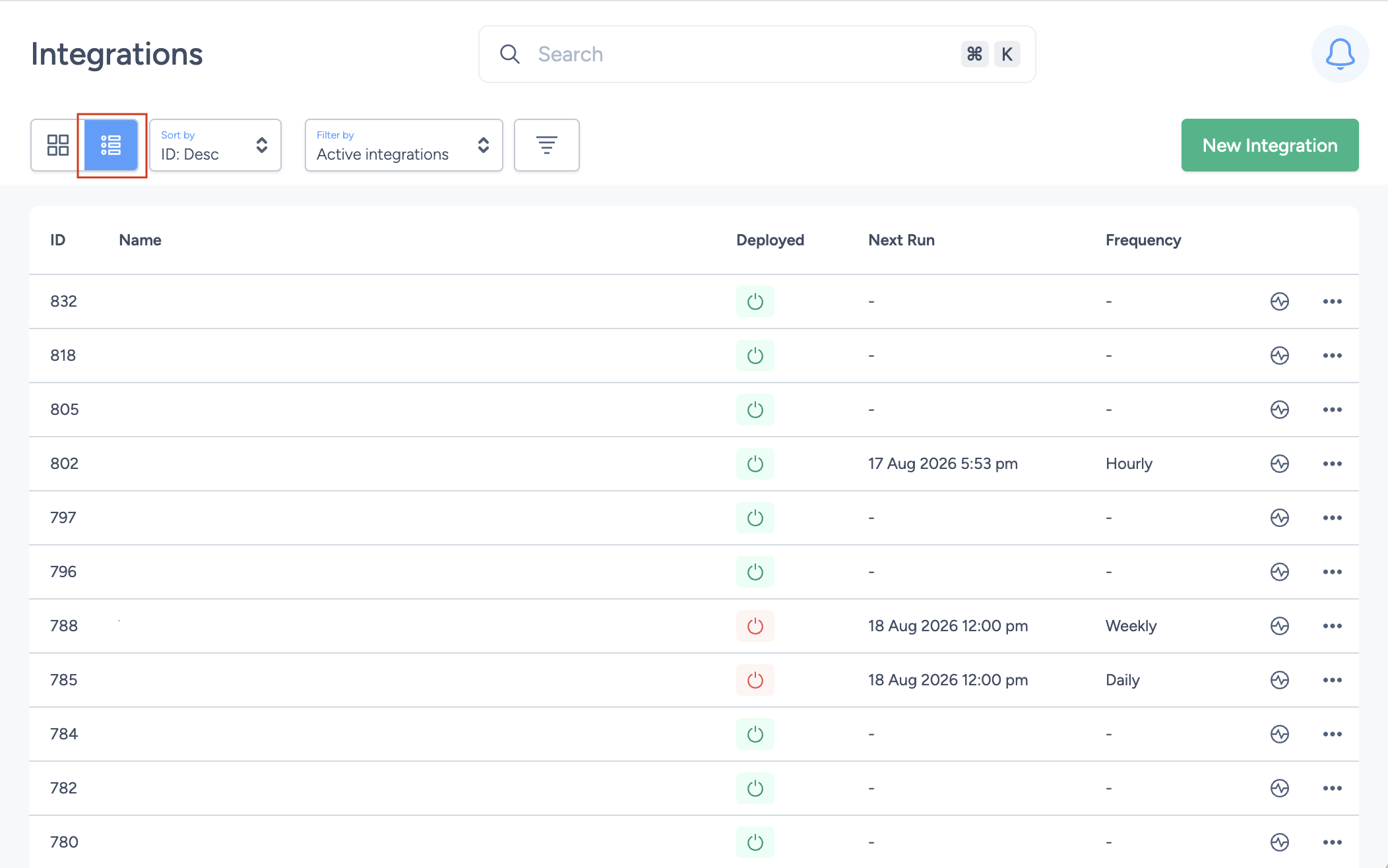
The Integration UI provides visibility into schedules by displaying the frequency and next run time when you hover over the status icon.
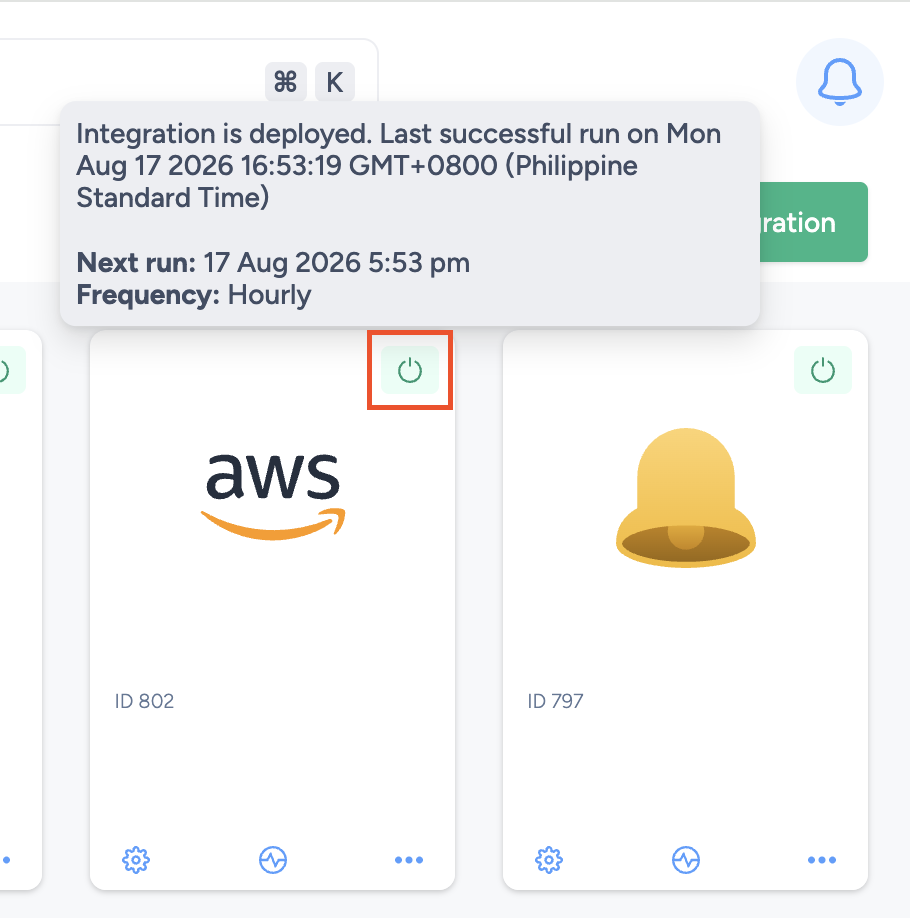
List view also supports sortable columns for next run timestamp and frequency, making it easier to manage multiple integrations.
Save changes and activate
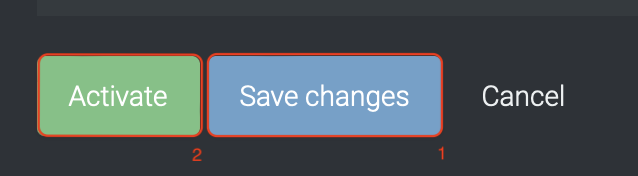
After configuring Details, Configuration, and Map Data:
- Select Save changes.
- Select Activate.
You can only activate after saving changes.
Deactivate

To stop the integration, select Deactivate.
Update integration

You can edit an integration while active or inactive. After making updates, select Save changes to apply them.
Integration status and logs
Use the status icon colour in the integration tile to monitor state:
- 🟢 Green: Active / Deployed (or awaiting scheduled run)
- 🟡 Yellow: Deactivated
- 🔴 Red: Deployment failed
Viewing logs in the UI
- Go to Settings > Integrations.
- Select the integration.
- Select View Status to review recent runs, timestamps, statuses, and errors.
Troubleshooting measures
- Recheck credential authentication if imports fail after setup changes.
- Confirm integration type and map-data fields match the intended Shopify object.
- Avoid overly aggressive schedules if downstream processing delays are expected.
- Any request issued by Taguchi has a 15-minute timeout limit. If a request exceeds this time, it will fail.
If you are having trouble with this integration, please contact Taguchi Support for assistance.