- Support Home
- Knowledge Base
- Triggers And Automation
- Customer Engagement
- Customer Engagement - Abandoned Product Email Trigger
Related articles
Need some help?
If you have questions or can't find what you're looking for, we're here to help.
Taguchi Support is available 24 hours a day, Monday to Friday.
Create New TicketTaguchi Certified Training
Join our free and live online training sessions. You'll benefit from a better understanding of the platform's features and functionality. Plus with Taguchi Certified Rewards, every session you attend, you're not just learning - you're earning your way to some fantastic rewards.
About Taguchi Certified RewardsAPI Version 5
Did you know Taguchi has an API that supports all of the functionality provided by the admin interface and more?
Explore API Documentation
Thanks for your feedback!
Customer Engagement - Abandoned Product Email Trigger
This article explains how to send a follow-up email to subscribers who abandoned a product.
For example, you may choose to send an email to a subscriber who viewed a product but abandoned it or no longer continued purchasing it.
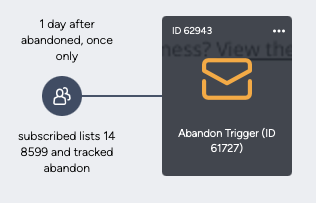
Suggested Set-up & targeting rules
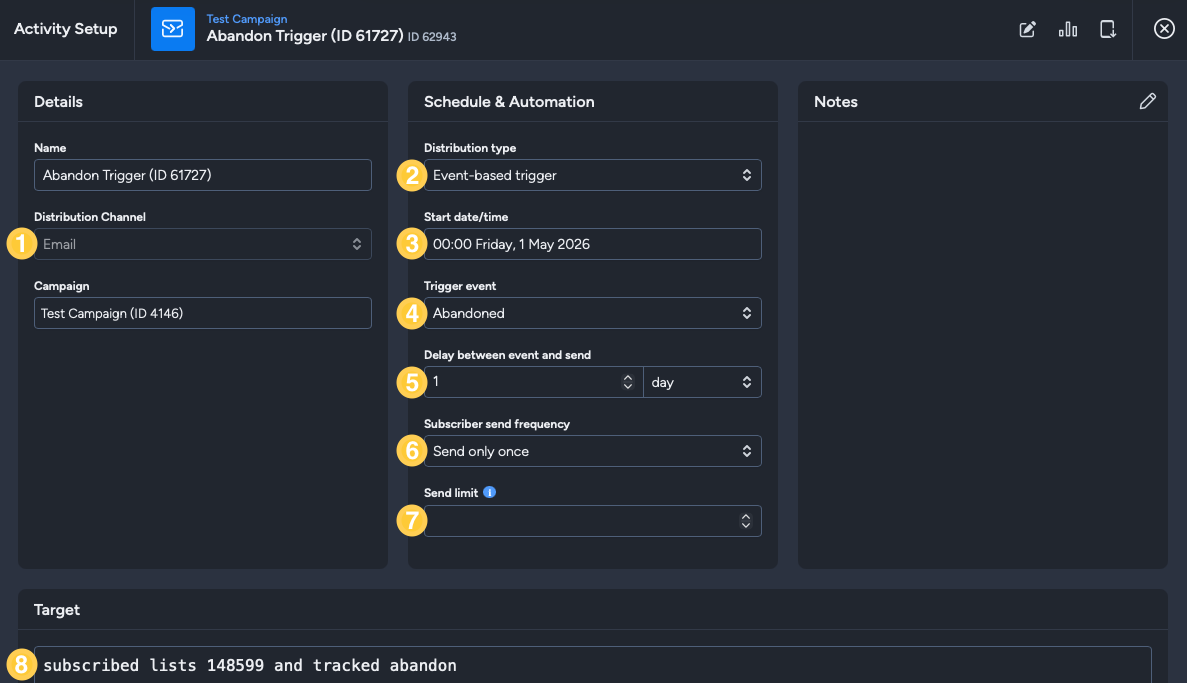
Channel: Email
Distribution Type: Select 'Event-based' trigger.
Start date/time: Select the date and time you want the trigger to start sending.
Trigger event: Select the trigger event that sends the email. In this case, we'll use 'Abandoned'.
Delay between event and send: This determines how long after the trigger event the activity is sent (e.g. if a subscriber abandoned an item on the 1st of May, choosing a delay of '1 day' will cause the event-based trigger activity to be sent the next day - 2nd of May).
Subscriber Send Frequency: In this field, you can pick an option between 'send only once' or 'send once' every day/weeks/months/year. In this example, we will pick 'send only once'.
Send Limit: You can use this field if you know how many recipients an activity should be sent to each time and you don't want to send it if there are more recipients than expected. If you leave this field blank, then this send limit won't apply. For instance, if there are 500 in this field and it targets subscriber list X which includes 1000 subscribers, the activity will not be sent at all. Note: send limit should only be used for triggers and not immediate or scheduled broadcasts
Target expression: Input your desired targeting into the builder. For example, if you want to make sure you are contacting only those subscribed to your newsletter list, who haven’t been sent this follow-up, and who have a tracked abandon event, then your target expression would be something like:
subscribed list X and not sent activity Y and tracked abandon
Save the changes you make by clicking the save button.
If you set a frequent repetition cycle, remember to exclude subscribers who have already received the activity, otherwise the trigger will continue to send to the same subscribers. You can do this by adding
not sent activity X last Y daysto the target expression (where X is the activity ID).
Approve and Deploy
Approve and deploy your activity to initiate the trigger by clicking the 'Approve' button.
A small box will appear. Confirm the revision, and schedule details and click approve.
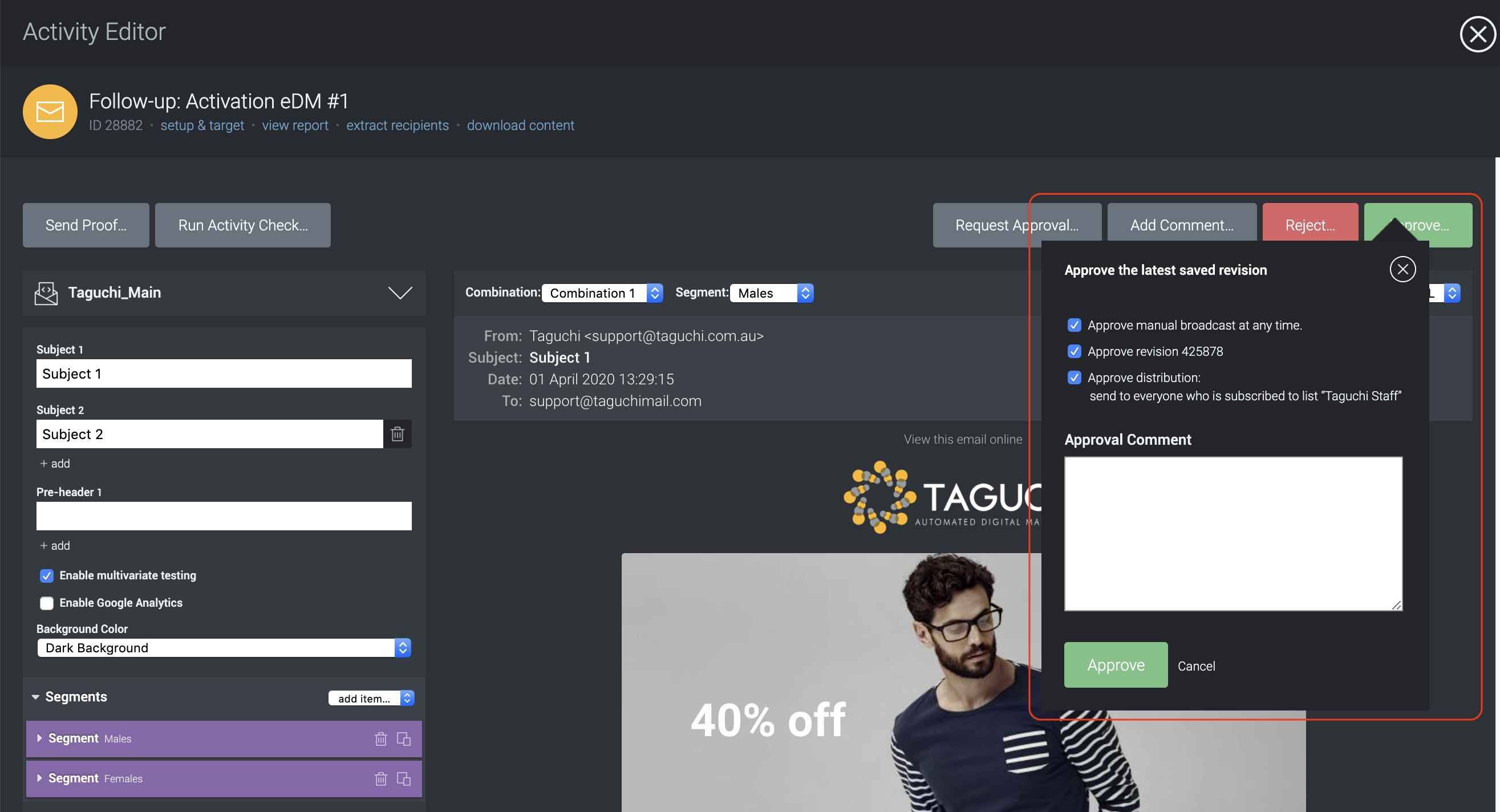
Click on the 'Confirm Deployment' button
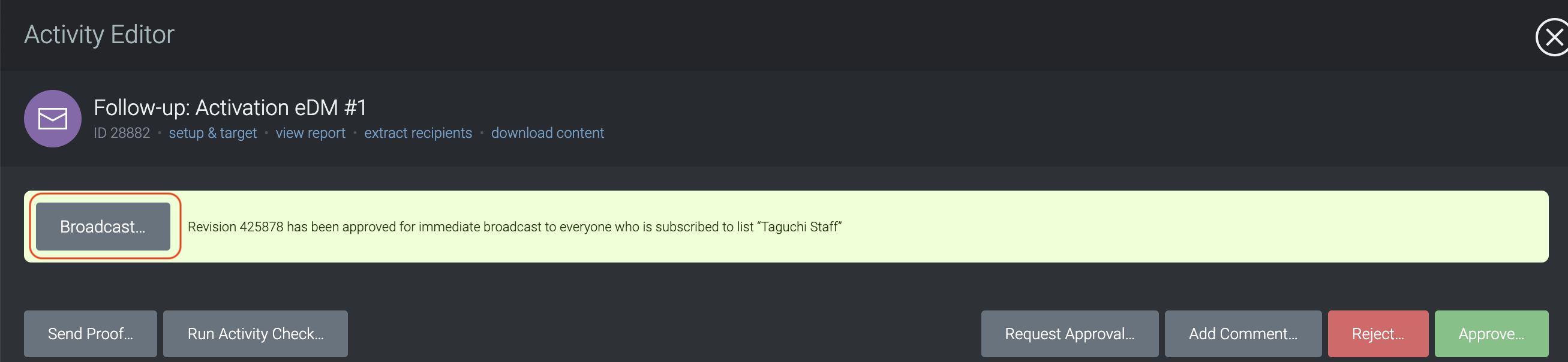
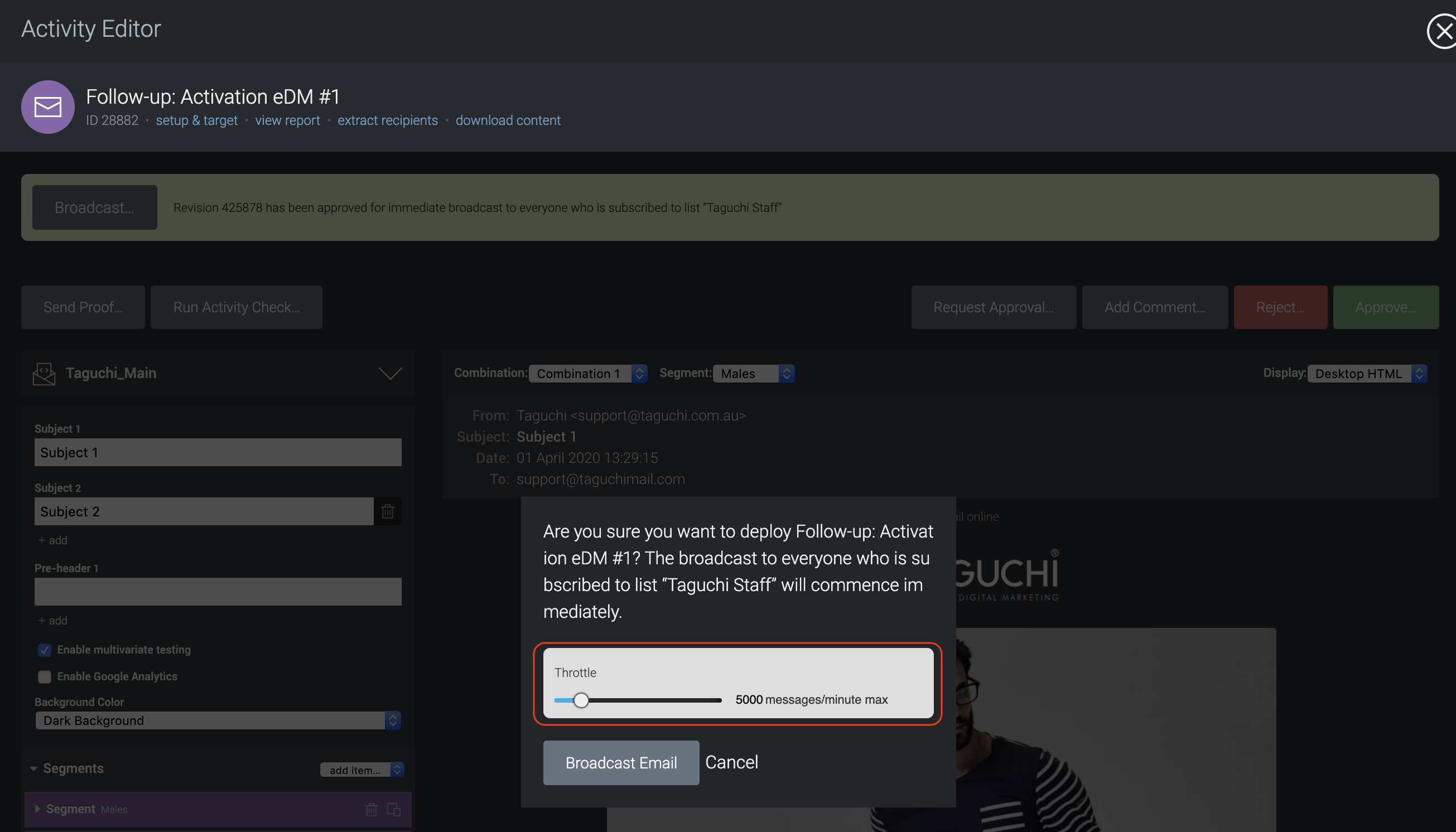
After you've clicked the button, a pop-up will appear where you can confirm your email target, approved revision ID, schedule and set the throttle rate.
- Once scheduled, the following box should appear at the top of your activity editor.
