- Support Home
- Knowledge Base
- Campaigns And Activities
- Content Segmentation
- How can I view results for each segment?
Related articles
Need some help?
If you have questions or can't find what you're looking for, we're here to help.
Taguchi Support is available 24 hours a day, Monday to Friday.
Create New TicketTaguchi Certified Training
Join our free and live online training sessions. You'll benefit from a better understanding of the platform's features and functionality. Plus with Taguchi Certified Rewards, every session you attend, you're not just learning - you're earning your way to some fantastic rewards.
About Taguchi Certified RewardsAPI Version 5
Did you know Taguchi has an API that supports all of the functionality provided by the admin interface and more?
Explore API Documentation
Thanks for your feedback!
How can I view results for each segment?
Segment Performance is included in the online email activity report. If your activity uses content segments, this section displays performance metrics broken down by each segment, allowing you to compare how different subscriber groups — each receiving tailored content — engaged with the email.
How to access segment reporting
Open the activity report for an email activity that uses content segments. You can access this via the graph icon on the activity card in your dashboard or campaign view.
Scroll down to the Segment Performance section of the online report.
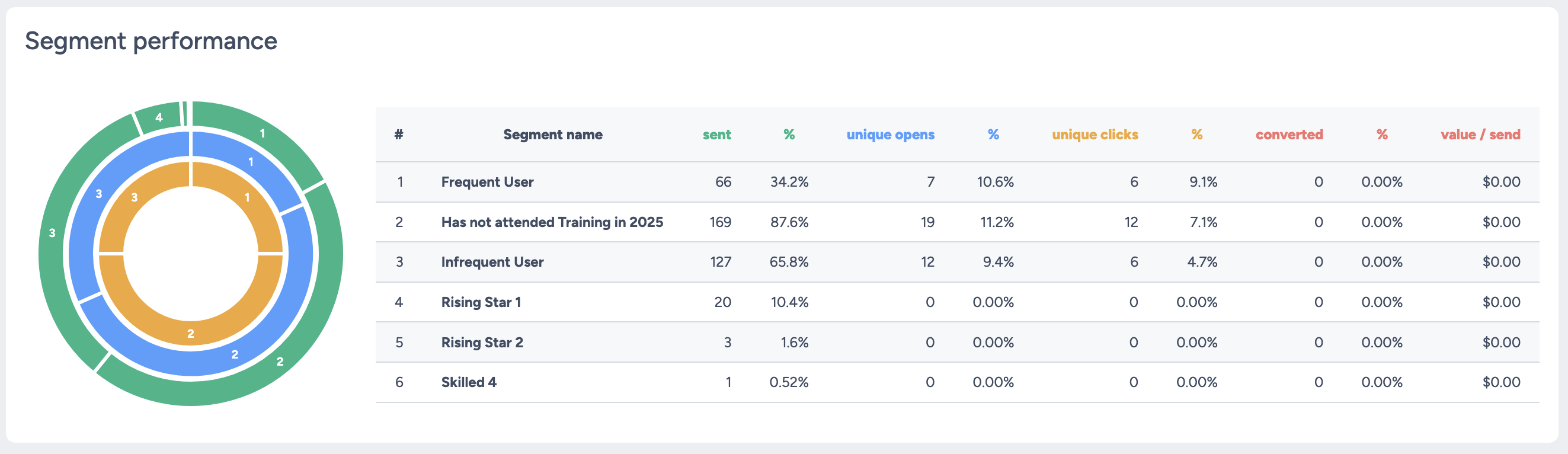
Metrics displayed
The following metrics are shown for each segment:
- Sent — Number of messages sent to subscribers matching this segment.
- Unique opens (%) — Percentage of recipients in this segment who opened the email at least once.
- Total opens (%) — Total opens from recipients in this segment as a percentage of messages sent to it.
- Unique clicks (%) — Percentage of recipients in this segment who clicked at least one link.
- Total clicks (%) — Total clicks from recipients in this segment as a percentage of messages sent to it.
- Converted (%) — Conversions attributed to this segment as a percentage of messages sent to it.
- Total value ($) — Total conversion value attributed to recipients in this segment.
Segment performance reporting is useful for understanding how each content variant resonated with its target audience, helping you make data-driven decisions for future segmentation strategies.
For more information on the activity report, see the Taguchi User Guide.