- Support Home
- Knowledge Base
- Campaigns And Activities
- Content
- Adding Vimeo or Youtube video using their link in a content block
Related articles
Need some help?
If you have questions or can't find what you're looking for, we're here to help.
Taguchi Support is available 24 hours a day, Monday to Friday.
Create New TicketTaguchi Certified Training
Join our free and live online training sessions. You'll benefit from a better understanding of the platform's features and functionality. Plus with Taguchi Certified Rewards, every session you attend, you're not just learning - you're earning your way to some fantastic rewards.
About Taguchi Certified RewardsAPI Version 5
Did you know Taguchi has an API that supports all of the functionality provided by the admin interface and more?
Explore API Documentation
Thanks for your feedback!
Adding Vimeo or Youtube video using their link in a content block
Users can now easily embed thumbnails from YouTube or Vimeo directly into a content block by simply pasting the video link on the image field. Once added, the system automatically fetches and displays the video’s thumbnail within the block. This makes it easier to incorporate video content visually, without needing to manually source or upload thumbnail images.
How to add the Links to the image block?
- Add the Image Block.
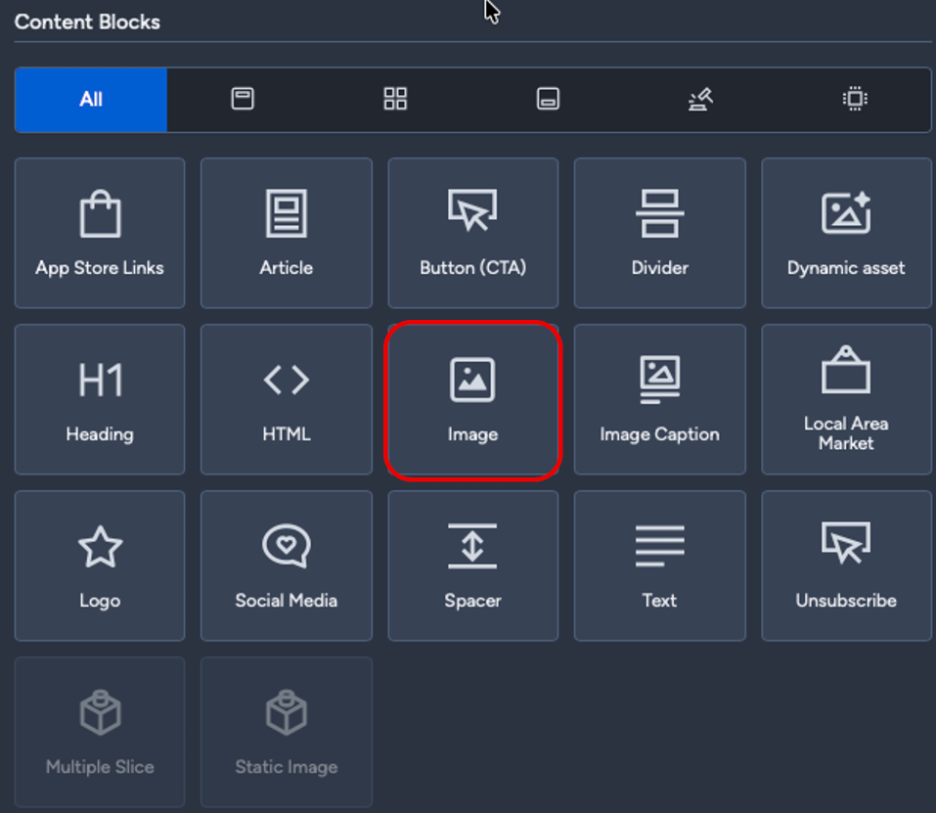
- Open the Image Block and paste the Youtube or Vimeo video link under the image field.
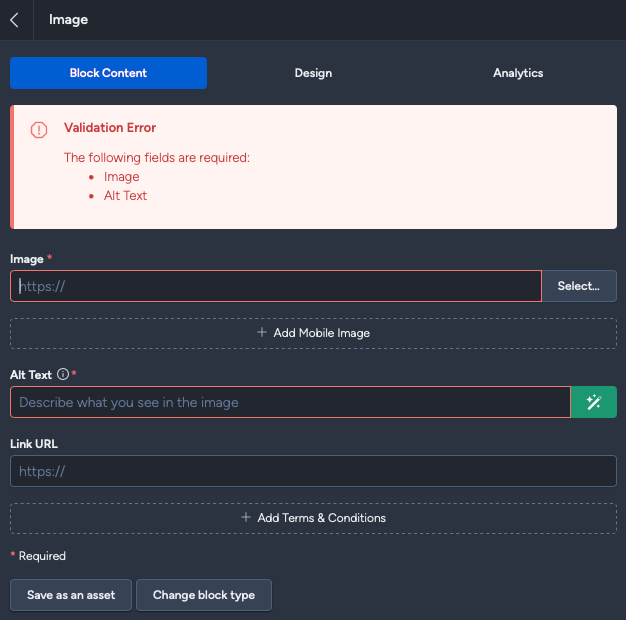
Note: You will notice that the link you just pasted has changed, this is an expected behavior. The image field now automatically converts YouTube or Vimeo links into their corresponding thumbnail images instead of embedding the video itself. If you have additional questions or require further assistance on this feature, do not hesitate to reach out to Taguchi Support