- Support Home
- Knowledge Base
- Campaigns And Activities
- Content
- Populate From Image in the Activity Editor
Populate From Image in the Activity Editor
Overview
Populate From Image helps you recreate existing creative by allowing to crop content directly from an image.
You can upload a screenshot or design reference, crop to the area you want, and let Taguchi generate editable blocks in your activity.
How to use Populate From Image
- Open your activity in the Activity Editor.
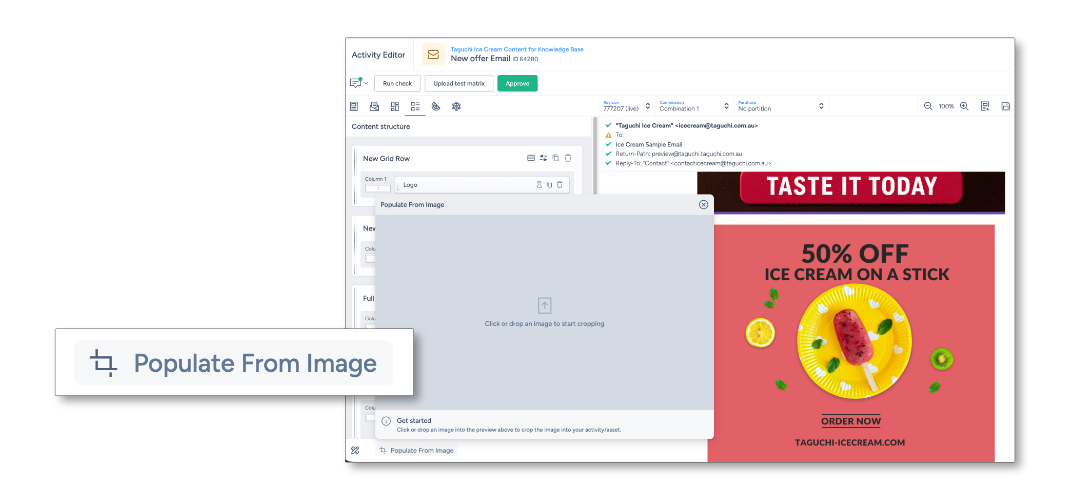
- Go to the content section of the activity and click Populate From Image in the lower-left toolbar.
- Upload your image.
- Select a grid row layout as the base for your crop by dragging the grid on to the image or clicking the chosen grid.
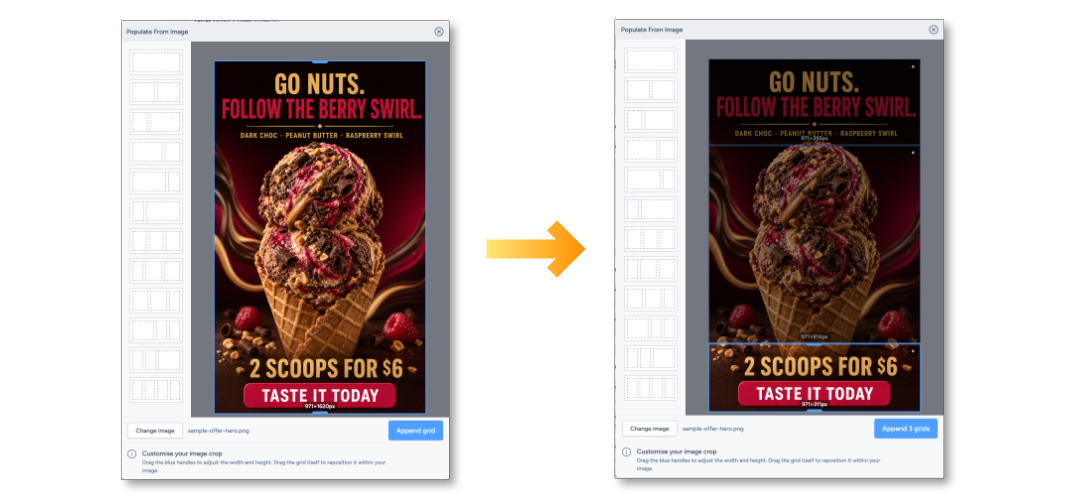
- Use the crop tool to select the section you want to import.
- Confirm the crop and run the populate action.
- Review the generated blocks and adjust text, images and styling as needed.
If you need help using Populate From Image, contact Taguchi Support.