- Support Home
- Knowledge Base
- Campaigns And Activities
- Content
- How to Switch a Grid Layout in the Activity Editor
Related articles
Need some help?
If you have questions or can't find what you're looking for, we're here to help.
Taguchi Support is available 24 hours a day, Monday to Friday.
Create New TicketTaguchi Certified Training
Join our free and live online training sessions. You'll benefit from a better understanding of the platform's features and functionality. Plus with Taguchi Certified Rewards, every session you attend, you're not just learning - you're earning your way to some fantastic rewards.
About Taguchi Certified RewardsAPI Version 5
Did you know Taguchi has an API that supports all of the functionality provided by the admin interface and more?
Explore API Documentation
Thanks for your feedback!
How to Switch a Grid Layout in the Activity Editor
Overview
In the Taguchi Activity Editor, every grid row has a column layout that defines how content is divided horizontally — for example, a single full-width column, two equal columns, or a three-column layout with a specific ratio like 37% / 37% / 25%.
You can switch a grid from one column layout to another at any time without losing the blocks already inside it. When you apply a new layout, existing blocks are redistributed across the new columns in order. If the new layout has more columns than the old one, the extra columns are left empty. If it has fewer, overflow blocks wrap to a new row.
How to Change a Grid Layout
Step 1: Select the Grid Row
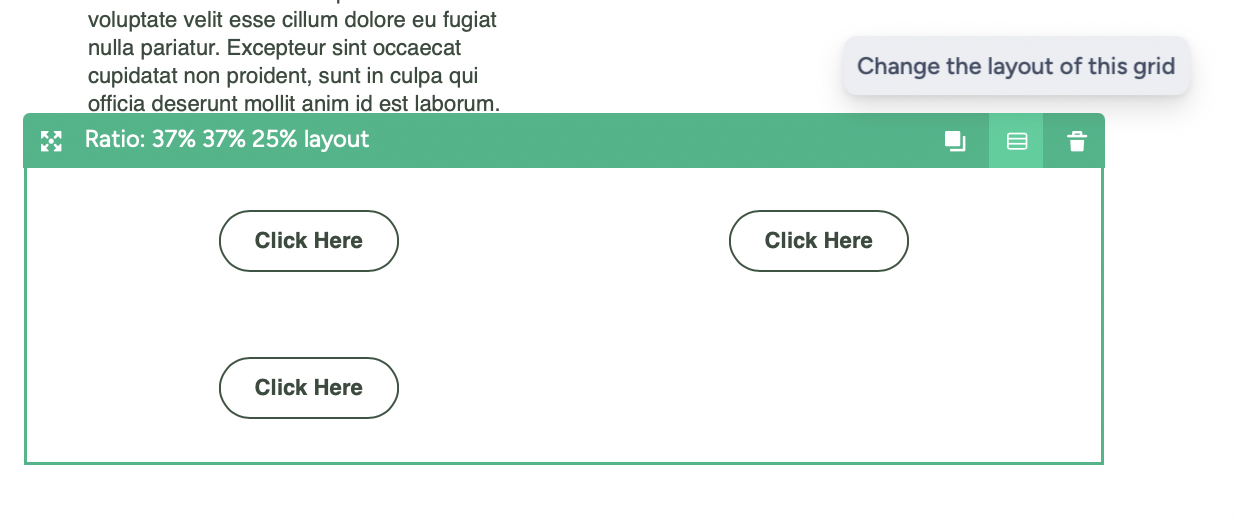
In the activity preview, hover over the grid row you want to modify. A green title bar will appear at the top of the row.
Step 2: Click the "Change Layout" Icon
In the green title bar, click the Change the layout of this grid icon (the icon that looks like a grid of dots, between the Duplicate and Delete buttons).
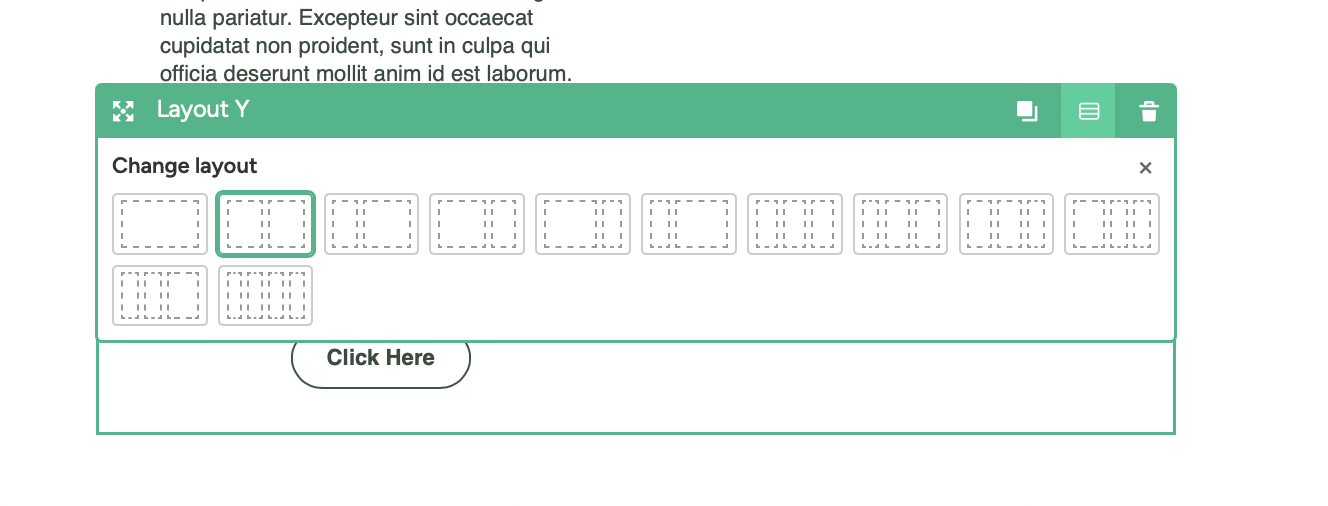
Step 3: Select and apply a New Layout
The panel will appear inline within the grid row as a compact picker. Click on the layout you want to apply. The grid will automatically switch to the selected layout.
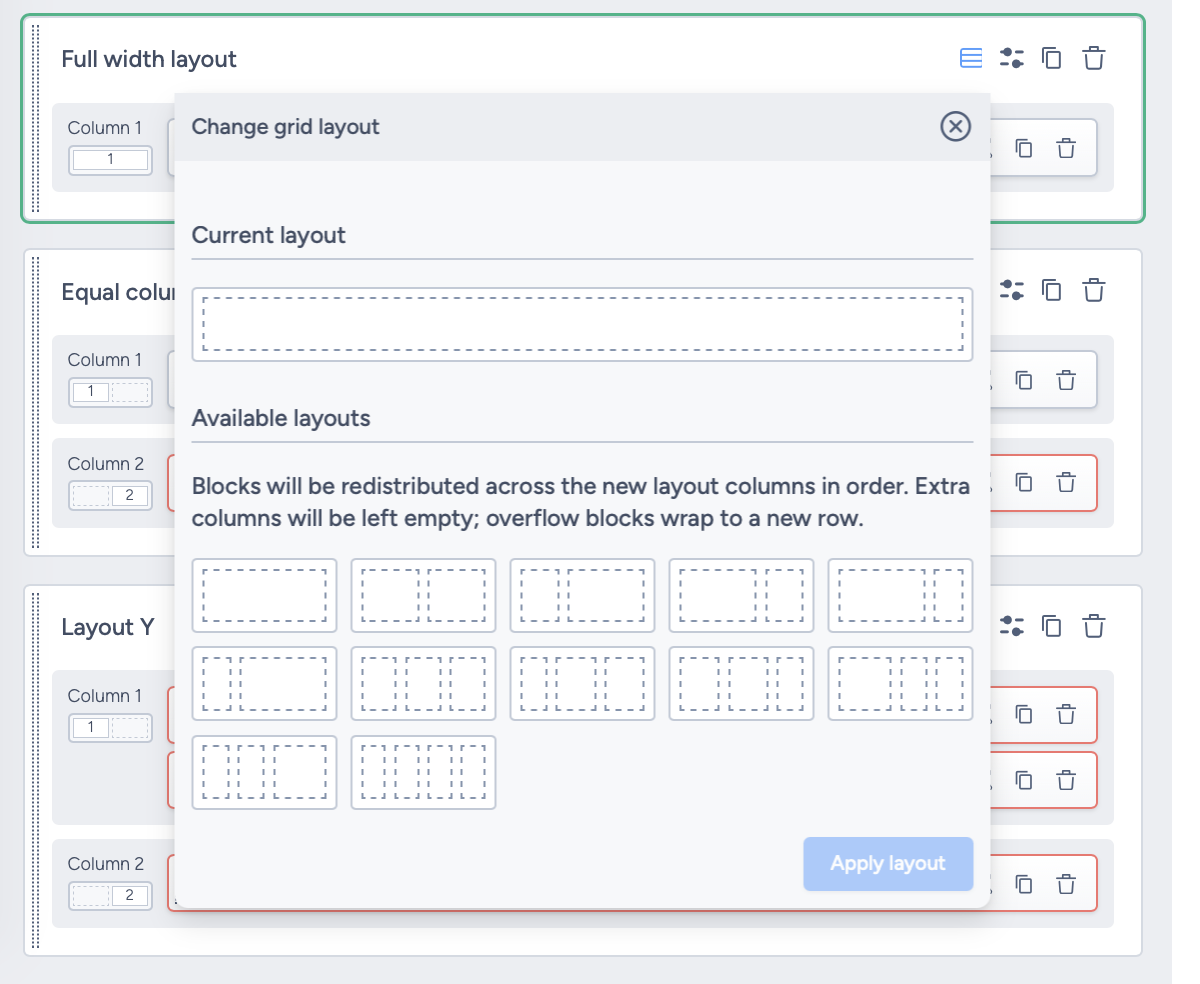
Alternatively, you can switch the grid layout in the content structure pane on the left side of the preview. Click the Grid layout switch button next to the Design settings button of the grid.
The Change grid layout panel opens, showing:
- Current layout — a preview of the grid's existing column structure.
- Available layouts — all column layout options you can switch to.
Select the layout you want the grid to switch to.
Click the Apply layout button to confirm the change. The grid will immediately update to the new column structure, with existing content blocks redistributed across the new columns.
What Happens to Existing Content?
When you switch a grid to a new layout, the following rules apply:
- Blocks are redistributed in order across the new layout's columns.
- If the new layout has more columns than the current one, the extra columns are left empty.
- If the new layout has fewer columns, overflow blocks wrap to a new row automatically.
Tip: Review the grid after switching to ensure content is arranged as intended. You can drag and drop blocks within the grid to reposition them after the layout change.
Further Information
For a full overview of grid rows and layout options in the Activity Editor, see the Email Activity Edit Interface documentation.