- Support Home
- Knowledge Base
- Genichi Ai
- Create and edit image assets with Genichi Chat
Related articles
Need some help?
If you have questions or can't find what you're looking for, we're here to help.
Taguchi Support is available 24 hours a day, Monday to Friday.
Create New TicketAPI Version 5
Did you know Taguchi has an API that supports all of the functionality provided by the admin interface and more?
Explore API Documentation
Thanks for your feedback!
Create and edit image assets with Genichi Chat
Create and edit image assets with Genichi Chat
Genichi Chat can create an image for an email or web content block, or make a new version of an existing image. You can review the generated image in the chat and ask Genichi to save it as a Taguchi content asset.
Image generation requires advanced AI model access and available AI credits. The feature may not be enabled for every user or Taguchi environment.
Create a new image
- Open Genichi Chat in Taguchi.
- Describe the image you want. Include its subject, style, colours, intended audience, and where you plan to use it.
- Include the image's shape and the width of the content area where it will appear. For example, ask for a landscape image for a full-width block in a 600 px email. If you are unsure of the content width, ask your Taguchi administrator or check the activity's template or theme.
- Review the image preview Genichi returns. If you want a change, describe it clearly in a follow-up message.
- When you are happy with the result, ask Genichi to save it as an image asset. Review the proposed save and approve it when you are ready.
For example:
Create a landscape image for a full-width block in a 600 px email, promoting yuzu ice cream. Show a bowl of creamy yuzu ice cream with fresh yuzu citrus, a few green leaves, and a light scattering of zest. Use a bright, refreshing palette of citrus yellow, soft cream, and leafy green. Add the exact headline “Yuzu got nothing on this flavour” in clear, easy-to-read lettering, placed in uncluttered space beside the bowl. Keep the text spelled exactly as written, with no other words or logos.
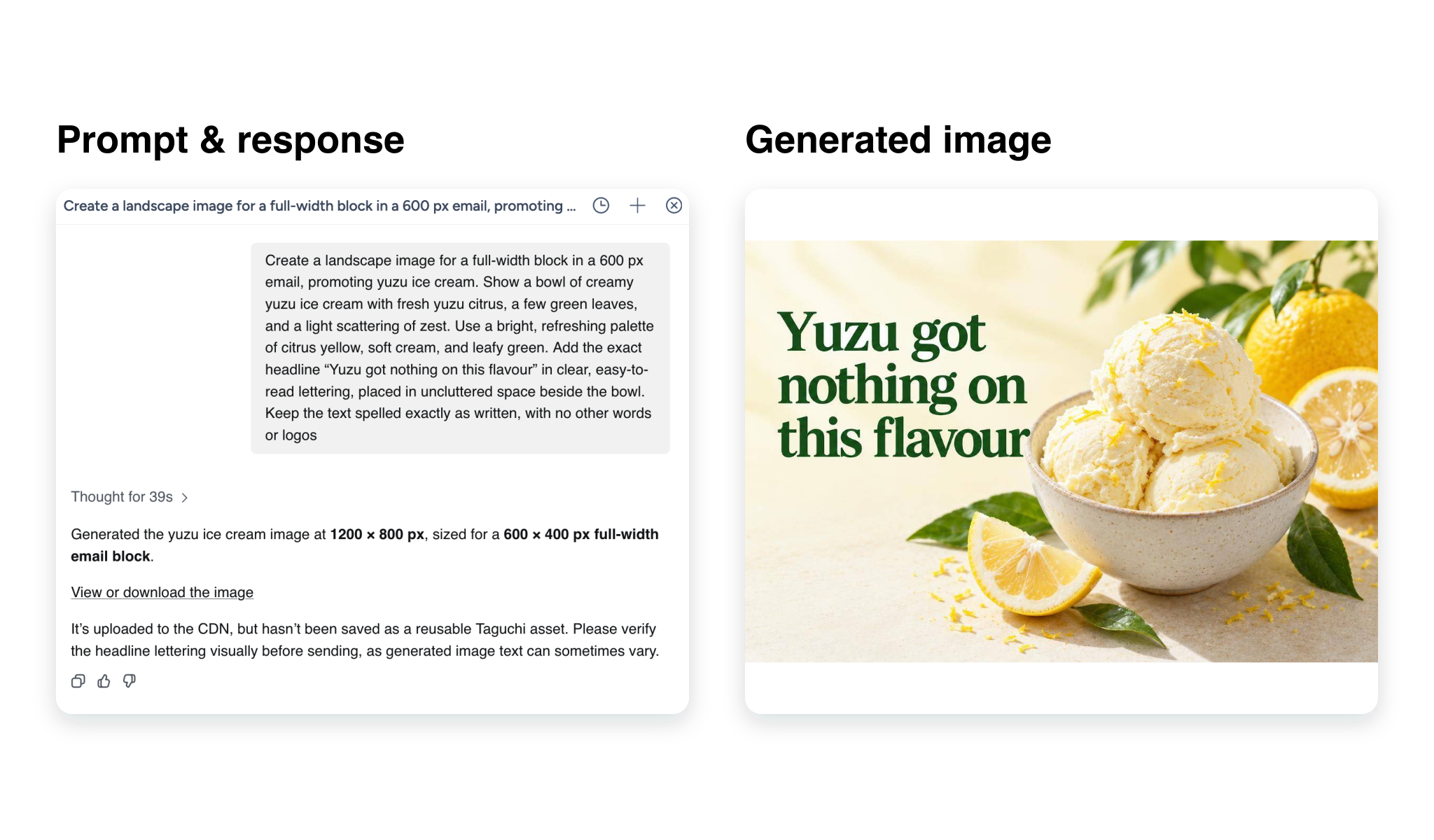
Example prompt and response on the left, with the generated image on the right.
Choose a shape and size
Tell Genichi the width of the parent content area, then say how much of that area the image should fill. Genichi uses this information to prepare an image for display at high resolution.
| Shape | Best suited to | Example description |
|---|---|---|
| Landscape (3:2) | Most email and web content blocks | “A landscape image for a full-width email block” |
| Square (1:1) | Tiles, cards, or square layouts | “A square image for a half-width block” |
| Portrait (2:3) | Tall stories or portrait layouts | “A portrait image for a full-width web block” |
| Banner (3:1) | Wide headers or promotional banners | “A wide banner image for a full-width block” |
If you do not specify a size, Genichi uses a 600 px content area, a full-width block, and a landscape shape. For web forms, ask Genichi to use the width of the form's content area; 770 px is a common starting point. Fluid web pages can have different widths, so use the maximum display width from your theme or template. For a narrower block, say whether it is full, half, third, or quarter width.
Genichi calculates a source image targeting at least 2× the displayed dimensions for high-resolution screens. It rounds source dimensions to sizes supported by the image generator, so small blocks may get a source larger than exactly 2×. The image is displayed at the requested block size or responsively within the content area, not at its full source pixel width.
How sizing and compression work
For generated images, Genichi requests a compressed JPEG by default. The image provider applies JPEG compression at its default quality setting of 70; users do not set that quality. Ask for PNG when you need transparency, such as for a cut-out image. PNG does not use the JPEG quality setting.
Taguchi stores the generated bytes returned by the provider. It does not further resize or recompress a generated image on the server. The file must be under 1 MB by default and meet your organisation's upload limit. If it is still too large, the upload fails and no asset is saved. Genichi does not automatically compress it further or retry generation. Ask for a smaller display width or narrower block for another attempt; a new image may use additional credits.
For images you already have, the email and web editors constrain the displayed width to fit the content area. Email layouts can use different widths for desktop and mobile, and you can change the displayed width in the editor. These layout changes affect how the image appears; they do not resize or compress the source file.
To resize an existing image file, open its image editor, resize it, and save the edited copy. Saving creates a new image file; JPEG images are re-encoded at 92% quality, while PNG and WebP images keep their format. This is a manual edit, not automatic compression during upload. The activity image checker warns when a hosted image is over 1 MB and suggests compressing it. If an image still exceeds your organisation's upload limit, the upload is rejected. Try smaller dimensions or compress the file before uploading it again.
Edit an existing image
To use an existing image as a reference, provide its original, publicly accessible HTTPS image URL and describe what you want changed. You can include up to 16 reference URLs. For example:
Use this image as a reference:
https://example.com/product-image.jpg. Keep the product and camera angle, but replace the background with a pale blue studio backdrop. Do not add text.
Genichi creates a new image for an edit; it does not overwrite the original. If you use multiple references, explain what Genichi should take from each one. Only provide image URLs that you are permitted to share with the image generation service.
Save and use the image
Generating an image uploads it so Genichi can show you a preview, but it does not save the image as a Taguchi content asset by itself. Ask Genichi to create the image asset after reviewing the preview. Taguchi will ask you to approve the save. If you reject the approval, the asset is not saved.
New generated image assets use Taguchi's current editable single-image-block format with the generic-image template. To reopen an asset, go to Assets and select its card to open the asset editor. Select the image block to continue editing its image content and settings. To make an AI-assisted revision, ask Genichi to edit the saved image and provide its original HTTPS image URL as a reference; the edit creates a new image, so review and approve the proposed asset change.
Older assets may show a LEGACY badge. The asset editor cannot convert a legacy asset to the current block, grid, or composite formats, or convert those formats back to legacy. If you need an editable current-format version, create a new asset. Review the activity preview and proof to make sure the image displays as expected on desktop and mobile.
Image formats and limits
- JPEG is used by default and is suitable for most images.
- Ask for PNG when you need transparency, such as for a cut-out image or logo.
- Only provide reference image URLs that you are permitted to share with the image generation service. Reference URLs must be publicly accessible HTTPS links.
- An image request uses AI credits. If Genichi reports a timeout or failure, check the chat before requesting another version; a retry may use additional credits.
Related articles
Need help?
If you cannot access image generation or need help saving an image asset, contact your Taguchi administrator or Taguchi Support.