- Support Home
- Knowledge Base
- Genichi Ai
- Connect your approved AI agent to Taguchi MCP Server
Related articles
Need some help?
If you have questions or can't find what you're looking for, we're here to help.
Taguchi Support is available 24 hours a day, Monday to Friday.
Create New TicketAPI Version 5
Did you know Taguchi has an API that supports all of the functionality provided by the admin interface and more?
Explore API Documentation
Thanks for your feedback!
Connect your approved AI agent to Taguchi MCP Server
This article covers:
- Before you start
- Data Use and Responsibility
- Connect Taguchi to your approved AI agent
- Complete Taguchi authorisation
- Disconnect your AI agents
- Check the connection before using it
- Use Taguchi safely
- What can the AI agent help with?
- Prompt and response examples
- Troubleshooting
- Need help?
Connect Taguchi to your approved AI agent
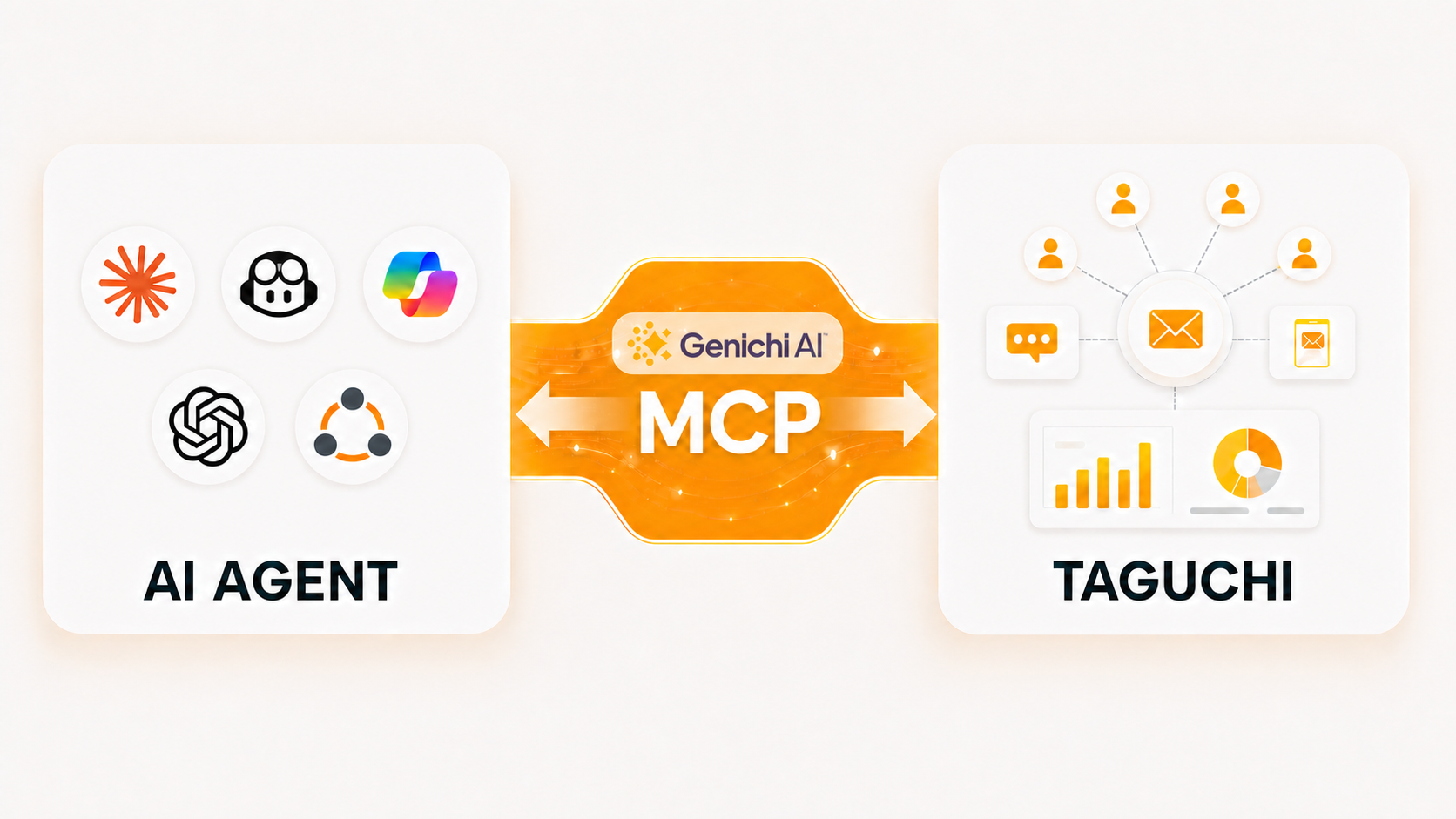
You can connect Taguchi directly to an AI agent approved by your organisation. Once connected, you can use plain English to ask the agent for help with a wide range of Taguchi tasks.
For example, your approved AI agent can find and review resources, analyse results, estimate an audience, check an activity, prepare changes, test content, or plan a group of related resources.
This connection uses the Taguchi Model Context Protocol (MCP). You do not need technical MCP knowledge to use it.
The tools and information available depend on your Taguchi access, organisation, and partitions.
Important: Always check the AI agent's work. Before approving an action, confirm the Taguchi organisation, audience, activity, content, links, destination, and proposed changes.
Definitions
| Term | Definition |
|---|---|
| AI agent (MCP host) | The approved application you use to connect to Taguchi. It manages the connection, available tools, permission prompts, and requests sent to Taguchi. |
| Language model | The technology that understands your request and helps the AI agent respond or choose an approved tool. It is not the Taguchi connection. |
| Taguchi MCP service | The service that makes approved Taguchi tools and reference information available to the AI agent. Your Taguchi role, partitions, credentials, and connection settings control what is available. |
| Connection | The link between your AI agent and the Taguchi MCP service. It includes a name, authentication, organisation scope, and set of available tools. |
| Tool | An action the Taguchi MCP can perform, such as finding resources, reviewing statistics, estimating an audience, checking an activity, uploading an image, preparing a proof, or requesting approval. |
| Resource | Reference information available through the Taguchi MCP, such as permissions, target-expression guidance, activity structures, record samples, setup instructions, or provisioning guidance. |
Data Use and Responsibility
This guide provides general operational guidance and is not legal, privacy, security, or compliance advice. Use the Taguchi MCP only for approved business purposes and within the connected organisation, partitions, and permissions. Include only the minimum information required, for example Taguchi resource IDs and aggregated results, never enter credentials or secrets into prompts, and store or share outputs only through approved systems and with authorized recipients.
AI-generated results may be incomplete or inaccurate. Before relying on an output or approving an action, verify the connection, organization, scope, resource IDs, targeting, content, destinations, and proposed changes.
Taguchi permissions determine whether an operation is allowed. Some operations also use Taguchi approval workflows, and your AI client may provide its own confirmation controls. Before asking an agent to make a change or perform an action with an external effect, review the exact organisation, target, content, destination, and proposed action. Do not assume that a confirmation prompt in the AI client replaces Taguchi permissions or approval workflows.
Before you start
You need:
- Access to the correct Taguchi organisation
- An AI agent that supports MCP and is approved by your organisation
- Permission from your organisation to connect that AI agent to Taguchi
Setup screens differ between AI agents. Follow the current instructions for the product you use.
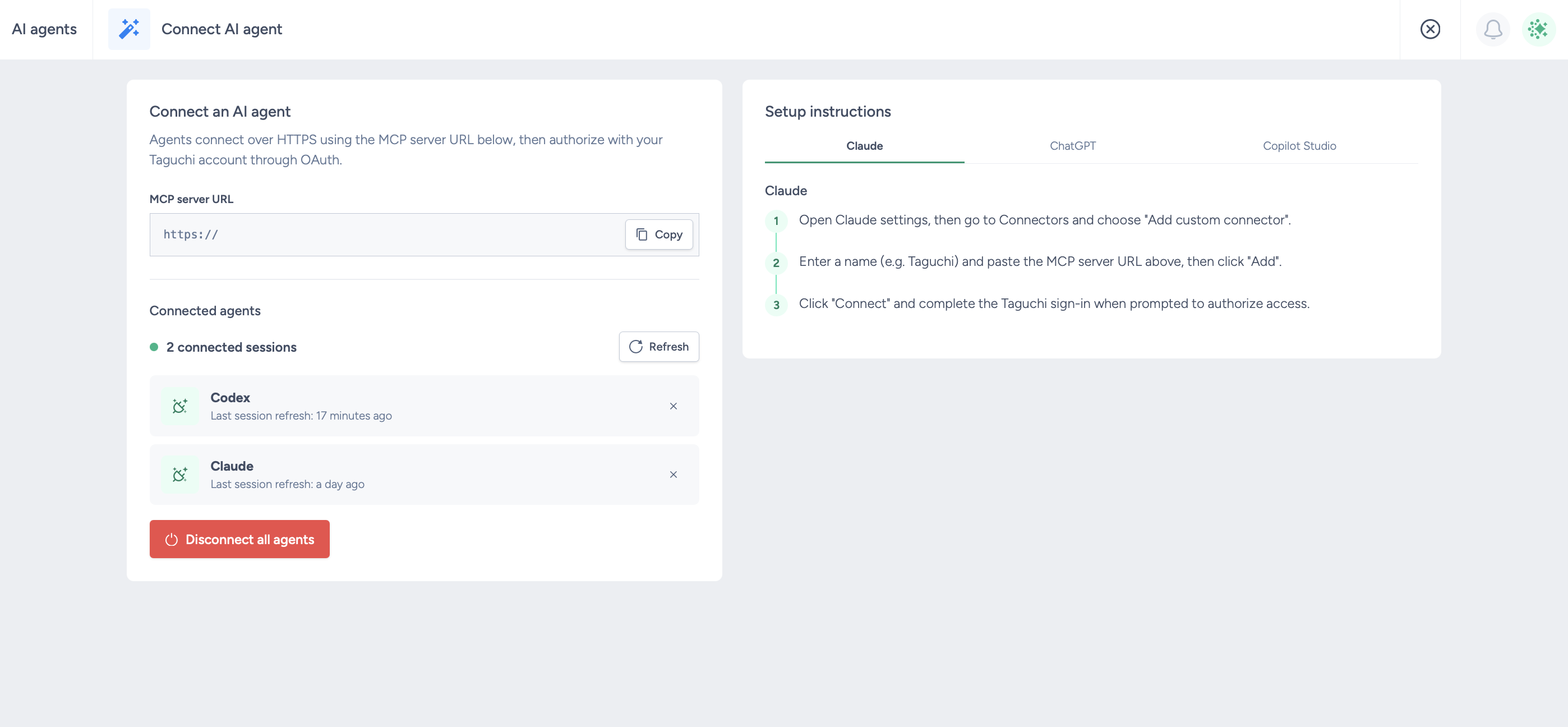
The Connect AI agent screen provides separate setup tabs for Claude, ChatGPT, and Copilot Studio. The ChatGPT tab includes instructions for both the ChatGPT Codex desktop app and ChatGPT web app. Other clients need to support remote MCP connections over HTTPS and OAuth.
Connect Taguchi to your approved AI agent
- Sign in to the Taguchi organisation you want to use.
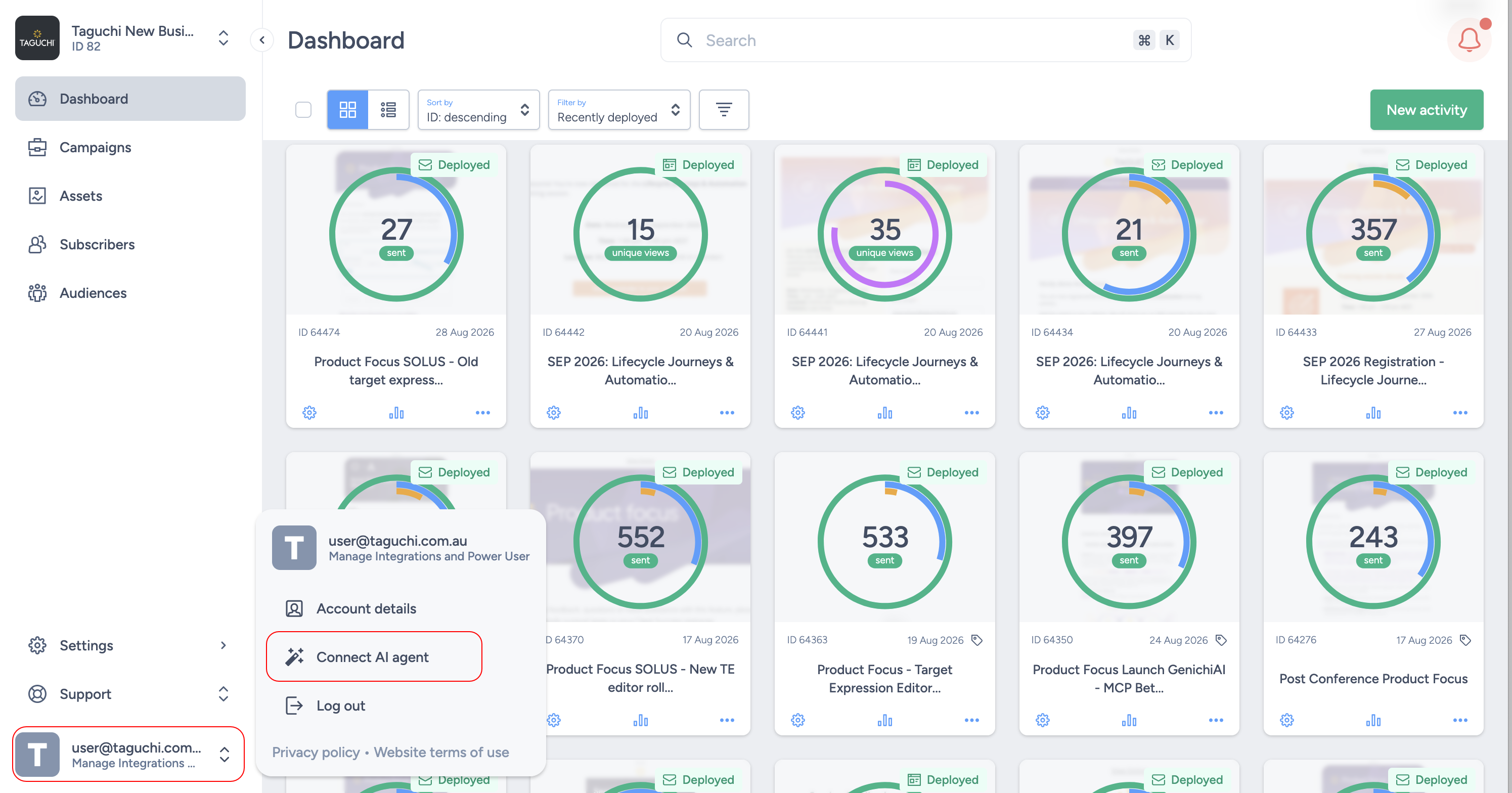
- Open your user account menu.
Select Connect AI agent.
In the Connect an AI agent card, select Copy beside the MCP server URL. The URL may be shortened on screen, but Copy copies the complete URL for the current organisation.
- In the Setup instructions card, select the tab for your approved AI agent:
- Claude
- ChatGPT — includes separate instructions for the ChatGPT Codex desktop app and ChatGPT web app
- Copilot Studio
- Open the connection settings in your organisation's approved AI agent.
- Add a new MCP connection and follow the numbered instructions shown in Taguchi.
- Give the connection a clear name.
Never use another person's connection details. Do not paste passwords, tokens, private keys, session cookies, or other secrets into an AI prompt.
Complete Taguchi authorisation
When the AI client starts the connection, it opens Taguchi sign-in if needed and then displays an authorisation page. Check the client name, organisation name and ID, and signed-in account before continuing. The page lists the roles available to grant; deselect any roles you do not want the MCP connection to use, then select Authorize. The list contains roles eligible for MCP access and may not include every role held by your Taguchi account.
The V5 UI checks that the organisation requested by the AI client matches an organisation you can access, then returns you to the client to finish connecting. You do not need to copy OAuth URLs, client credentials, passwords, or tokens. Configure a separate MCP connection for each organisation you want to access.
Choose a clear connection name
Use a name that shows the organisation or team, environment, and access level.
For example:
taguchi-marketing-productiontaguchi-campaign-team-sandboxtaguchi-reporting-read-only
Avoid vague names such as Taguchi, MCP, test, or production on their own.
Disconnect your AI agents
While signed in to the relevant organisation, open your user account menu and select Connect AI agent. The Connected agents section shows each active session as a separate row, including the AI client name and the time that session was last refreshed. If a client does not provide a name, it is shown as AI agent.
The session list is updated when the screen opens. Select Refresh to check for sessions that were connected or disconnected while the screen was open. Refreshing the list does not disconnect or otherwise change a session.
If there are no active sessions, the section displays No connected sessions and Last refresh: Never.
To disconnect one agent:
- Find the agent in Connected agents.
- Select the X button for that agent.
- Confirm that you want to disconnect the named agent.
Only the selected session is disconnected. Other connected agents are not affected. The disconnected agent must be authorised again before it can access the organisation.
To revoke every active MCP session for your account in the current organisation, select Disconnect all agents, then confirm the action. Each disconnected client must be authorised again before it can reconnect. The button is unavailable when there are no connected sessions.
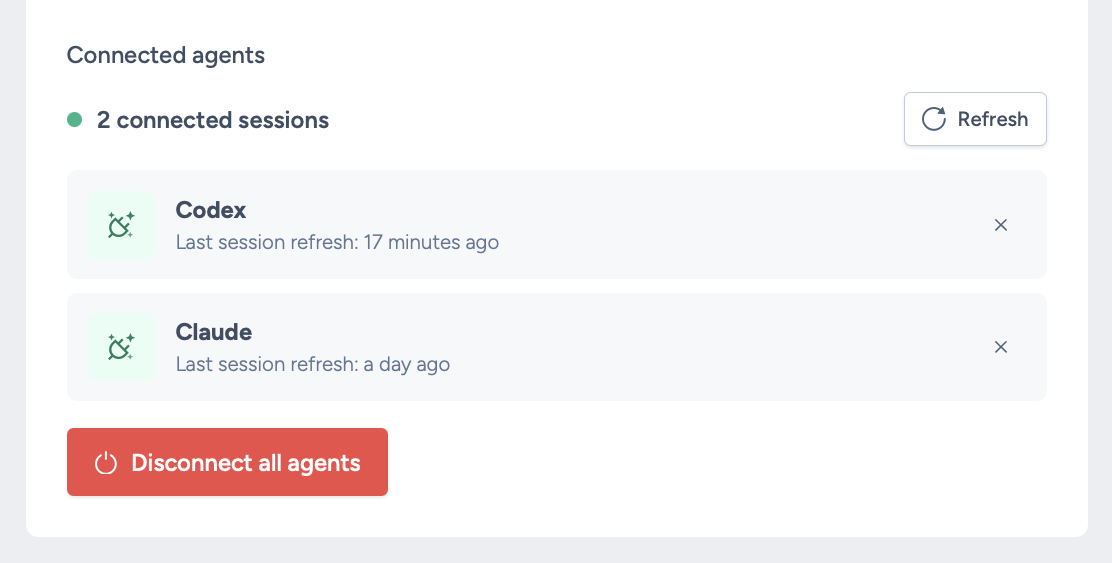
Closing an AI client does not revoke its Taguchi session.
Check the connection before using it
Your first request should be a small, read-only check. This confirms that the AI agent is connected to the right organisation without changing anything.
Example prompt
Using [Taguchi MCP connection name], confirm the connected Taguchi organisation name and ID. Read taguchi://org/session-permissions and summarise the roles granted to this MCP session, its partition restrictions, and the record types and actions it can write. Do not make changes.
Check that:
- The expected connection is available
- The Taguchi organisation name and ID are correct
- The expected partition scope is reported
- Authentication succeeds
- The available tools match the approved capability inventory
- Read-only and change-making capabilities are clearly distinguished
- A small read-only request succeeds
Example response
Confirmed through the live Taguchi Demo MCP connection:
- Organisation: Taguchi Demo
- Organisation ID: 94
Authorization boundaries:
- The connection is hard-scoped to organisation 94; all MCP reads and writes are confined to that organisation.
- It exposes both read and write capabilities, including resources, subscribers, campaigns, activities, lists, audiences, integrations, assets, tags, proofs, and approval workflows.
- Access is limited to the operations exposed by this MCP interface; it is not unrestricted access to every Taguchi UI or API capability.
- Individual subscriber searching is not exposed, although subscriber records can be written by ID and aggregate audience sizes can be estimated.
- The
session-permissionsresource reports this MCP session's granted roles, partition restrictions, and write actions by record type. It is a summary of this session's access, not a complete report of every permission in the user's Taguchi account or every capability in the AI client.
I successfully performed a read-only organisation-configuration query; no Taguchi data was changed.
Connections with similar names may point to different Taguchi organisations. Always name the connection you want the agent to use.
Use Taguchi safely
Follow these rules whenever you use Taguchi through an AI agent:
- Use only the minimum information needed.
- Use Taguchi resource IDs where possible.
- Avoid personal information unless it is required and approved.
- Never include passwords or secrets in a prompt.
- Check important facts and recommendations.
- Store and share results only in approved systems.
- Ask the agent to prepare changes before applying them.
- Review and approve the exact action before anything is sent or changed.
Uploads, proofs, approval requests, scheduling, launches, archiving, and deletion may require additional Taguchi permissions or use a Taguchi approval workflow. Review the AI client's confirmation settings as well; those controls are separate from Taguchi authorisation.
For safer work, use two steps:
- Ask the agent to review the current setup and prepare a plan without making changes.
- Review the plan, then approve the exact action if it is correct.
If an action times out, do not immediately run it again. First ask the agent to check whether the original action completed.
What can the AI agent help with?
Depending on your access, you may be able to:
- Find activities, revisions, campaigns, lists, audiences, integrations, fields, assets, tags, themes, layouts, partitions, views, extracts, credentials, and coupon types.
- Review organisation settings, authorised domains, permissions, and recent resources.
- Check Taguchi target expressions and estimate audience size.
- Analyse campaign, activity, audience, integration, configuration, and engagement results.
- Compare results across dates, groups, campaigns, and channels.
- Identify successful patterns, possible improvements, and inactive or duplicate resources.
- Review targeting, sender settings, themes, content, personalisation, coupons, and schedules.
- Create previews for email, web, SMS, WhatsApp, LINE, and push messages where supported.
- Check links, images, sending and tracking domains, DNS authorisation, and message size.
- Prepare proof matrices, proof sends, and approval requests.
- Plan and create groups of related resources.
- Create or update supported Taguchi records when the MCP session has the required permissions; some operations also use Taguchi approval workflows.
- Upload images to Taguchi's CDN and create reusable assets.
Your connection may not include every Taguchi feature. Available tools depend on your Taguchi role, partition permissions, connection setup, and AI agent.
Prompt and response examples
The following prompts and example responses are reproduced from the PDF. Replace bracketed values with the relevant connection name, IDs, dates, and requirements. The example responses are illustrative; actual results depend on the organisation's data, permissions, partitions, and available tools.
Audit
Review the organisation for revenue opportunities
Example prompt
Using [Taguchi MCP connection name], conduct a read-only review of the Taguchi organisation for potential revenue opportunities. Analyse aggregate campaign and activity performance for [date range], including conversion value, revenue per message, channel performance, audience engagement, and recent trends. Identify successful patterns that could be repeated, underperforming areas that could be improved, and eligible reactivation or cross-channel opportunities. Rank the five strongest opportunities by likely value, supporting evidence, effort, and risk. Do not access individual-level records or make changes.
Example response
Top revenue opportunities
- Repeat the high-performing seasonal campaign pattern
- Evidence: The top three activities generated revenue per message between $1.80 and $2.15.
- Effort: Medium. Risk: Low.
- Develop a reactivation journey
- Evidence: A sizeable contactable audience has historical engagement but no recent conversion activity.
- Effort: Medium. Risk: Medium; targeting and frequency should be reviewed.
- Improve high-open, low-click activities
- Evidence: Four email activities exceeded the organization's average open rate but recorded below-average clicks.
- Effort: Low. Risk: Low.
- Expand the strongest email campaign into SMS testing
- Evidence: The campaign generated above-average conversion value, and an eligible SMS audience is available.
- Effort: Medium. Risk: Medium; channel consent, cost, and contactability must be confirmed.
- Reduce effort spent on low-value campaign patterns
- Evidence: Two recurring campaigns generated consistently low revenue per message across three periods.
- Effort: Low. Risk: Low.
These are analytical recommendations only. Audience estimates, content, costs, approvals, and expected returns should be validated before implementation.
Review organisation for dormant items
Example prompt
Using [Taguchi MCP connection name], perform a read-only review of our Taguchi workspace to identify items that may be suitable for archiving, including:
- Dormant or unused lists and audiences
- Unpublished, abandoned, or duplicate assets and activities
- Drafts that have not been updated recently
- Expired or completed activities no longer needed for reporting or reuse
- Outdated themes, content, campaigns, or other inactive items
Assess each item using its last-used or last-updated date, current status, dependencies, recent campaign usage, and potential reporting or compliance value.
Provide a review table containing:
- Item name and type
- Current status
- Last used or updated date
- Relevant dependencies or recent usage
- Recommended action: Keep, Review, or Archive
- Reason for the recommendation
- Any risks or considerations
Highlight anything where ownership, retention requirements, dependencies, or archival impact is unclear. Do not archive, delete, unpublish, or modify anything. Wait for my explicit approval before taking any action.
Example response
Below is an example response based on a read-only review of the Taguchi Demo organization (ID 94) as at 6 August 2026.
No records were archived, deleted, unpublished, or modified.
| Item | Type | Status | Last used/updated | Dependencies or recent usage | Action | Reason | Risks / considerations |
|---|---|---|---|---|---|---|---|
| Taguchi Ice Cream Master (ID 165737) | List | Inactive, empty | 24 Jul 2026 | No direct activity target reference found; statistics show zero members | Review | Empty and inactive, but relatively new | Ownership, consent-retention purpose, integrations, and indirect references are unclear |
| Active Customers (ID 94) | Audience | Active; 0 contactable members | Refreshed 5 Aug 2026 | No direct activity target reference found | Review | Currently produces no usable audience | ⚠ Could be a temporary data issue or a source cohort used outside activity targeting |
| New customers last 30 days (ID 8631) | Audience | Active; 0 contactable members | Refreshed 6 Aug 2026 | No direct activity target reference found | Review | Empty despite a recent refresh | ⚠ Confirm expected source data and owner before archiving |
Priority shortlist
The strongest immediate archival candidate is activity 56974, because it is an old draft, appears to duplicate activity 56973, and no direct downstream target reference was found.
The empty list and zero-member audiences should remain Review, not Archive, until their owners, integrations, retention obligations, and expected data flows are confirmed. The unnamed theme, older layout, and unpublished assets also require deeper dependency checks.
This review does not establish organization-specific legal, consent, financial-reporting, or campaign-retention requirements. It also cannot conclusively rule out references embedded in revision content, external integrations, workflows, exports, or custom code. Explicit approval would be required before taking any archival action.
Search for activities and assets based on phrase or URL
Example prompt
[Taguchi MCP connection name], search across all content assets, email activities, and tracking data in this organisation for references to '[phrase]' or '[destination URL]'. Identify matching content blocks and activities, show where each asset was used, list associated GA/Taguchi tags, and report tracked CTA clicks. Distinguish between reusable assets and activity placements and clearly note any items with no usage or click data.
Example response
I searched all 249 reusable assets, email activity content/revisions, and activity link-performance data in the New Business organisation (ID 82).
Reusable assets
| Asset | Content | Usage found | Tags and clicks |
|---|---|---|---|
| 1085121 ISO Management System footer | ISO 27001:2022 Information Security Management System | No exact linked usage detected | Unpublished; no Taguchi tags; no asset usage/click data |
| 1080534 New Grid Row | ISO logo and ISMS compliance statement | Near-identical footer placement appears in several activities listed below, but no live reference to asset ID 1080534 exists. It appears to have been copied into activities. | Archived and unpublished; no Taguchi tags; asset-level usage/click data absent |
Direct email-content matches
Nine email activities contained the exact phrase in their subject, preheader or message body:
Analyse
Campaign success
Example prompt
Using [Taguchi MCP connection name], analyse the performance of campaign [campaign ID or name] from [start date] to [end date]. Report sends, opens, clicks, conversions, conversion value, and revenue per message. Compare the results with [comparison campaign or period], identify the strongest and weakest activities, and provide three evidence-based recommendations. Read-only.
Example response
Campaign summary
- Messages sent: 126,400
- Open rate: 38.2%
- Click rate: 5.8%
- Conversions: 1,420
- Conversion value: $184,600
- Revenue per message: $1.46
Revenue per message increased by 18% compared with the previous period. The second email generated the highest conversion value, while the reminder activity recorded strong opens but a below-average click rate.
Recommendations
- Reuse the second email's offer and layout as a future test baseline.
- Test a clearer call to action in the reminder activity.
- Review the timing between the first and second activities, where engagement declined most sharply.
Find optimal time of day to send
Example prompt
Using [Taguchi MCP connection name] determine the best time of day to send [CHANNEL, e.g. email] communications for [market/subscriber list/target audience].
Example response
The best current send time is 10:00 am in the recipient's local timezone. For Australian-only communications, use 10:00 am Melbourne time (AEST/AEDT).
Based on 71 broadcast emails sent during the last 12 months:
| Melbourne send window | Activities | Sent | Unique open rate | Unique click rate |
|---|---|---|---|---|
| 9:00–10:59 am | 7 | 499 | 52.5% | 13.2% |
| 11:00 am–12:59 pm | 33 | 4,897 | 32.1% | 9.6% |
| 1:00–2:59 pm | 16 | 1,865 | 36.6% | 10.1% |
| 3:00–4:59 pm | 12 | 782 | 39.6% | 6.8% |
| 5:00 pm onward | 2 | 333 | 29.7% | 3.9% |
Recommendation:
- Use 10:00 am as the primary default.
- If you want the more conservative, higher-volume evidence point, use 1:00 pm; it performed better than the heavily used 11:00 am–noon window.
- Avoid routine sends after 5:00 pm.
- For geographically distributed recipients, schedule at 10:00 am local time, rather than sending everyone simultaneously from Melbourne.
- Validate causally with a 50/50 test of 10:00 am versus 1:00 pm, keeping audience, subject, and content constant. Historical results are correlated with send time but also reflect differences in audience and message type.
Tuesday produced the strongest overall engagement, while Thursday had the strongest evidence base for clicks, so Tuesday or Thursday at 10:00 am is the best starting combination.
Estimate and validate a proposed target expression
Example prompt
Using [Taguchi MCP connection name], validate the syntax and estimate this Taguchi target expression:
[target expression]
Example response
Target-expression validation: Passed
Validated expression
subscribed list 410 and opened activity 7802 last 90 days and contactable via email
Estimate
Estimated reach: 18,420
95% confidence bounds: 17,890–18,970
Relative error: 1.5%
Calculation progress: 100%
Relevant partitions: 12 — AU Retail; 19 — Loyalty
Channel contactability: Email included
The expression selects members of list 410 who opened activity 7802 during the last 90 days and are currently contactable by email.
The estimate is approximate and may differ from the eventual send volume because eligibility can change before deployment.
No expression was saved and no activity was modified.
Review an activity before deployment
Example prompt
Using [Taguchi MCP connection name], perform a comprehensive read-only pre-deployment review of activity ID [ACTIVITY_ID] and its latest revision, covering configuration, targeting and audience estimate, content/personalization, assets, links, domains, size, compliance, testing, proofs, approvals, and scheduling. Return READY, READY WITH WARNINGS, or NOT READY with blockers, warnings, passed and unverified checks, and prioritized actions; do not modify, send, approve, schedule, or deploy anything.
Example response
NOT READY
Activity 64223, latest revision 776696, was reviewed read-only. Nothing was modified, sent, approved, scheduled, or deployed.
Blockers
- Audience/contactability results conflict
- Exact target estimate: 5 recipients, 95% range 5–5.
- Activity check reports: 5 total / 5 contactable.
- Statistical estimate with contactable via email: 0.
- This must be reconciled before deployment; the effective send population cannot currently be trusted.
- Approval is incomplete
- Activity status: draft.
- Activity isApproved: false.
- Revision approval status: locked.
Identify an audience based on historical behaviour
Example prompt
Using [Taguchi MCP connection name], prepare a target expression for people who [desired historical behaviour] but have not [recent behaviour] during [period], and who are contactable through [channel]. Explain each condition, estimate the reach, and show the proposed expression. Do not create an audience or update an activity.
Example response
Proposed target expression:
subscribed list 5634 and channel email send count > 0 and channel email clicked count > 1 and contactable via email
Conditions:
- subscribed list 5634 — currently subscribed to the Taguchi Staff list.
- channel email send count > 0 — has received at least one email through the platform.
- channel email clicked count > 1 — has generated more than one email-link click event across their recorded history.
- contactable via email — currently has a deliverable, non-suppressed email channel.
Estimated reach:
- Approximately 13 people
- 95% confidence range: 0–24
- Relative standard error: 0.59, so the estimate has high uncertainty because the population is small.
- List membership alone estimates 24 people.
- Adding contactability reduces the point estimate to 13.
- The send and repeated-click conditions do not further reduce the current point estimate.
The click predicate counts email clicks across all email activities and links over all time. It does not prove that both clicks occurred within the same individual activity. Enforcing “more than one click within one specific activity” would require that activity's ID.
No audience was created and no activity was updated.
Action
Create a campaign journey
Example prompt
Using the [Taguchi MCP connection name], create a draft Customer Onboarding Journey for customers joining the New Customers list:
- Welcome email immediately
- Getting-started email after 2 days
- Resources email after 5 days
- Check-in email after 10 days for non-converters
Reuse suitable existing themes, layouts, and deployed activity patterns. Prevent repeat entry and exclude uncontactable customers. First produce a provisioning plan showing resources, timing, targets, and assumptions. Do not provision, send, schedule, or deploy anything until I approve the plan.
Example response
Provisioning plan — pending approval
The plan validated successfully and would create:
- 1 list
- 1 campaign
- 4 draft email activities
Nothing was provisioned, sent, scheduled, approved, or deployed.
Important dependencies
- No active list named exactly New Customers was found. The validated plan therefore proposes creating it with ref new-customers.
- If the list already exists under another name, its actual ID should replace this proposed list before provisioning.
- “Conversion” is not yet defined. The provisional day-10 rule treats any Taguchi conversion event during the preceding ten days as conversion.
Reused resources
- Theme 177 — Taguchi
- Official Taguchi branding and sender configuration.
- Inherited through the selected layouts.
- Layout 332 — V5 Onboarding: First Login Welcome
- Proposed for the immediate welcome.
- Based on deployed revision 742346 and includes a standard unsubscribe mechanism.
- Layout 333 — V5 Onboarding: Personalised Quickstart
- Proposed for days 2, 5, and 10.
- Suitable for concise onboarding guidance and primary CTAs.
- Deployed activity 59447
- Reusable pattern for frequent welcome-trigger evaluation.
- Deployed activity 58844
- Reusable daily lifecycle pattern using elapsed-time targeting, contactability, and not sent repeat suppression.
Planned resources
| Resource | Action | Purpose |
|---|---|---|
| New Customers list | Create, unless an existing ID is supplied | Journey entry and continuing-consent list |
| Customer Onboarding Journey — New Customers | Create campaign | Container for all four activities |
| Customer Onboarding — Welcome | Create draft email | Immediate welcome and journey entry |
| Customer Onboarding — Day 2 Getting Started | Create draft email | First-use guidance |
| Customer Onboarding — Day 5 Resources | Create draft email | Helpful resources and education |
| Customer Onboarding — Day 10 Non-Converter Check-in | Create draft email | Assistance or conversion prompt for non-converters |
BAU Campaign Set Up
Example prompt
Using [Taguchi MCP connection name], review our campaign activity from the past two weeks and identify the recurring campaign pattern. Based on that pattern, prepare a plan for next week using the same types, sequence, timing, audiences, channels, and number of activities.
Use clearly labelled placeholder content for all campaign names, subject lines, copy, links, imagery, and other creative fields.
Present the proposed schedule, activities, settings, and assumptions for my review. Do not create, schedule, publish, send, or modify anything in Taguchi until I explicitly approve the plan.
Example response
I reviewed activity dated 23 July–6 August 2026. No Taguchi records were created or changed.
The recurring pattern is an event-driven V5 onboarding journey:
- 14 activities appeared across the organisation.
- 12 belonged to the same onboarding campaign.
- One of those 12 was an archived duplicate web form, leaving an effective pattern of 11 active activities: 9 emails and 2 hosted web pages.
- The other two activities were unrelated Information Security clones.
- All onboarding activities remain drafts and unscheduled. The pattern below is therefore inferred from the configured journey—not from observed recurring sends.
Proposed campaign
Campaign name: [PLACEHOLDER CAMPAIGN NAME — V5 ONBOARDING JOURNEY]
Proposed launch window: Monday 10 August 2026, after approval and QA.
The web pages would need to be available before the email triggers are enabled. Email timing is subscriber-relative, so only the launch occurs next week; later steps continue through Day 30.
| Sequence | Proposed activity | Channel | Timing | Audience/eligibility | Creative placeholders |
|---|---|---|---|---|---|
| 1 | [PLACEHOLDER ACTIVITY NAME — WELCOME PROFILE FORM] | Hosted web page | Available before journey activation | New eligible users arriving from the first-login email | [PLACEHOLDER PAGE TITLE], [PLACEHOLDER FORM COPY], [PLACEHOLDER FORM FIELDS], [PLACEHOLDER SUBMIT LABEL], [PLACEHOLDER IMAGERY], [PLACEHOLDER WEB PATH] |
Prepare an activity update
Example prompt
Using [Taguchi MCP connection name], prepare an update to activity [activity ID].
Requested changes:
- [change 1]
- [change 2]
- [change 3]
Retrieve the current activity and relevant deployed revision. Preserve its approved structure, layout, theme, sender configuration, editor identifiers, and unaffected content. Show the proposed target expression, content changes, assets, links, and configuration differences for review.
Example response
No changes have been saved. Activity 64223 remains a draft.
Source comparison
Current activity: 64223 — Clone of IS Awareness Catch up 2026
Current revision: 776696, locked
Relevant deployed source: activity 63879, revision 775018
The current and deployed revision content is structurally identical: zero content differences across theme, sender, grids, blocks, styling, copy, images and links.
Proposed target
Unchanged:
(subscribed lists 5634 and email one of example@example.com)
Distribution remains broadcast, with no schedule, no send limit and a throttle of 5,000.
Proposed content changes
| Field | Current | Proposed |
|---|---|---|
| Primary subject | Security awareness catch up | This is a test |
| Second subject | None | This is another test |
| Preheader | Complete the security awareness material | This is a test |
| Subject variants | 1 | 2 |
| Preheader variants | 1 | 1 |
Send a proof
Example prompt
Using [Taguchi MCP connection name], prepare to send activity [activity ID], revision [revision ID], to proof list [proof list ID].
First confirm the organisation, activity name, revision, proof destination, validation results, and activity-check results. Show the proposed action and wait for my explicit approval before sending.
Example response
Preparation complete. Nothing has been sent.
- Organisation: Taguchi Demo (ID 94)
- Activity: Repeat Order Last Chance - Email (Day 17) (ID 63946)
- Revision: 775175 (latest)
- Proof destination: your current Taguchi user's linked email address (subscriber ID 45442307)
- Content validation: Passed — no failures
- Activity checks:
- Links: 1 failure — personalised “view online” URL returned HTTP 400 with unresolved placeholders; manual testing recommended
- Images: Passed — 14 checked, none failed
- Sending domain: taguchi.com.au, legacy configuration; DNS reported not authorised
- Tracking domain: none configured on the theme
- Email size: Passed — 69,225 bytes (below the 100 KB warning threshold)
Proposed action:
{
  "action": "send_proof",
  "activityId": 63946,
  "revisionId": 775175,
  "subscriberId": 45442307,
  "useLiveData": false
}
The MCP session identifies the destination by subscriber ID and does not expose the literal email address in its preflight context.
Reply “Approve” if you want me to send this proof despite the link and domain-check findings.
Prepare a proof matrix
Example prompt
Using [Taguchi MCP connection name], create a comprehensive proof matrix for activity [name/ID]. The matrix must test and show how targeting logic works across segmentation, partitions, custom fields, lists, and activity-based expressions. Prepare – do not upload matrix.
Example response
Prepared locally and not uploaded.
[Upload-ready proof matrix CSV
Documented workbook with expected outcomes and activity setup: activity-64231-proof-matrix.xlsx
The 30 profiles cover:
Every combination of lists 100507, 5634, and 13526
Positive and negative targeting controls
Single, multiple, inactive-client, and absent partitions
v5_user_role, industry, and partitioned custom fields
Prior and current activity interactions
Missing-field and firstname fallback cases
Expected results: 27 targeted, 3 untargeted, with blank segment assignments because revision 776773 has no segments configured.
Troubleshooting
The connection is missing
- Check that your AI agent and account support MCP.
- Confirm that you are signed in to the correct account and workspace.
- Check whether the connection is disabled or paused.
- Reload or restart the AI agent.
- Ask the agent to list its available MCP connections.
- Do not use another Taguchi connection without checking its organisation and access.
You are asked to sign in again
Complete the Taguchi authorisation flow again and confirm the client name, organisation, signed-in account, and requested roles. The client normally refreshes its access in the background. You may need to authorise it again if the session was disconnected or your account no longer has the roles or partition access previously granted.
If the problem continues, ask your administrator to check your account's organisation access and permissions. Never paste login details into a prompt.
You want to disconnect an AI client
In the relevant organisation, open your user account menu and select Connect AI agent. Locate the client under Connected agents, then select its X button and confirm. This disconnects only the selected session.
To disconnect every active session for your account in that organisation, select Disconnect all agents and confirm. Reconnect and authorise any clients you want to use again.
The connection uses the wrong organisation
Stop before viewing or changing anything. Check the organisation name and ID, select or recreate the correct connection, and repeat the read-only check.
Changing the connection's name does not change the Taguchi organisation behind it.
You see a 401, 403, unauthorised, or forbidden error
Your login may have expired, or your Taguchi role may not allow the requested action. Check your identity, organisation, partitions, and permissions.
Proofs, approvals, scheduling, and launches may need extra permissions. If read-only requests work but a change fails, ask your Taguchi administrator for the specific permission you need.
A request times out or shows a network error
- Try one small, read-only request.
- Check your internet, VPN, proxy, DNS, and firewall connection.
- Try a smaller date range or fewer results.
- Check for service maintenance or rate limits.
- Record the time, connection name, organisation, request, and exact error.
Do not repeat a send or update until you have checked whether the first action completed.
Expected tools are missing
Refresh the connection, then ask the agent to read taguchi://org/session-permissions and check the granted roles, partition restrictions, and write actions. Available operations depend on the connection, your account access, and the AI client. If the session needs broader access, disconnect and authorise it again with the additional eligible roles, or ask your Taguchi administrator to review your permissions.
Search results look wrong
Check the resource type, dates, status, IDs, filters, result limit, sort order, and partitions. Ask the agent to show the search settings it used.
An audience estimate is incomplete
Audience estimates may take time. Wait briefly and retry the same expression. Do not change it unless you are fixing an error.
An activity update is rejected
Ask the agent to compare the activity with its current revision and a similar launched activity. It should check required fields, layout, theme, and content structure before trying again.
Link or image checks are slow
These checks open each URL. Ask the agent to check only links or only images while you investigate.
A feature is not available
Some Taguchi features are not available through the MCP connection. Use another approved Taguchi option or contact Taguchi Support.
Related articles
Need help?
When contacting Taguchi Support, include:
- Your connection name
- The Taguchi organisation name and ID
- The time the problem occurred
- What you were trying to do
- The exact error message
- Whether a read-only health check works
Do not include passwords, tokens, or other secrets.
If you need help with Genichi AI, contact Taguchi Support.