- Support Home
- Knowledge Base
- Getting Started
- How to set up push notifications
How to set up push notifications
How to set up push notifications
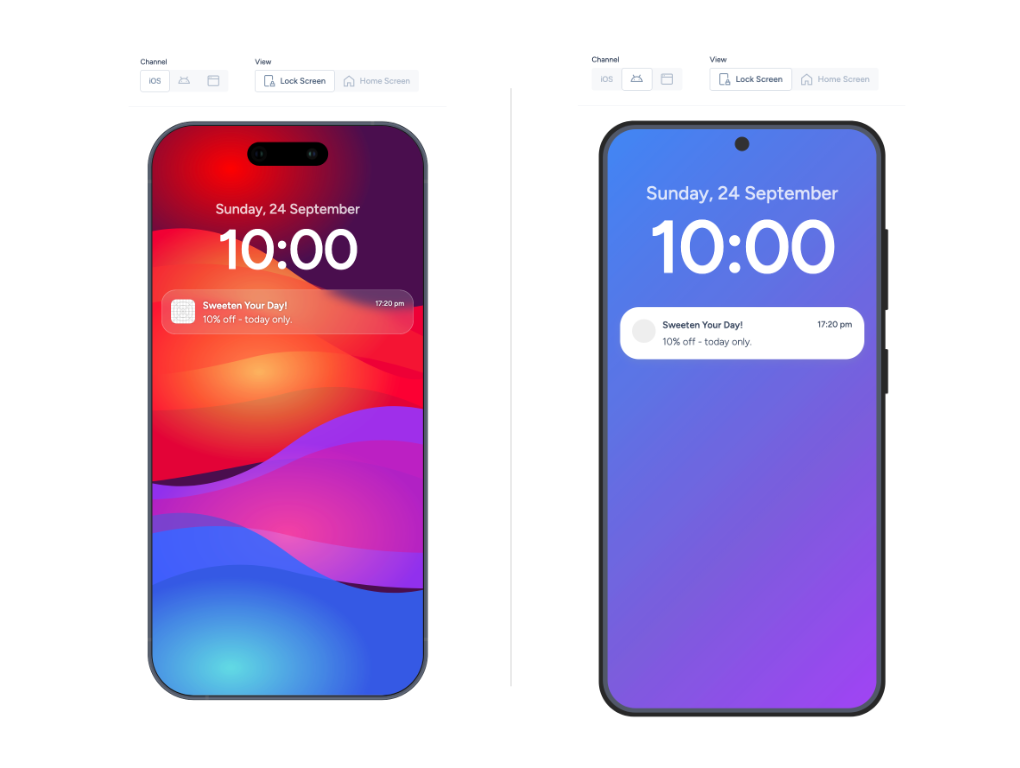
Push notifications are short messages sent to a subscriber’s mobile device through your app provider integration.
In Taguchi, push notifications can be used as a distribution channel alongside email, SMS, web, and WhatsApp activities.
Before you start
Before you can send push notifications from Taguchi, confirm the following:
- You already have a mobile app and a push provider implementation.
- Your account has access to Settings → Integrations.
- You have provider credentials available for one of the supported integration types:
- Messaging: Task Push Notifications
- Messaging: Twilio Notify Push Notifications
Taguchi supports push notifications through these integration options. Feature availability may vary by provider configuration.
Set up push notification integration
Create credentials
Go to Settings → Credentials and create the credential required by your push provider.
Create the integration
Go to Settings → Integrations and create a new integration using:
- Messaging: Task Push Notifications, or
- Messaging: Twilio Notify Push Notifications
Complete all required fields, then click Save Changes and Activate.
Confirm integration status
After activation, confirm the integration is active before building or sending push activities.
Note: For full integration setup instructions, see the Push Notification Integration article.
Create a push notification activity
- Create or open a campaign.
- Add a new activity and choose the Push notification distribution channel.
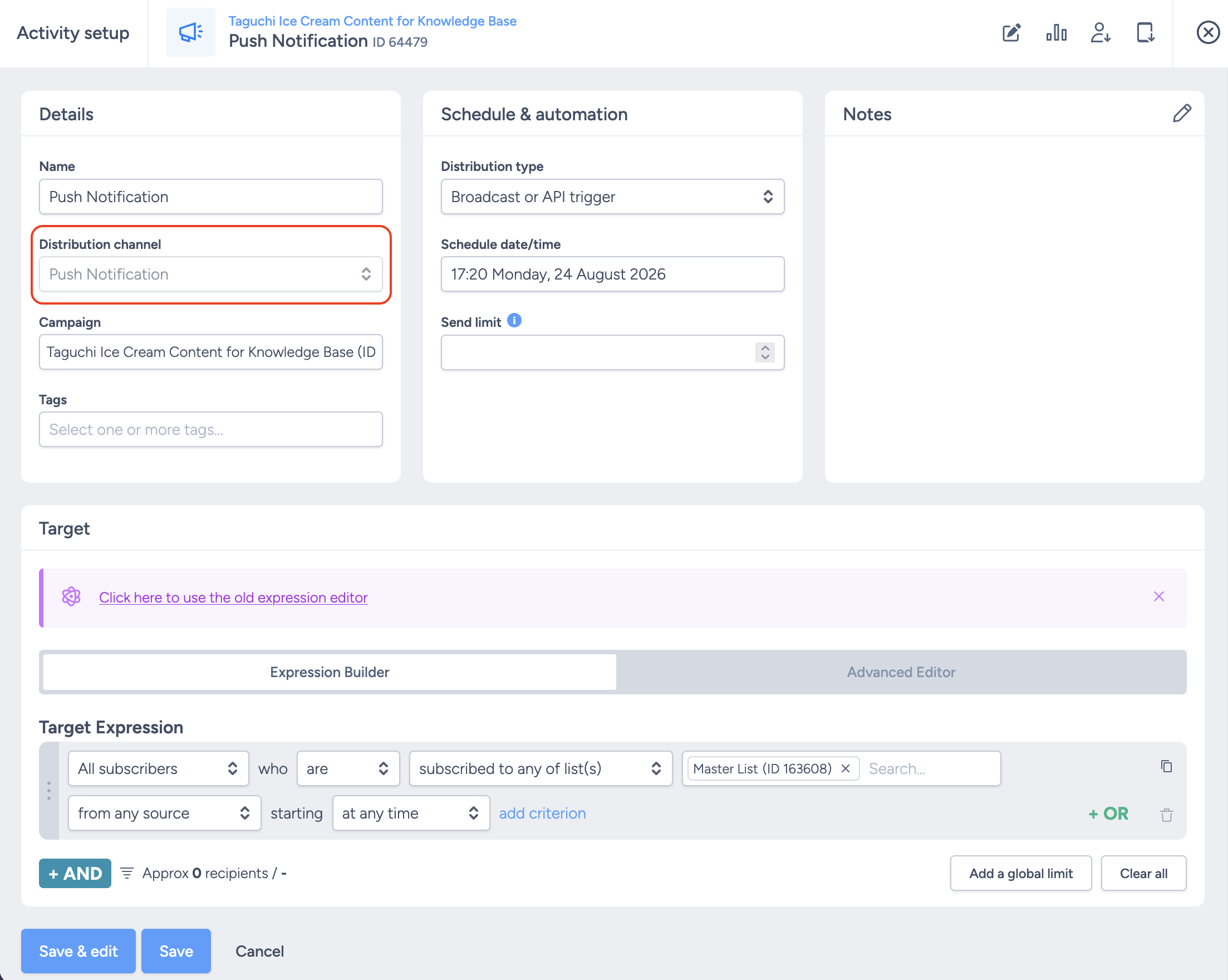
- Select the appropriate push notification integration.
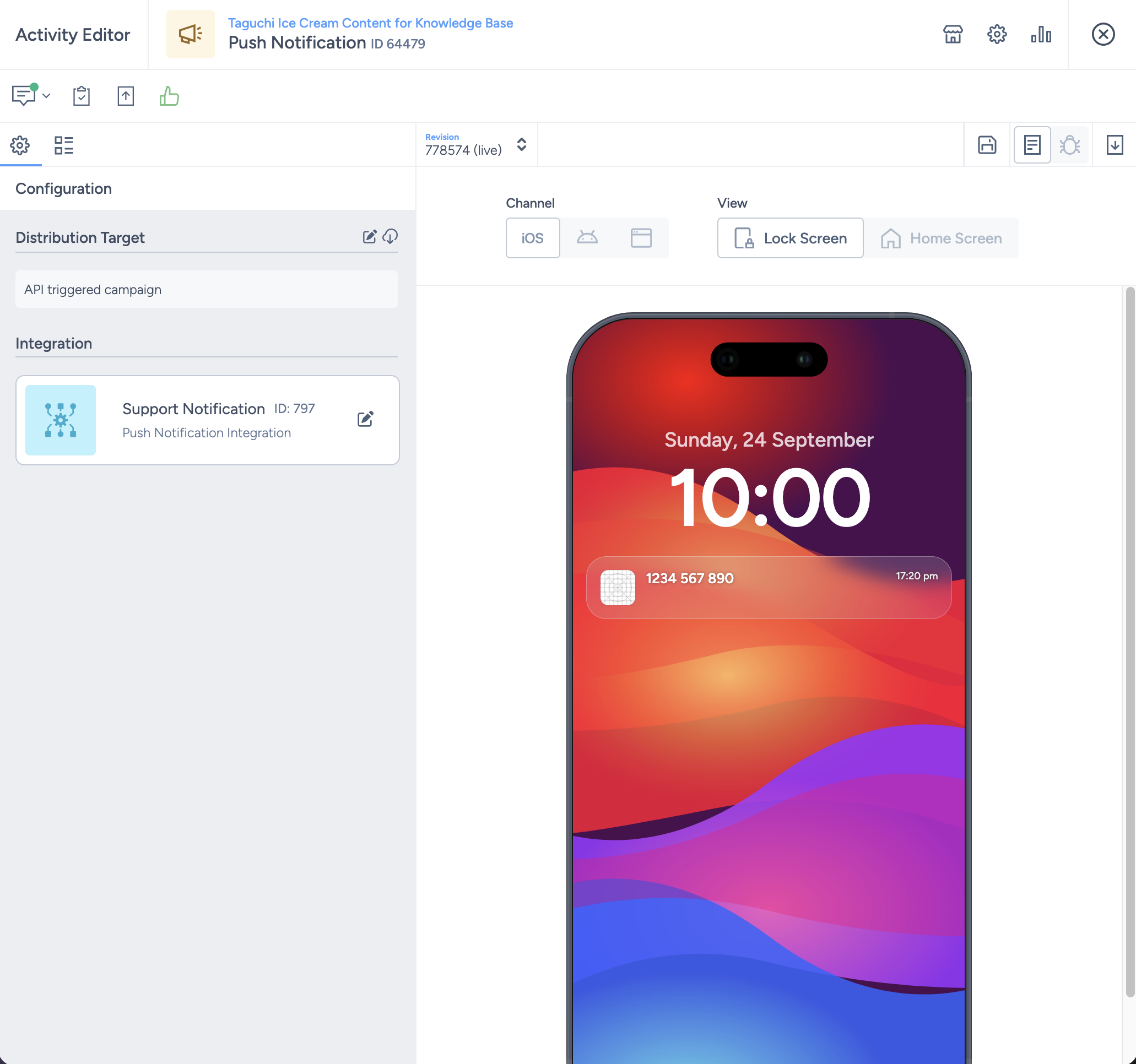
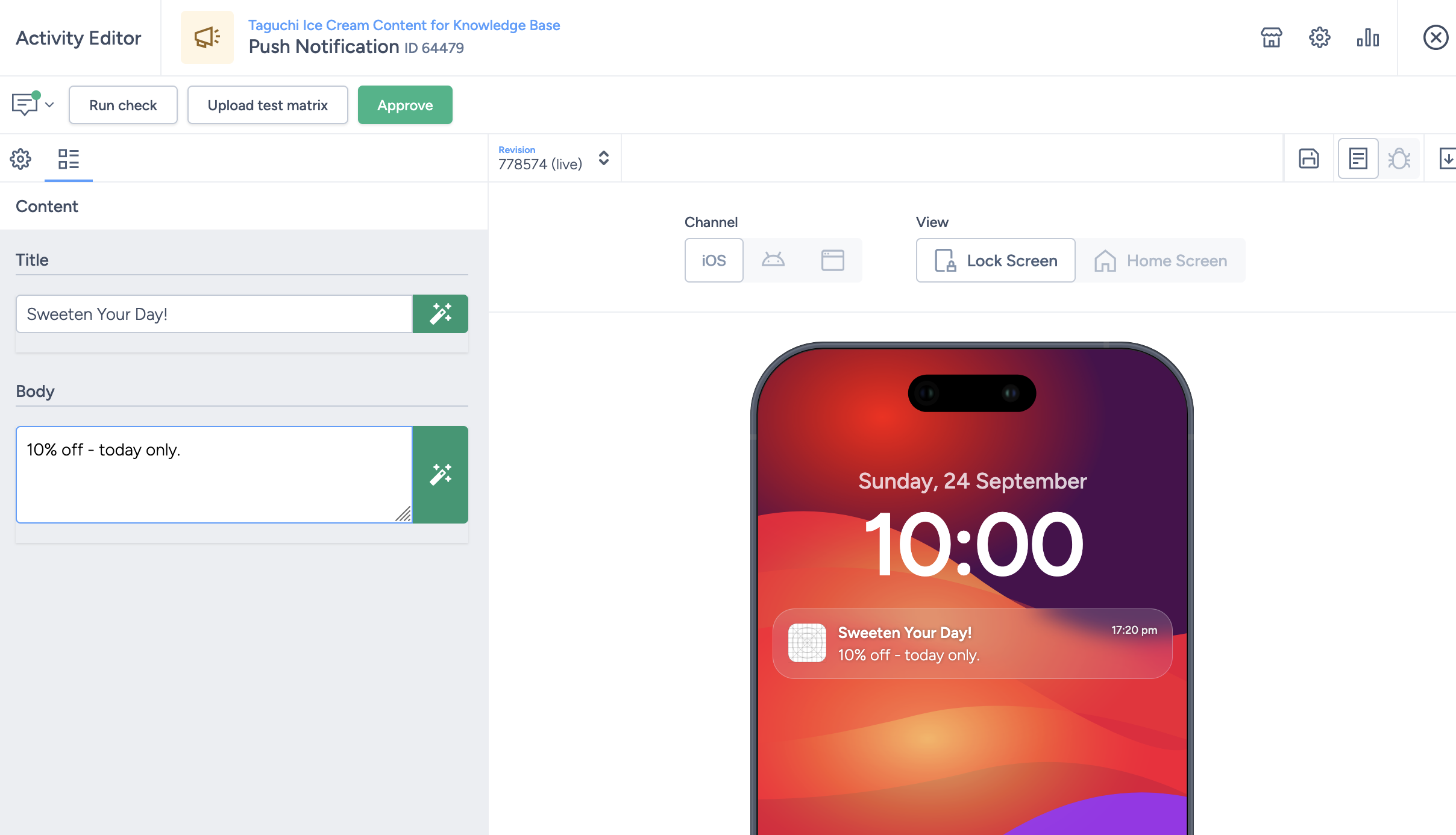
- In the activity editor, enter the push notification title and text.
- Check the Features tab for additional options, such as Analytics (UTM tracking) and Click Tracking. Click Tracking is disabled by default for push notification activities and can be turned on where supported by your integration.
- Configure target and deployment settings.
- Run checks/proofs as required by your workflow.
- Schedule or deploy when ready.
In the current push notification activity editor, the core message fields are title and text.
For broader campaign/activity workflow details, refer to the Taguchi User Guide.
Best practice
- Keep messages concise and action-oriented.
- Use clear targeting rules to avoid over-notification.
- Validate credentials and integration status before deployment.
- Coordinate with your app/push provider team for delivery troubleshooting.
If you need help configuring or troubleshooting push notifications, contact Taguchi Support.