- Support Home
- Knowledge Base
- Integrations
- Event - Trigger (JavaScript)
Event - Trigger (JavaScript)
The Event: Trigger (JavaScript) integration lets you run custom JavaScript when a selected subscriber event occurs in Taguchi.
This integration is useful when you need custom trigger behavior beyond standard event-based or date-based trigger options.
Practical use cases
- Award a referral reward when a qualifying referral event is recorded.
- Send a follow-up activity to a subscriber after a specific engagement event.
- Update a related existing subscriber profile after a validated conversion event.
Security and operating boundaries
- Trigger code runs in a locked-down runtime.
- Trigger actions are limited to existing subscribers.
- Trigger behavior is limited by the permissions you select in the integration.
Create your Event: Trigger (JavaScript) integration
To create a new integration, make sure your user account has the required User Type integration role privileges.
- Go to Settings > Integrations.
- Select New Integration.
Within the setup screen, complete the following sections:
- Details
- Configuration
Credentials
This integration does not require a credential by default.
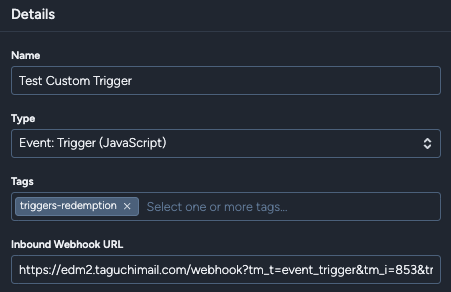
Details
- Name: Enter a clear, unique name for the integration.
- Type: Select Event: Trigger (JavaScript).
- Tags: Add a descriptive tag so the integration is easy to find and manage.
- Inbound Webhook URL: Use the generated URL when an external system needs to send webhook data into this integration.
Configuration
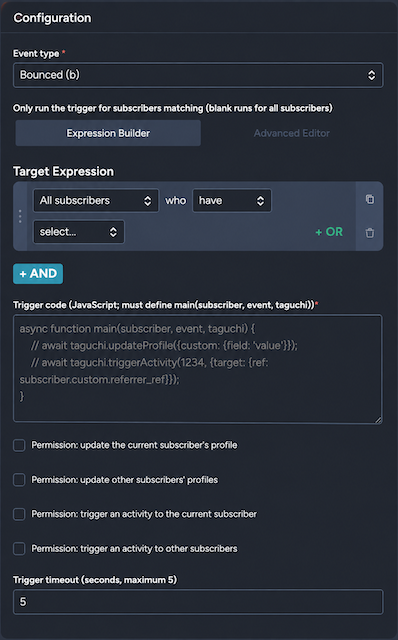
- Event type: Select the subscriber event that should run the trigger.
For the full event list, see Event Types. - Target expression (optional): Restrict execution to subscribers who match specific conditions.
- Trigger code: Add your JavaScript trigger function (for example,
main(subscriber, event, taguchi)). - Trigger timeout: Set the maximum runtime before execution is stopped.
- Permissions: Explicitly allow only the actions your trigger needs:
- Update the current subscriber’s profile
- Update other subscribers’ profiles
- Trigger an activity to the current subscriber
- Trigger an activity to other subscribers
Save changes and activate
After completing Details and Configuration, select Save changes, then Activate. You can only activate the integration after saving changes.

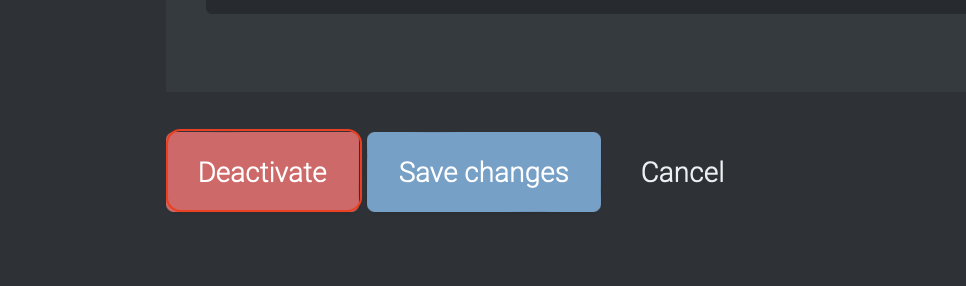
Deactivate
To stop trigger execution, select Deactivate.
Active integration
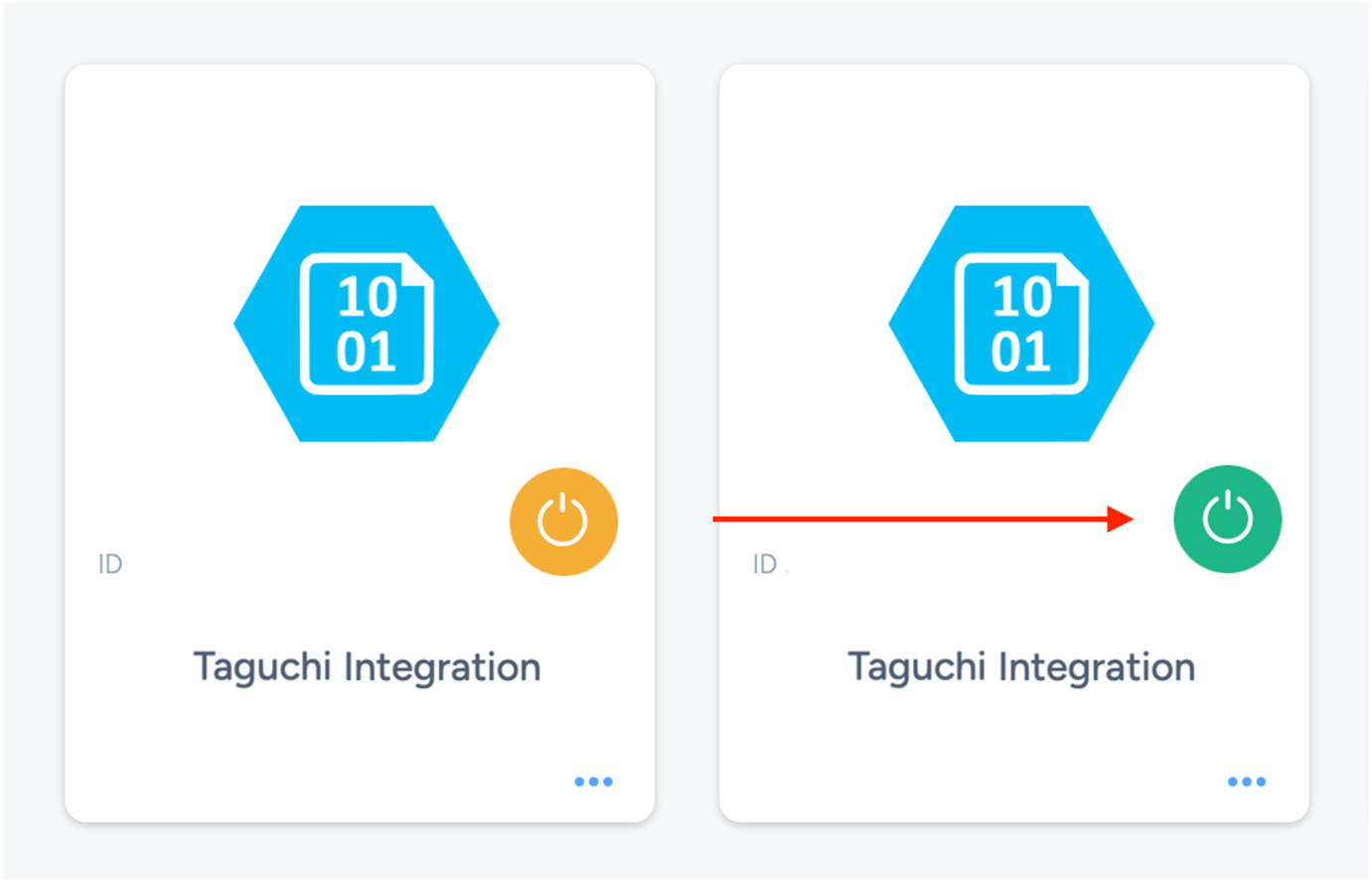
When activated, the integration status icon changes from yellow (Off) to green (On).
Update integration
You can update this integration while active or deactivated. After making changes, select Save changes to apply updates immediately.

Viewing logs in the UI
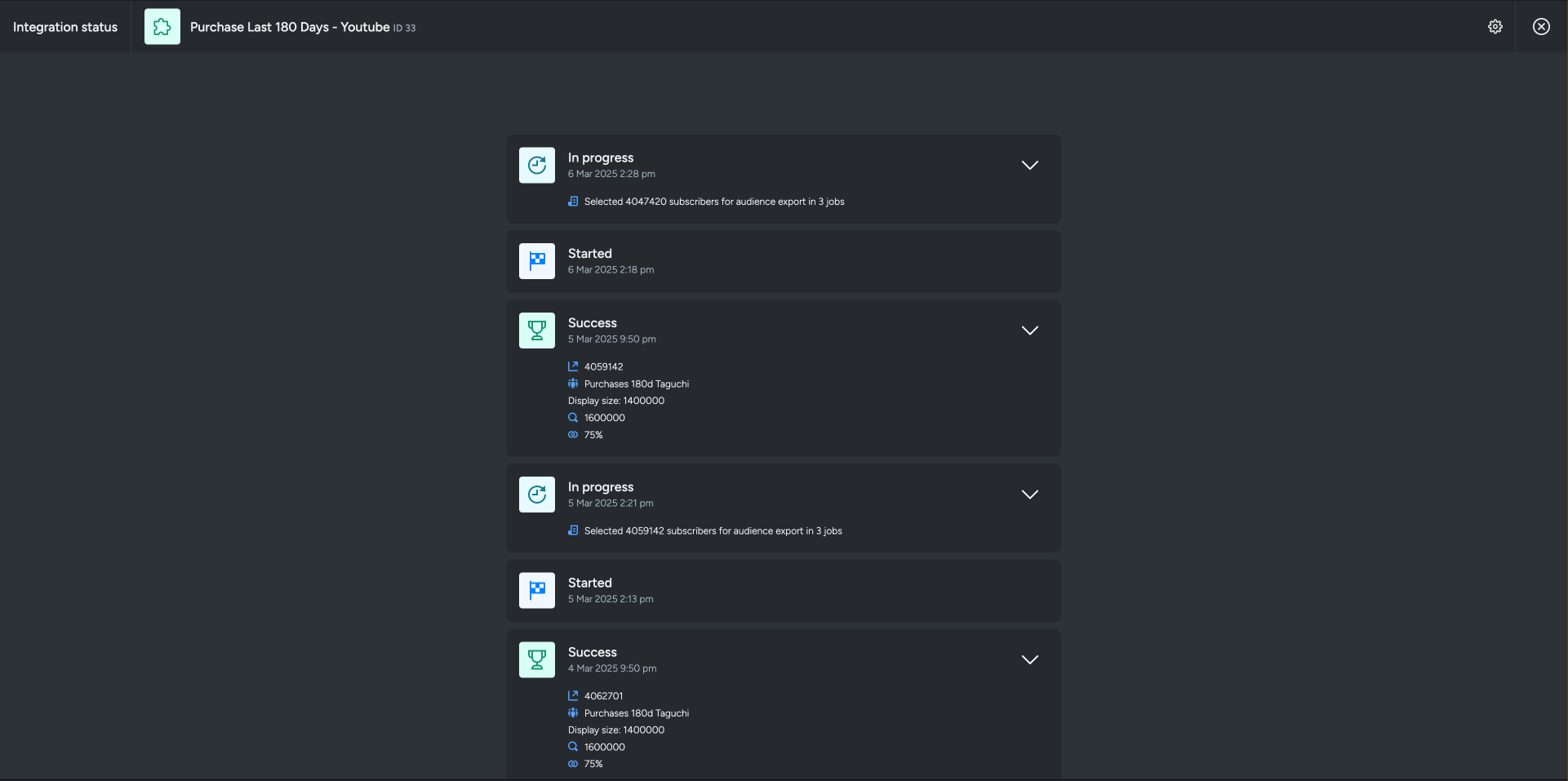
Users can view integration activity and errors directly in the Taguchi UI.
- Go to Settings > Integrations.
- Select your Event: Trigger (JavaScript) integration.
- Select View Status to review recent runs, timestamps, statuses, and error details.
Troubleshooting
If you are having trouble with this integration, please contact Taguchi Support.