- Support Home
- Knowledge Base
- Subscriber Management
- Importing Subscribers
- How to set up file import rules
Related articles
Need some help?
If you have questions or can't find what you're looking for, we're here to help.
Taguchi Support is available 24 hours a day, Monday to Friday.
Create New TicketAPI Version 5
Did you know Taguchi has an API that supports all of the functionality provided by the admin interface and more?
Explore API Documentation
Thanks for your feedback!
How to set up file import rules
File import rules help your team collect the information your organisation needs when uploading subscribers. For example, you can:
- Require an email address for every subscriber.
- Make last names compulsory for a particular list.
- Restrict a field to an agreed set of values.
The rules apply at two stages:
- Map columns: checks that the required fields have been selected.
- Review: checks the values in every row before subscriber data is imported.
This article is for administrators configuring those rules. For help with a message during an upload, see Bulk Upload Errors.
Configure rules
You need Administrator access to configure import rules.
- Open Settings → Messaging & Import Rules.
- Find the File Import Rules editor.
- Keep a copy of the existing rules before editing them, so you can refer back to your previous configuration.
- Enter or update the rules in JSON format, then click Save Import Rules.
- Test the result with a small file containing the fields and values your team normally imports.
JSON is a structured text format. Keep the quotation marks, commas and braces shown in the examples. If you are unsure how to adapt the rules to your organisation, ask your administrator or Taguchi Support for help.
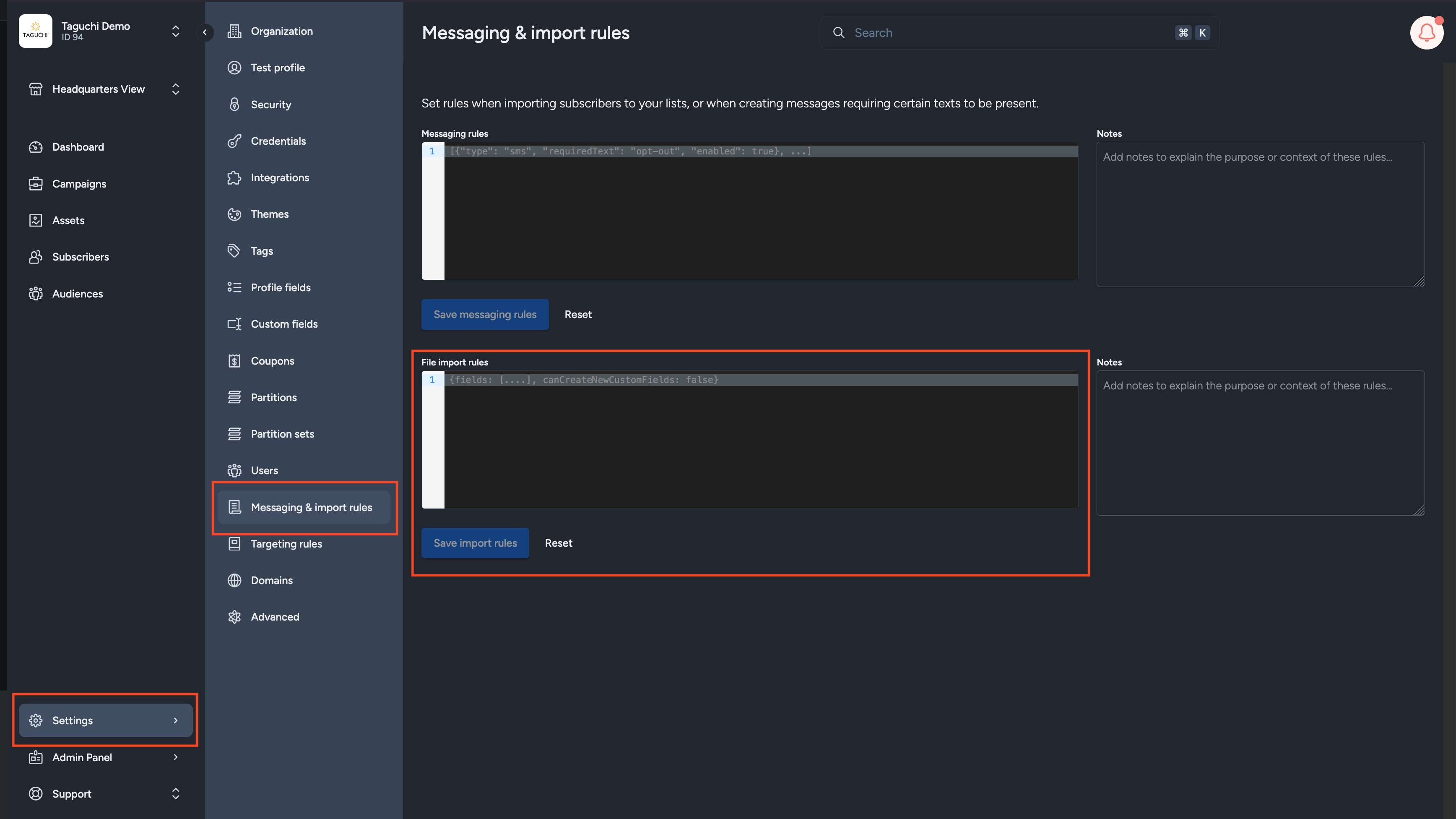
If the JSON contains a formatting mistake, the import dialog cannot load the rules. Check that your changes were saved correctly and test them before asking your team to use them.
Global and list-specific requirements
Global rules apply to subscriber imports throughout your organisation. List-specific rules add requirements for one destination list, identified by its list ID.
For example, your organisation might require Email for every import, while a membership list also requires First name and Last name. Importing into that membership list must meet all three requirements. A list-specific rule cannot make a globally required field optional.
This example requires Email for every import, checks its minimum length, and additionally requires First name and Last name for list 160444:
{
  "global": {
    "fields": {
      "email": { "required": true, "minlength": 5 }
    },
    "skipColumnHeading": true
  },
  "160444": {
    "fields": {
      "firstname": { "required": true },
      "lastname": { "required": true }
    }
  }
}
In this example:
- Every subscriber import needs a mapped Email column and a value in that column for each imported row.
- Email values must contain at least five characters. This checks length only; it does not confirm that an address is correctly formed or that its mailbox exists.
- Files are treated as having a heading row, so that row is not imported as subscriber data.
- Imports into list
160444also need First name and Last name. Replace160444with the ID of your intended list.
Use the field keys shown in the examples, rather than your spreadsheet's own column headings. For instance, the rule uses firstname, even if your file calls that column Given name.
Supported checks in the subscriber importer
| Setting | Behaviour |
|---|---|
fields |
Uses Taguchi field keys, such as email, firstname, lastname or phone. |
required: true |
Requires both a mapping for the field and a value in that field for each imported row. |
minlength |
Checks the minimum character length of a mapped value. |
pattern |
Checks a mapped value against a JavaScript regular expression. Use a valid expression. |
allowedValues |
Requires a mapped value to match one of the supplied strings. |
skipColumnHeading |
Sets and locks the File step's First row contains column names option. true excludes the first row from subscriber data. |
disallowExternalId |
Removes External ID from the available subscriber identity mappings. |
disallowNewLists |
Restricts creating a destination list through import, subject to Taguchi staff access. |
When a value fails a check, the import dialog displays a standard reason identifying the problem. If your existing JSON includes errorMessage, that text is not displayed as a custom message. Explain any organisation-specific requirements to your team alongside the rules.
List-specific settings add required: true requirements. Put format, length and allowed-value checks under global.fields.
Example: require Email, First name and Phone
Use Phone (phone) for the available phone mapping:
{
  "global": {
    "fields": {
      "email": { "required": true },
      "firstname": { "required": true },
      "phone": { "required": true }
    }
  }
}
Ensure every required field is offered in the subscriber mapping selector. Requiring a field that cannot be mapped prevents users from proceeding.
Test your rules
A required column is not mapped
To test a missing required mapping:
- Require Email, First name and Last name in your rules.
- Upload a file containing Email and First name only.
- Confirm the two available columns. Review import should remain unavailable because Last name is missing.
- Add and populate the Last name column, then upload the revised file.
Choosing Ignore column for a required field does not remove that requirement.
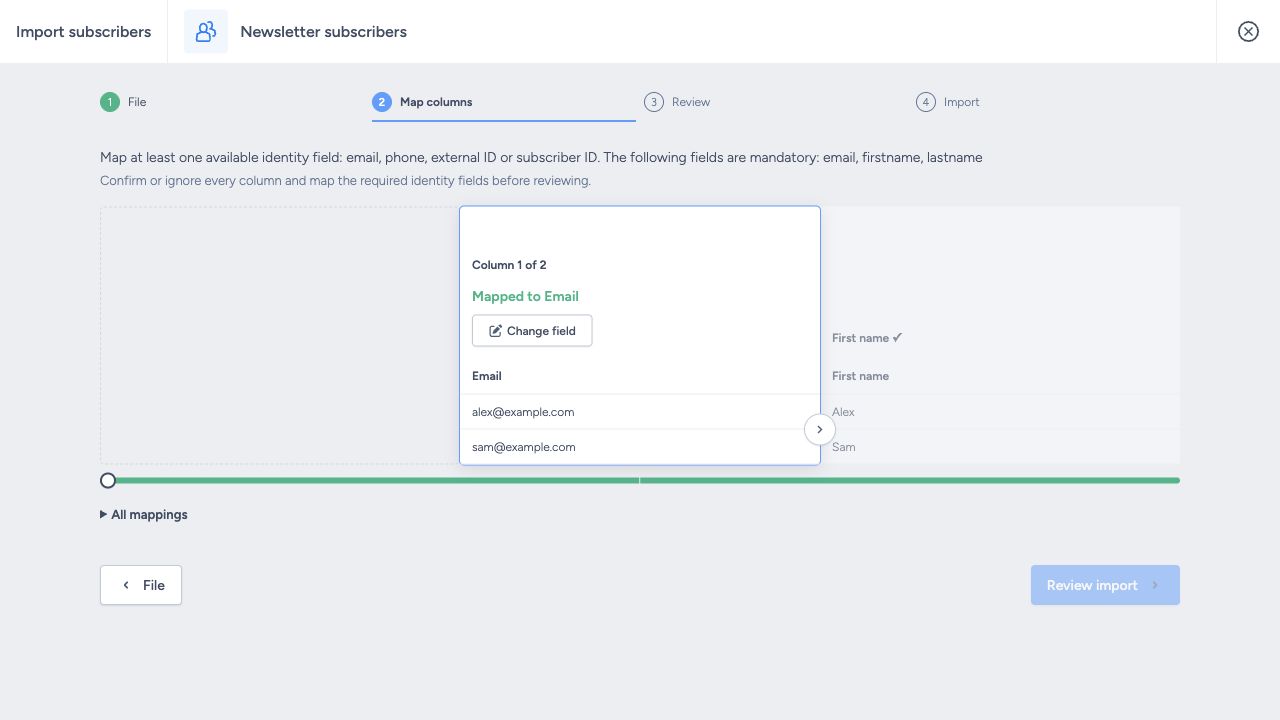
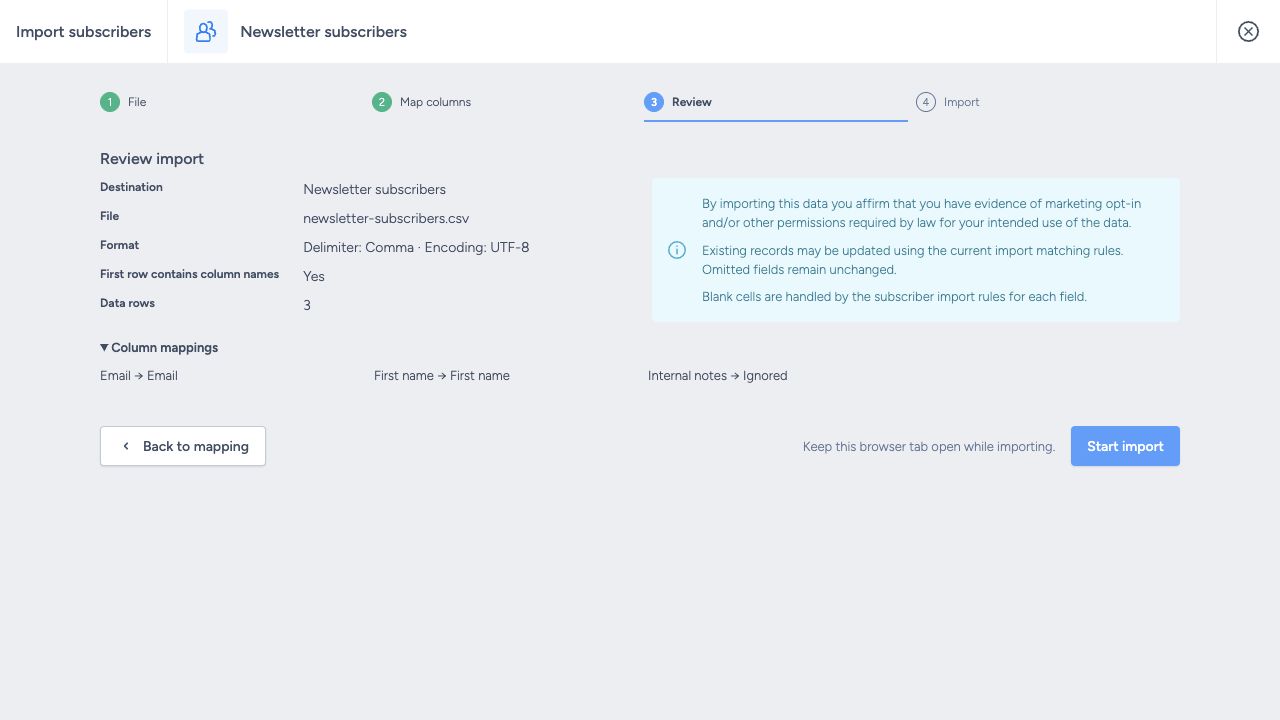
Required columns and values are present
Confirm all mappings, click Review import, and check the destination and row count before choosing Start import.
A row has a missing or invalid value
To test a missing value within a mapped column:
- Prepare a file with all three required columns.
- Leave one subscriber's Last name cell empty.
- Confirm the mappings and choose Review import.
- Check that Review identifies the row with the missing name. Use its record number to find the subscriber in the original file.
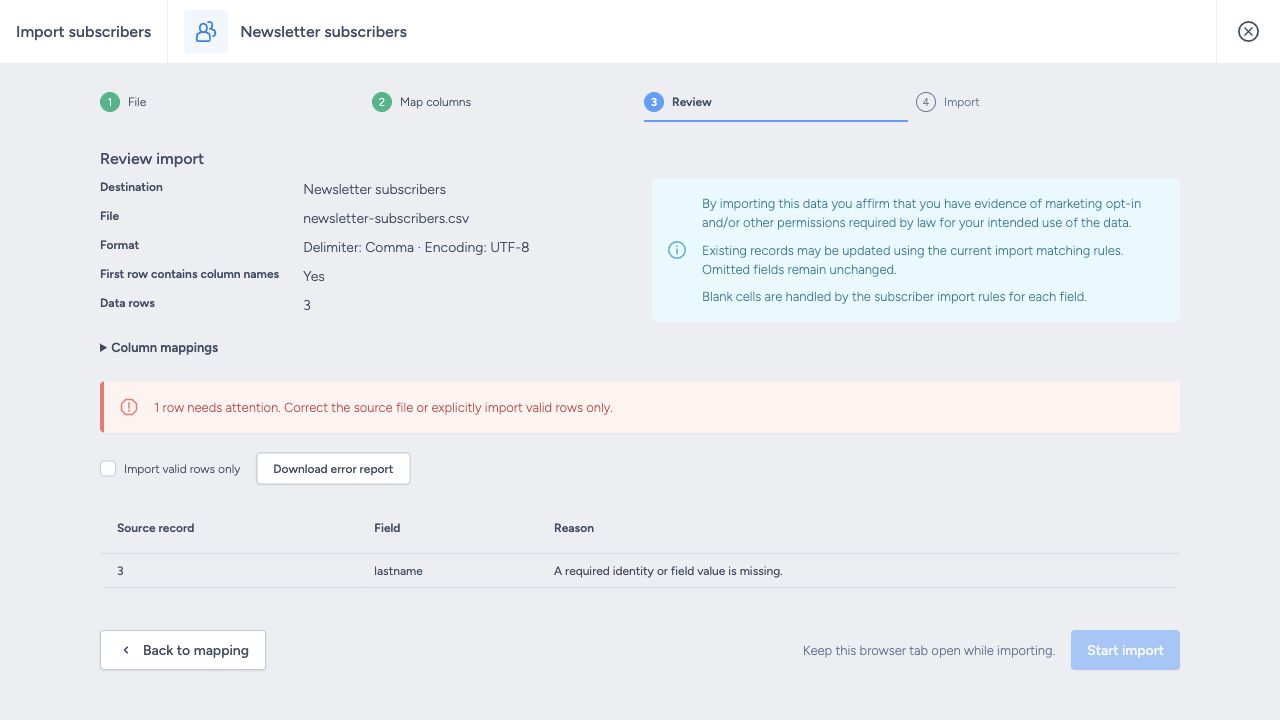
Choose how to proceed:
- Include the affected subscriber: fill in the last name, save the spreadsheet and upload it again.
- Import the other subscribers now: select Import valid rows only. The row with the missing name is skipped and needs to be corrected and imported separately.
Not every malformed address is caught by a minimum-length rule. Configure suitable checks for your data and review the final import results as well.
Reports and retries
To correct rows skipped during the file check:
- Choose Download error report.
- Read Source record, Error field and Error to find the problem and what needs attention.
- Correct the subscriber values and save the file.
- Upload it again and review the checks before starting.
Retry rejected rows tries again to save rows recorded as Errors. It does not retry rows skipped during the file check, duplicate rows or rows without usable identifying details. See Bulk Upload Errors.