- Support Home
- Knowledge Base
- Subscriber Management
- Importing Subscribers
- How do I upload subscriber data into a list?
Related articles
Need some help?
If you have questions or can't find what you're looking for, we're here to help.
Taguchi Support is available 24 hours a day, Monday to Friday.
Create New TicketAPI Version 5
Did you know Taguchi has an API that supports all of the functionality provided by the admin interface and more?
Explore API Documentation
Thanks for your feedback!
How do I upload subscriber data into a list?
Use a bulk import when you want to add several subscribers to a list or update information for subscribers already in Taguchi. Each row in your spreadsheet represents a subscriber, and each column contains one type of information, such as an email address, first name or customer number.
The import dialog guides you through four steps: File → Map columns → Review → Import. You can check your file, choose where each column belongs and resolve data issues before starting the import.
Before you begin:
- Keep a copy of your original spreadsheet.
- Include a way to identify each subscriber, such as their email address, phone number or External ID.
- Create any subscriber custom fields you need under Settings → Custom fields. For example, create a Loyalty tier field before importing loyalty data.
- Check that you have permission to use the data for your intended marketing purpose.
Importing can update an existing subscriber's profile as well as their membership of the selected list. Review which information you intend to change before uploading.
1. Open the import and check your file
Go to Subscriber Lists, then use the Upload control on the destination list card or drag your file onto that card. You can also create a new list first.
Supported files are CSV, TSV, TXT, XLS and XLSX.
The File step shows a preview of the first five data rows. Use it to check that names, addresses and other values appear in the columns you expect.
| Check | What to look for |
|---|---|
| Destination list | The name at the top should be the list you want to add or update subscribers in. |
| Column headings | Select First row contains column names if the first row contains labels such as Email and First name. Clear it if the first row contains a subscriber's details. |
| Delimiter | For a text file, each value should appear in its own column. If a whole row appears in one column, try the separator used by your file, such as Comma or Tab. |
| Encoding | Names and accented characters should be readable. If they look incorrect, check the file's encoding setting. |
| Worksheet | For an Excel workbook with more than one sheet, choose the sheet containing the subscribers you want to import. |
Headings make mapping easier, but they are not compulsory. The preview is a sample; Taguchi checks all data rows at the Review step.
An organisation import rule may lock the heading option.
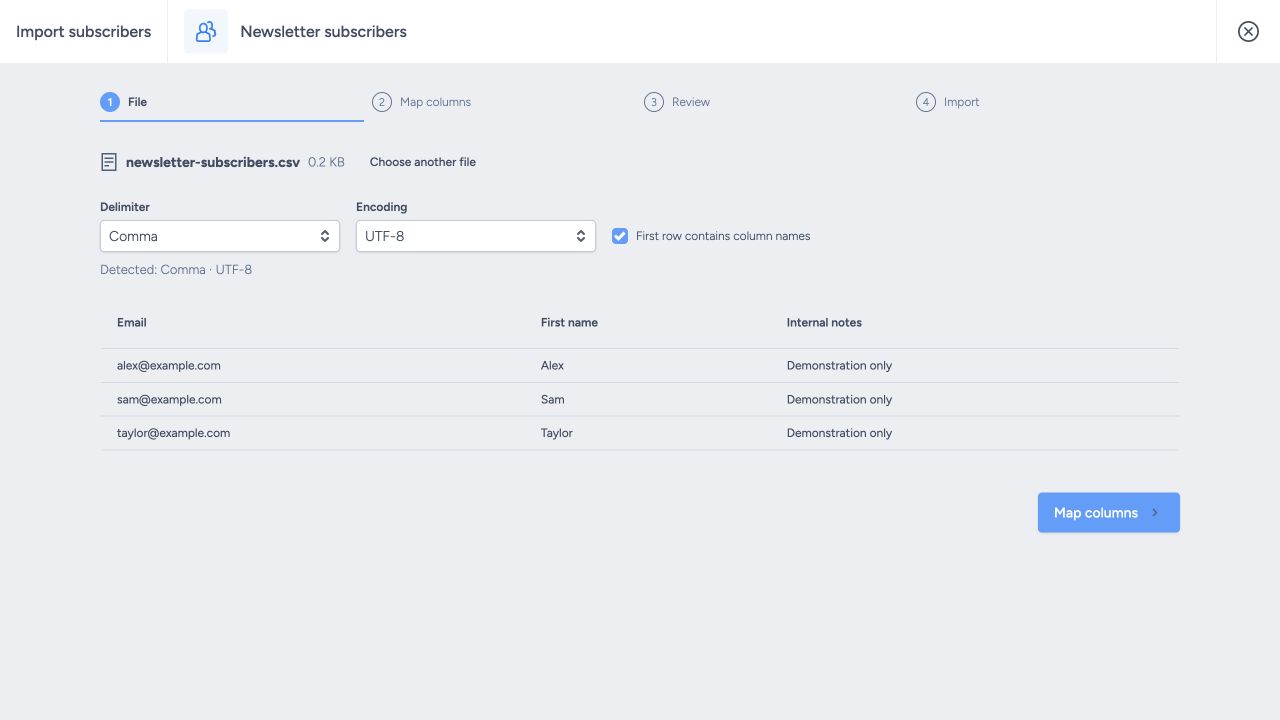
Click Map columns.
2. Confirm or ignore every column
Mapping means choosing where the information from a spreadsheet column will be stored in Taguchi. Your spreadsheet headings do not have to use Taguchi's field names. For example, a column called Given name can be stored in the subscriber's First name field.
For each column:
- Check the sample values below its heading.
- Select the Taguchi field that describes those values.
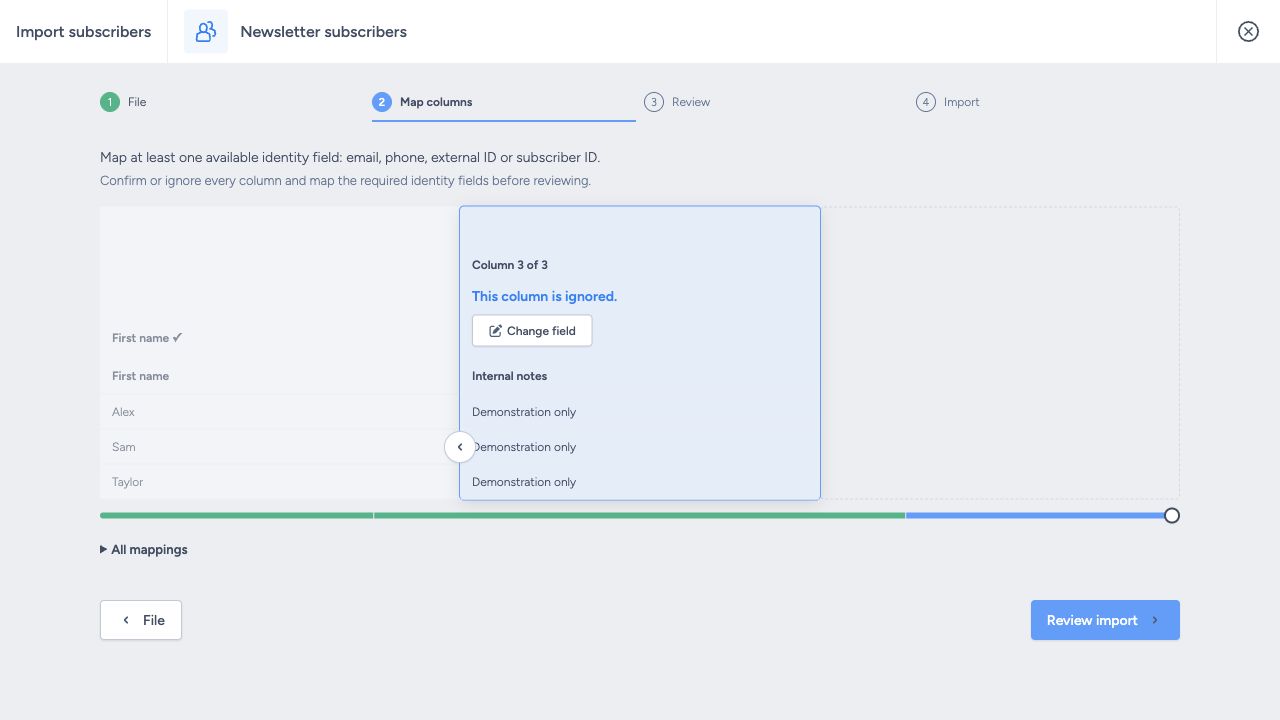
- Click Accept to confirm your choice, or choose Ignore column to exclude reference information.
- Move to the next column and repeat until every column has a decision.
A matching heading can produce a suggestion. Suggestions match recognised field names, labels or aliases, ignoring letter case; they do not guess every possible heading. For example, Contact email needs to be mapped manually to Email.
| Spreadsheet heading | Map to | Purpose |
|---|---|---|
| Customer number | External ID | Identify the subscriber |
| Contact email | Import their email | |
| Given name | First name | Update their profile |
| Loyalty tier | An existing subscriber custom field | Store the tier |
| Store code | Partition external ID | Replace partition assignments |
| Internal notes | Ignore | Exclude this column |
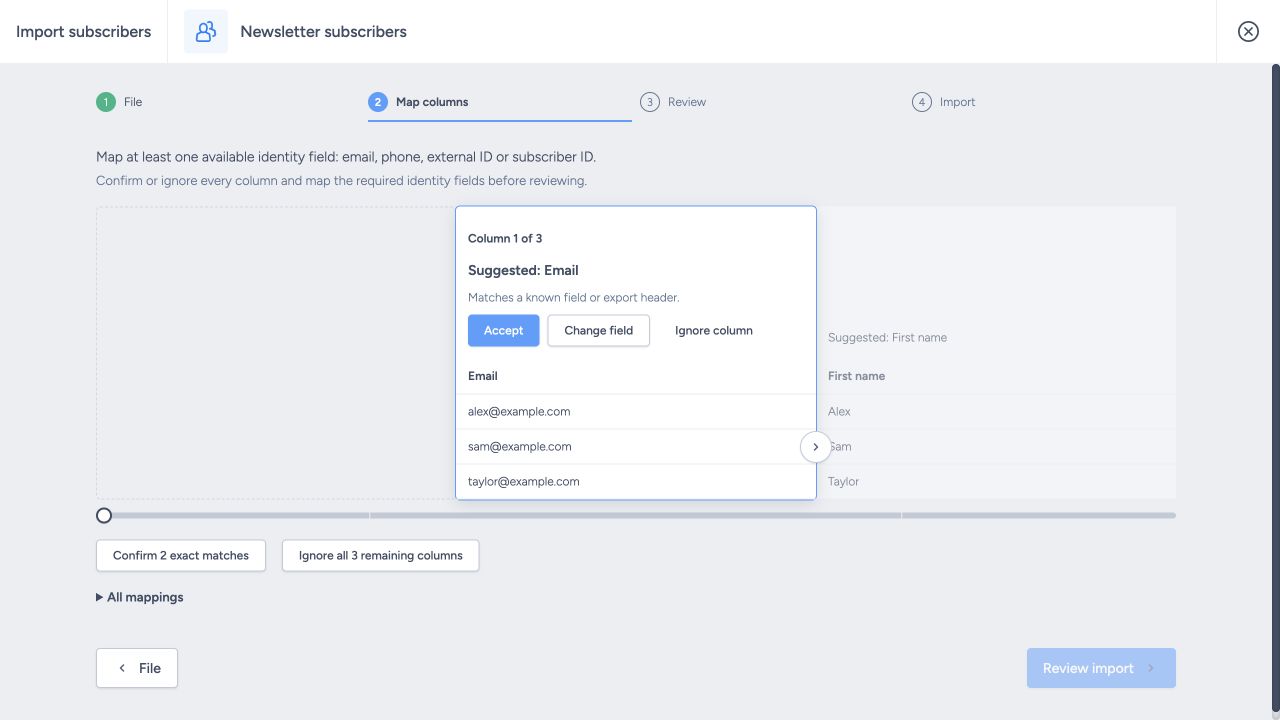
- Use Confirm exact matches when offered to accept recognised suggestions together. The button includes the number of matches.
- Use Change field to edit a confirmed mapping.
- Use the previous/next controls, slider or All mappings list to move between columns.
- Confirmed mappings are green, ignored columns blue and undecided columns grey. Each state also has a text label.
- You must confirm or explicitly ignore every column before Review. Two spreadsheet columns cannot map to the same Taguchi field.
Choose how to identify your subscribers
Taguchi uses an identifier to recognise an existing subscriber or create a new profile. Check that:
- At least one available identifier is mapped: Email, Phone or External ID.
- Any additional fields required by your organisation are mapped. Your organisation may also restrict External ID.
- You use Subscriber ID only if it is enabled for your account.
Check the effect on existing data:
- Ignored or omitted field: the existing value is preserved.
- Blank cell in a mapped column: the field's import rules apply, and some existing values can be cleared.
- Blank mapped Partition external ID: existing partition assignments are cleared.
See import logic and partition mapping for details.
3. Review before importing
Once every column has a decision, click Review import. Taguchi checks every data row in the file, including rows that were not shown in the preview. Subscriber data has not been imported at this point.
Before starting:
- Check the destination list.
- Check the number of data rows.
- Expand Column mappings to review where each column will be stored. Pay particular attention to similarly named fields, such as a subscriber custom field and a Subscription option.
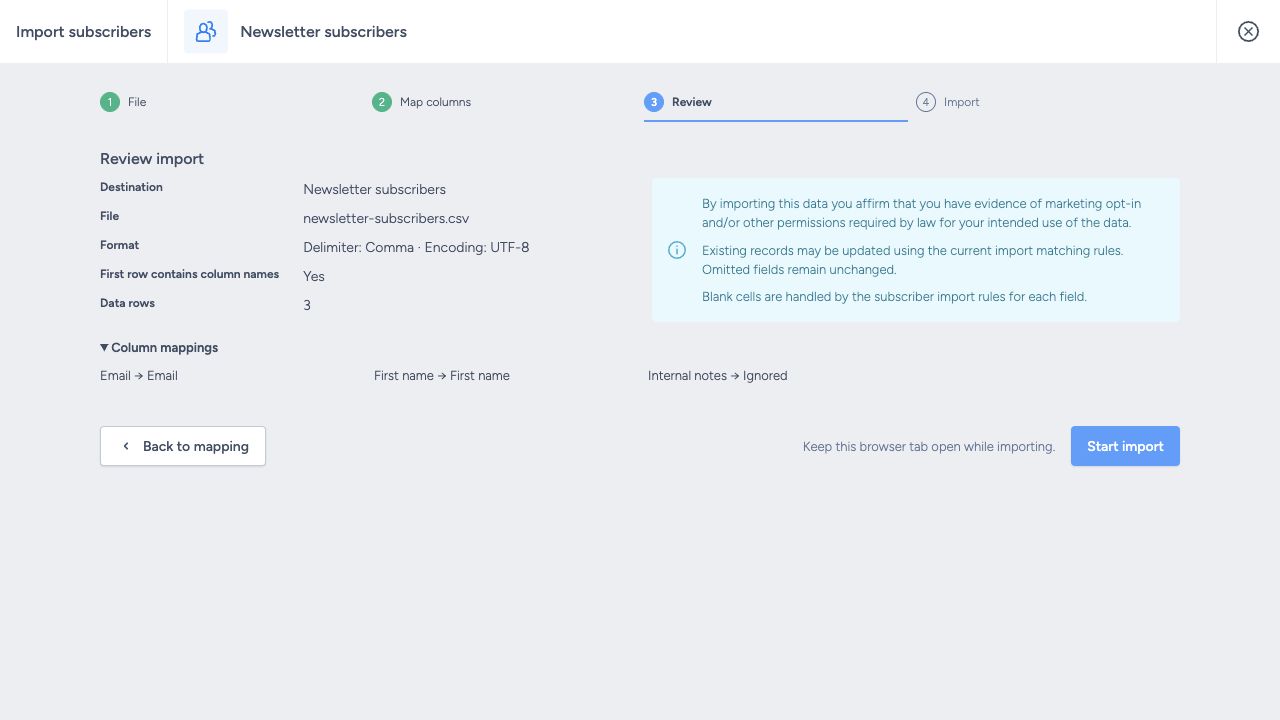
If a row needs attention, Review shows its source record number, the affected field and the reason. For example, a Last name column may be mapped correctly but still contain a blank cell in a row where your organisation requires a last name.
Choose how to proceed:
- Correct the file: download the error report, fix the affected rows in your spreadsheet, save it and upload the corrected file. Review it again before importing.
- Import the valid rows now: select Import valid rows only. Rows with validation issues will be skipped, so you will need to correct and import them separately if you want them included.
Selecting this option does not fix the invalid rows or relax your organisation's rules.
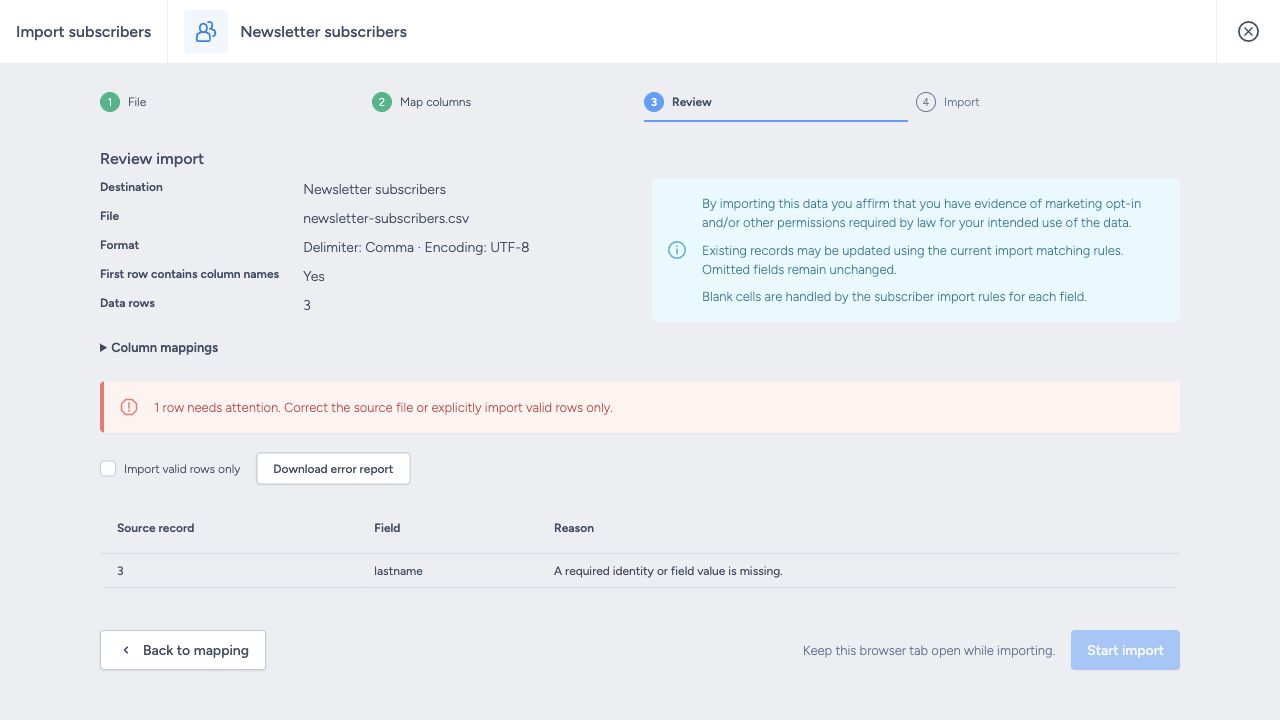
4. Start the import and review the results
When you are satisfied with Review, click Start import. Taguchi begins creating or updating subscribers and shows its progress. Keep this browser tab open until it finishes.
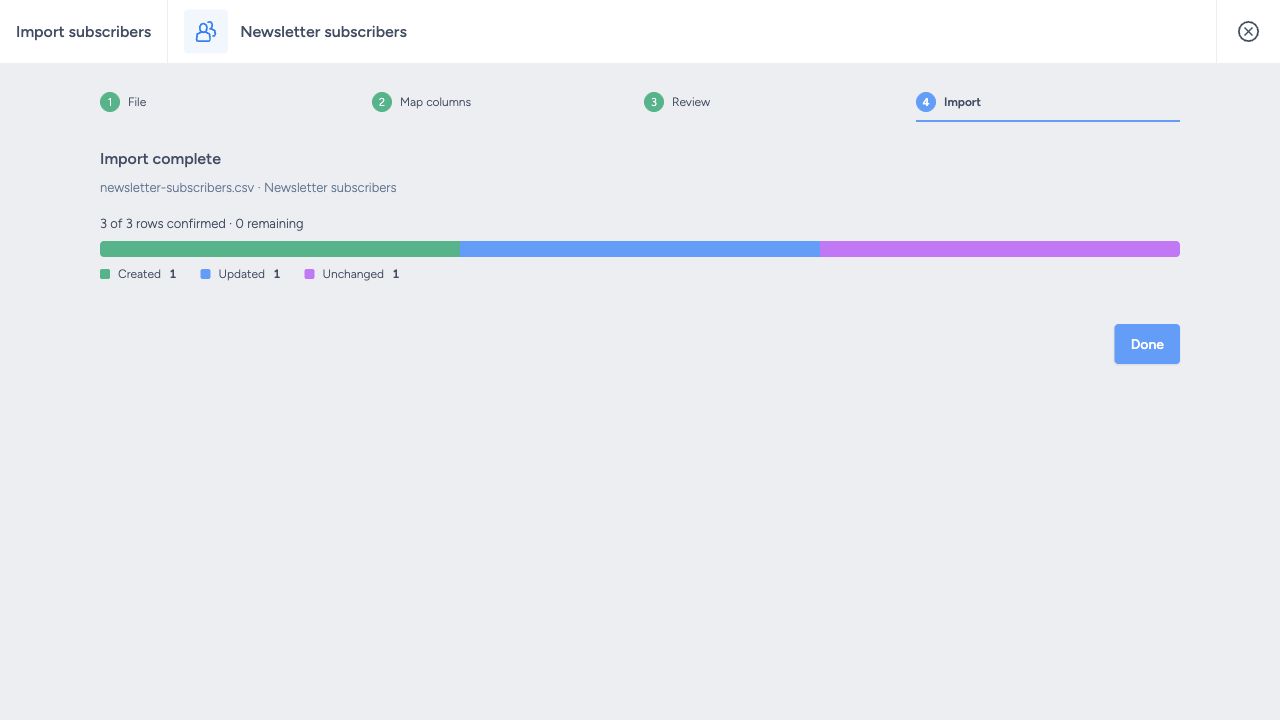
The result tells you what happened to the rows in your file:
| Result | What it means |
|---|---|
| Created | A new subscriber profile was created. |
| Updated | Information for an existing subscriber or their list membership was updated. |
| Unchanged | Taguchi reported no change for that row. |
| Duplicate | A repeated subscriber identifier was detected while processing the file. |
| Skipped | The row was left out, for example because it failed a check or had no usable identifier. |
| Errors | Taguchi could not save the row. Check the report for the reason. |
Read the labelled counts rather than relying on colour alone. An import with only duplicate issues can finish as Import complete; duplicate details are still included in the report.
For rows that need attention:
- Choose Download error report to find the affected rows and read the reason for each one.
- Use Retry rejected rows, when offered, to try saving rows recorded as Errors again.
- Correct rows skipped during the file check, duplicates and rows without usable identifiers in your spreadsheet before uploading them again.
If an import is interrupted
If the import stops unexpectedly, follow the message in the dialog. Some subscribers may already have been saved, so check the confirmed count before starting again.
To find saved progress:
- Use the same browser and browser profile.
- Sign in with the same account and select the same organisation.
- Open the import for the same destination list.
- Select the same unchanged original file. Taguchi checks that its contents match.
- Choose Continue import when offered.
Cancelling or discarding saved progress does not undo subscriber changes already applied. See Bulk Upload Errors for recovery and report instructions.
Related guides
- Import logic via Taguchi UI
- Which file formats can I upload?
- Bulk Upload Errors
- File import rules
- Creating subscriber custom fields