- Support Home
- Knowledge Base
- Tracking And Reporting
- Reports
- How do I download Webform Submissions from Taguchi?
Related articles
Need some help?
If you have questions or can't find what you're looking for, we're here to help.
Taguchi Support is available 24 hours a day, Monday to Friday.
Create New TicketTaguchi Certified Training
Join our free and live online training sessions. You'll benefit from a better understanding of the platform's features and functionality. Plus with Taguchi Certified Rewards, every session you attend, you're not just learning - you're earning your way to some fantastic rewards.
About Taguchi Certified RewardsAPI Version 5
Did you know Taguchi has an API that supports all of the functionality provided by the admin interface and more?
Explore API Documentation
Thanks for your feedback!
How do I download Webform Submissions from Taguchi?
If you've used a Taguchi webform to capture subscriber data and would like to know who submitted the form and when, this article will guide you through generating and downloading a Webform Submission Report.
The Webform Submission Report provides an export of all submissions entered via a specific webform activity.
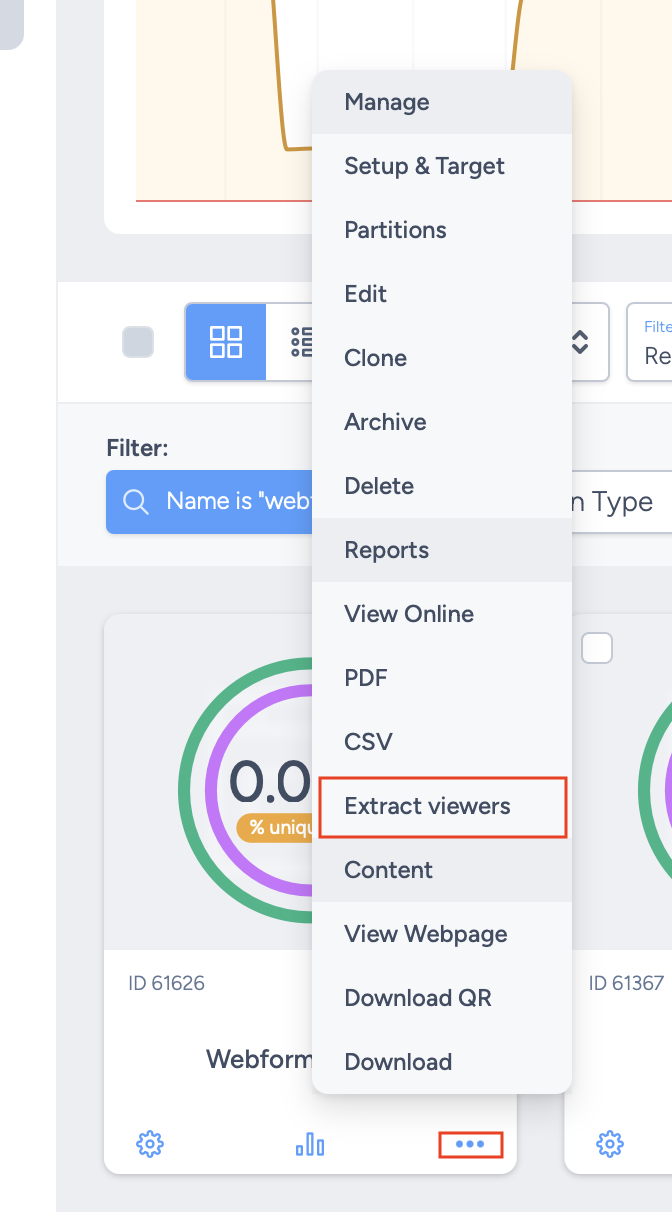
Webform Submission Reports can be generated directly from the webform activity by clicking the ellipsis (⋯) and selecting Extract Viewers under the Reports section.
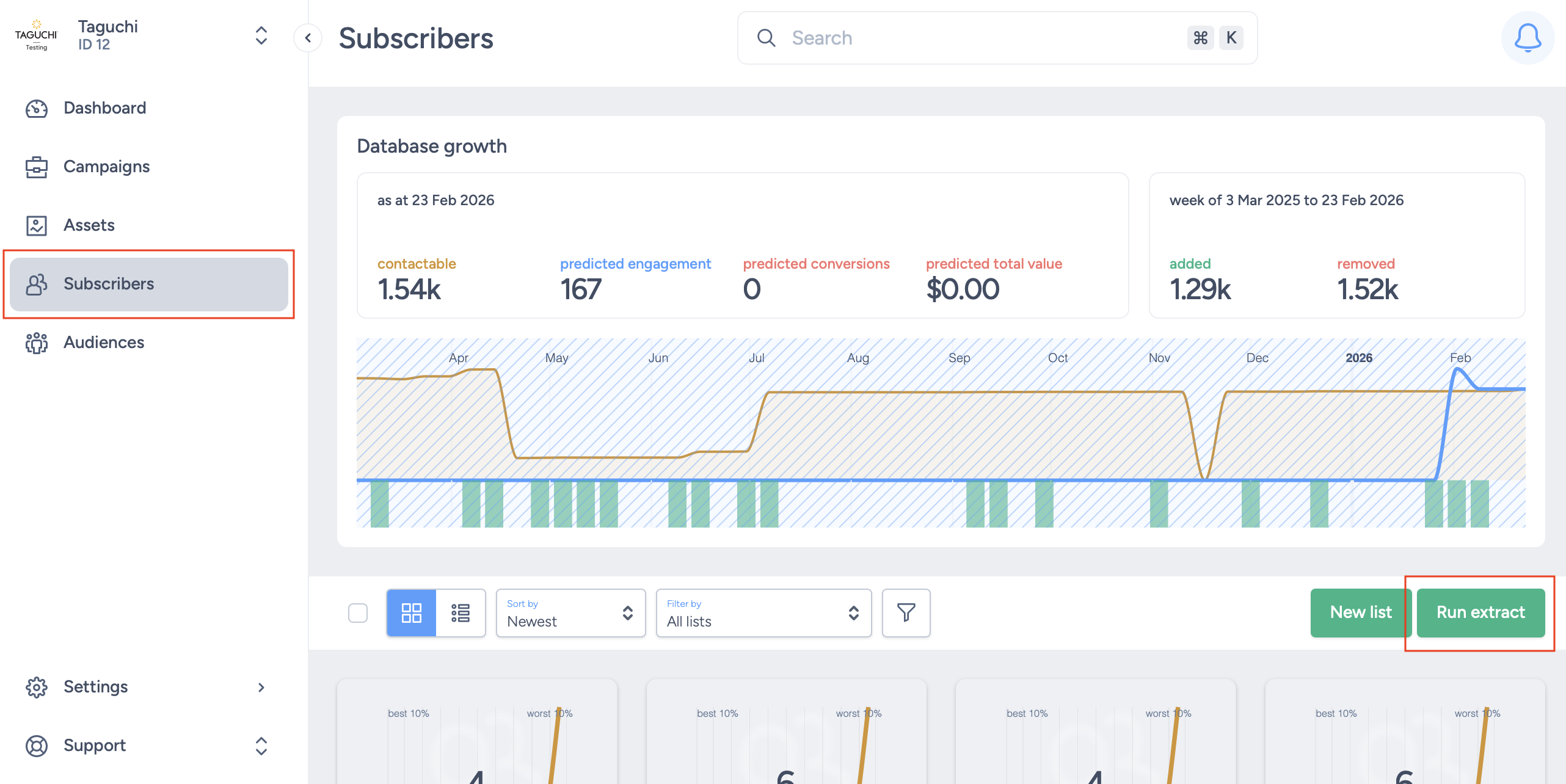
or via Subscribers and the 'Run Extract' button.
Generating and downloading a Webform Submission Report
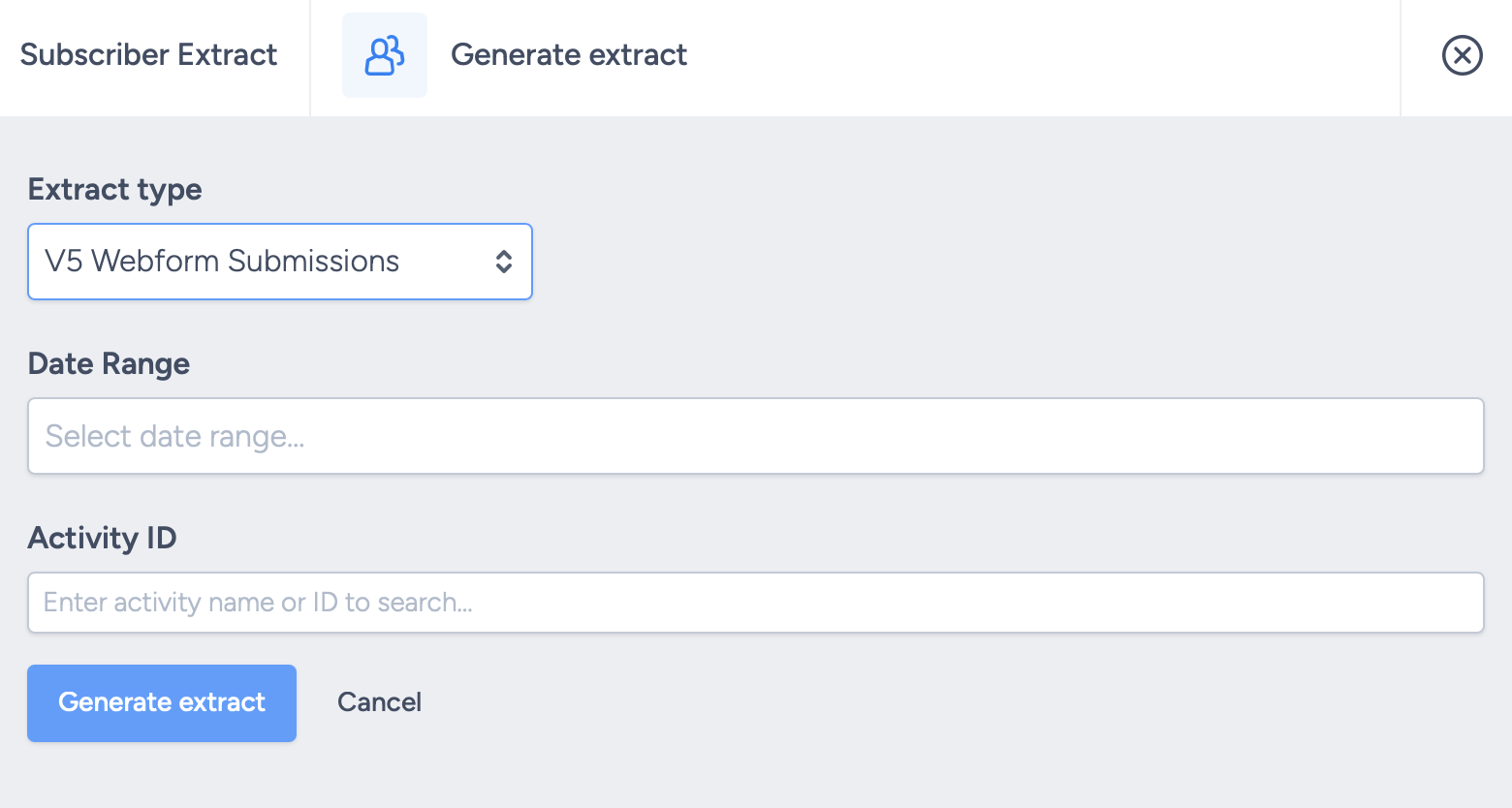
- Select a date range for your report. This will extract anyone who has submitted the form within that date range. This is not required.
- Enter in the webform activity ID. This is required to generate the export.
- Click the 'Generate extract' button.
Once the report has generated, it will be available to download via the Notifications panel. All notifications related to your export will be displayed in the notifications tray located at the top-right of the window.
Once your extract has been generated it can be downloaded via a link located in the notification tray.
You can download a sample of the data extract first to review the output before downloading the full ZIP file.
Below is a sample of the webform submission report:

- event_id
- Timestamp (Melbourne Time)
- subscriber_id
- standard custom fields used in the form
- custom fields used in the form