- Support Home
- Knowledge Base
- Campaigns And Activities
- Content
- How to configure a Social Media block in a theme
How to configure a Social Media block in a theme
Social Media blocks display links to your organisation's social media pages in email activities. The links, icons and default styling are configured in the activity's theme.
Available social media platforms
The Social media platform list includes:
- LINE
- Mastodon
- Medium
- Messenger
- Threads
- TikTok
- YouTube
- X
Add a social media link
- Go to Settings > Themes.
- Select the theme you want to update.
- Expand Social media.
- Under Links, select Add social media URL.
- Select an option from Social media platform.
- Enter the destination in URL.
- To use a custom icon instead of the default platform icon, upload a JPEG, GIF, PNG or WebP file under Icon override (optional).
- Select Save.
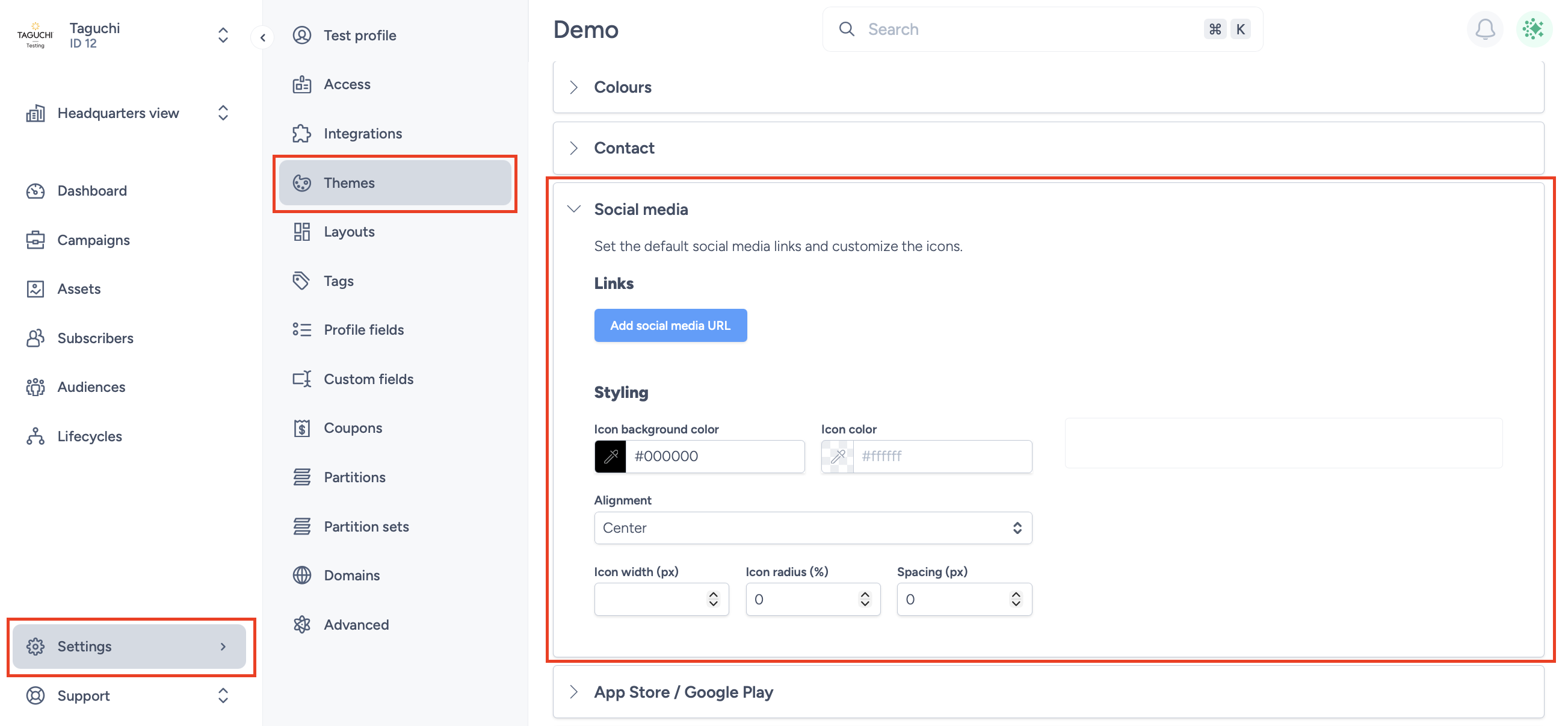
The saved icon appears in the Styling preview. Add each platform that you want the Social Media block to display.
Style the social media icons
Use the options under Styling to configure the default appearance of the icons:
- Icon background color
- Icon color
- Alignment
- Icon width (px)
- Icon radius (%)
- Spacing (px)
The preview updates to show the configured links and styling.
Update, reorder or remove a social media link
Under Links:
- Select the edit icon next to a link to change its platform, URL or icon, then select Save.
- Drag a link using its handle to change the order of the icons.
- Select the delete icon to remove a link from the theme.
Each social media platform can be added once. A platform that is already assigned is greyed out in Social media platform until its existing link is removed.
Use the links in an activity
When an activity uses the theme, its Social Media block displays the configured icons and links. A social media entry without a URL is not displayed.
After changing a theme used by an existing activity, re-apply the theme to that activity for the changes to take effect. The activity editor shows Update available. Re-apply theme to update when a newer version of the theme is available.
Locked themes cannot be edited. If Themes is not available under Settings, ask an administrator to confirm that you have access to edit content.
Related articles
If you have questions about configuring social media links in a theme, please contact Taguchi Support.