- Support Home
- Knowledge Base
- Campaigns And Activities
- Content
- Personalised QR codes
Personalised QR codes
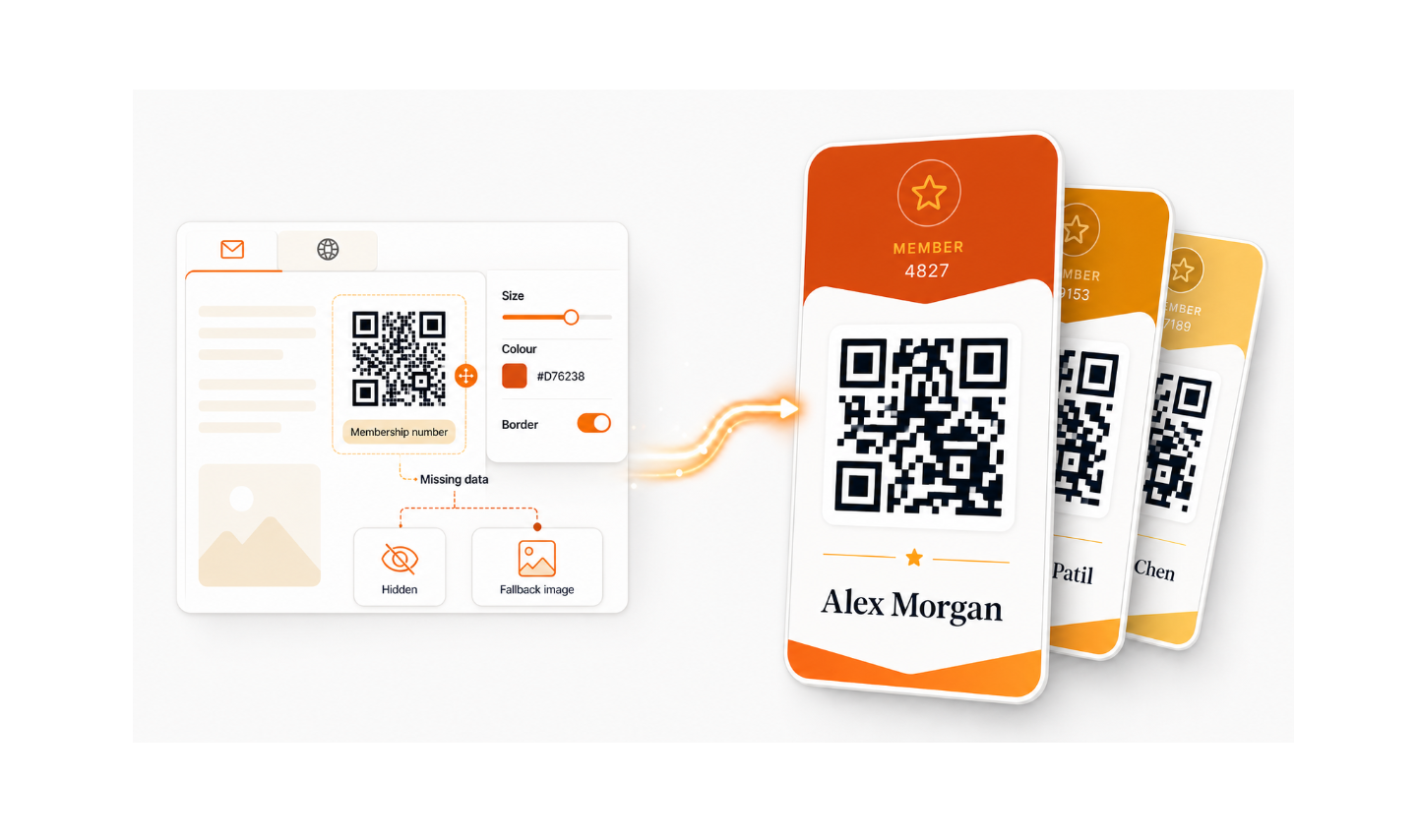
The QR code content block lets you generate a unique QR code per subscriber in email and web activities.
This is useful when each subscriber needs their own QR code, for example a member number, customer ID, or other subscriber-specific value.
Common use cases
- Membership or loyalty cards
- Event check-ins
- In-store redemption flows
- Personalised links encoded as QR
How it works
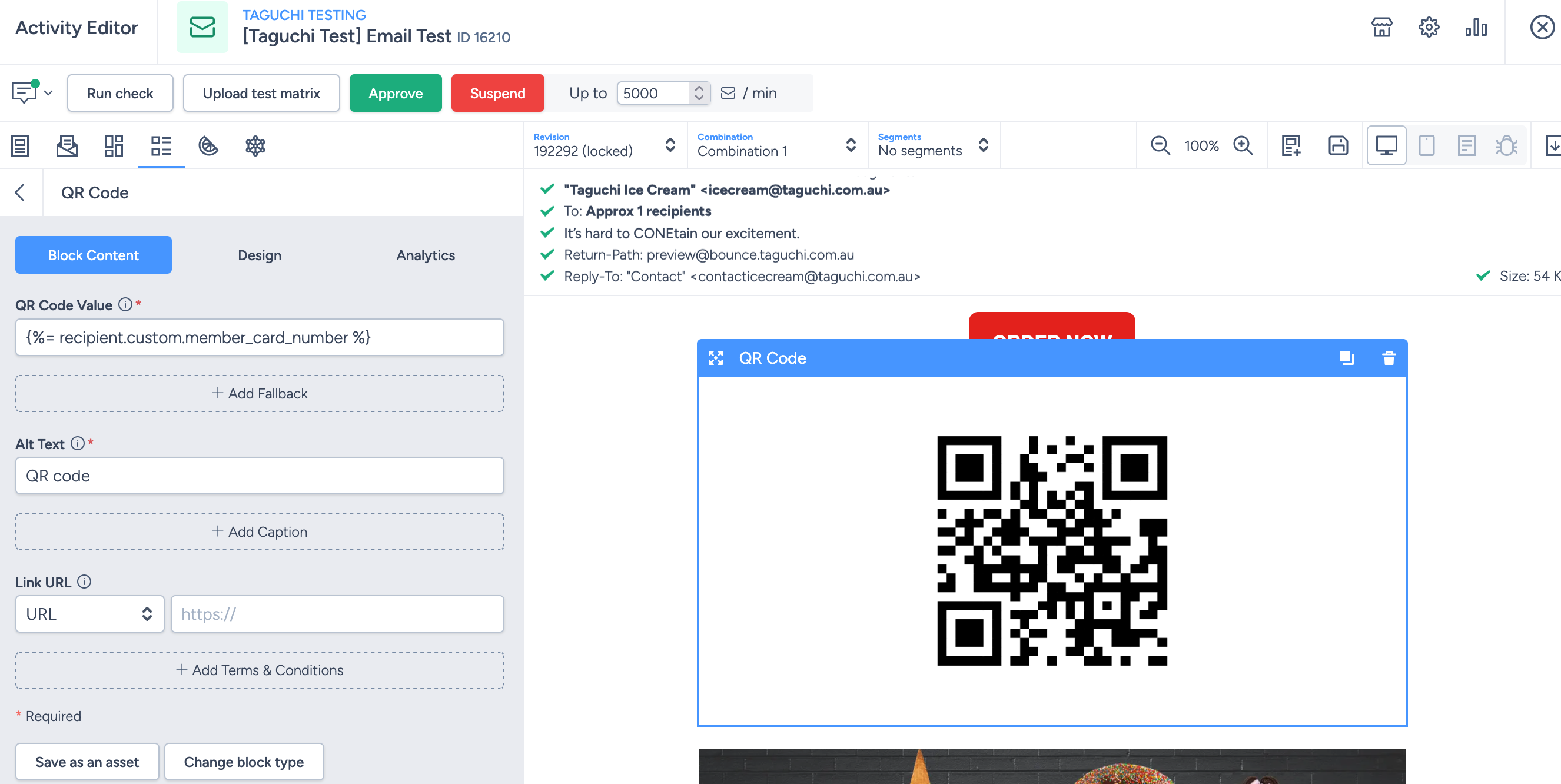
- Add a QR code block in the activity editor.
- Set the QR value using a static value, a personalisation tag, or a mix of both.
- Static value:
https://www.taguchi.com.au/ - Personalisation tag:
{%= recipient.custom.member_id %} - Mix of both:
https://www.taguchi.com.au/member={%= recipient.custom.member_id %}
- Static value:
- At send/render time, Taguchi generates the QR code for each subscriber based on their data.
- If a subscriber does not have the required value for the QR code, the block will be hidden. Alternatively, add a fallback so the QR code still displays but goes to your chosen destination.
- Use the option that best suits your campaign design and data quality.
- If you are encoding personalised links as QR values, make sure any domains pulled from custom fields are whitelisted before sending. Otherwise scanned links can return a 500 Internal Server Error. For troubleshooting guidance, see How can I add personalized data to URLs in emails or SMS?.
Configure the QR code block
After adding the block, you can configure:
Block Content
- A Fallback Value: Encoded instead of the personalised value when that value is empty, and used to render previews and proofs.
- Alt Text: Alt text appears in place of an image that fails to load, and helps screen-reading tools describe images to visually impaired readers.
- Caption: Displayed as text below the QR code, so the value is still readable when images are disabled.
- Link URL: The link users are directed to when they click on the QR code in an email or web page. This is not the value encoded in the QR code itself.
Terms & Conditions:
Input terms & conditions for your QR code. The terms & conditions do not automatically render beneath the QR code. They render wherever the following expression is placed in a Text asset—typically in the email or webpage footer:
{%! renderString(request.getAllBlockTerms().join("")) %}This expression collects and displays the terms associated with content assets, including the QR Code asset.
Recommended setup:
- Enter the relevant terms under QR Code → Add Terms & Conditions.
- Add a Text asset where the terms should appear.
- Insert the expression above into that asset.
- Position the Text asset below the offer or in the legal footer.
Preview and proof the activity to confirm the terms appear correctly.
If the expression is not present anywhere in the activity, the terms remain stored against the QR Code asset but are not visible to recipients. If several assets contain terms, the expression renders all collected terms together at its location.
Design
- QR code size (px): controls the rendered width and height of the QR code image. A larger code is generally easier to scan, especially for use in email on smaller screens.
- Quite Zone (modules): The blank margin around the QR code. Scanners need at least 4 modules of quiet zone to read a code reliably.
- Error Correction: Higher error correction produces a denser code which stays readable when partially obscured or printed at low quality.
- Design elements like foreground and background color, and horizontal alignment.
This allows you to match your brand style while keeping the encoded value subscriber-specific.
Proofing and testing
Generate proofs using representative subscriber profiles rather than relying only on the activity editor’s preview.
The test set should include:
| Test case | Expected result |
|---|---|
| Valid personalised value | A unique, scannable QR code is generated |
| Missing value | The block is hidden or the approved fallback is displayed |
| Longest expected value | The code remains large enough to scan reliably |
| Invalid or malformed value | The proof identifies the problem before sending |
| Different recipient | A different personalised code is generated |
| Mobile display | The code remains clear and correctly sized |
| Desktop display | The code remains clear and correctly positioned |
| Dark mode | Contrast and quiet zone remain intact |
| Printed proof | The printed code scans successfully, if printing is expected |
Scan the QR code from the actual rendered proof and confirm that:
- It scans on both iOS and Android devices.
- It resolves to the expected value or destination.
- It contains the correct data for the proof recipient.
- It does not expose unintended subscriber information.
- The destination handles expired, reused or invalid tokens correctly.
- The fallback behaviour works when the source data is missing.
Security considerations
A QR code can be scanned, photographed, forwarded or printed by anyone who can see it. It should not be treated as confidential simply because it is personalised.
Avoid encoding sensitive personal information directly, including:
- Email addresses
- Phone numbers
- Account numbers
- Personally identifiable information
- Permanent authentication credentials
Where possible, use a short, secure HTTPS link with a temporary token that can expire or be disabled when no longer needed.
The destination system should perform any required authentication, entitlement or redemption checks. The QR code itself does not provide access control.
If you need help configuring personalised QR codes in your activity, contact Taguchi Support.