- Support Home
- Knowledge Base
- Genichi Ai
- Create and manage Agents
Related articles
Need some help?
If you have questions or can't find what you're looking for, we're here to help.
Taguchi Support is available 24 hours a day, Monday to Friday.
Create New TicketAPI Version 5
Did you know Taguchi has an API that supports all of the functionality provided by the admin interface and more?
Explore API Documentation
Thanks for your feedback!
Create and manage Agents
Create and manage Agents
Agents carry out tasks in the background for your Taguchi organisation. You give an Agent instructions, reference materials, and permission to use specific Taguchi resources and tools. After testing and activating its instructions, you can run it manually or configure it to run automatically.
For example, an Agent could review recent campaign content, summarise campaign performance, or prepare a report of activities that need attention.
An Agent belongs to your organisation and uses its own saved permissions. Check those permissions when your team or responsibilities change; changing the creator's role does not automatically remove the Agent's access.
What can Agents help with?
Agents can repeat tasks such as reviewing campaign content, summarising performance, and preparing reports. Start with one clearly defined task so you can assess the output before adding more responsibilities.
Before you begin
You need organisation-wide access and the appropriate permissions to create, edit, activate, run, or review Agents. Partition-restricted users cannot manage Agents. If Agents is unavailable, ask your Taguchi administrator to check your access and the feature's availability in your environment.
Decide what the Agent should produce, which resources it needs, and who will review its work. For a first Agent, a report-only task is a useful starting point.
1. Create the Agent
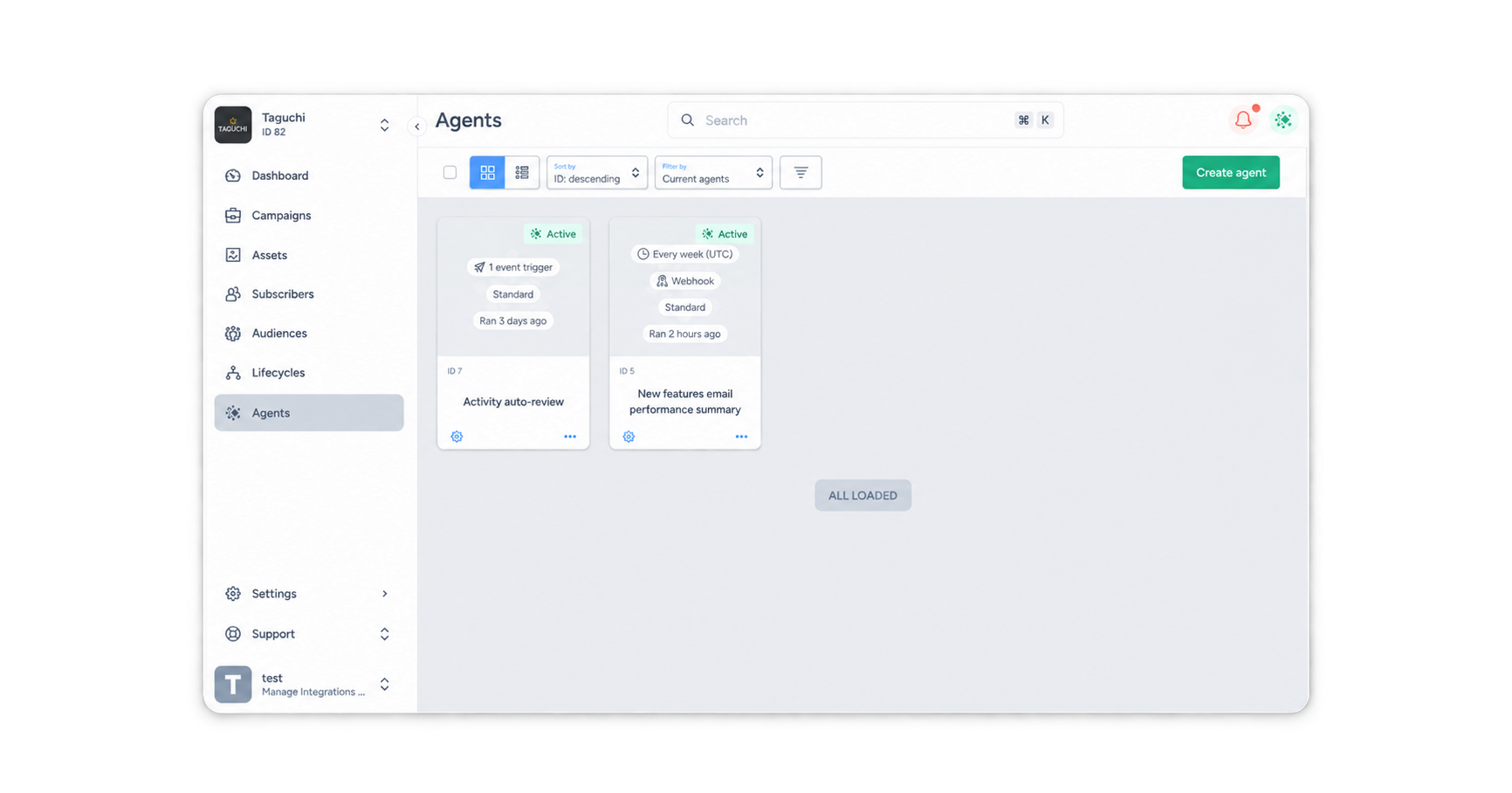
- Open Agents and select Create agent.
- In Setup, give the Agent a descriptive name, such as “Weekly campaign content review”.
- Add tags to help your team find it, and use Notes to record its purpose and owner.
- Select Save to create the Agent. You can configure its instructions, triggers, and permissions before the first save, but testing requires a saved Agent.
2. Write instructions and add reference materials
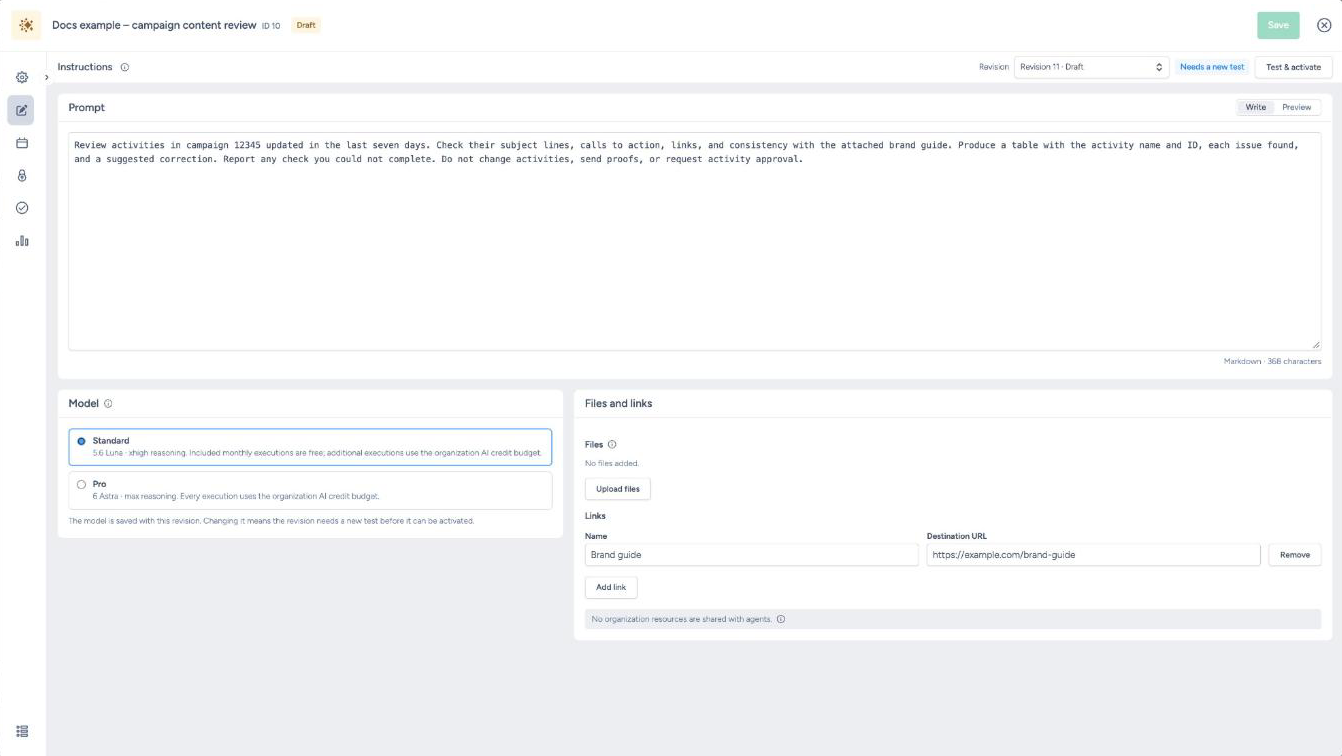
Open Instructions and describe the task in the Prompt field. Include:
- The resources to inspect, using names and IDs where possible.
- The time period and checks to apply.
- The output you expect, including its format.
- What the Agent should do if information is missing or a check fails.
- Any boundaries on changes or communications.
For example, replace the campaign ID below with your own:
Review activities in campaign 12345 updated in the last seven days. Check their subject lines, calls to action, links, and consistency with the attached brand guide. Produce a table with the activity name and ID, each issue found, and a suggested correction. Report any check you could not complete. Do not change activities, send proofs, or request activity approval.
Choose the Standard or Pro model tier, then add any relevant files or named public HTTPS links under Files and links. Links are downloaded before execution. They must be publicly accessible without credentials; Taguchi endpoints, tracking hosts, and private network addresses cannot be used as reference links. Suitable materials include an approved brand guide, campaign brief, or reporting specification.
When choosing files:
- Use text, Markdown, CSV/TSV, JSON, HTML/XML, PDF, or Word (.docx).
- Choose searchable, unencrypted PDFs. Scanned image-only documents cannot be read.
- PDF and Word files are read as text; their original layout is not retained.
- Keep each file or downloaded reference within 5 MiB.
Combined reference limits
- Up to 10 MiB across 50 files per run.
- Includes shared resources, the Agent's files and downloaded links, and one automatically generated trigger-context file.
Use Settings → Agent resources for materials shared by all Agents and Genichi chat. Changes there affect both.
Do not include credentials or subscriber personal data in reference materials. Agent outputs and notifications must also exclude subscriber personal data.
3. Set permissions and supervision
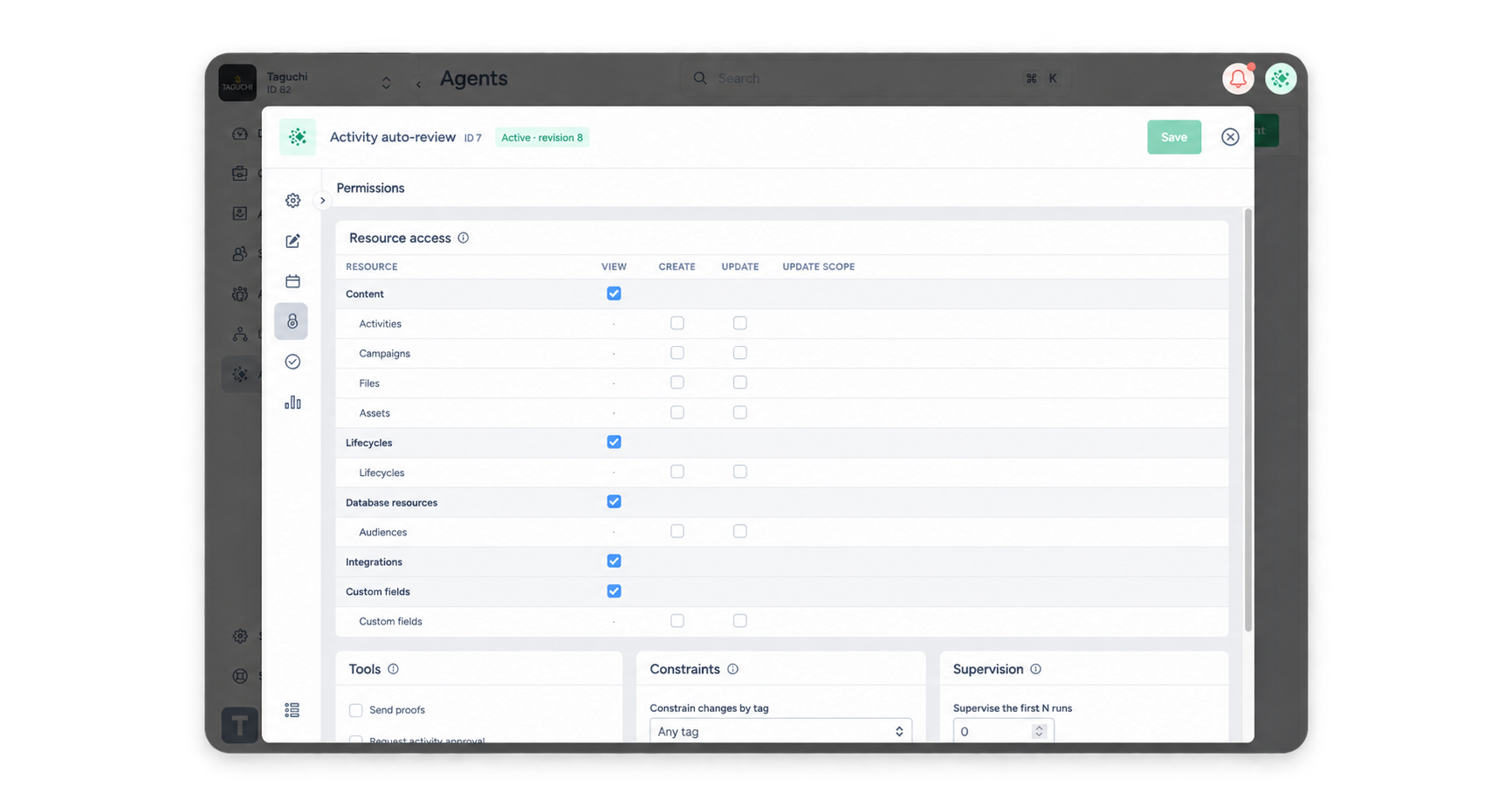
Open Permissions and grant the access needed for the task. Instructions describe the desired behaviour; saved permissions determine which actions the Agent can carry out automatically.
For the report-only example, grant the relevant view access and leave create, update, and side-effecting tool permissions disabled.
If the task requires changes, configure the appropriate create or update permissions and tools. You can narrow changes with selected resource IDs, campaign constraints for activities, and tag constraints. All configured constraints apply together. You can also require specific tags on every item the Agent creates.
You can grant additional rights only when you hold the corresponding privileges. A tag or campaign constraint does not grant access by itself.
Use Supervise the first N runs to require review of proposed writes during the first successful live executions. Failed, partial, cancelled, and test runs do not advance this count. A value of zero allows permitted changes to execute automatically after testing and activation; actions outside the saved grant still require review.
4. Configure triggers and notifications
Open Triggers to choose when the Agent runs. With no triggers configured, it runs only when someone starts it manually.
| Trigger | Behaviour |
|---|---|
| Schedule | Runs once or on a repeating schedule. |
| Webhook | Runs when another service calls its generated trigger URL. |
| Admin event | Runs when a configured administrative resource event occurs, optionally filtered to selected resources. |
An Agent can have one schedule, one webhook, and multiple admin event triggers. Any configured trigger can start it. Admin events concern Taguchi resource actions.
Treat a webhook's Trigger URL as a secret. Save after enabling it or rotating its URL; rotation invalidates the previous URL when saved.
Webhook setup details for your technical team
- Send a POST request using
Content-Type: application/jsonortext/plain. - Keep the payload within 128 KiB and exclude personal contact data and credentials.
- To prevent duplicate runs when retrying, reuse the same
Idempotency-Keyheader. Use a new key for each distinct request.
If you disable a webhook:
- New requests are rejected.
- Queued runs wait until the webhook is enabled again and the Agent is active.
- Cancel unwanted queued runs in Runs before re-enabling it.
Review Allow simultaneous runs. When disabled, webhook and event runs wait for the previous execution, including review pauses, and scheduled ticks are skipped while the Agent is occupied. Organisation concurrency limits still apply when simultaneous runs are enabled.
Configure a Notification list, select when to notify, and choose Summary or Designed report as the email format. For a designed report, ask the Agent to compose a report in its prompt. A report can include charts, tables, metrics, and activity previews; review its appearance during testing.
To receive a designed report when a run fails:
- Enable Notify on failure or partial completion.
- Select Also send the report of a failed run, when it composed one.
If no eligible report is available, you receive a summary instead.
5. Test and activate
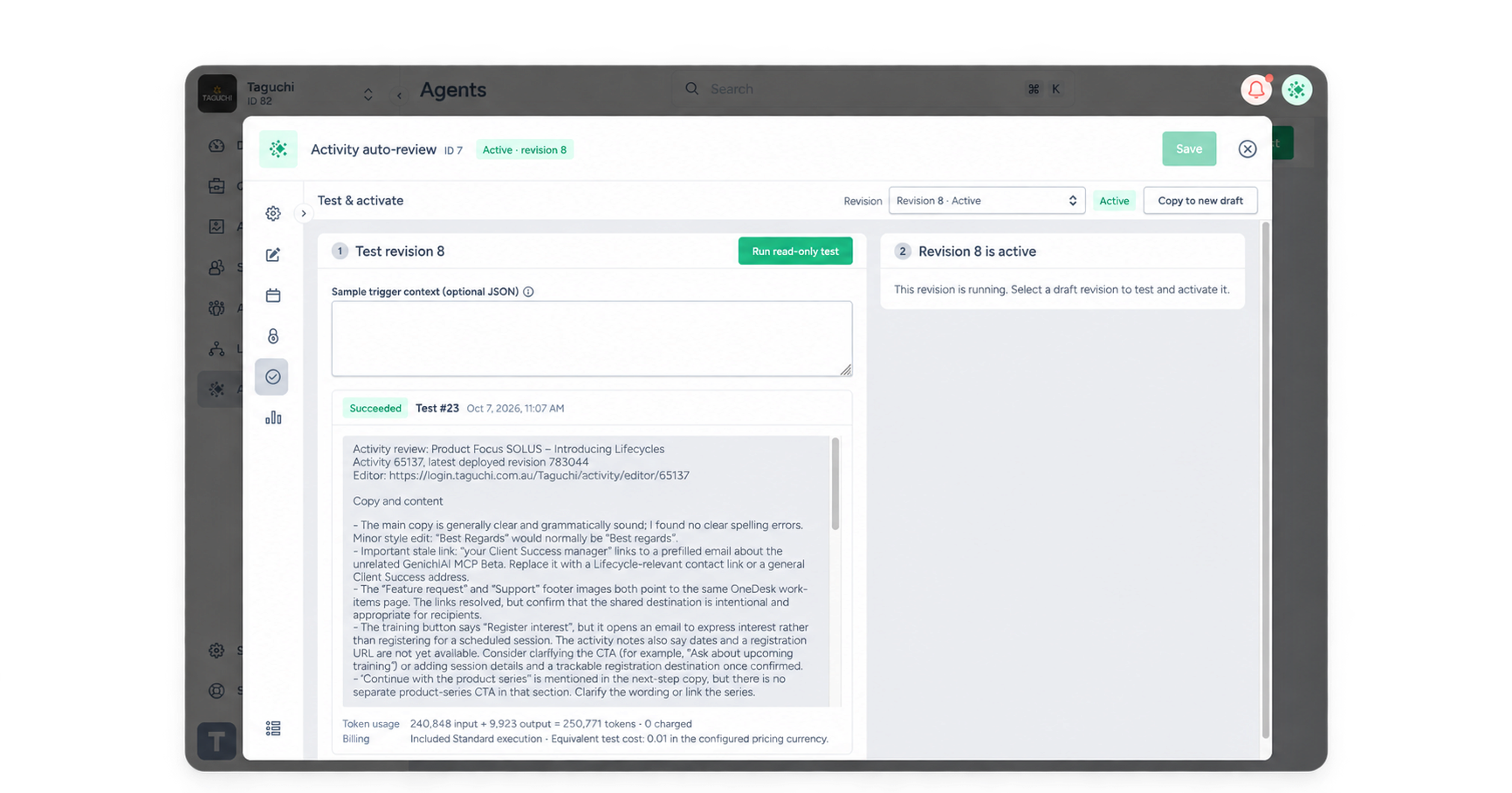
- Save your configuration and instructions.
- Open Test & activate and select Run read-only test.
- If relevant, provide optional sample trigger context as JSON to test webhook or event inputs.
- Wait for the test to finish. Review its output, proposed changes, usage, and report preview where available.
- Correct any issues, save, and test again.
- When a successful test matches the saved revision and current configuration, select Activate revision.
Before activating, check that the test output meets your requirements. Read-only tests:
- Show proposed changes without applying them.
- Can use included Standard executions or AI credits, depending on the model tier and remaining allowance.
- Do not send notification emails. Review the report preview, then check email delivery with a live run after activation.
The test must match the instructions, reference resources, model tier, current permissions, and organisation's shared resources. If these change, run a new matching test before activation. You can test unsaved draft instructions, but they must be saved before activation.
The Test & activate page also estimates usage from a test and your schedule or assumed trigger volume. Standard executions beyond the organisation's included allowance, and every Pro execution, use its AI credit budget. Actual usage varies; check your organisation's allowances and limits with your administrator.
6. Run the Agent and review its work
Open Runs and select Run now to start the active revision manually. Review the execution history, output, usage, and execution log. Logs provides the Agent's administrative audit history.
Find generated files in the run's Output column:
- In Taguchi: select a file to download it.
- In summary emails: open the ZIP for the result and attached files.
- In designed report emails: a ZIP is included when there are files to attach.
- If a file is too large to email: download it from Runs instead.
Default output and email attachment limits
- Each run: up to 20 files totalling 50 MiB.
- Notification emails: up to 16 MiB of output files attached.
- Your administrator can confirm the limits configured for your environment.
During supervised runs, or when an action falls outside the saved permissions or constraints, the Agent can pause with a proposal for an authorised reviewer.
| Review action | Result |
|---|---|
| Approve once and continue | Permits the exact proposed action once, then continues the run. Actions outside the Agent's grant use the reviewer's current authority; permitted actions held for supervision use the Agent's own grant. |
| Skip action | Continues without that action; the result is marked as partial. |
| Reject and stop | Rejects the proposal and stops the run. |
Approval does not widen the Agent's standing permissions. The reviewer must hold the permissions needed for the proposed action. Inspect the proposed action and target resources before deciding. Some actions, including deletions and approval-workflow transitions, are rejected outright rather than offered for review.
Review deadline: proposals expire after 30 days by default. If no one reviews a proposal in time, the run is cancelled. Your environment may use a different deadline.
Update, pause, or archive an Agent
An activated revision is read-only. To change its instructions, resources, or model tier, select Copy to new draft, edit, save, test, and activate the new revision. The previous revision remains active until you activate its replacement.
Setup, triggers, notifications, and permissions apply when saved; they do not wait for a new instructions revision to be activated. Pause the Agent first if you need to prevent new runs while changing its configuration.
To pause safely:
- Select Pause agent to stop new scheduled, webhook, and event runs.
- In Runs, cancel any executions already in progress that you want to stop.
- Cancel unwanted queued runs too. Pausing holds them; they may start when you resume.
- Resume through Test & activate with a matching successful test.
Use Archive when the Agent is no longer needed. Restoring it leaves it paused until you activate a tested revision.
You can also select a previous revision and test it for rollback. Rollback changes the active instructions, resources, and model tier; it does not restore old permissions or undo changes made by earlier runs. Activation, including resuming or rolling back a revision, starts a new supervision period using the saved Supervise the first N runs setting.
Troubleshooting
| Problem | What to check |
|---|---|
| Activation is unavailable | Save changes and complete a successful test matching the selected revision, model, permissions, and shared resources. Check your activation access. |
| A run is waiting for review | Open its pending proposals and have an authorised reviewer approve, skip, or reject each action. |
| A run waiting for review was cancelled | Check whether its proposal review period expired. The default is 30 days. |
| No notification arrived after a test | Read-only tests do not send notification emails. Check the report preview, then verify delivery with a live run. |
| A scheduled run did not start | Check the Agent is active, its schedule, and whether a previous run is still in progress. |
| A webhook stopped working | Check it is enabled and saved, the Agent is active, and the caller uses the current trigger URL. |
| Output is incomplete or unsuitable | Check the execution log, resource access, reference materials, usage limits, and prompt. Revise and test before using the result. |
Need help?
Contact your Taguchi administrator or Taguchi Support if you need help with access, permissions, AI allowances, or Agent configuration.