- Support Home
- Knowledge Base
- Integrations
- 8x8 WhatsApp Integration
8x8 WhatsApp Integration
The 8x8 WhatsApp integration connects Taguchi to an 8x8 Connect account. Once configured, you can use 8x8 as the provider for WhatsApp activities, submit message templates for approval, send proofs and broadcasts, track supported links, and capture replies and opt-out requests in Taguchi.
For general instructions on composing and deploying WhatsApp activities, see How do I create a new WhatsApp message?.
Before you begin
Prepare the following before configuring Taguchi:
- An active 8x8 Connect account and subaccount with WhatsApp Business Messaging enabled.
- A configured WhatsApp channel in 8x8 Connect.
- The Account ID, Subaccount ID and Auth token for the 8x8 account.
- The Channel ID associated with the WhatsApp sender you want to use.
- A Taguchi user account with the required integration role privileges.
The Account ID, Subaccount ID and Auth token are stored in the Taguchi credential. The Channel ID is entered separately when you configure the integration.
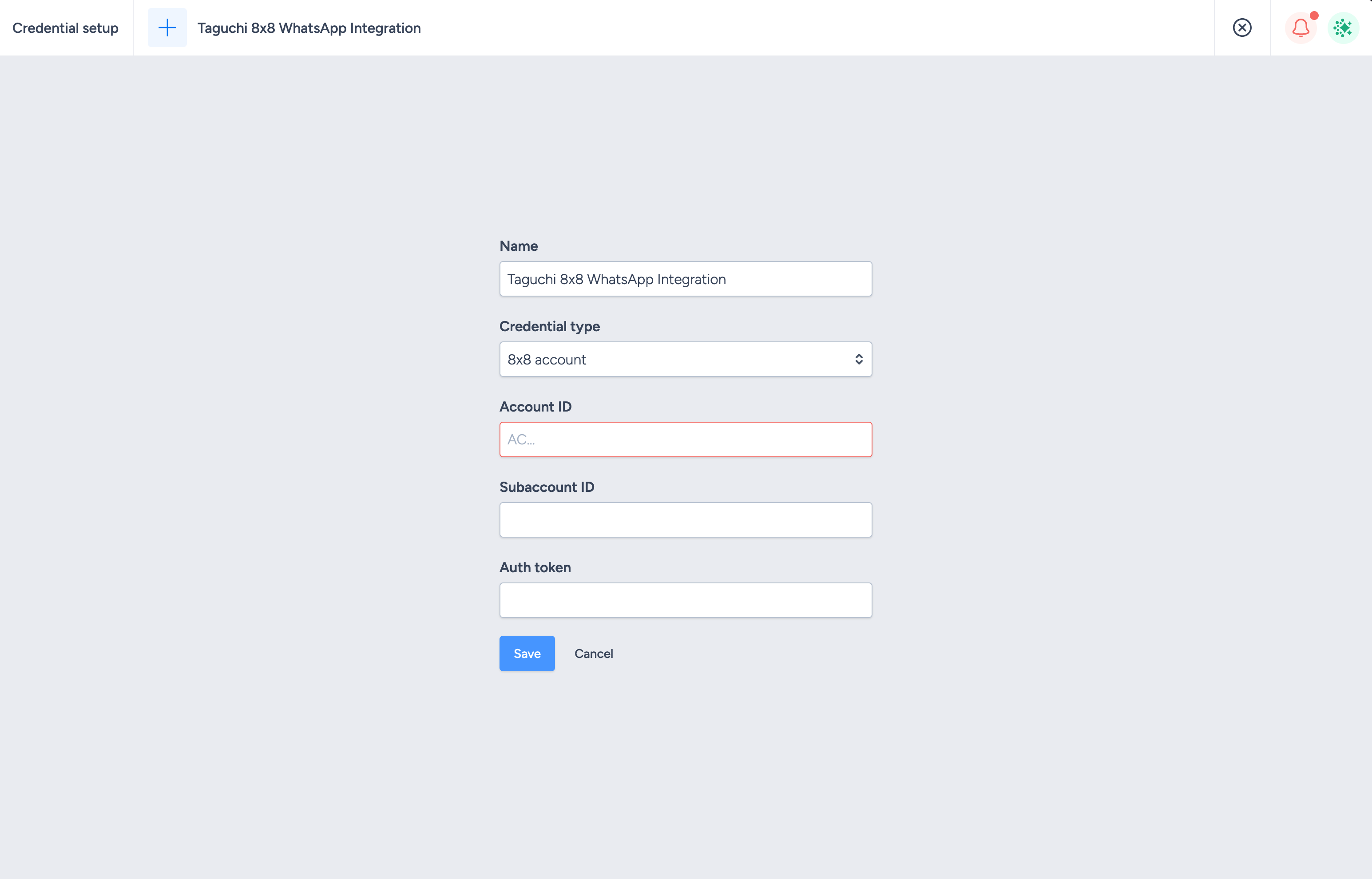
Create an 8x8 account credential
- Go to Settings > Credentials.
- Select New credential.
- Enter a descriptive name.
- Under Credential type, select 8x8 account.
- Enter the following values from 8x8 Connect:
- Account ID
- Subaccount ID
- Auth token
- Select Save.
Configure the 8x8 WhatsApp integration
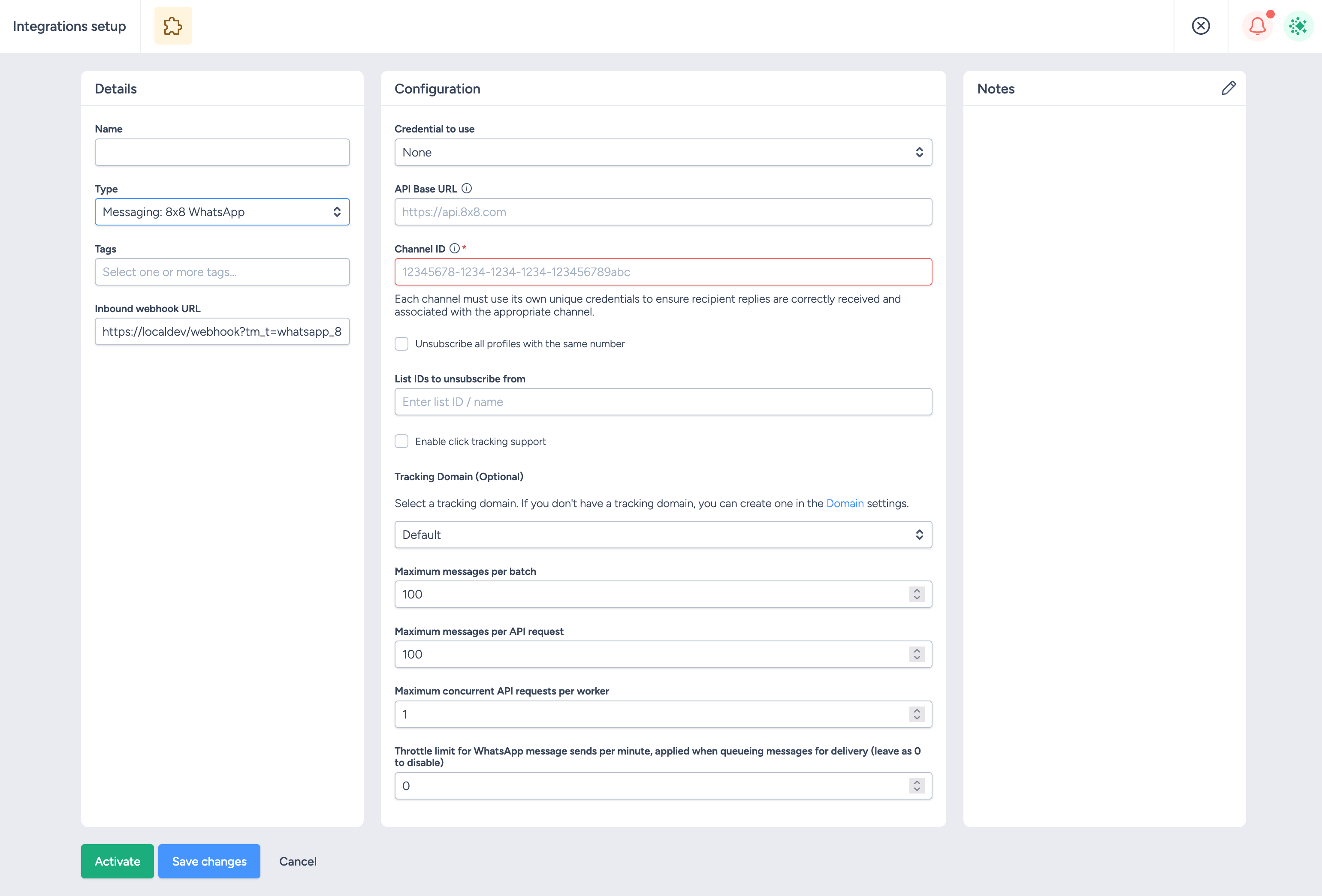
- Go to Settings > Integrations.
- Select New Integration.
- Enter a descriptive name.
- Under Type, select Messaging: 8x8 WhatsApp.
- Under Credential to use, select the 8x8 account credential you created.
- Enter the Channel ID for the WhatsApp sender. The Channel ID belongs in the integration, not the credential.
- Configure the optional settings as required:
- API Base URL — leave blank to use the default 8x8 API URL.
- Unsubscribe all profiles with the same number — applies an opt-out to every matching Taguchi profile that shares the recipient's phone number.
- List IDs to unsubscribe from — identifies the Taguchi lists from which a recipient should be unsubscribed after an opt-out reply.
- Enable click tracking support — allows supported WhatsApp links to be tracked through Taguchi.
- Tracking Domain — selects the domain used for tracked links.
- Maximum messages per batch, Maximum messages per API request, Maximum concurrent API requests per worker and Throttle limit — control message processing. Keep the defaults unless Taguchi or 8x8 has provided different values for your account.
- Select Save changes, then select Activate.
Inbound webhook
Taguchi displays an Inbound Webhook URL in the integration details. When the integration is activated, Taguchi registers this URL with the configured 8x8 subaccount so that replies can be returned to Taguchi. You do not need to copy the URL into 8x8 Connect manually.
WhatsApp templates and approval
WhatsApp business-initiated messages use templates that must be approved before they can be sent. In Taguchi:
- Create or open a WhatsApp activity.
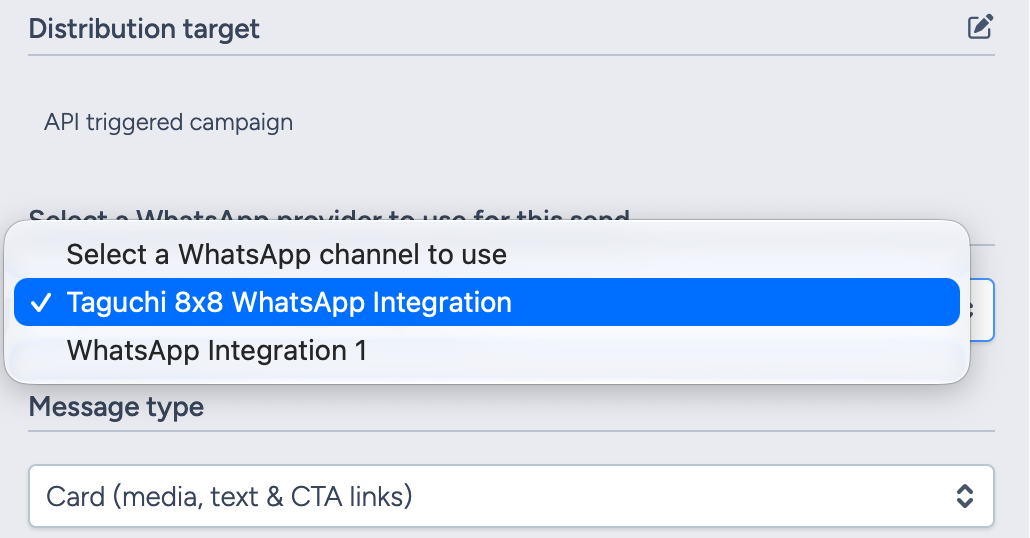
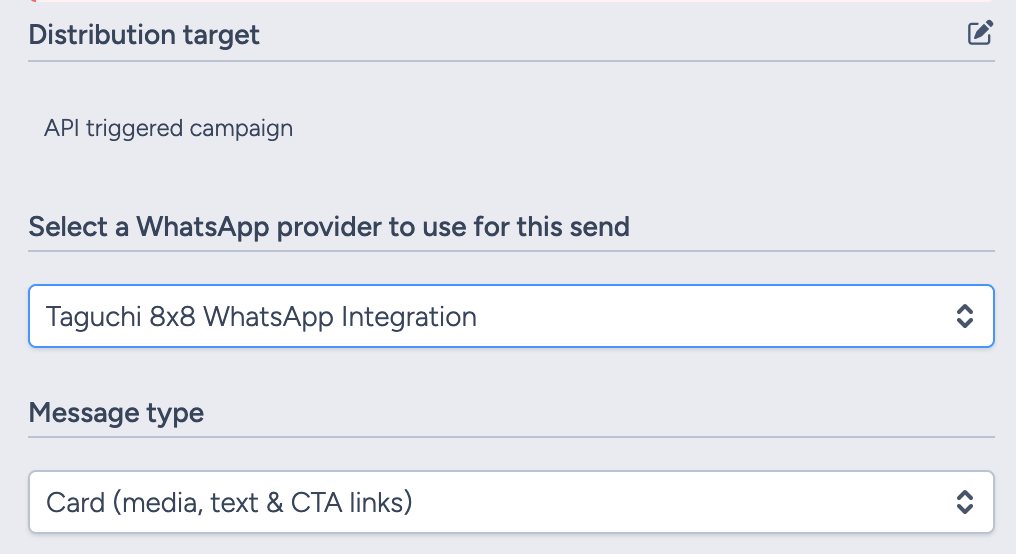
- Select the configured 8x8 integration under Select a WhatsApp provider to use for this send.
- Select an available message type and complete the message content.
- Use the activity approval control to submit the message template for approval.
- Check the activity log for the approval status.
You cannot send a proof or deploy the activity until its template is approved. If you change the approved message content, submit the updated revision for approval again.
Template status is determined by WhatsApp. Statuses such as pending, approved and rejected can also be reviewed in the 8x8 Connect template area. For more information, see WhatsApp Templates Management in the 8x8 documentation.
Card content requirements
When using the Card (media, text & CTA links) message type:
- Use either header media or header text, not both.
- Body text is required and supports up to 1,024 characters.
- Footer text is optional and supports up to 60 characters.
- Include at least one call-to-action button; a maximum of two is supported in the Taguchi Card editor.
- Call-to-action URLs must begin with
https://orhttp://. - Header media must use a supported, publicly accessible media URL.
See How do I create a new WhatsApp message? for the message types and content fields available in Taguchi.
Send a proof or broadcast
After the template has been approved:
- Add or select a workflow participant to receive the proof.
- Send the proof and confirm the personalisation, links and media render correctly.
- Complete the activity targeting and schedule.
- Approve and deploy the activity using the standard Taguchi workflow.
The selected 8x8 integration determines the WhatsApp sender and provider used for both proofs and broadcasts. For the complete activity workflow, see How do I create a new WhatsApp message?.
Click tracking
To track supported links:
- Enable Enable click tracking support in the 8x8 integration.
- Select a tracking domain in the integration.
- Keep Click Tracking enabled under the activity's Features tab.
Only URLs in supported message fields can be tracked. Always send a proof to confirm tracked links resolve correctly before deploying a broadcast. For general guidance, see What is click tracking?.
Replies and STOP handling
The inbound webhook allows Taguchi to receive WhatsApp replies and associate them with the recipient's profile.
When a recipient replies with an opt-out request such as STOP, the integration can:
- Unsubscribe the profile from the list IDs configured in List IDs to unsubscribe from.
- Unsubscribe all matching profiles that share the same phone number when Unsubscribe all profiles with the same number is enabled.
Include clear opt-out wording in marketing templates, such as "Reply STOP to unsubscribe", and configure the required list IDs before sending.
Important requirements and limitations
- The activity must use the correct 8x8 integration and Channel ID for the intended WhatsApp sender.
- A template must be approved before it can be proofed or deployed.
- Changes to approved content require a new approval.
- Direct WhatsApp links such as
wa.mecan cause a template to be rejected. Use an ordinary web URL or display the phone number as text instead. - Test media, personalisation and links in a proof before broadcasting. Rendering can vary between WhatsApp mobile, desktop and web clients.
- WhatsApp and 8x8 account policies, template quality rules and messaging limits still apply.
Troubleshooting
- Confirm the credential contains the correct Account ID, Subaccount ID and Auth token.
- Confirm the integration contains the correct Channel ID and is active.
- Confirm the message template is approved.
- Check the activity log for template, proof or deployment errors.
- Open Settings > Integrations, select the integration and use View Status to review integration errors.
If you need help configuring or troubleshooting the integration, contact Taguchi Support.