- Support Home
- Knowledge Base
- Integrations
- Audience Sync - Outgoing Webhook
Related articles
Need some help?
If you have questions or can't find what you're looking for, we're here to help.
Taguchi Support is available 24 hours a day, Monday to Friday.
Create New TicketTaguchi Certified Training
Join our free and live online training sessions. You'll benefit from a better understanding of the platform's features and functionality. Plus with Taguchi Certified Rewards, every session you attend, you're not just learning - you're earning your way to some fantastic rewards.
About Taguchi Certified RewardsAPI Version 5
Did you know Taguchi has an API that supports all of the functionality provided by the admin interface and more?
Explore API Documentation
Thanks for your feedback!
Audience Sync - Outgoing Webhook
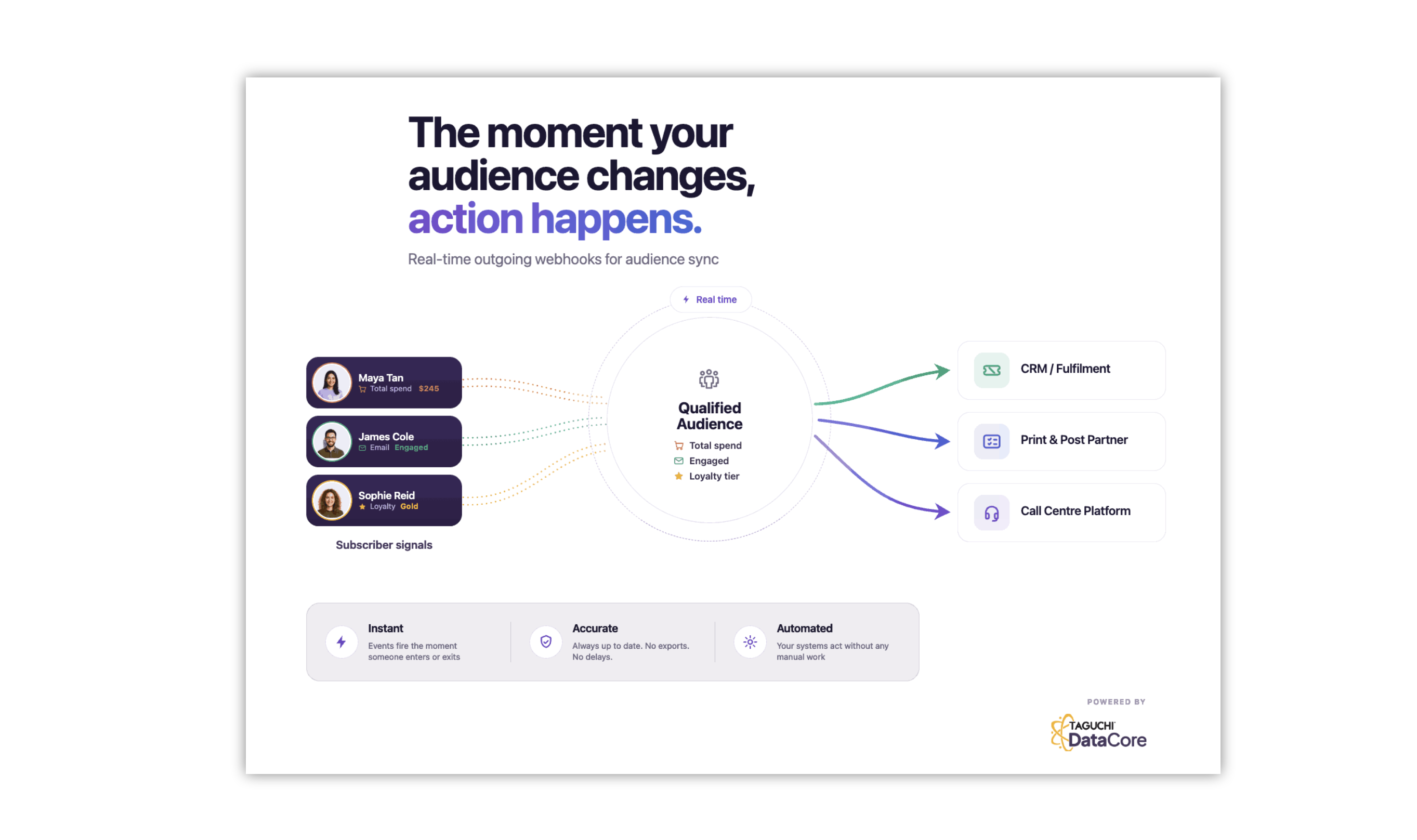
Taguchi provides an audience sync webhook integration that sends audience-triggered webhook requests to an external endpoint.
This integration is useful when you want your downstream system to react as subscribers enter or leave selected audiences.
Create Your Audience Sync: Outgoing Webhook Integration
New Integration
To create a new integration, ensure that you have the required User Type integration role privileges assigned to you.
- Navigate to Settings > Integrations.
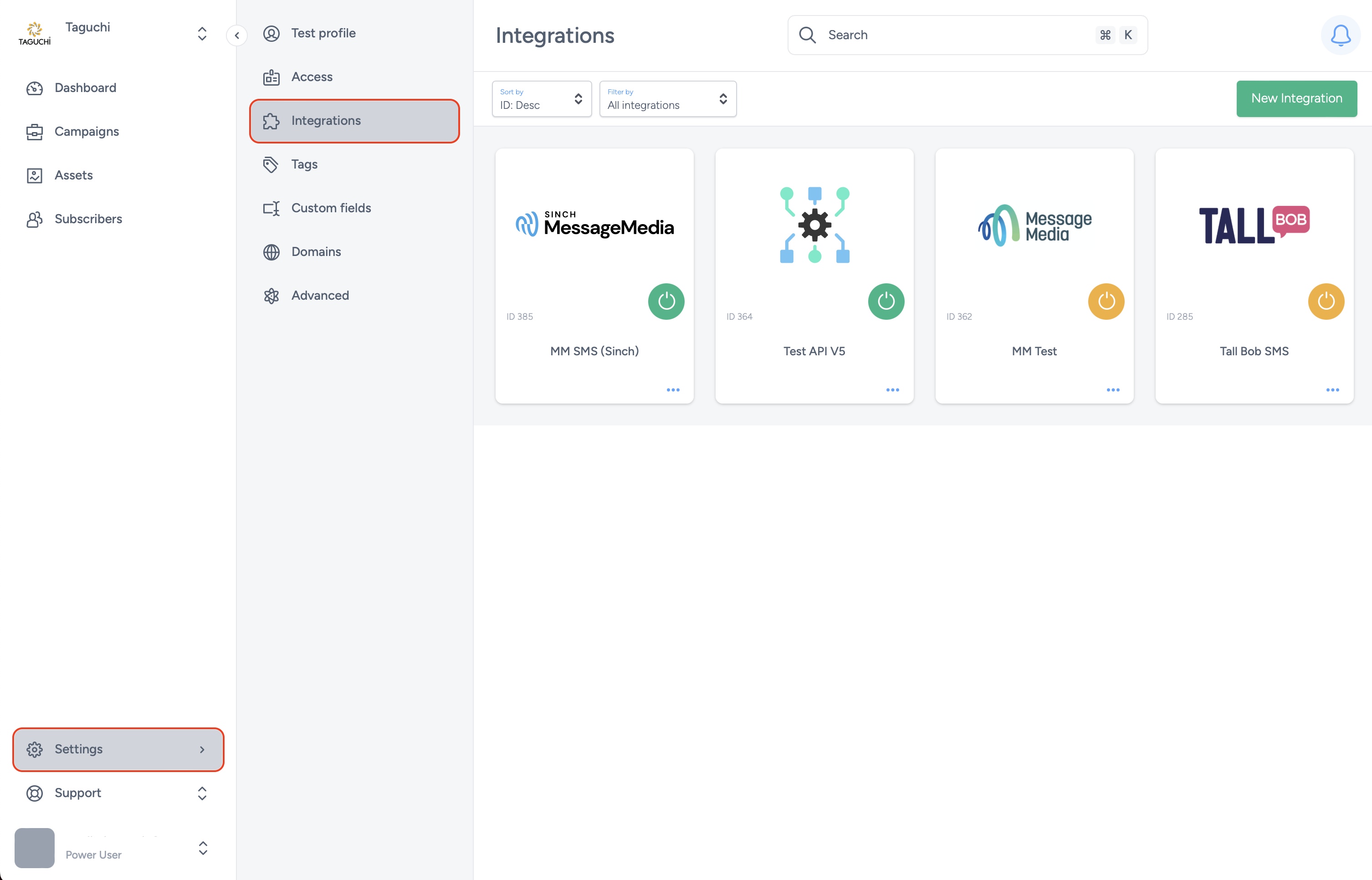
- Select New Integration.

Details
- Set the name of the integration.
- Under Type, select Audience Sync: Outgoing Webhook.
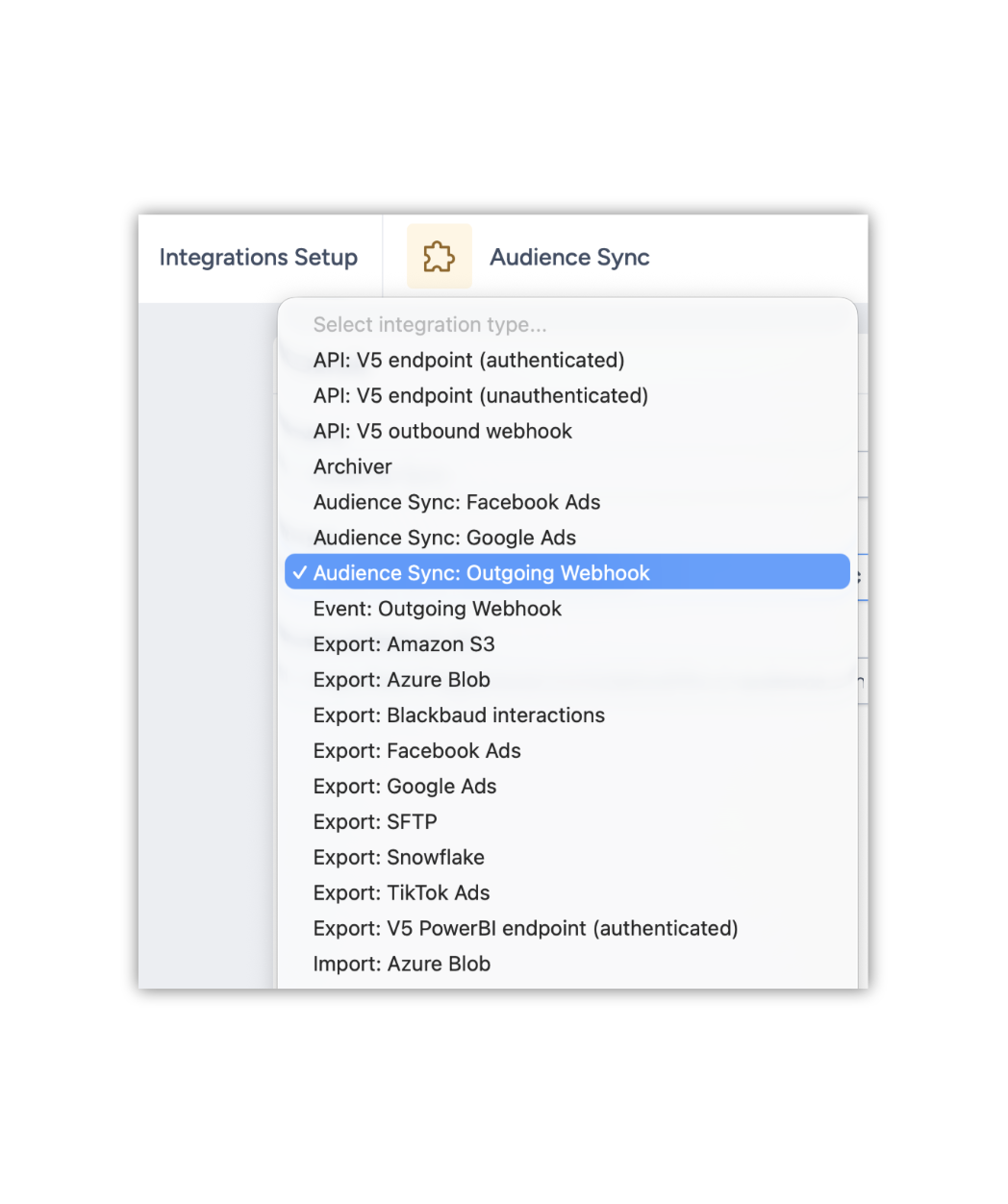
Audience Sync: Outgoing Webhook triggers your endpoint when subscribers join or leave configured audiences.
Configuration
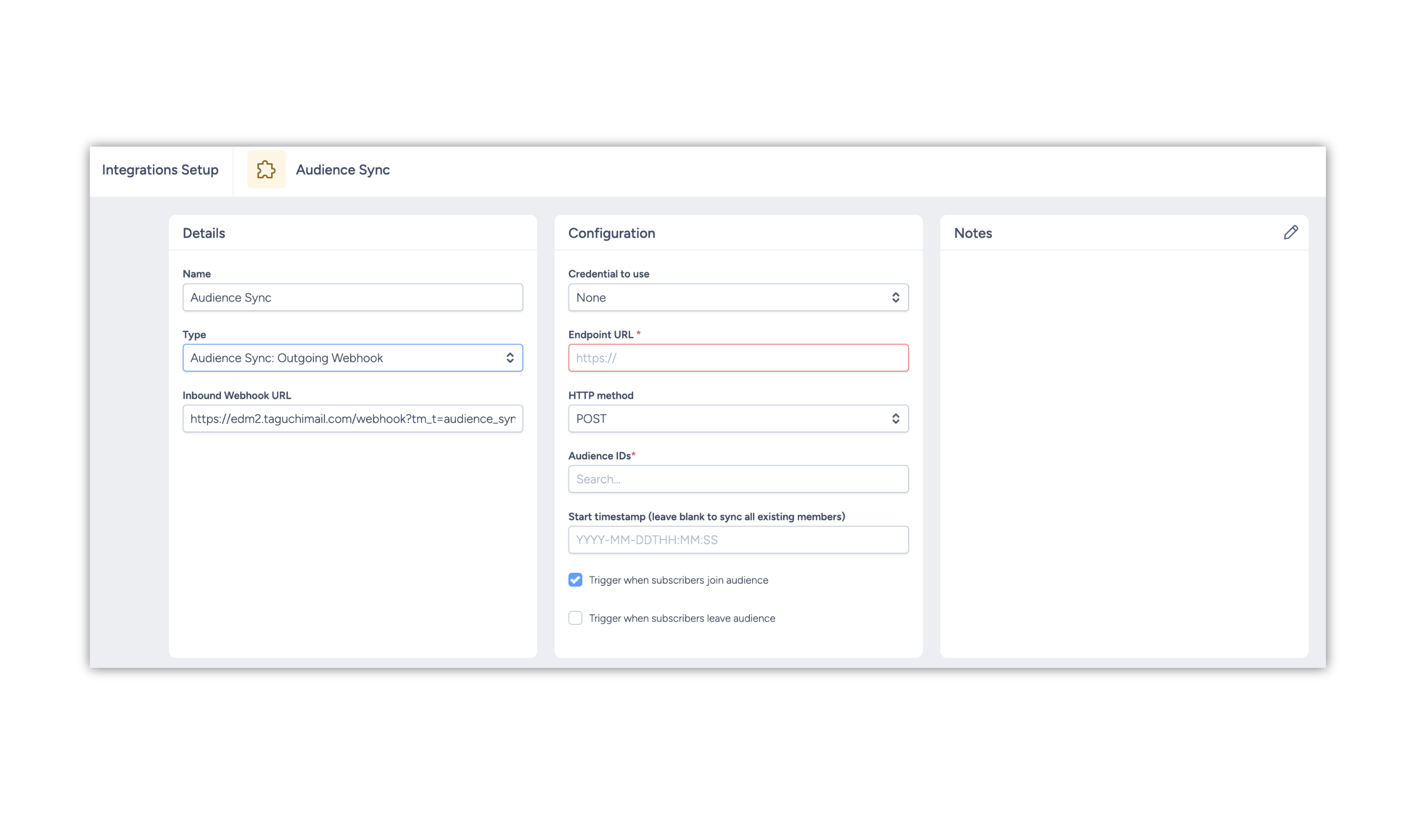
Set up the configuration panel in this order:
- Credential to use: Select a credential if your endpoint requires authentication.
- Endpoint URL: Enter the external endpoint that will receive webhook requests.
- HTTP method: Choose the request method used when sending to the endpoint.
- Audience IDs: Add the audience ID or IDs to monitor. The integration uses these IDs to determine which audience membership changes should trigger webhook calls. To learn how audiences work, see Audiences.
- Start timestamp: Set when webhook actions should start occurring.
- Trigger when subscribers join audience: Tick this checkbox to send a webhook when a subscriber enters one of the selected audiences.
- Trigger when subscribers leave audience: Tick this checkbox to send a webhook when a subscriber leaves one of the selected audiences.
Unlike Event: Outgoing Webhook, this integration triggers based on audience membership changes rather than campaign/event activity types.
Map Data
Use map data to control the payload sent to your endpoint when a subscriber joins or leaves a selected audience.
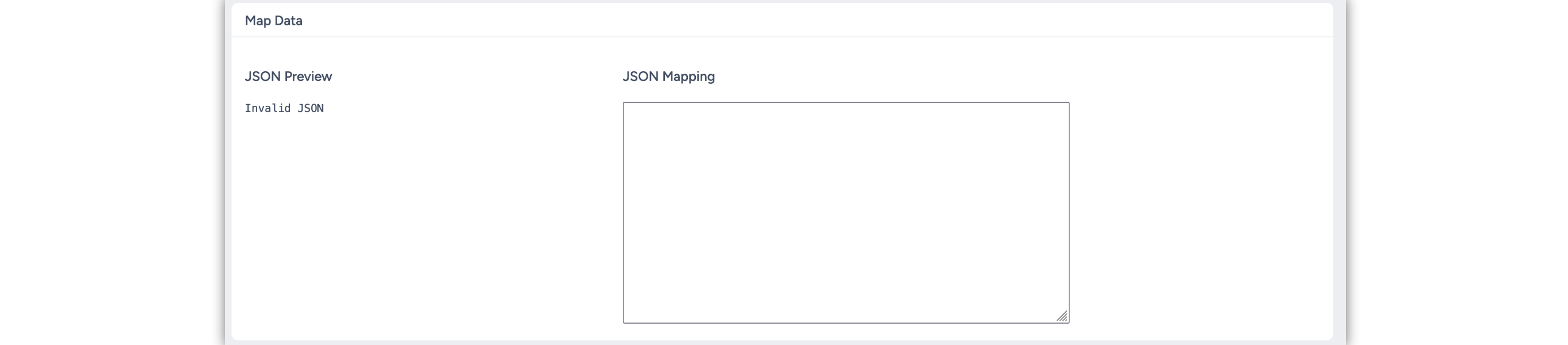
Sample mapping
{
    "id": "$.subscriber.id",
    "ref": "$.subscriber.ref",
    "email": "$.subscriber.email",
    "phone": "$.subscriber.phone",
    "firstname": "$.subscriber.firstname",
    "lastname": "$.subscriber.lastname",
    "syncAction": "$.event.type",
    "syncedAt": "$.event.loggedTimestamp"
}
Usage
Below you'll find use cases for how this integration could be used.
Use case 1 - Rewarding customers
Set a rule to identify subscribers who qualify for a free product — based on purchase behaviour — and pass details of the qualified subscriber to your endpoint, whether that's an app, CRM, or a fulfilment system.
The moment a subscriber meets your audience target criteria, they enter your audience and the webhook runs, passing details to your defined endpoint.
If the subscriber falls out of your audience, an update can also fire and send to your endpoint.
Example:
- Audience setup: subscribed to list X and not purchased in the last 3 months.
- When a subscriber meets this audience rule, the webhook calls your defined HTTP method on the defined endpoint URL.
- Choose whether to trigger when a subscriber joins or leaves an audience, and set the timestamp for when actions start.
- JSON data mapping example, where the webhook passes a specific product PLU to be assigned to the subscriber at the endpoint:
{
  "PLU": "12345",
  "MemberId": "$.subscriber.ref",
  "ProductId": "12345",
  "ExpiryDate": "2026-06-04T00:00:00Z",
  "DateIssued": "$.event.loggedTimestamp",
  "IsRedeemed": false
}
Use Case 2 - Turn a new sign up into an action
When a subscriber joins your loyalty program and meets your criteria, the webhook fires when they enter your audience, passing their details directly to your print and post fulfilment partner.
Set a rule to identify subscribers who have signed up to your loyalty program, passing details of the qualified subscriber to your endpoint, whether that's a CRM or a fulfilment system.
The moment a subscriber meets your audience target criteria, they enter your audience and the webhook runs, passing details to your defined endpoint.
If the subscriber falls out of your audience, an update can also fire and send to your endpoint.
Example:
- Audience setup: subscribed to list X in the last 24 hours.
- When a subscriber meets this audience rule, the webhook calls your defined HTTP method on the defined endpoint URL.
- Choose whether to trigger when a subscriber joins or leaves an audience, and set the timestamp for when actions start.
- JSON data mapping example:
{
  "SubscriberEmail": "$.subscriber.email",
  "SubscriberName": "$.subscriber.firstname",
  "SubscriptionDate": "2026-06-04T00:00:00Z"
}
Use Case 3 - Reward a Limited Number of Subscribers
Audience Sync: Outgoing Webhooks can be used to allocate rewards, coupons, loyalty points, or other benefits to a limited number of subscribers.
For example, you may want to:
- Reward random 2,000 subscribers who make a purchase during a campaign period.
- Surprise and delight 2,000 randomly selected customers with a gift or bonus.
- Run an acquisition campaign that offers an incentive to a limited group of subscribers.
- Allocate a finite number of rewards, vouchers, or loyalty benefits to a selected audience to fit within a budget.
By combining Audience Sync: Outgoing Webhooks with a static subscriber selection, you can ensure that no more than your intended number of subscribers receive the reward.
How It Works
- Set up an Audience Sync: Outgoing Webhook integration configured to trigger when a subscriber joins an audience.
- Ensure the audience linked to this integration is empty to begin with. Activate the integration once set up with the empty audience.
- Separately, create a static group of subscribers matching your reward allocation criteria. E.g.: Anyone who purchased in the last 3 months must be rewarded. Limit rewards to 2000.
You can do this via
- A calculated custom field calculated based on matching a targeting criteria or,
- A list generated by extracting and bulk uploading recipients matching a targeting criteria
For example: (purchased in the last 3 months) random 2000
- Update the empty audience to target the newly created list or calculated custom field as saved in step 3.
- Save the audience, let it recalculate and go from empty to the expected number. E.g. 2000. The integration should trigger on the basis of someone joining the audience to allocate the rewards.
- Once processing is complete, deactivate the integration to prevent additional allocations.
Example A retailer wants to reward 2,000 customers who have purchased in the last three months with a bonus offer.
They create a static list or calculated custom field using:
(purchased in the last 3 months) random 2000
They use this list or calculated custom field to update the empty audience connected to the integration.
When those subscribers join the audience, the Audience Sync: Outgoing Webhook allocates the reward. Because the audience is based on a fixed list or calculated custom field, no more than 2,000 subscribers will be included.
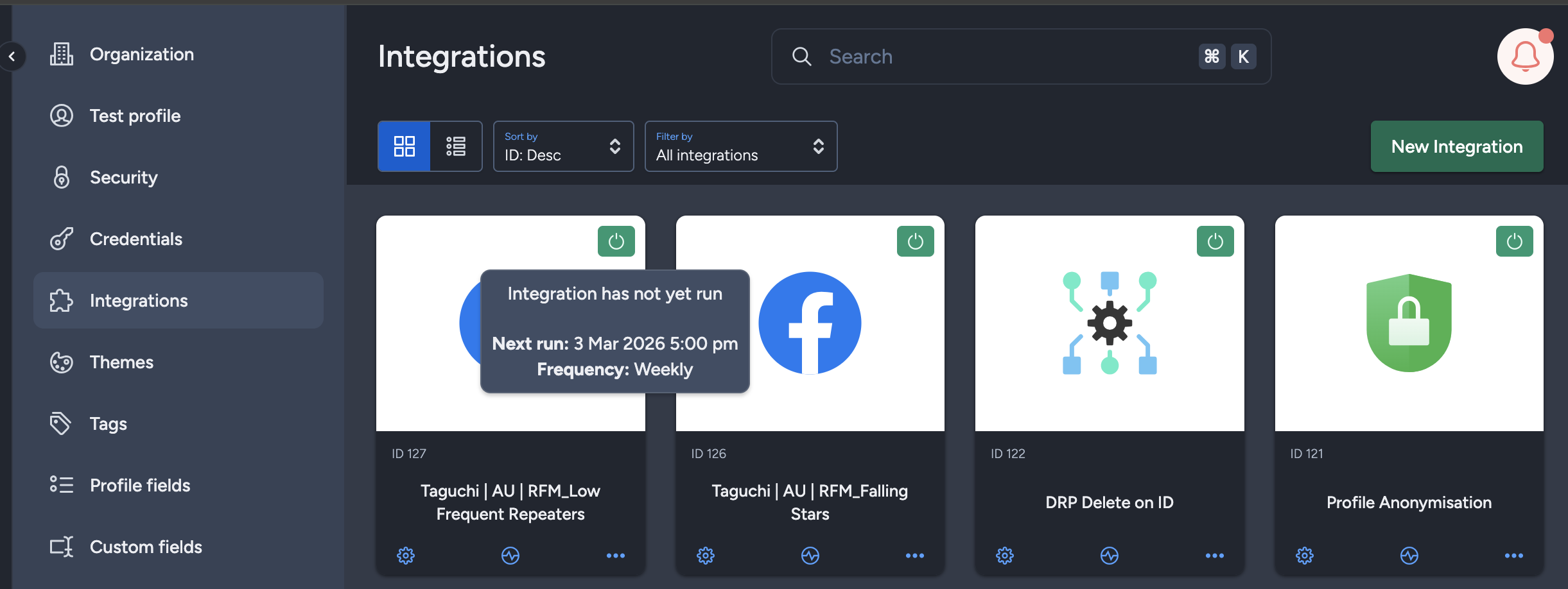
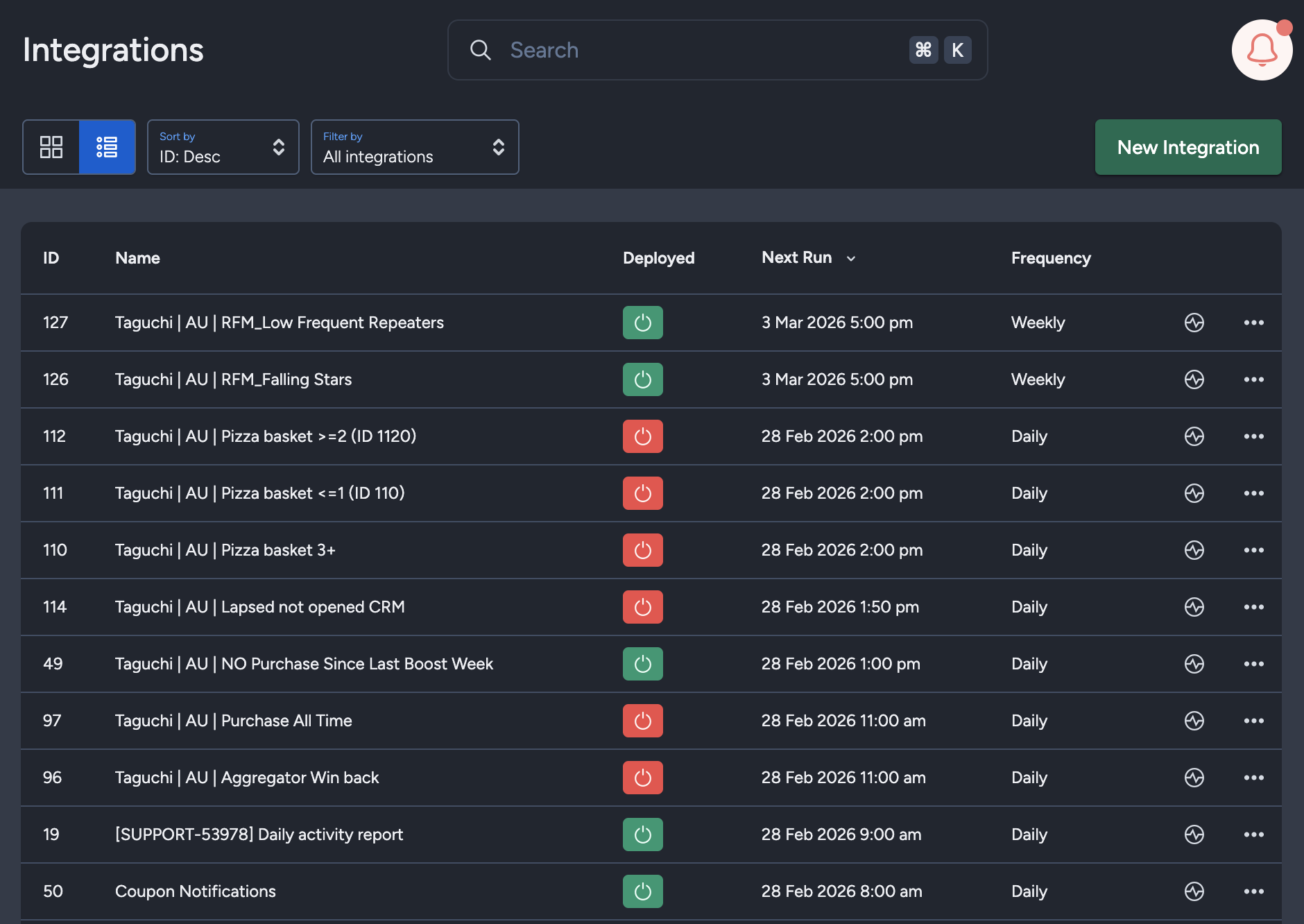
Viewing Integration Schedules and Next Run Details
The Integration UI provides visibility into integration schedules by displaying the scheduled frequency and the time of the next run when hovering over the status icon.
You can also use list view with sortable columns to view next run timestamp and frequency.
Save Changes and Activate

Once you have added your details, configuration, and map data, save changes and then activate the integration.
Deactivate
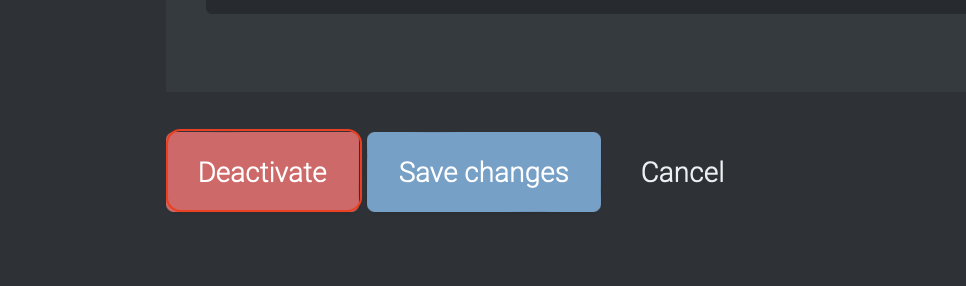
To stop the integration, click Deactivate.
Active Integration
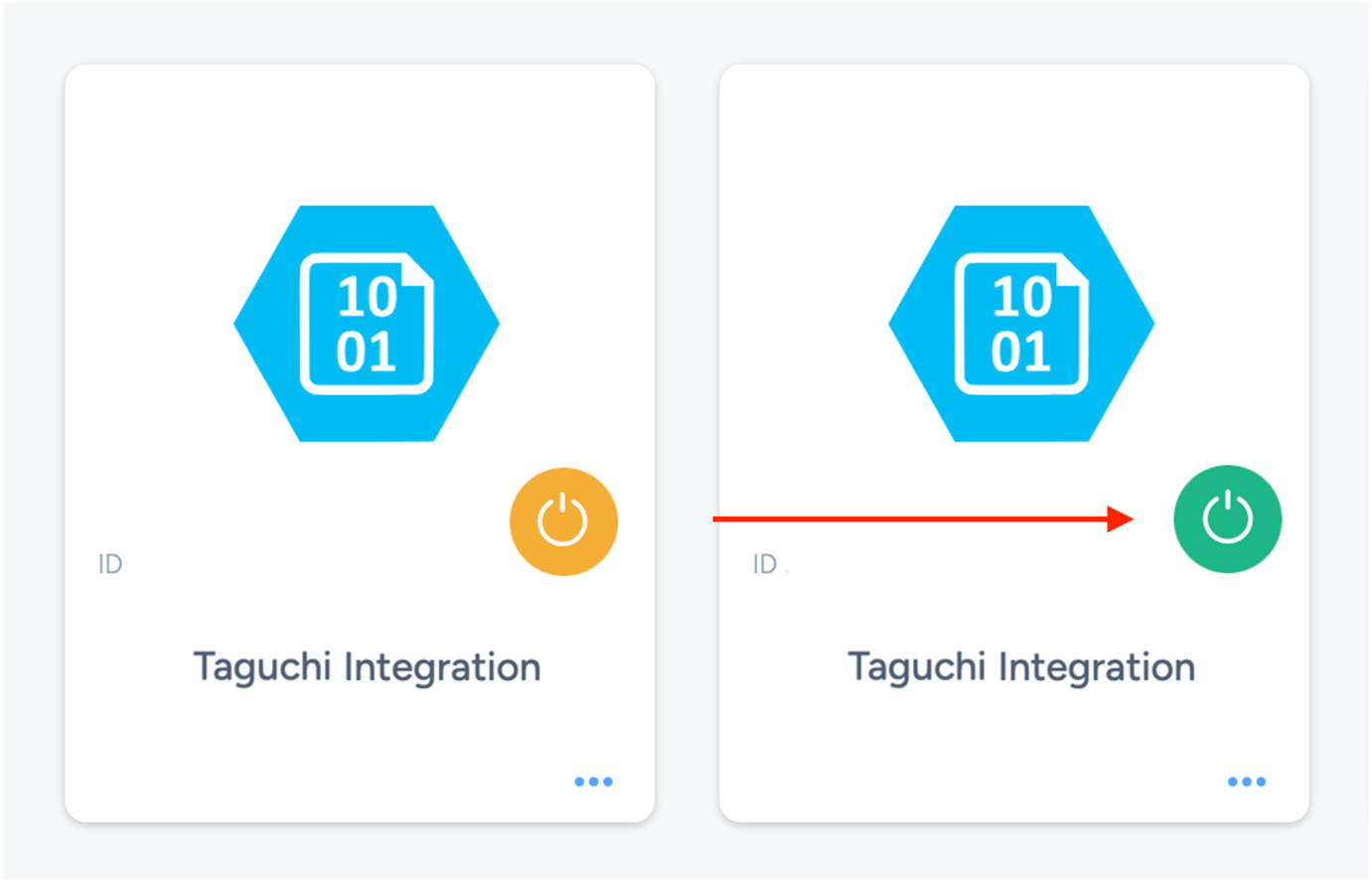
Once saved and activated, the on/off icon changes from yellow (Off) to green (On).
Update Integration

You can update an integration while active or deactivated. Click Save changes to apply updates.
Viewing Logs in the UI
Users can view detailed integration logs directly in the Taguchi UI to troubleshoot issues.
- Navigate to Settings > Integrations.
- Select the integration you want to review.
- Click View Status in the top-right corner.
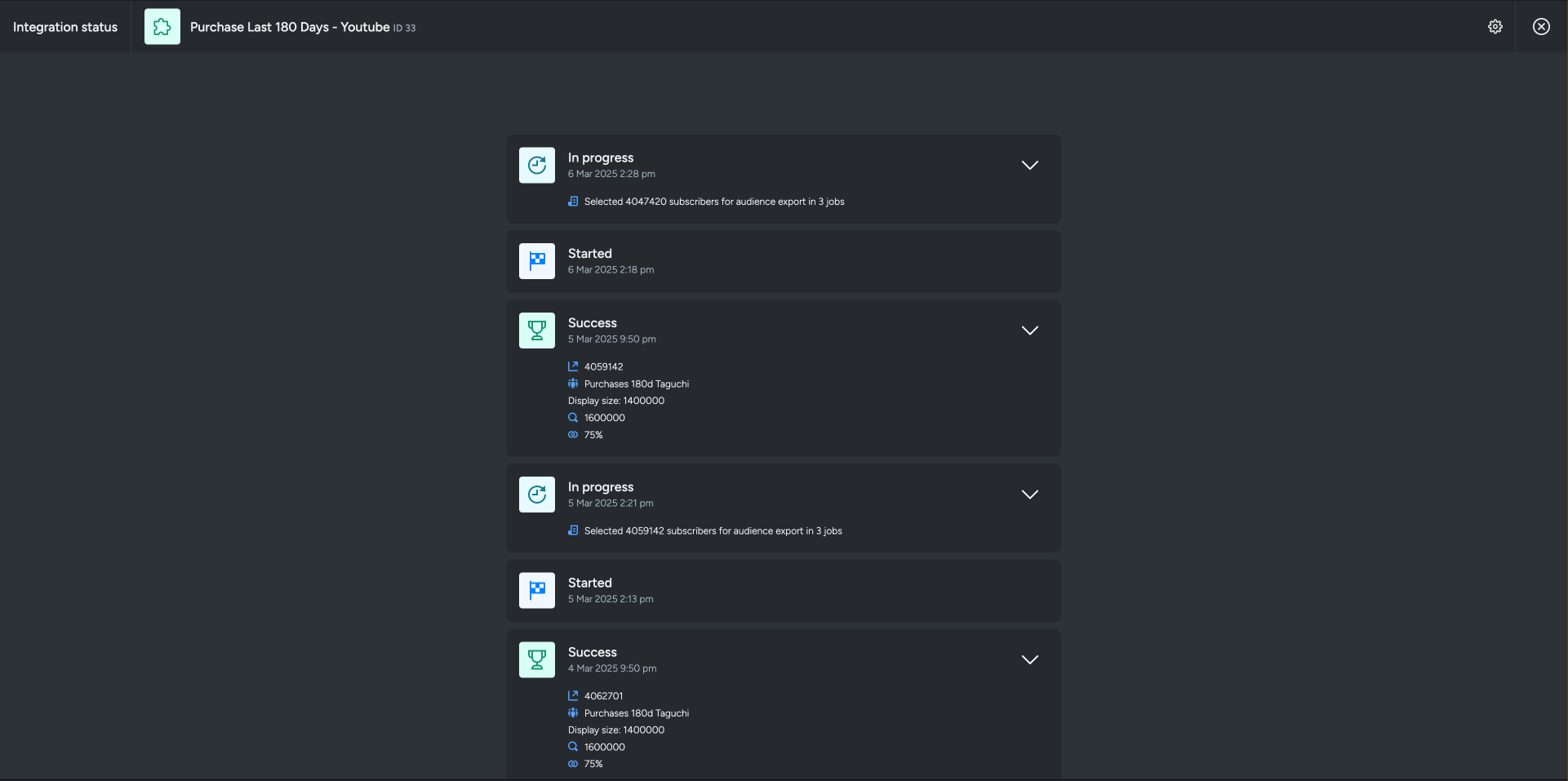
If an integration fails, check logs for issues such as invalid credentials, endpoint failures, or timeout errors.
If you are having trouble with this integration, please contact Taguchi Support for assistance.