- Support Home
- Knowledge Base
- Web Forms
- How to add a Partition Selector to a webform
Related articles
Need some help?
If you have questions or can't find what you're looking for, we're here to help.
Taguchi Support is available 24 hours a day, Monday to Friday.
Create New TicketAPI Version 5
Did you know Taguchi has an API that supports all of the functionality provided by the admin interface and more?
Explore API Documentation
Thanks for your feedback!
How to add a Partition Selector to a webform
The Partition Selector allows a subscriber to choose one or more partitions from a webform. For example, a retailer can let subscribers select their preferred store and update their subscriber profile when the form is submitted.
The selector always stores the selected partition external ID in a subscriber custom field and can also update partition membership immediately.
Before you begin
Make sure that:
- The required partitions and their external IDs have been created.
- Each partition has a suitable partition custom field that can be used as its display label, such as
store_name. - You have chosen a subscriber custom field name for storing the selected partition external ID or IDs, such as
preferred_store_id. - The webform's V5 endpoint is configured to identify the subscriber and allows subscriber profile updates.
The form must identify the subscriber before it can update their profile or partition membership. Depending on the form setup, this may use the subscriber's email address, reference or phone number, or a personalised webform URL. See How to send and personalise a form to existing subscribers for more information.
Add the Partition Selector
- Open the web activity and select the Layout tab.
- Add a grid row if the layout does not already have a suitable position for the field.
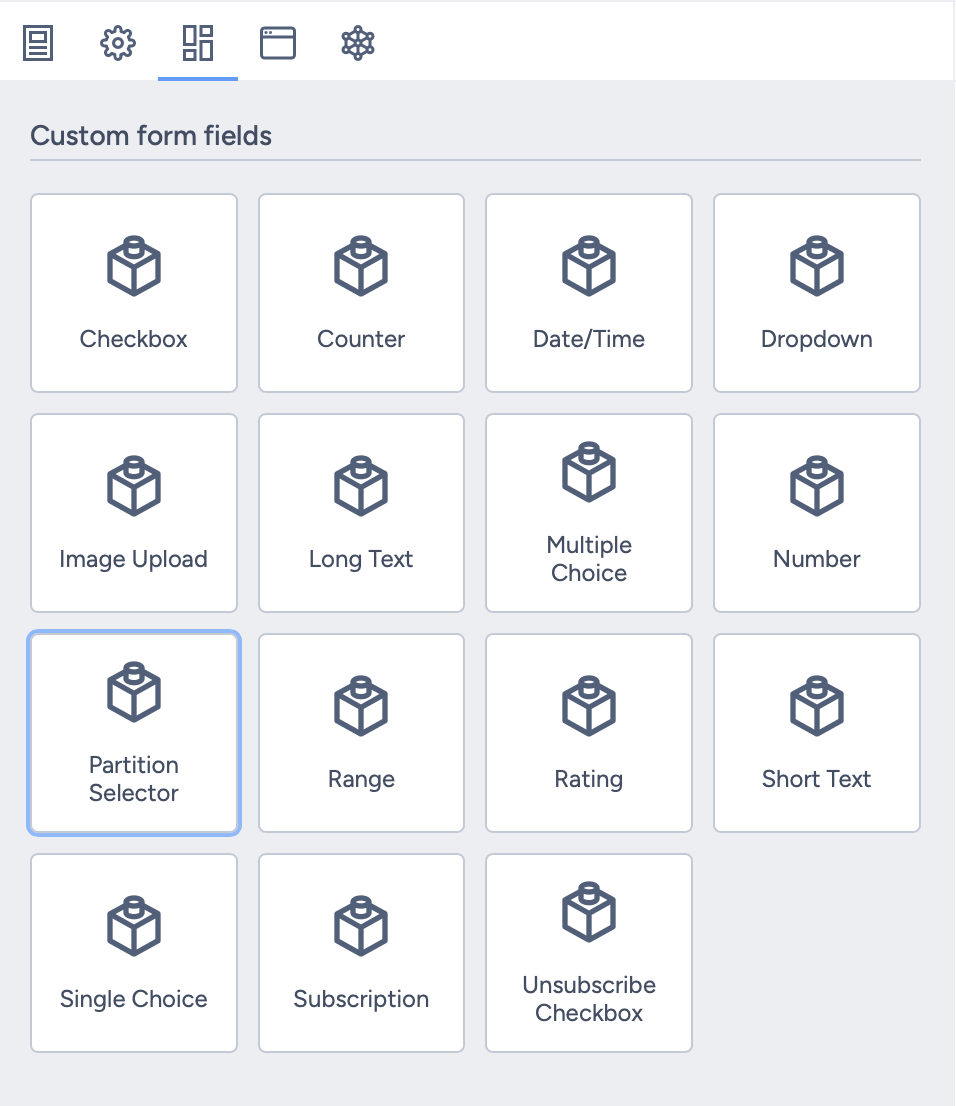
- Drag the Partition Selector into the grid.
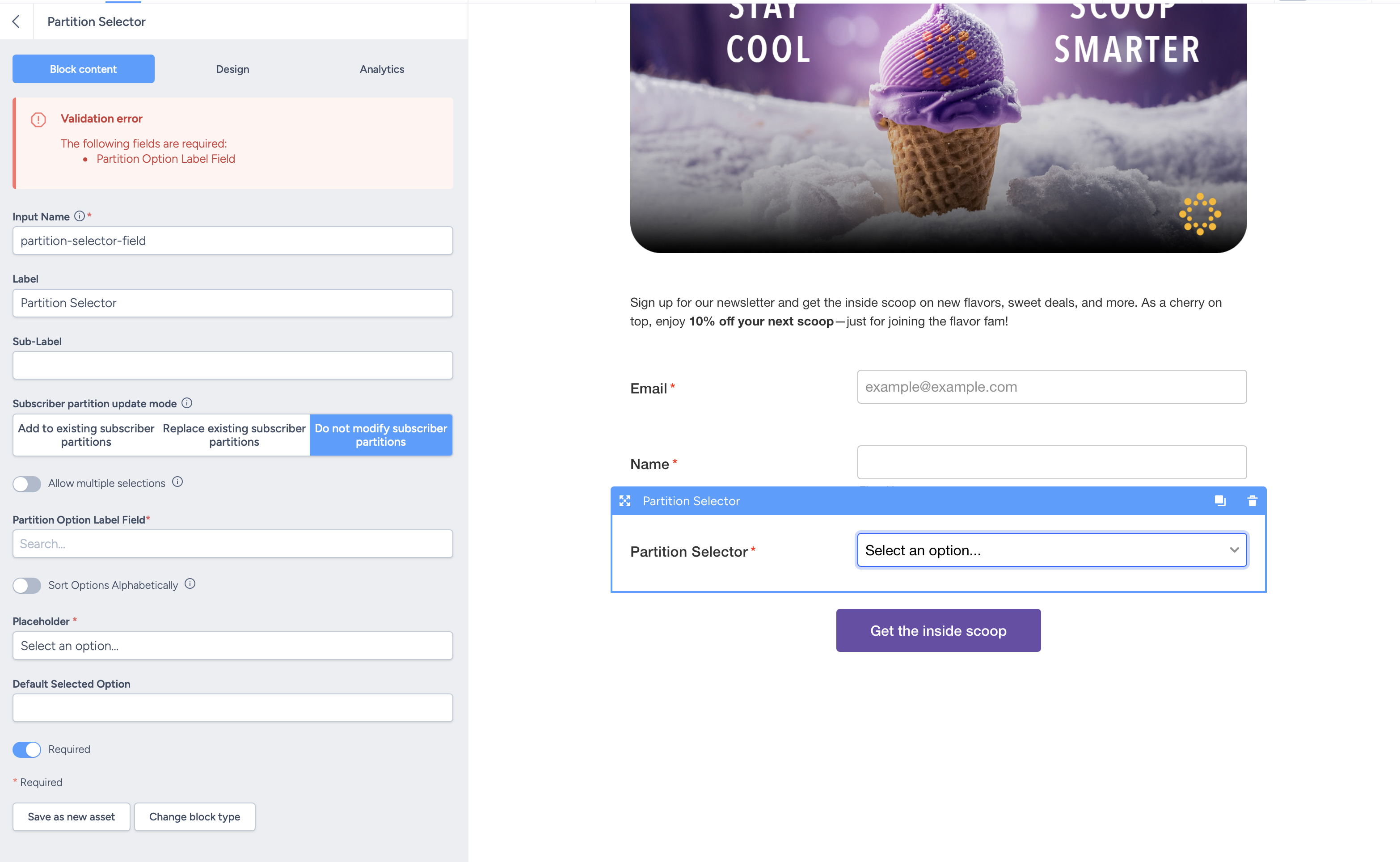
- Configure the selector using the settings below.
| Setting | Description |
|---|---|
| Input Name | Enter the subscriber custom field that will store the external ID of the selected partition or partitions. |
| Label | Enter the field label shown on the webform, such as Preferred store. |
| Sub-Label | Add optional supporting text or instructions. |
| Subscriber partition update mode | Choose whether to add the selected partitions, replace the subscriber's existing partitions, or leave their partition membership unchanged. |
| Allow multiple selections | Allow the subscriber to select more than one partition. When enabled, the options can be searched on desktop and mobile. |
| Partition Option Label Field | Select the partition custom field used to display each option, such as a store name. |
| Sort Options Alphabetically | Display the partition options in alphabetical order. |
| Placeholder | Enter the text shown before an option is selected. |
| Default Selected Option | Enter the value of the option that should be selected when the field first loads. Leave this blank if no default is required. |
| Required | Require the subscriber to select an option before submitting the form. |
Choose how partition membership is updated
The Subscriber partition update mode controls what happens to the subscriber's partition membership when they submit the form:
- Add to existing subscriber partitions: adds the selected partitions and keeps the subscriber's current partition memberships.
- Replace existing subscriber partitions: replaces all current partition memberships with the submitted selection. Use this carefully, as partitions unrelated to the form will also be removed.
- Do not modify subscriber partitions: stores the selected external ID or IDs in the Input Name custom field without immediately changing partition membership.
The selected external ID or IDs are saved to the subscriber custom field configured under Input Name, regardless of the selected update mode.
Example: preferred store
To let a subscriber choose one preferred store, you could configure the selector as follows:
| Setting | Example value |
|---|---|
| Input Name | preferred_store_id |
| Label | Preferred store |
| Subscriber partition update mode | Replace existing subscriber partitions |
| Allow multiple selections | Off |
| Partition Option Label Field | store_name |
| Sort Options Alphabetically | On |
| Placeholder | Select your preferred store... |
| Required | On |
When the subscriber submits the form, the selected store's partition external ID is saved in preferred_store_id. With Replace existing subscriber partitions selected, their existing partition memberships are replaced by the preferred-store partition.
If subscribers may belong to several partitions that must be retained, use Add to existing subscriber partitions or Do not modify subscriber partitions instead.
Interaction with scheduled partition assignment
The webform saves the submitted value immediately. When Add or Replace is selected, it also updates the subscriber's partition membership immediately.
If a Scheduled: Partition Assignment integration uses the same subscriber custom field, its next run reads the latest value stored by the webform and applies its configured partition-matching process. This can be useful when Do not modify subscriber partitions is selected and the scheduled integration is intended to manage membership.
If the scheduled integration uses another source field or different assignment rules, a later run may change the membership set by the webform. Review and test both configurations together before publishing the form so that there is one clear source of truth.
Test before publishing
- Submit the form using a synthetic test subscriber that the endpoint can identify.
- Confirm that the Input Name custom field contains the selected partition external ID or IDs.
- Confirm that partition membership was added, replaced or left unchanged according to the selected update mode.
- Test both desktop and mobile layouts, including searching and selecting multiple options when enabled.
- If a scheduled partition assignment integration is active, confirm the subscriber's membership again after its next run.
For further assistance, contact Taguchi Support.