- Support Home
- Knowledge Base
- Account Management
- My Account
- Resetting your password
Resetting your password
If you have forgotten your Taguchi password, request a reset email, then use the temporary reset token to sign in and choose a new password. You will need access to the email address registered to your Taguchi account and, if enabled, your authenticator app.
If you sign in through your organisation’s single sign-on service, reset your password through that service or contact your organisation’s IT team.
1. Request a password reset
Go to the Taguchi login page and select Forgot password?.
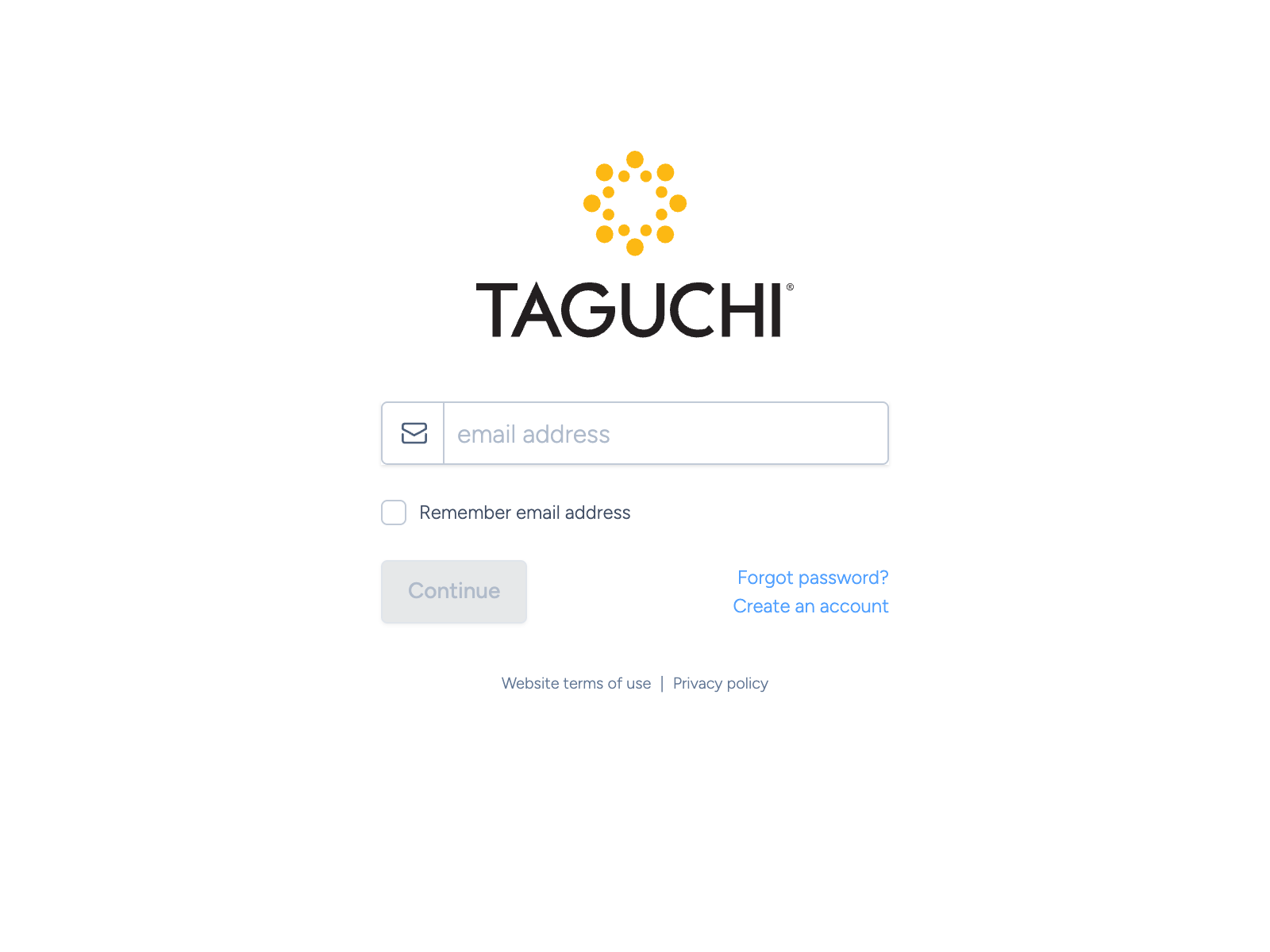
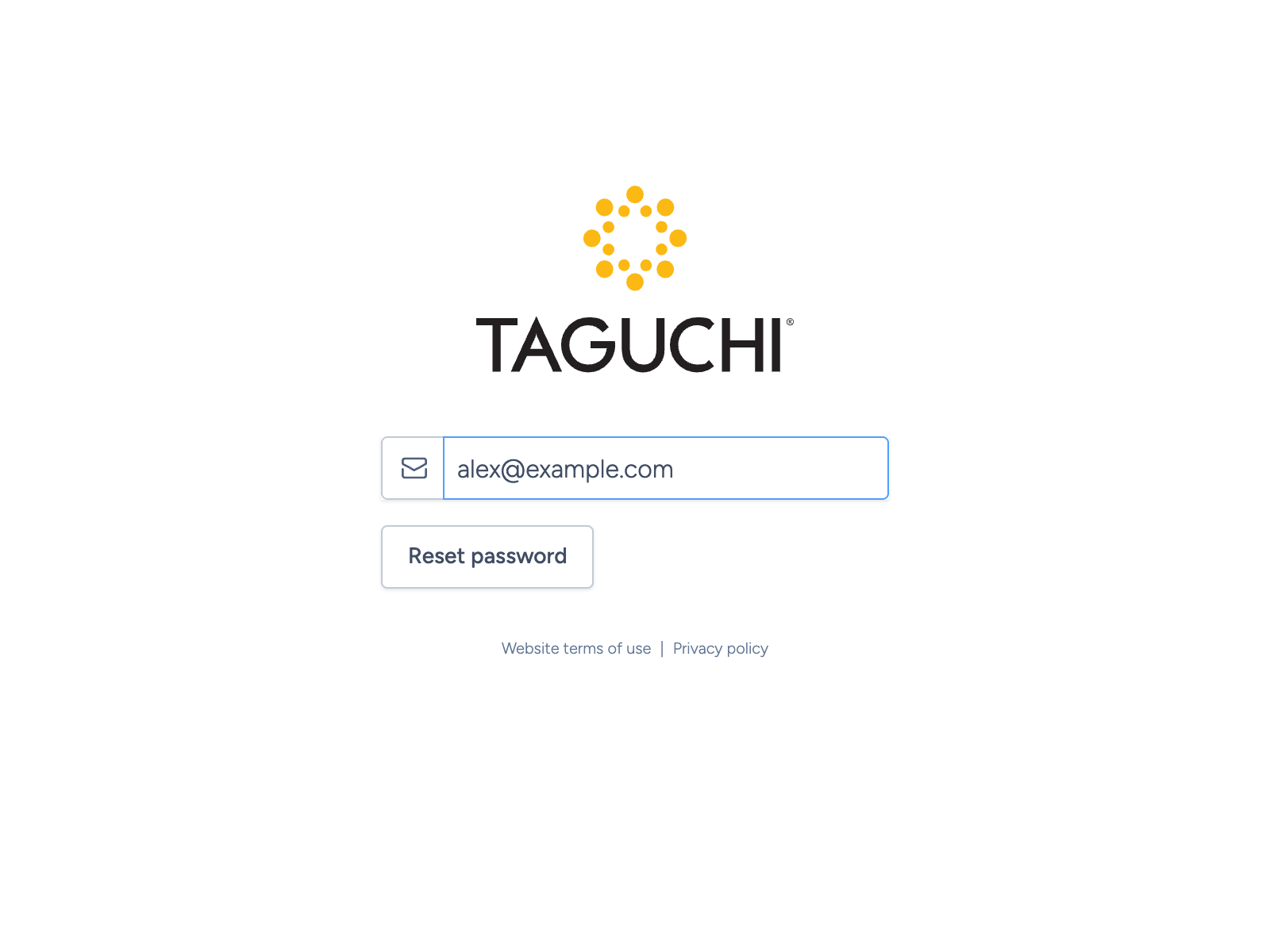
Enter the email address you use to sign in to Taguchi, then select Reset password.
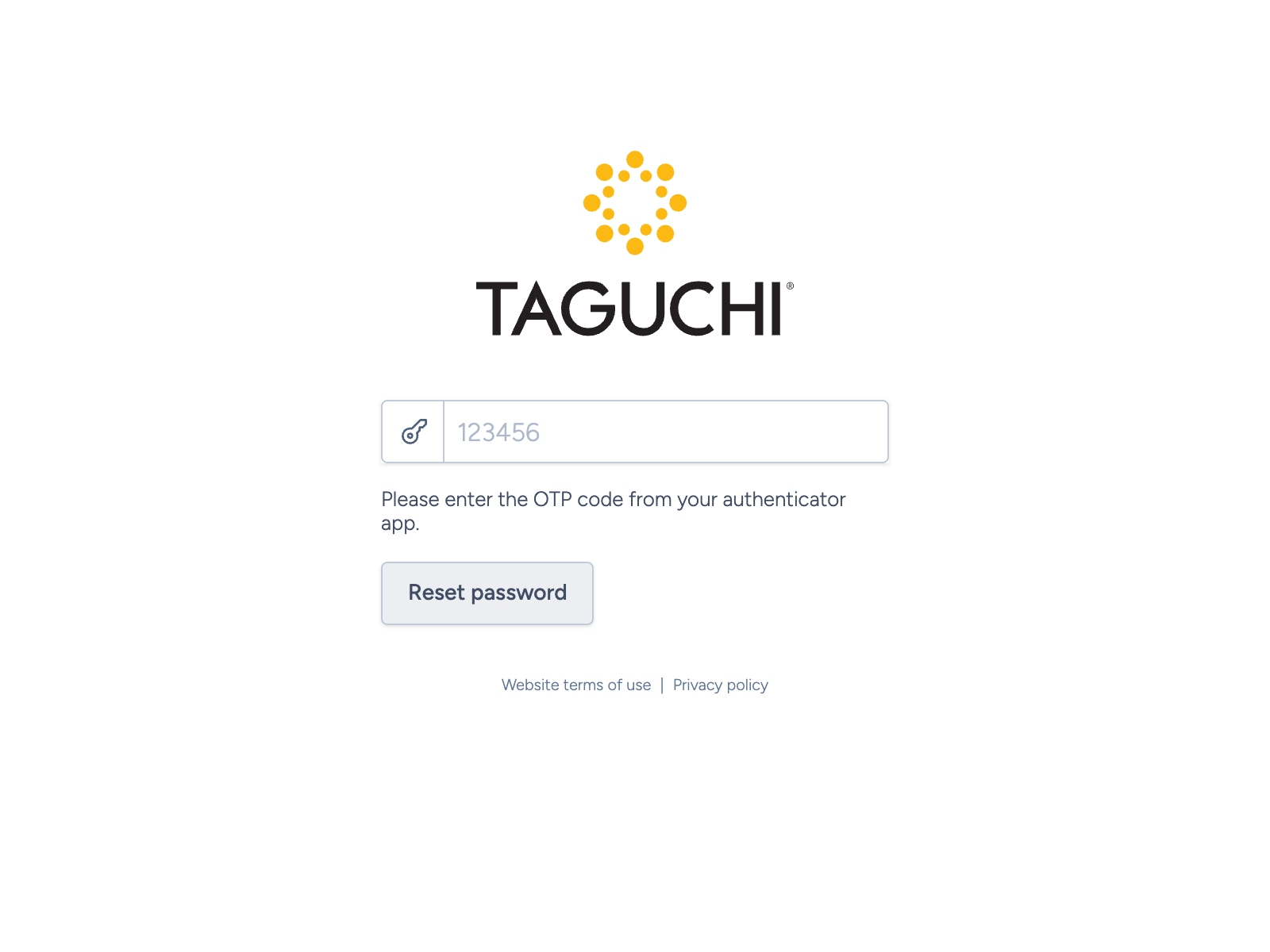
If prompted, enter the current six-digit code from your authenticator app and select Reset password again. This step applies to accounts with two-factor authentication enabled.
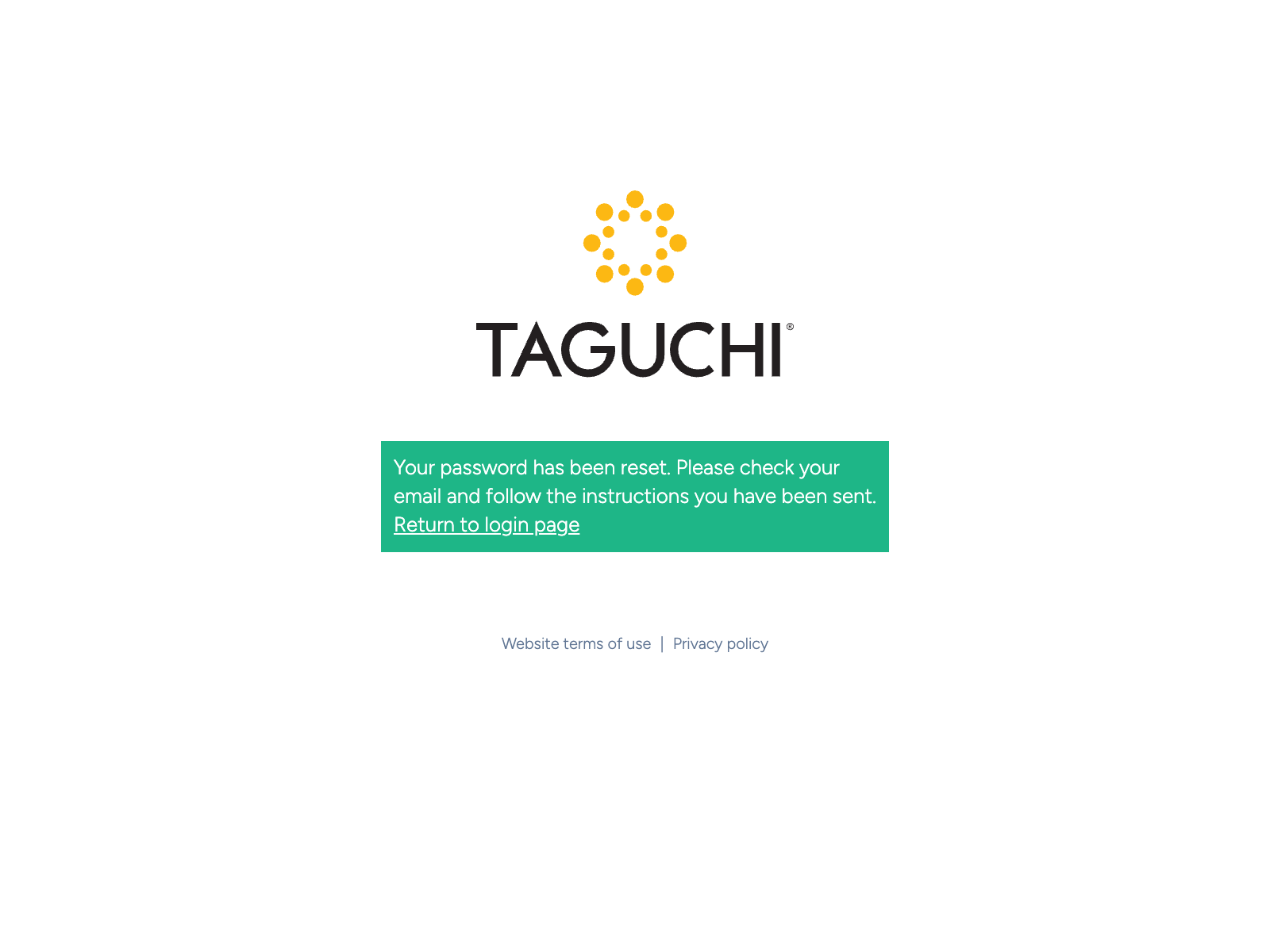
Taguchi displays a confirmation asking you to check your email.
2. Find your temporary reset token
Look for an email with the subject [Taguchi] Password reset request, sent from Taguchi support@taguchi.com.au. The email contains your account email address and a Temporary reset token.
The token expires 15 minutes after it is issued and can be used once. If you request another reset, use the token from the newest email; earlier tokens will no longer work.
3. Sign in using the token
Return to the Taguchi login page or select Return to login page on the confirmation screen.
Enter your account email address and select Continue. When the password field appears, enter the temporary reset token from the email in that field, then select Continue again.
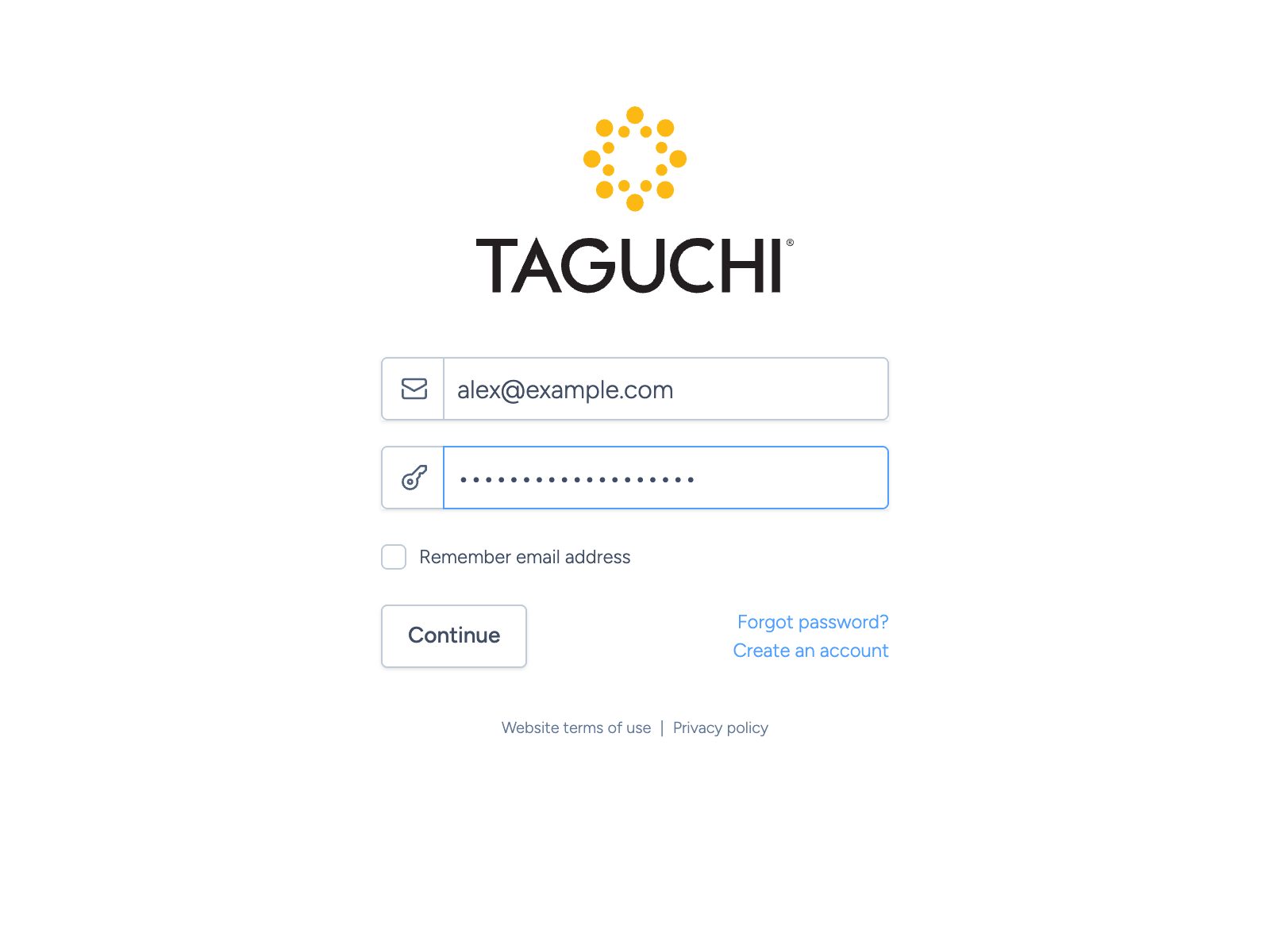
If Taguchi asks for two-factor authentication during sign-in, complete that prompt to continue.
4. Choose your new password
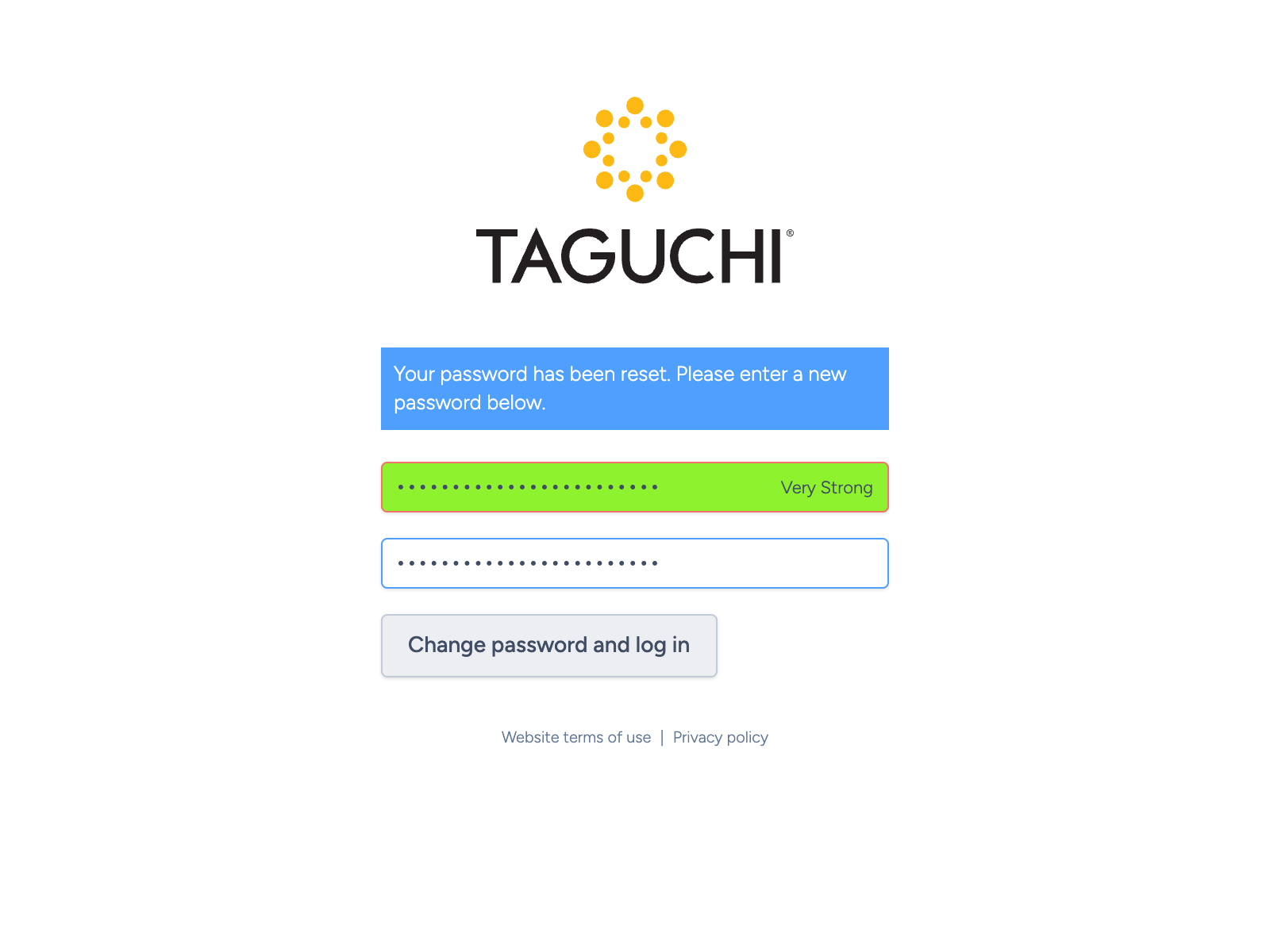
Enter a new password in new password, then enter it again in confirm password. Choose a unique password that the strength indicator rates Strong or Very Strong. Both entries must match before you can continue.
Select Change password and log in to save your password and sign in. Use your new password for future logins.
If you need help
- The reset email has not arrived: Check your junk or spam folder and confirm that you entered the email address registered to your Taguchi account. If you still cannot find it, contact your organisation’s Taguchi administrator or Taguchi Support.
- The token does not work: Request another reset if the token has expired or has already been used. Copy the token from the newest reset email into the password field.
- Taguchi cannot find your account: Check your email address for typing errors. Ask your organisation’s Taguchi administrator to confirm which address is registered.
- You cannot access your authenticator app: Contact your organisation’s Taguchi administrator or Taguchi Support for help accessing your account.
- The new password button is unavailable: Check that both passwords match and that the strength indicator shows Strong or Very Strong.
If you did not request a password reset, do not use the token. Requesting a reset does not change your existing password.
Related articles
- Activating your Taguchi account
- Enabling two-factor authentication
- Troubleshooting two-factor authentication issues
If you need help resetting your password, please contact Taguchi Support.