- Support Home
- Knowledge Base
- Campaigns And Activities
- Broadcast
- Personalised send times
Personalised send times
Personalised send times use each subscriber's recent email open history to select a send time for an email broadcast. The selected time is constrained by the sending window configured for the deployment.
This setting is available for email broadcasts where it appears under Send time automation in the Deployment tab. Personalised send times select a scheduled send time for each recipient; they do not guarantee the exact time when processing finishes, the message leaves Taguchi, or the message arrives in the recipient's inbox.
Set up personalised send times
Open the email broadcast you want to send and confirm its content, audience and deployment date.
Select the Deployment tab, scroll down to Send time automation, and enable Optimize send time for each recipient.
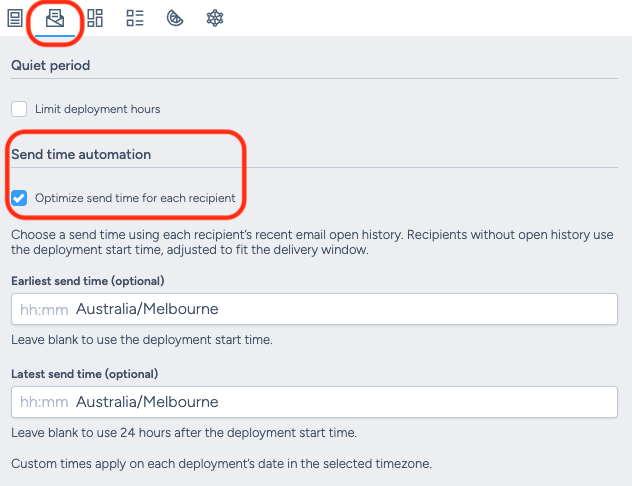
Configure the optional sending-window bounds:
- Earliest send time (optional): Set the beginning of the sending window. If this is left blank, Taguchi uses the deployment start time.
- Latest send time (optional): Set the end of the sending window. If this is left blank, the window extends to 24 hours after the effective earliest send time.
Each bound includes a time and a time zone. The earliest and latest bounds can use different time zones.
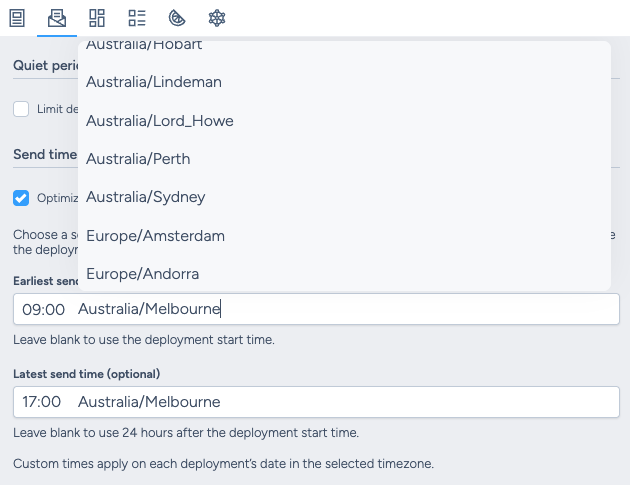
- Review the deployment settings, then approve and deploy the email broadcast.
Personalised send times use email open history. They do not use clicks or other subscriber activity when selecting the send time.
How the sending window works
The sending window constrains the scheduled send time selected for each recipient.
The available fields are:
- Earliest send time (optional): If blank, the deployment start time becomes the effective earliest send time.
- Latest send time (optional): If blank, the window extends to 24 hours after the effective earliest send time.
If an open hour falls before the earliest bound, the scheduled send time is adjusted to the earliest bound. If it falls after the latest bound, it is adjusted to the latest bound.
Choose a window during which it is acceptable for the email broadcast to begin sending. Processing and throttling can affect when individual messages are actually sent.
How the time zones work
The earliest and latest bounds can each have their own time zone.
Each configured time applies on the deployment date in the time zone selected for that bound. For example, if the earliest bound uses Australia/Sydney and the latest bound uses Australia/Perth, each time is interpreted on the deployment date in its respective time zone.
These time zones define the sending-window boundaries. They do not convert the selected time to each subscriber's local time.
Scheduled send time and inbox arrival
Personalised send times determine when each recipient's message is scheduled to be sent within the configured window. The window does not guarantee an exact transmission or inbox-arrival time.
The actual timing can also be affected by:
- activity and audience processing;
- the email broadcast's throttle rate;
- message queuing;
- temporary deferrals or throttling by the recipient's mail server; and
- filtering or processing performed by the recipient's email provider.
For more information about activity processing and sending, see Email & SMS activity deployment and send process.
For information about delayed inbox delivery, see Why has a subscriber been receiving our emails later than the date at which the broadcast was finished?.
Personalised send times and other send settings
Personalised send times are different from other deployment controls:
- Personalised send times use each subscriber's recent email open history to select an individual scheduled send time.
- Send time automation can assign defined send times and time zones to audience segments. For details, see Send time automation.
- Throttle controls the rate at which messages are sent.
- Quiet time periods, where available, restrict the days and hours when an email activity can send.
- Send limit is for triggers, not immediate or scheduled broadcasts; do not use it for the broadcasts described here.
Make sure the personalised sending window is compatible with any other deployment controls configured for the email broadcast.
Evaluate performance
Personalised send times control how Taguchi schedules recipients using their available email open history. They do not guarantee improved opens, clicks or other results.
Evaluate performance using your own audience, broadcasts and reporting to determine whether the setting is suitable for your sending strategy.
If you need help configuring personalised send times or reviewing an email deployment, please contact Taguchi Support.