- Support Home
- Knowledge Base
- Campaigns And Activities
- Content
- Create and manage saved layouts
Create and manage saved layouts
Saved layouts let you reuse a design, including its grid rows and content, across activities. Use Settings > Layouts to manage layouts separately from the activities that use them.
This article covers:
- Access and availability
- Find a layout
- Create a layout
- Edit a layout
- Manage layout tags
- Preview and check a layout
- Local Area Marketing layouts
- Publish or unpublish a layout
- Clone a layout
- Apply a layout to an activity
- Delete a layout
- Troubleshooting
Access and availability
You can manage saved layouts if you have the Edit layout content role, or your user type is Power user or Administrator.
| Role or user type | Access |
|---|---|
| Edit layout | Create, edit, clone, publish, unpublish and delete saved layouts, and edit content supplied by a layout in an activity. |
| Power user or Administrator | Includes layout authoring access. |
The Edit content role alone does not grant layout management. Users who can edit activities without layout authoring access can apply available published layouts, subject to their partition access, but cannot manage saved layouts or change content supplied by a layout.
If Layouts is missing from Settings, ask your organisation administrator or Taguchi Support to check your roles.
Find a layout
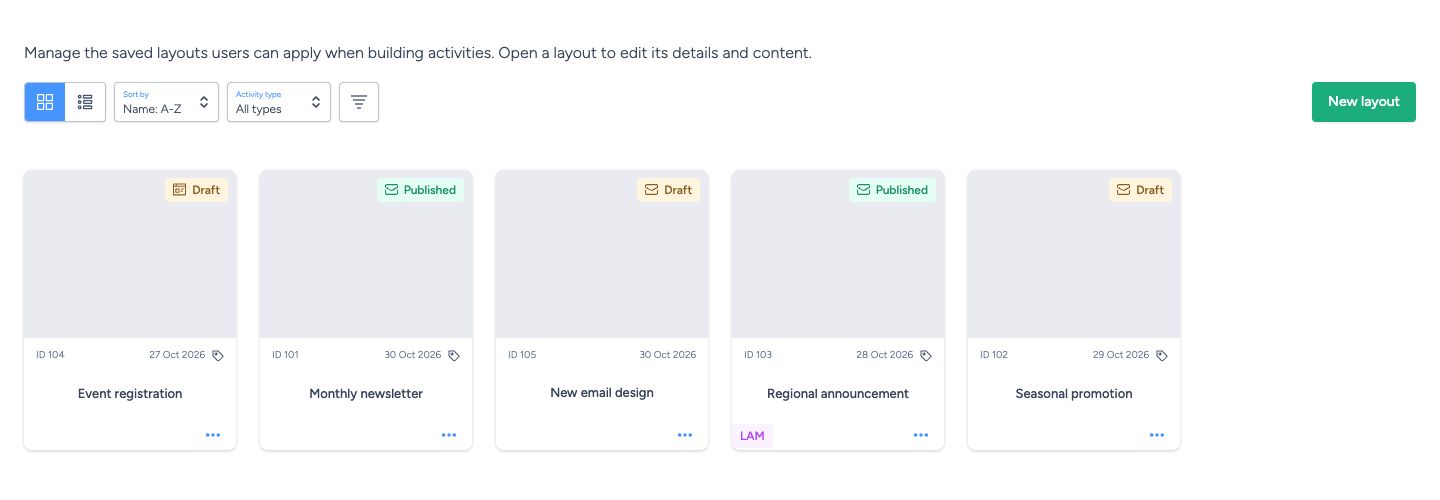
- Open Settings > Layouts.
- Use Activity type to narrow the list, or select All types.
- Select More filters to find a layout by Name, Description, Type or Tag. Enter a filter value and press Enter to apply it.
- Select a layout's name to open it.
You can switch between card and list views and use Sort by to change the order. The list view also lets you sort by clicking the Name, Type, Updated or Status column heading.
The screen includes both Draft and Published layouts. Only published layouts are offered when applying a layout to an activity.
Create a layout
Start from Settings
- Open Settings > Layouts.
- Select New layout.
- Enter a Name.
- Choose an Activity type: Email, Web or In-app message.
- Add a Description if needed.
- Select Create layout.
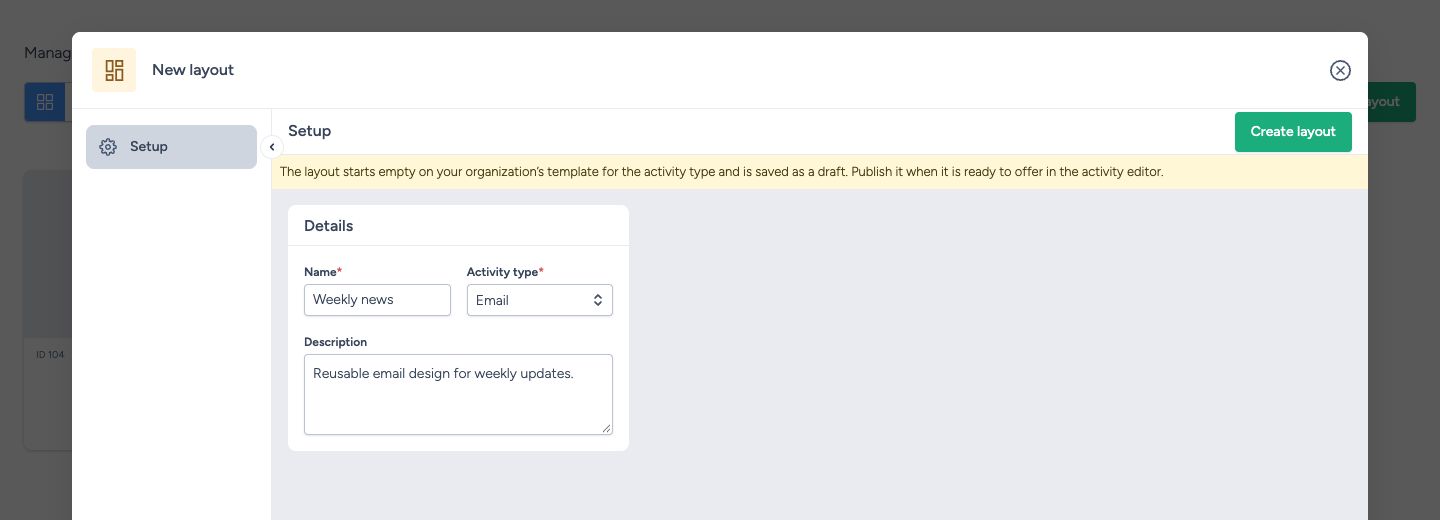
The new layout starts as a draft using your organisation's template for the selected activity type. You cannot change its activity type after creation.
Open Edit to build the layout, then publish it when it is ready to use.
Save an activity revision as a layout
You can also reuse a design you have already built in an activity.
- Open the activity editor and select the revision you want to reuse.
- Select the Save revision as a layout icon in the preview toolbar. This option requires permission to edit the activity, plus layout authoring access through the Edit layout role or the Power user or Administrator user type.
- Enter a name and description for the layout; both fields are required in this dialog. Choose a name that is not already in use, including by a draft. You can also add Tags and select Make available as a LAM layout if the design is for partition users.
- Select Save layout.
A layout saved from an activity revision is published straight away. You can open it in Settings > Layouts to manage it or return it to draft.
The optional Tags field helps you find and group layouts; see Manage layout tags. Make available as a LAM layout designates a layout for partition users. When selected, the published layout is offered to partition content editors without layout authoring access; head-office content editors without that access are offered ordinary layouts instead. Layout authors can see both kinds, but can select a LAM layout only for an activity allocated to partitions. See Local Area Marketing layouts for the access rules.
The dialog’s Tags and LAM options are available to users with layout authoring access.
Edit a layout
- Open Settings > Layouts and select the layout's name.
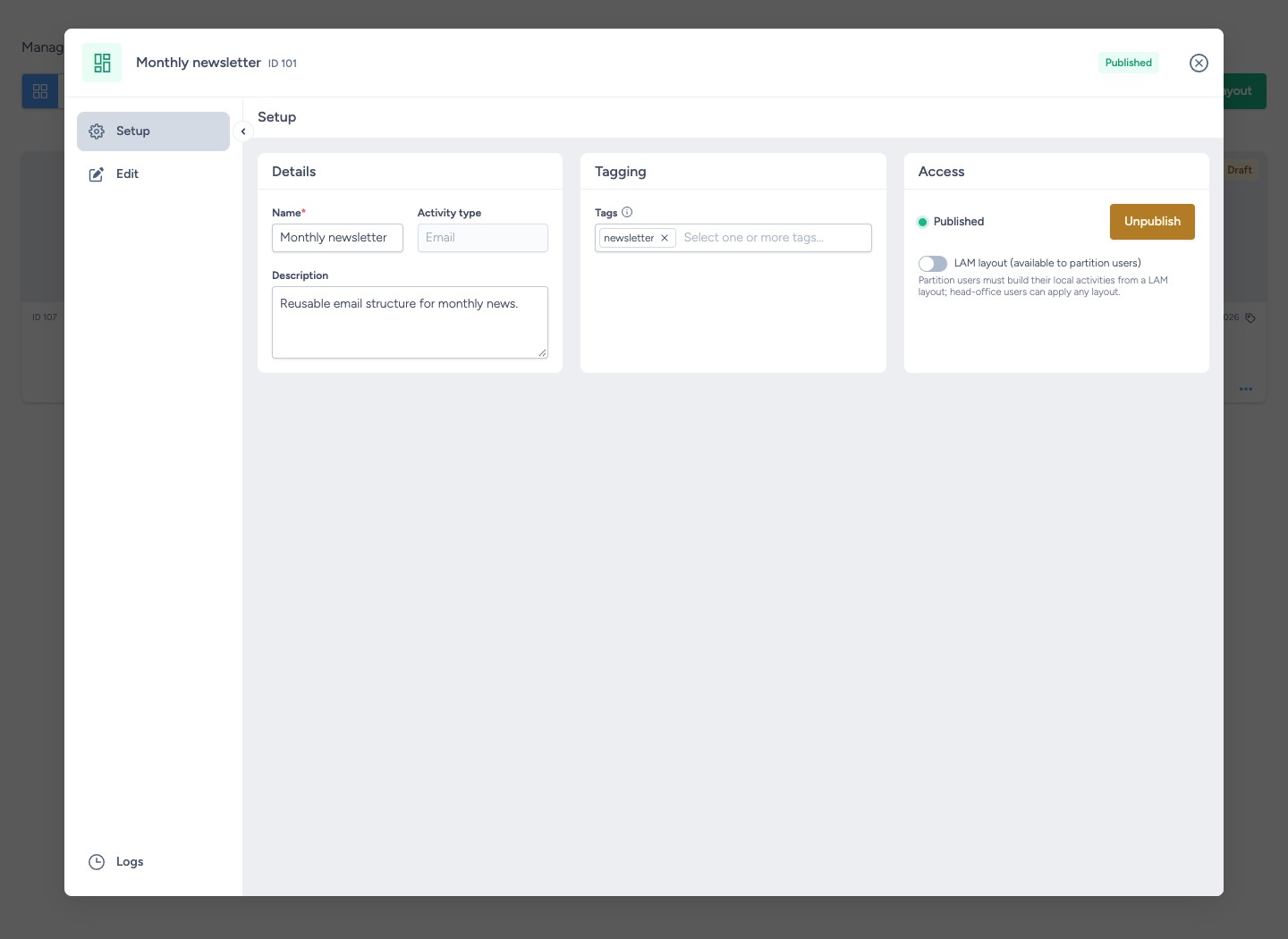
- In Setup, update its Name, Description or Tags as needed.
- Select Edit to change its design and content.
The available editing panes depend on the activity type:
| Pane | Use it to |
|---|---|
| Templates | Apply a theme. Confirm the selection to replace the layout's current theme styles. |
| Add blocks | Add grid rows and content to the layout. |
| Content | Manage the content structure of an email layout. |
| Pages | Manage pages in a web or in-app message layout. |
| Segments | Manage segments in an email or in-app message layout. |
Changes to details and content save automatically. Check the save status before closing, especially if a save fails. The Logs tab, next to Setup and Edit, shows recorded changes to the layout. It is a change record, rather than a history of saved layout revisions that you can restore.
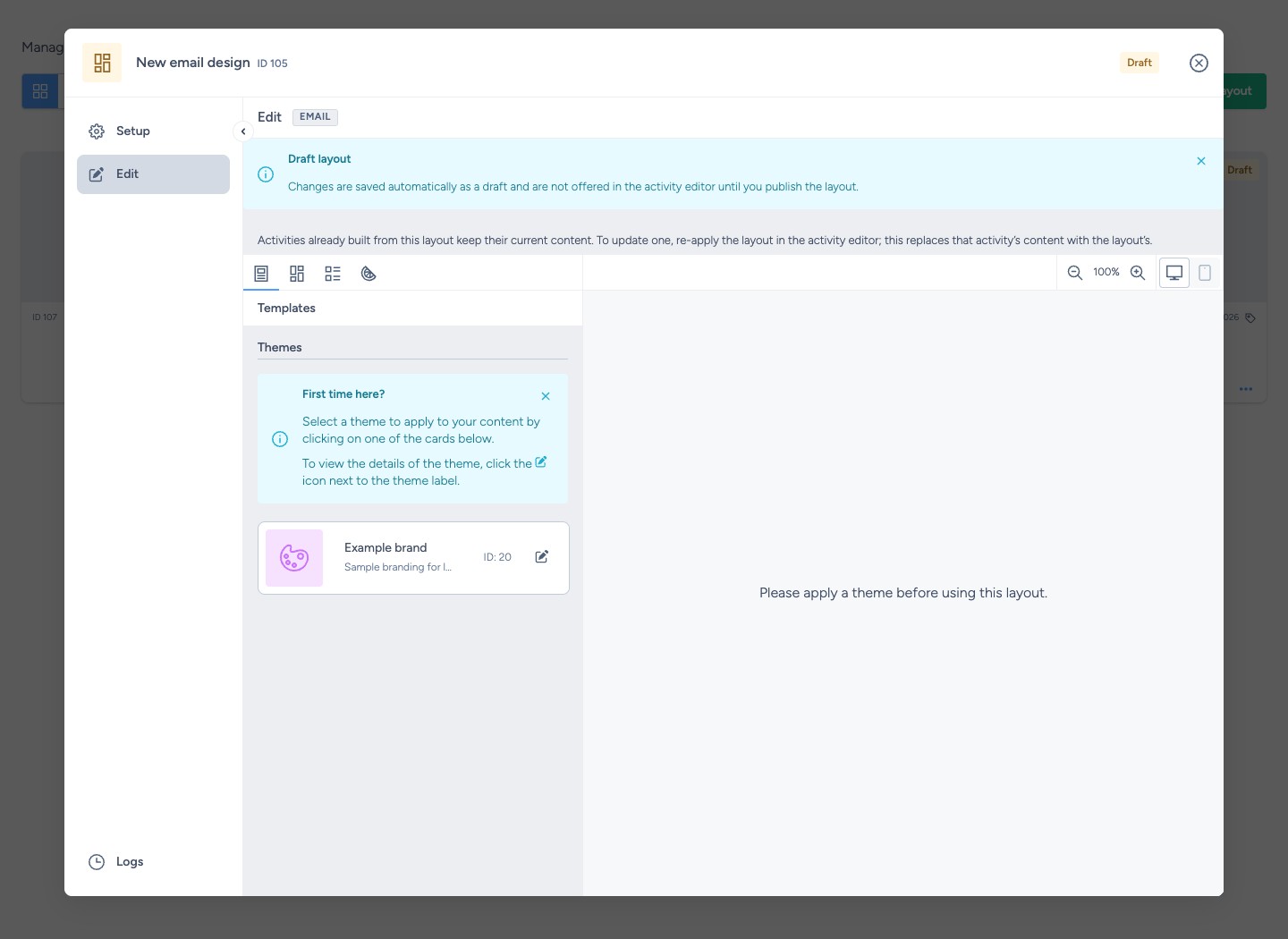
Editing a published layout's content returns it to draft. It is removed from the activity editor's layout choices until you publish it again. To prepare a separate version while keeping the original available, clone the layout first.
Changing only its name, description or tags keeps a published layout published.
Manage layout tags
- Open Settings > Layouts, select the layout and open Setup.
- In Tags, start typing a tag name. Select an existing tag from the matching results to add it.
- To add a new tag, type its full name and select the matching name offered in the results.
- To remove a tag from the layout, select the remove icon beside that tag. To change the layout's tag assignments, remove an unwanted tag and select or add its replacement.
Changes save automatically. Adding or removing tags does not return a published layout to draft. Use More filters > Tag on the layouts dashboard to find layouts by tag.
You can also select or add tags in the Tags field when saving an activity revision as a layout, before selecting Save layout.
Preview and check a layout
Open the layout's Edit tab and apply a theme in Templates if one is not already applied. Use the preview controls to review the design before publishing:
| Control | Use it to |
|---|---|
| Desktop and Mobile | Switch the preview size for email and web layouts. |
| Zoom in and Zoom out | Enlarge or reduce an email or web preview. Select the displayed percentage to reset to 100%. |
| Personalization | Choose which segments to preview when an email or in-app message layout contains segments. Select or clear segment checkboxes to update the preview. |
Content checks run automatically after the preview updates. When errors or warnings are found, Content checks shows an issue count:
- Select Content checks to open the results.
- Select a category to read its errors and warnings.
- If an issue includes a linked content block name, select it to open that block for editing in Content, or Pages for page-based layouts.
- Correct the issue and review the updated preview and check results. Proofread the layout as well as reviewing the automated checks.
Local Area Marketing layouts
For organisations with partitions, Setup includes LAM layout (available to partition users) under Access. Enable this to designate a Local Area Marketing layout. The layout must also be published to appear in the activity editor.
The layouts offered to content editors depend on their access:
| User access | Available layouts |
|---|---|
| Permission to author layouts | Published ordinary layouts for the activity type. LAM layouts are also listed, but can be selected only when the activity is allocated to partitions. |
| Assigned to partitions, without permission to author layouts | Published LAM layouts for the activity type. A LAM layout must be applied before adding content. Themes cannot be selected or changed. |
| Head-office access, without permission to author layouts | Published ordinary layouts for the activity type. LAM layouts are not offered. |
Content editors without layout authoring permission cannot edit, remove or reorder content supplied by an applied layout. They can add and edit their own content outside the grid rows supplied by the layout. When a LAM layout is applied, they can re-apply that layout to reset its content, but cannot switch to a different layout.
Publish or unpublish a layout
| Status | What it means |
|---|---|
| Draft | You can continue editing the layout in Settings, but it is not offered for application to activities. |
| Published | The layout is offered in the activity editor, subject to the user's access and the activity type. Content edits return it to draft. |
To publish a layout:
- Open the layout and select Edit.
- If no theme is applied, select one in Templates and confirm.
- Review the layout's content and preview.
- Select Setup.
- Under Access, select Publish.
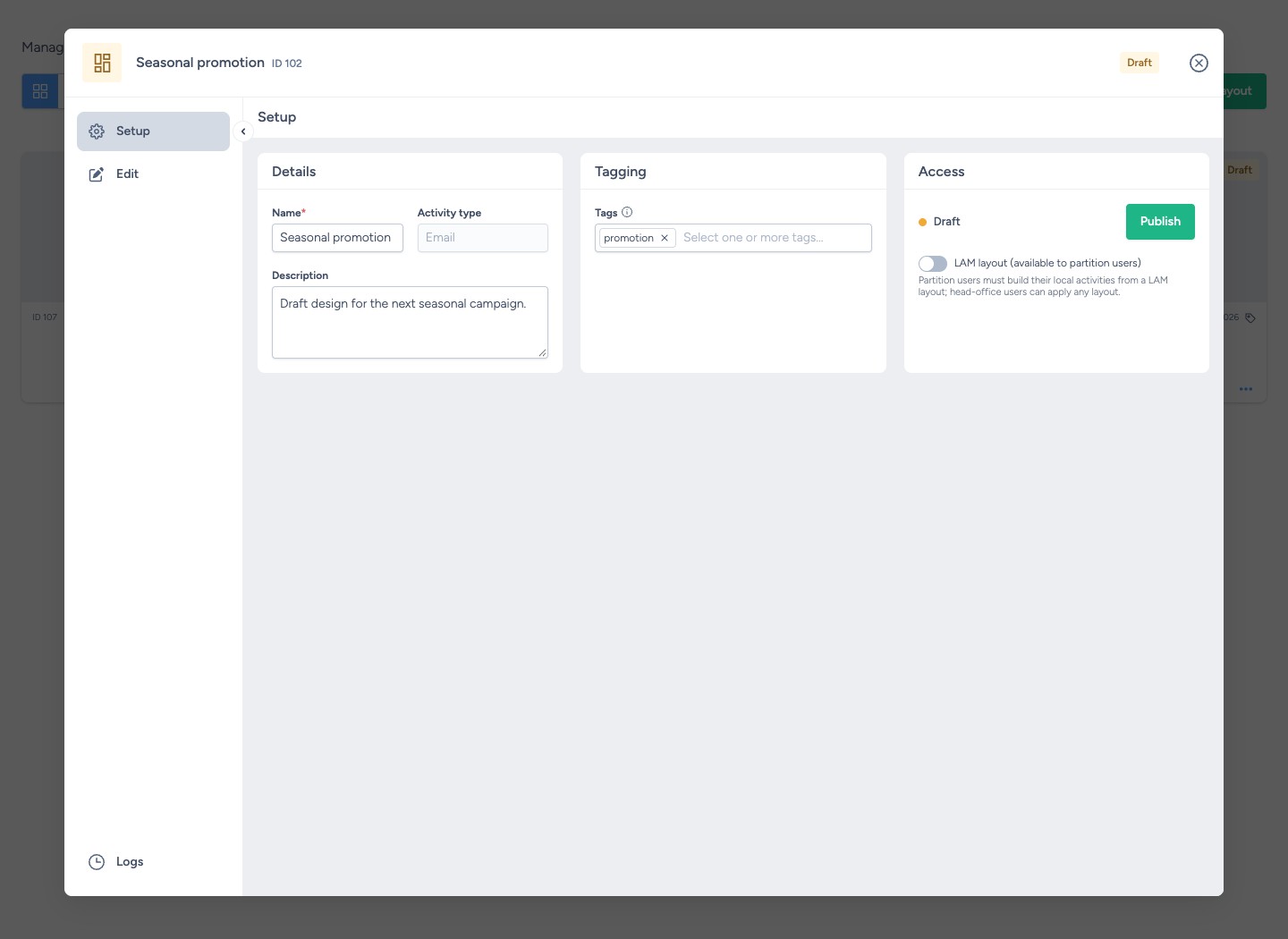
You can also select Publish from the layout's three-dot Layout options menu in Settings > Layouts. A theme must be applied before publishing.
To withdraw a layout from the activity editor's choices, select Unpublish in Setup > Access, or in its Layout options menu. The layout returns to Draft and remains available to edit in Settings.
Clone a layout
- Open Settings > Layouts.
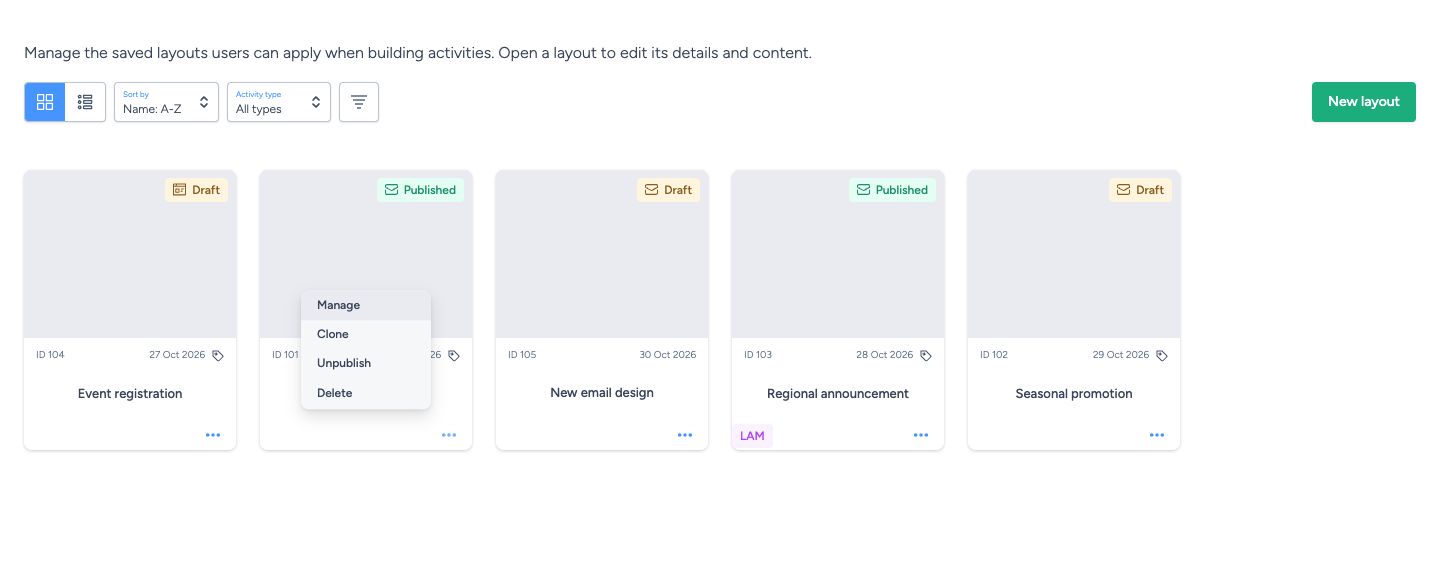
- Open the layout's three-dot Layout options menu.
- Select Clone.
- Open the copy from the list, or use Setup or Edit in the confirmation notification.
- Rename and edit the copy as needed, then publish it when ready.
The copy starts as a Draft, even if the original is published. Its name begins with “Clone of”; a number is added when needed to keep the name unique. Cloning leaves the original layout unchanged.
If the notification says the layout was cloned but its tags could not be copied, open the copy and add its Tags in Setup.
Apply a layout to an activity
- Open the activity editor and select Templates.
- Find the layout under Saved layouts. LAM users without layout authoring access see their layouts under Available layouts instead.
- Select the layout and confirm the selection.
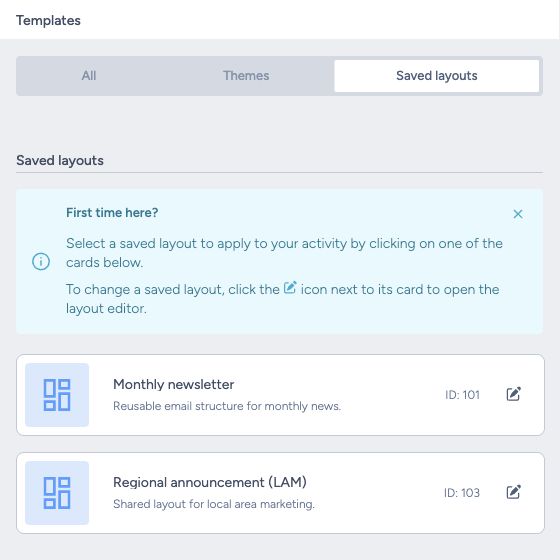
When both themes and layouts are available, the pane includes All, Themes and Saved layouts filters. Search themes and layouts appears when there are more than ten available themes and layouts combined. Search matches names, descriptions and tags.
Users with layout authoring access can open a published layout's editor using its edit icon in the Templates pane. Layout deletion is managed in Settings > Layouts.
Applying or re-applying a layout replaces the activity's content with the layout's content. If the layout includes an applied theme, it replaces the activity’s theme too; otherwise, the activity’s existing applied theme is retained. If you have permission to change themes, apply the layout before choosing a different theme in Templates. Review the activity before confirming, particularly if you have already customised it.
Editing, unpublishing or deleting a saved layout does not update content in activities already built from it. To bring an existing activity up to date, publish the updated layout and re-apply it in that activity. This also replaces any custom content in the activity.
Delete a layout
- Open Settings > Layouts.
- Open the layout's three-dot Layout options menu.
- Select Delete.
- Confirm the deletion in the pop-up.
The layout is removed from the management screen and the activity editor's choices. Activities already built from it keep their current content. If you only want to stop users applying a layout while you work on it, use Unpublish instead.
Troubleshooting
| Issue | What to check |
|---|---|
| A layout appears in Settings but not in an activity | Check that it is Published, matches the activity type and is available to that user. For partition users, check its LAM designation. |
| Publish is unavailable because a theme is missing | Open Edit > Templates, apply a theme and return to Setup. |
| A layout disappears from the activity editor after editing | Content edits return published layouts to Draft. Publish it again when ready. |
| A new layout cannot be created because no template is configured | Contact your organisation administrator or Taguchi Support to check the template for the selected activity type. |
| A layout name is already in use | Choose a different name and check drafts as well as published layouts. |
| A different layout cannot be applied to an activity | When a LAM layout is applied, content editors without layout authoring permission can re-apply that layout to reset its content, but cannot switch to a different layout. Ask a layout author to review the activity. |
| The applied LAM layout cannot be re-applied | The layout may have been unpublished or deleted. Ask a layout author to publish it again, or to review the activity. |
| The layout editor is unavailable on the server | Contact Taguchi Support to check that your server supports the layout editor. |
| Your latest changes could not be saved when closing | Cancel closing to keep working on the unsaved changes, or confirm only if you want to discard them. |
Related articles
If you have questions about saved layouts, please contact Taguchi Support.