- Support Home
- Knowledge Base
- Campaigns And Activities
- Broadcast
- Quiet time periods
Related articles
Need some help?
If you have questions or can't find what you're looking for, we're here to help.
Taguchi Support is available 24 hours a day, Monday to Friday.
Create New TicketAPI Version 5
Did you know Taguchi has an API that supports all of the functionality provided by the admin interface and more?
Explore API Documentation
Thanks for your feedback!
Quiet time periods
Quiet time periods let you control the hours when an email activity can send messages. Messages that are ready to send outside a permitted period stay queued. During normal processing, the queue checks whether they are eligible and resumes them when it finds them eligible during an allowed window.
This setting is available for email activities where it appears in the Deployment tab. The quiet period component is part of the email Deployment pane. Quiet periods control when that email activity can send; they do not limit how often an individual subscriber can receive it. If the settings are not shown in the email activity's Deployment tab, they are not available for that email activity.
Set quiet time periods
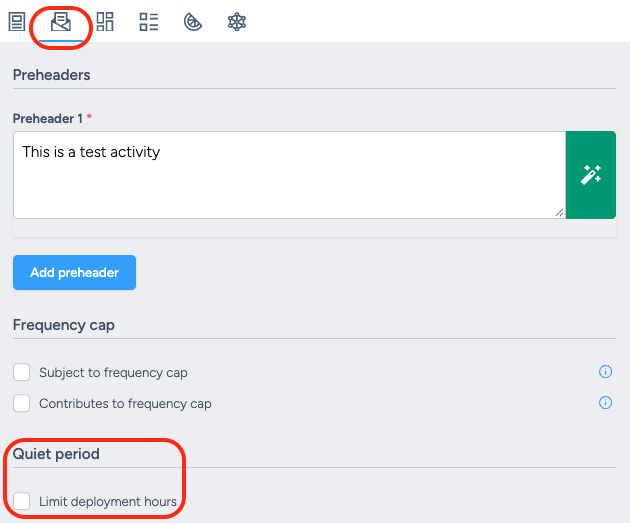
Within the email activity, select the Deployment tab, scroll down to the Quiet period settings, and enable Limit deployment hours.
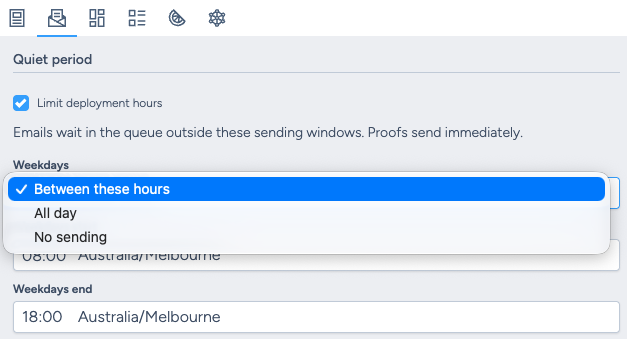
For Weekdays, Saturday and Sunday, choose the option that matches your sending plan:
- Between these hours: Set a permitted start and end time.
- All day: Permit sending from 00:00 to 24:00.
- No sending: Exclude that day or day group from sending.
Choose No sending for any day when the email activity must not send, and ensure the preceding day's permitted window does not extend overnight into that day. When quiet periods are enabled, at least one day or day group must have a permitted sending window.
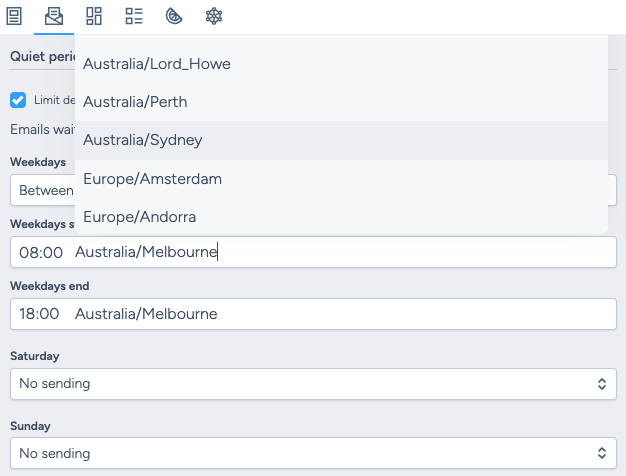
Choose the time zone to use for the permitted hours. The selected time zone applies to all three schedules: weekdays, Saturday and Sunday.
Save the deployment settings and confirm the email activity is deployed.
Example: no overnight or weekend delivery
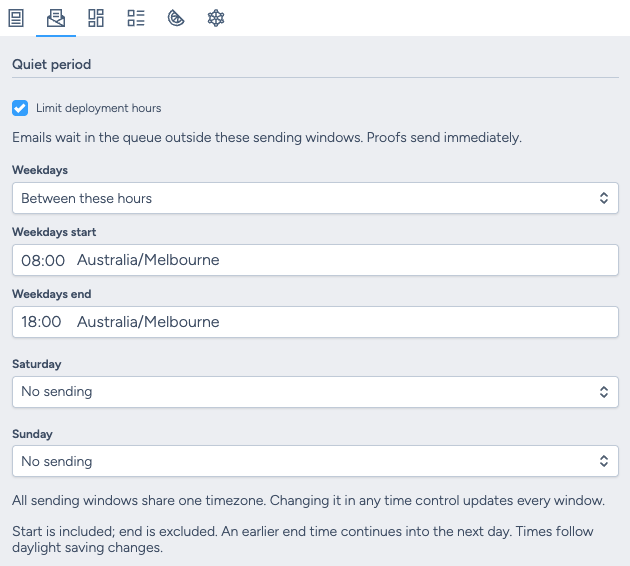
To send only during business hours, set the weekday window to 8:00 am–6:00 pm, and set Saturday and Sunday to No sending. Select the time zone you want the permitted hours to follow.
Messages that become ready after 6:00 pm or during the weekend remain queued. During normal processing, the queue checks whether they are eligible and resumes them when it finds them eligible during a permitted window, such as after 8:00 am on the next weekday. Messages are not discarded because a quiet period begins. Opening a permitted window does not itself guarantee an immediate send.
How permitted windows work
The start time is included and the end time is excluded. For example, a window from 8:00 am–6:00 pm permits sending at 8:00 am and up to, but not including, 6:00 pm.
If the end time is earlier than the start time, the permitted window continues overnight into the next day. The window counts as starting on the day where it was configured.
For example, a Friday window from 10:00 pm–6:00 am permits sending from 10:00 pm Friday until, but not including, 6:00 am Saturday. This applies even if Saturday is set to No sending, because the overnight window started on Friday.
How the time zone works
The weekday, Saturday and Sunday schedules share one time zone. The selected time zone controls the email activity's permitted hours; the hours are not adjusted to each subscriber's local time.
The configured hours follow daylight saving changes in the selected time zone. For example, a start time of 8:00 am remains 8:00 am in that time zone when daylight saving time changes.
Queued, proof and test messages
Messages outside the permitted windows remain queued. During normal processing, the queue checks whether they are eligible and resumes them when it finds them eligible during an allowed window. Opening a permitted window does not itself guarantee an immediate send. Other deployment conditions may also affect the actual send time.
Proof and test messages bypass quiet periods and send immediately.
When changes take effect
Queued jobs keep the quiet-period settings captured when they were queued. Changes made later apply to subsequent sends and do not change the settings already captured by queued jobs.
Quiet periods and other send settings
Quiet periods are different from Subscriber Send Frequency and other deployment controls:
- Quiet time periods limit the times of day and days of the week when an email activity can send.
- Subscriber Send Frequency limits how often an individual subscriber can receive a trigger. For details, see Set up a scheduled trigger.
- Throttle controls the send speed.
- Send limit controls the maximum audience size for a send.
If you use Send Time Automation to schedule sends at different times, make sure the planned send times fall within the permitted windows. Quiet periods use one time zone for the email activity and do not convert the permitted hours to each subscriber's local time. A message that is ready outside a permitted window waits in the queue until normal queue processing finds it eligible to send during an allowed window.
For more about queuing and sending, see Email & SMS activity deployment and send process.
If you need help configuring quiet time periods or reviewing an email deployment, please contact Taguchi Support.