- Support Home
- Knowledge Base
- Subscriber Management
- Data Management
- What does Taguchi look like for partition users (stores/franchisees)?
Related articles
Need some help?
If you have questions or can't find what you're looking for, we're here to help.
Taguchi Support is available 24 hours a day, Monday to Friday.
Create New TicketAPI Version 5
Did you know Taguchi has an API that supports all of the functionality provided by the admin interface and more?
Explore API Documentation
Thanks for your feedback!
What does Taguchi look like for partition users (stores/franchisees)?
Once a partition user is allocated to a partition (store), they can access Taguchi with a tailored view.
When a partition user logs in, the dashboard partition drop-down shows all stores they are assigned to. They can view all assigned partitions or filter by a specific partition.
Partition users can access the following areas in Taguchi:
- Dashboard: View allocated activities
- Campaigns: View allocated campaigns
- Assets: View allocated assets
- Subscribers: View allocated lists
- Audiences: View allocated audiences
The platform is filtered to each partition user’s assigned store(s).
Partition users also have access to base-level reporting:
- Subscriber engagement
- Campaign performance
- Database growth
Head office selections impact partition user view and customisation options
Head office controls content distribution for partition users, including activities, assets, lists, and audiences.
When head office selects a partition to be included in an activity, the partition user can see that activity.
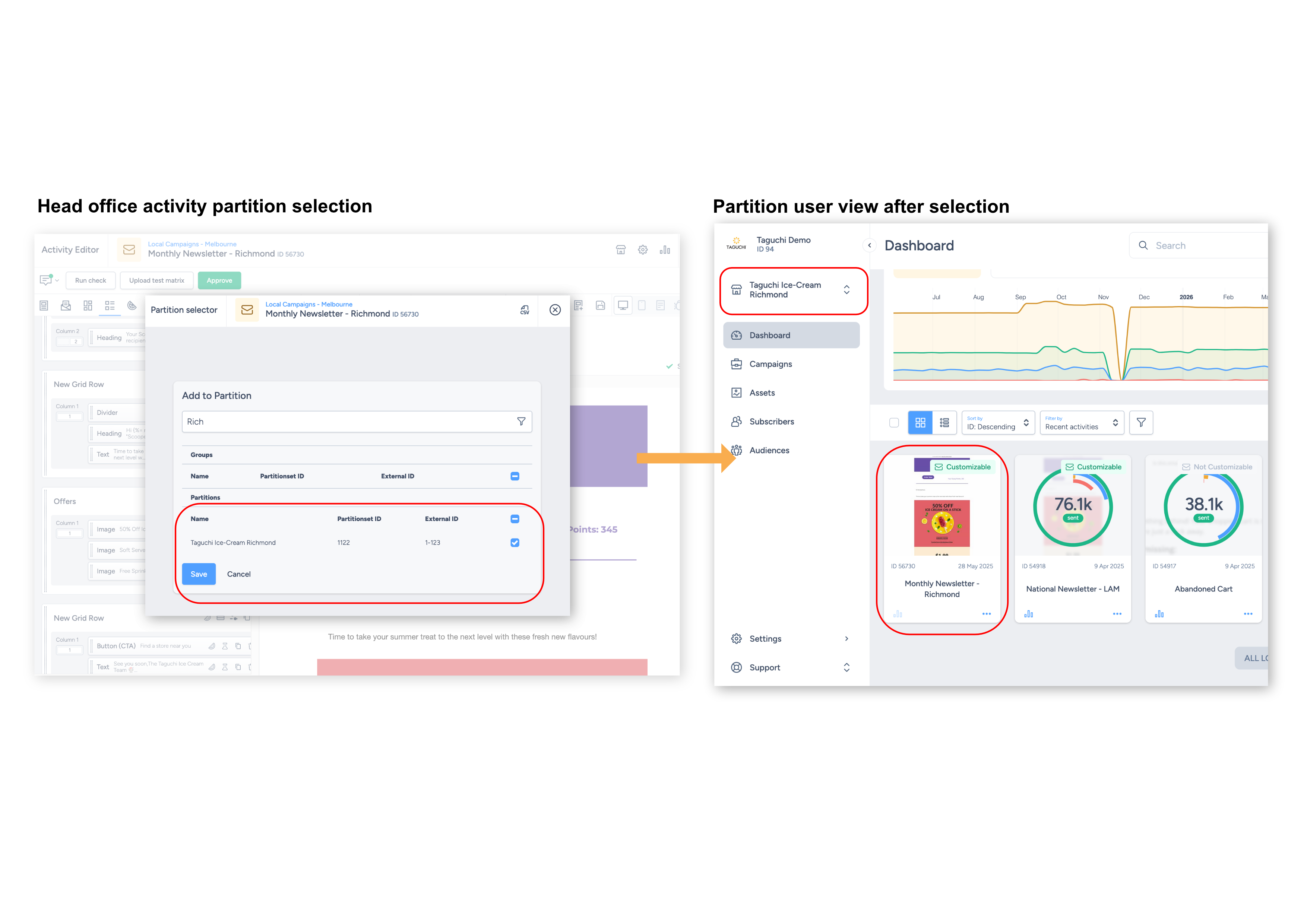
By default, after partitions are selected for an activity, that activity is not customisable by the partition user.
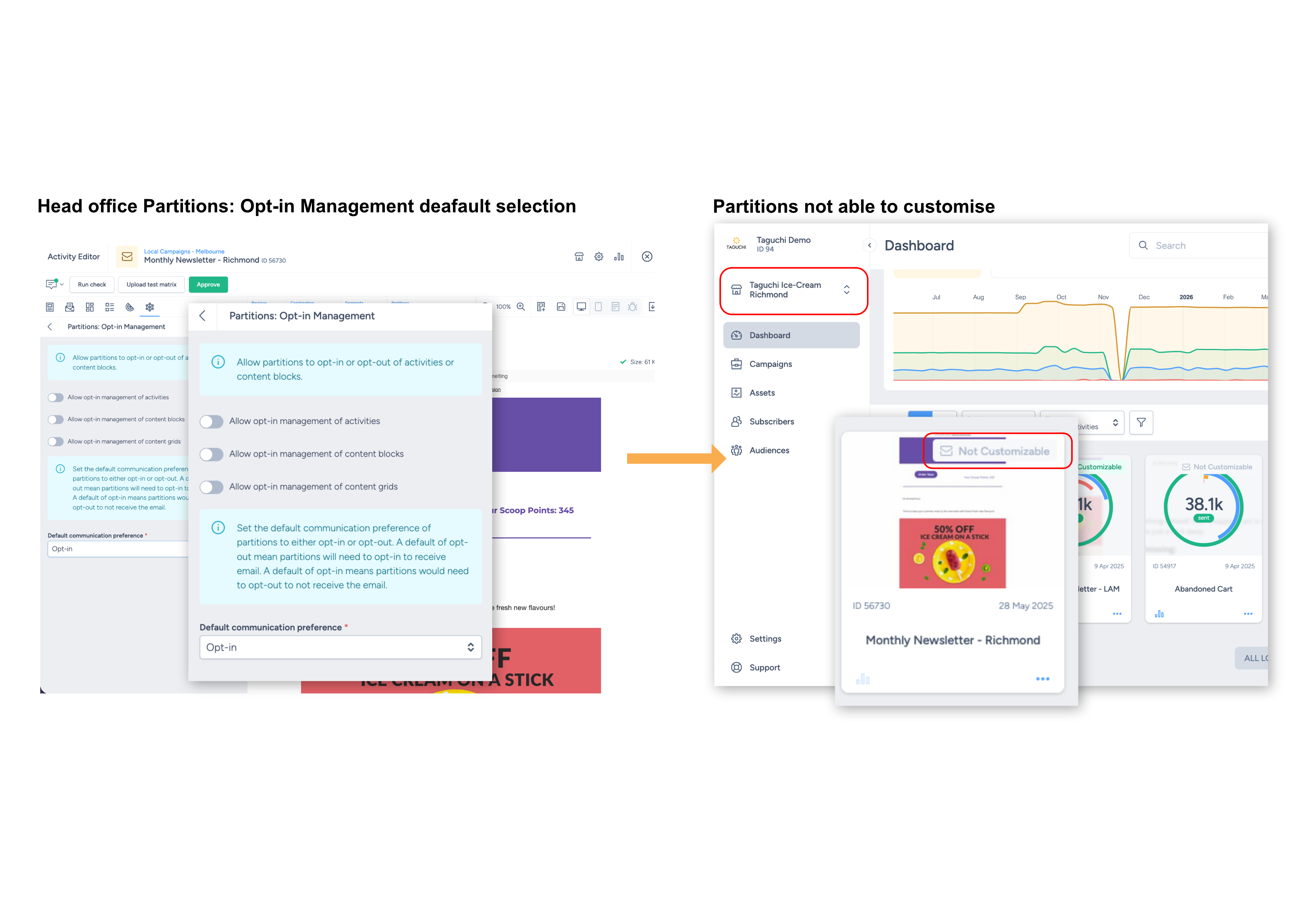
If head office wants partition users to customise specific activities, this is managed via Partitions: Opt-in Management in the activity Features tab.
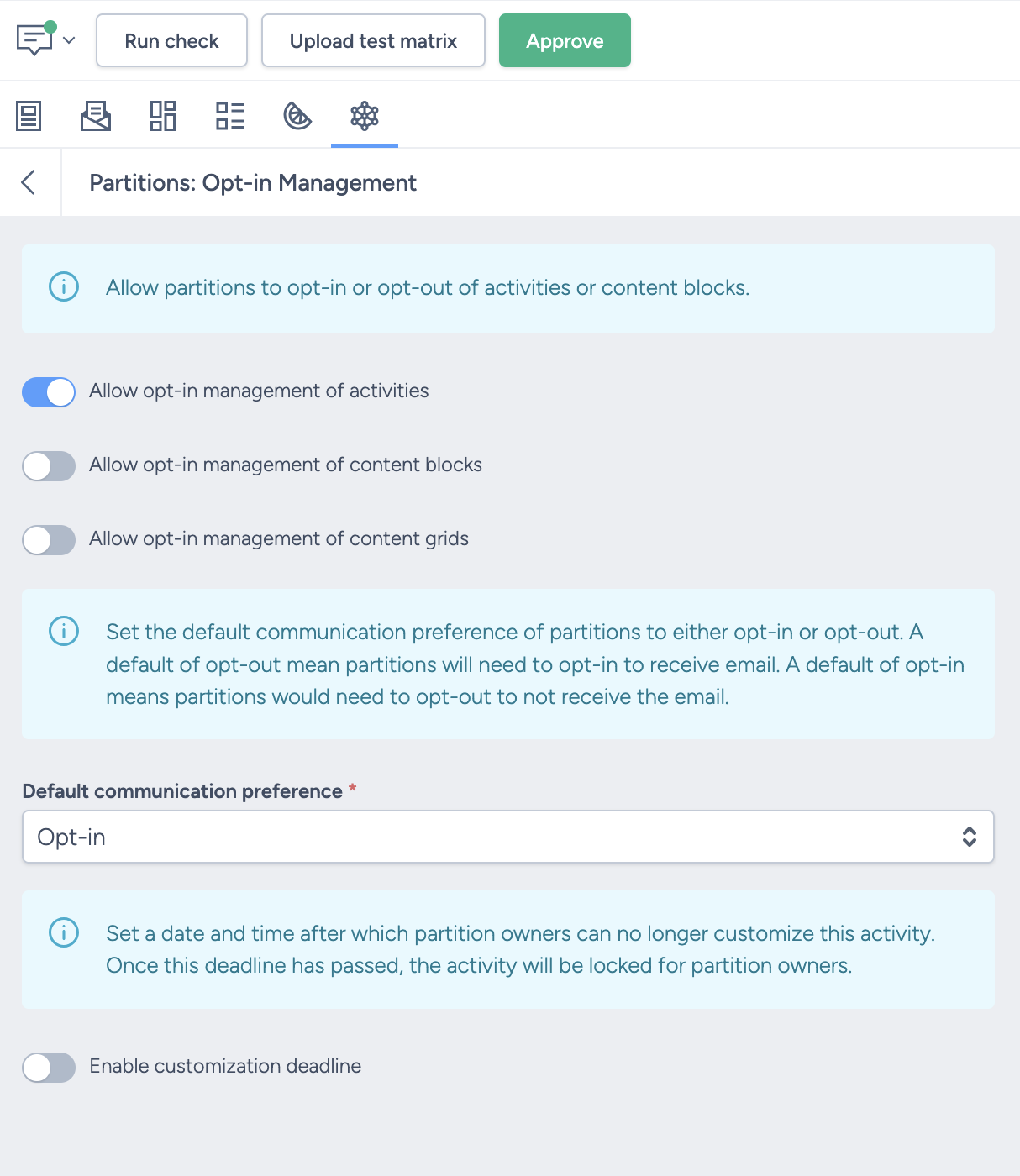
This feature allows head office users to control whether partitions can opt in or opt out of communications sent by head office. It also enables opt-in management for specific activities, content and content grids, plus customisation deadlines.
A head office user can also enable a customisation deadline. After the deadline passes, the activity is locked for partition users.
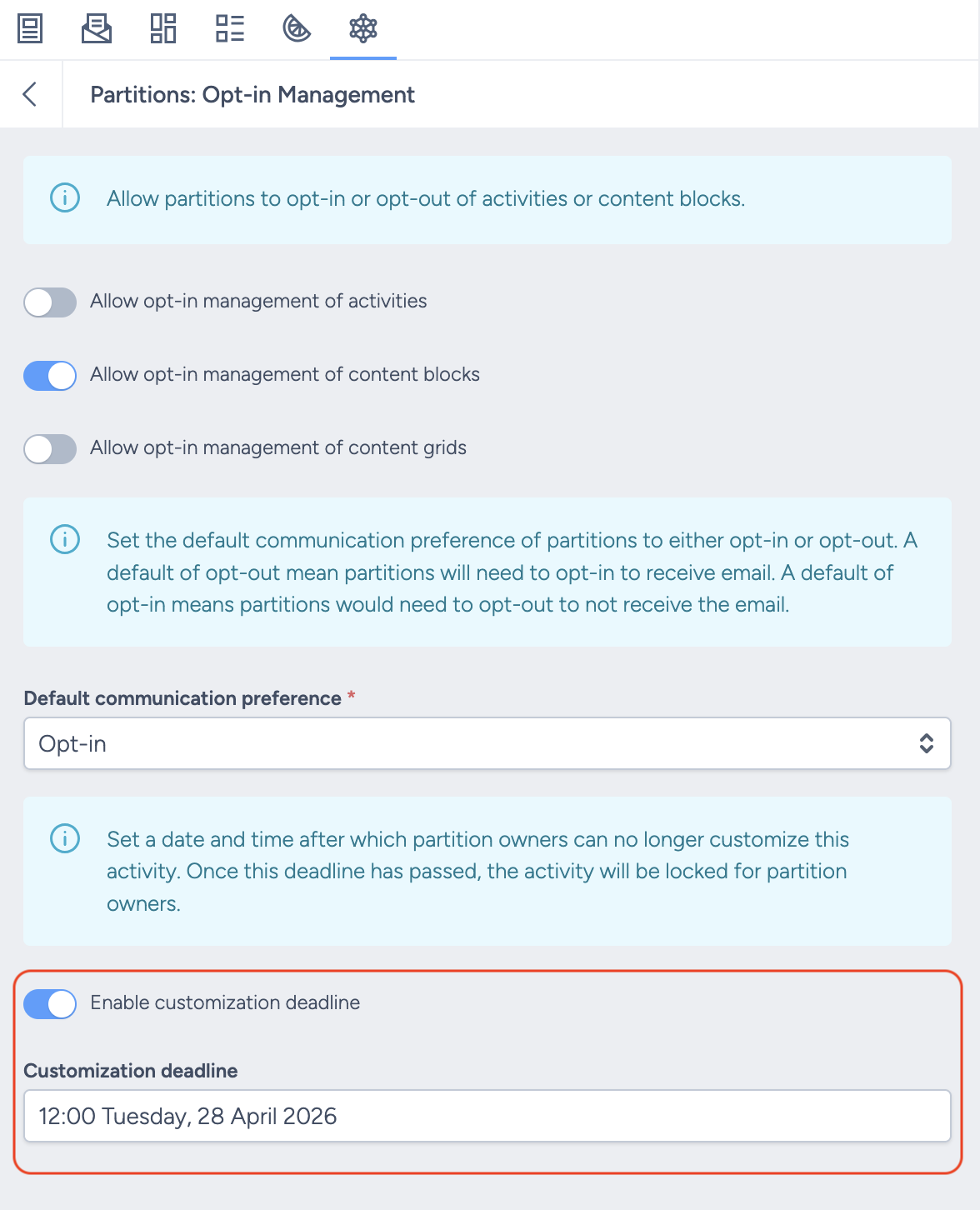
More detail on each setting:
Partition user activity editor view
In an activity, partition users see a simplified version of the activity editor.
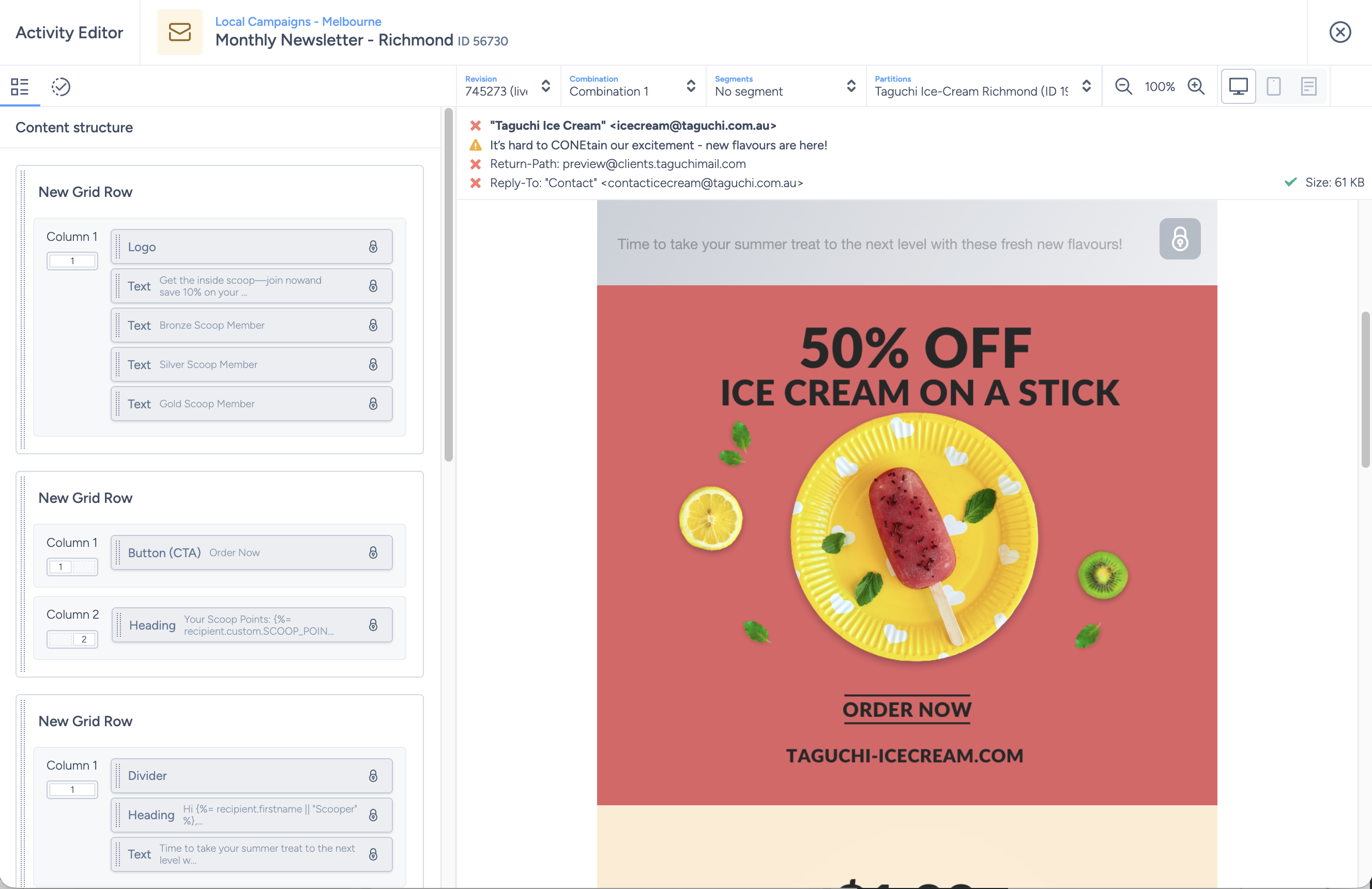
Head office can fully edit the activity. Partition users can only manage opt-in settings that head office has enabled. Content that is not customisable appears as locked.
Changes made by head office to any visible activity content, assets, or related items are reflected immediately for partition users.
Any changes head office makes to content visible to partition users will be immediately reflected in the partition user view. Ensure assets and activities are fully ready before allocating partitions.
Partitions: Opt-in Management selections and outcomes
This feature now follows rule-based behaviour driven by the enabled feature combination:
- Default communication preference applies across all enabled opt-in features.
- Activities controls whether a partition is included in head office sends.
- Content and Content Grids control customisation rights for the enabled blocks or rows only.
- If no opt-in features are enabled, partition users cannot manage activity inclusion or content-level opt-in.
| Enabled Features | Default communication preference: Opt-In | Default communication preference: Opt-Out |
|---|---|---|
| Activities | Partitions are included in head office sends by default. Partitions must opt out if they do not want to be included. | Partitions are excluded from head office sends by default. Partitions must opt in if they want to be included. |
| Content | Content is included in partition communications by default. Partitions must opt out if they do not want specific content included. | Content is excluded from partition communications by default. Partitions must opt in if they want specific content included. |
| Content Grids | Content grids are included in partition communications by default. Partitions must opt out if they do not want specific content grids included. | Content grids are excluded from partition communications by default. Partitions must opt in if they want specific content grids included. |
| Activities + Content | Partitions are included in head office sends by default and all enabled content is included by default. Partitions may opt out of either setting independently. | Partitions are excluded from head office sends by default and all enabled content is excluded by default. Partitions may opt in to either setting independently. |
| Activities + Content Grids | Partitions are included in head office sends by default and all enabled content grids are included by default. Partitions may opt out of either setting independently. | Partitions are excluded from head office sends by default and all enabled content grids are excluded by default. Partitions may opt in to either setting independently. |
| Content + Content Grids | All enabled content and content grids are included by default. Partitions may opt out of either independently. Partitions cannot choose head office send inclusion. | All enabled content and content grids are excluded by default. Partitions may opt in to either independently. Partitions cannot choose head office send inclusion. |
| Activities + Content + Content Grids | Partitions are included in head office sends by default. All enabled content and content grids are also included by default. Partitions may opt out of any feature independently. | Partitions are excluded from head office sends by default. All enabled content and content grids are also excluded by default. Partitions may opt in to any feature independently. |
| No Features Enabled | No partition-level communication preference management is available. | No partition-level communication preference management is available. |
Head office enables activity opt-in where default communication preference is Opt-in
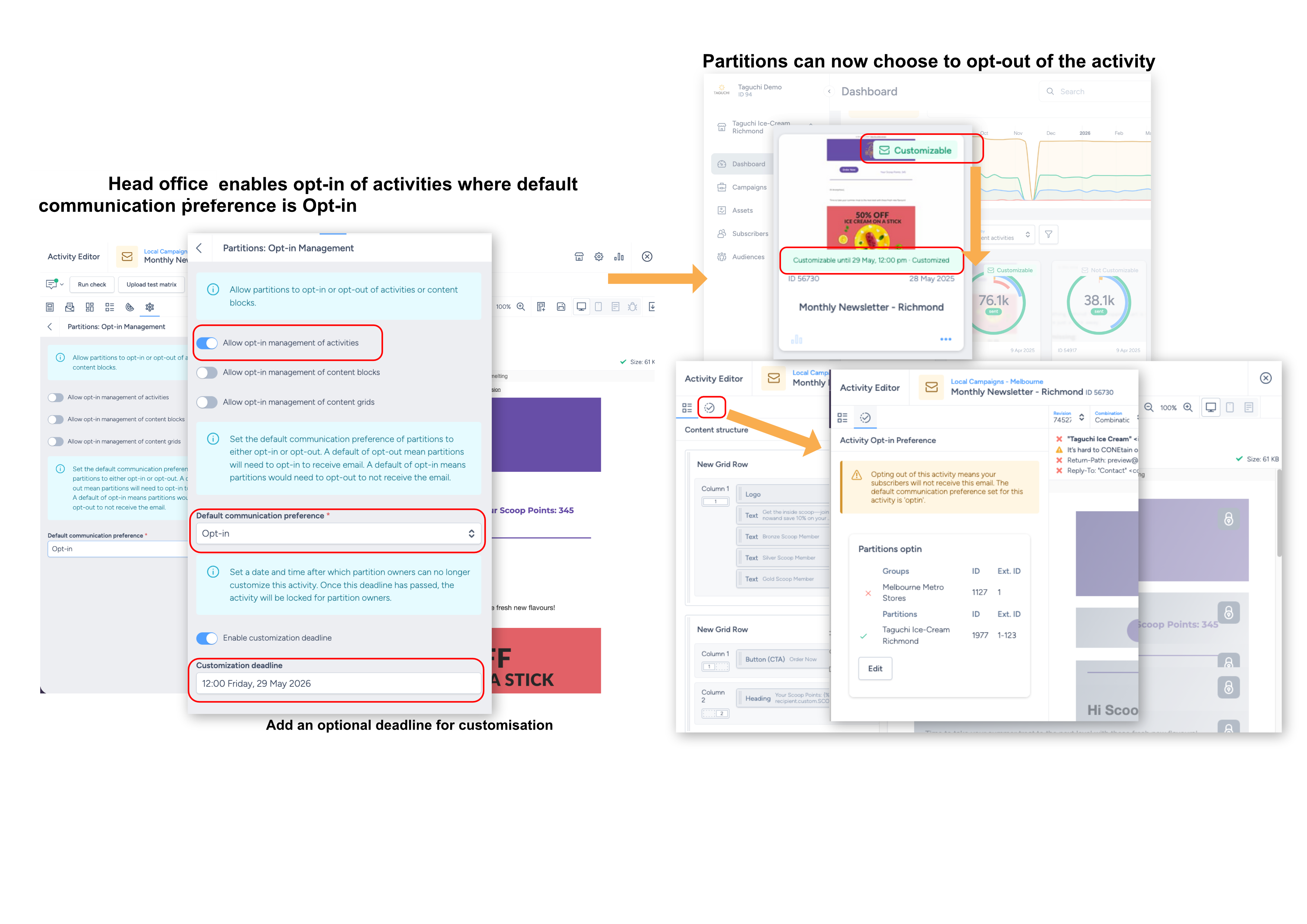
- Activity customisation is shown by a tick icon.
- Clicking it shows Activity Opt-in Preference.
- Partition users can view and edit partitions opted into the activity.
Head office enables content opt-in where default communication preference is Opt-in
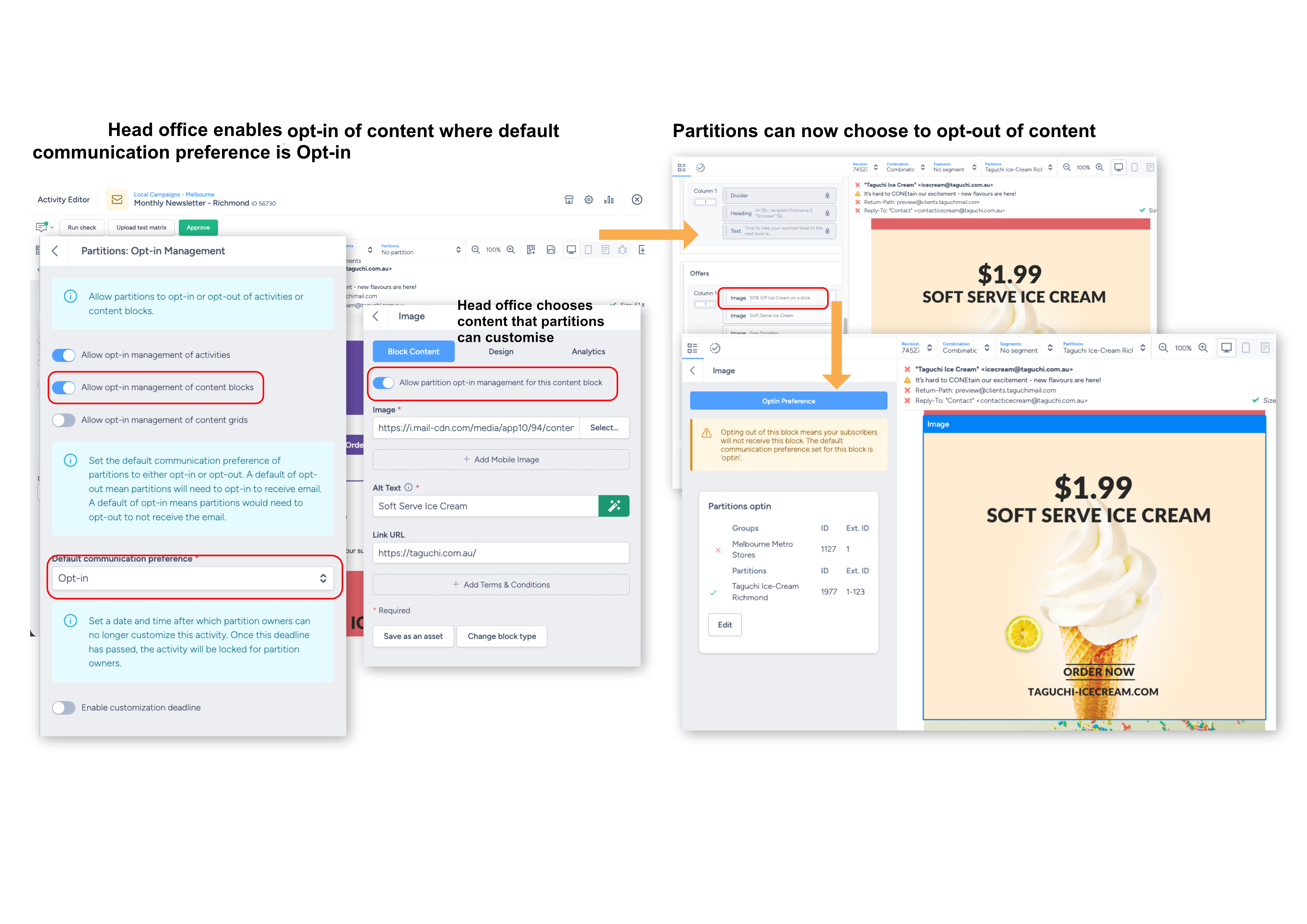
- Activity customisation is shown by a tick icon.
- Content that is not customisable is locked (greyed out).
- Customisable content can be selected and set with an opt-in preference.
Head office enables content grid opt-in where default communication preference is Opt-in
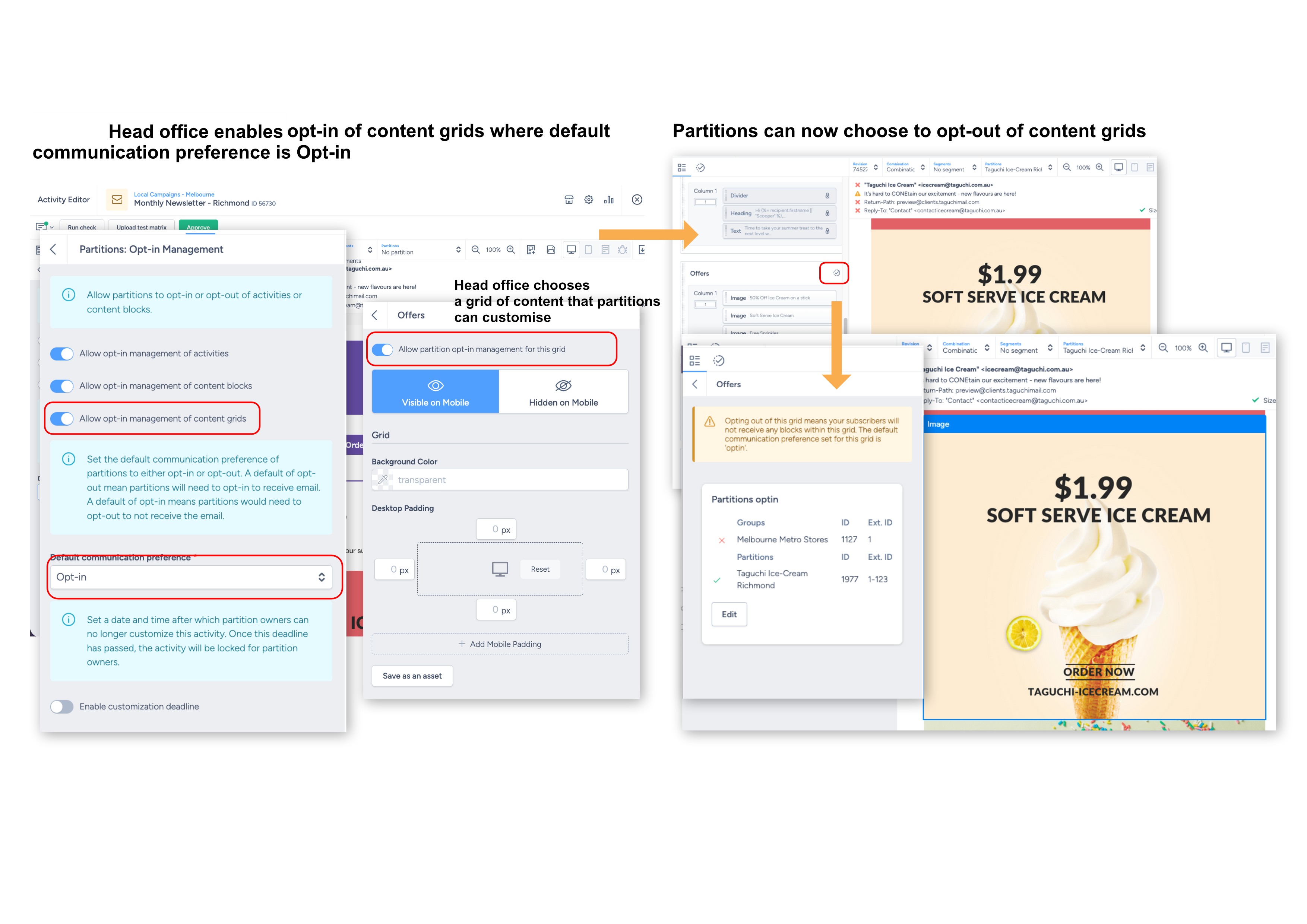
- Activity customisation is shown by a tick icon.
- Content that is not customisable is locked (greyed out).
- Customisable content grids can be selected and set with an opt-in preference for the grouped content.
More on partitions:
- Campaigns and activities: Partitions
- Scheduled partition assignment integration
- Local Area Marketing with Taguchi
- Partition sets
- Partitions
- How do I select partitions for a subscriber list?
- Using partition data in activities
Need help setting up partition users and opt-in management? Contact Taguchi Support.